




If you use Proxmox because you escaped from VMware’s grip or simply because it better fits your way of working or your open‑source crusade, monitoring Proxmox VE with Pandora FMS allows you to centrally monitor KVM virtual machines, LXC containers, and backups, thanks to its agent plugin.
Let’s see how to do it, so you exert real control over the virtual part of your IT infrastructure.
What is Proxmox VE and why monitor it?
Proxmox VE is an open-source option for your virtualization needs and one of the most common alternatives to the ever-present VMware. If you work with Linux or prefer it, you’ll feel that nice “coming home” sensation, because it uses two technologies.
- KVM (Kernel-based Virtual Machine): It works as a hypervisor integrated into the Linux kernel and lets you virtualize and run full operating systems.
- LXC (Linux Containers): It allows creating lightweight containers that share the host kernel, being faster and less resource-hungry. But yes—it works only for Linux, fulfilling your old dream of running 12 different “Hannah Montana Linux” instances on your Debian host. In return, forget virtualizing Windows or Temple OS this way—that’s what KVM is for.
Key features of Proxmox VE
Besides being usable at no cost, and offering that dual virtualization capacity we just saw, Proxmox has other standout features:
- Based on Debian: That is, “The Rock” when it comes to maturity and stability, using a custom kernel.
- Web management: So there’s no need to install a separate tool to manage it via GUI.
- Backups: With an integrated solution that uses the capabilities of each storage and virtualized OS.
Here is a view showing the virtual machines and containers in Proxmox, which we will later monitor in Pandora FMS using our Proxmox VE agent plugin.
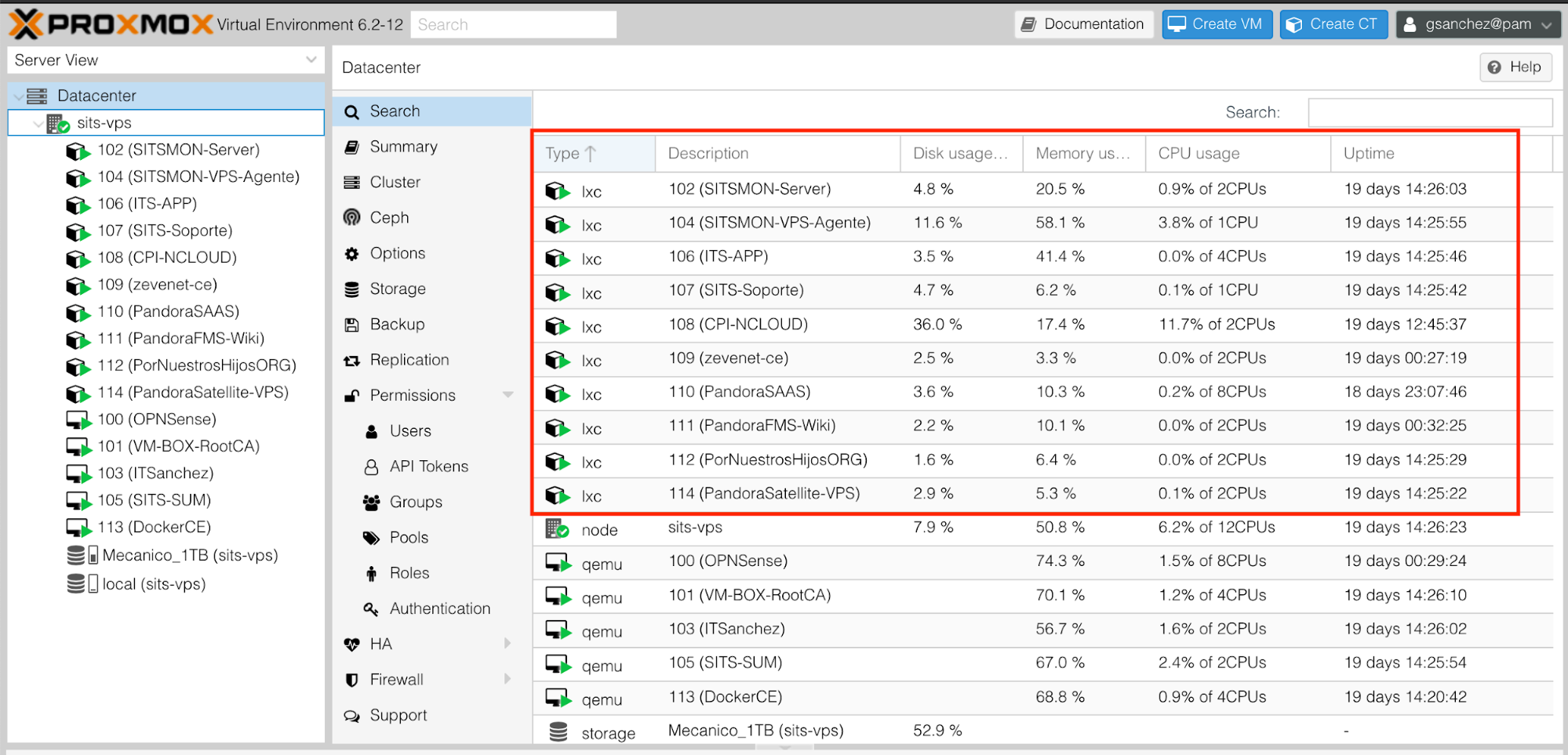
Virtual Machines (VMs)
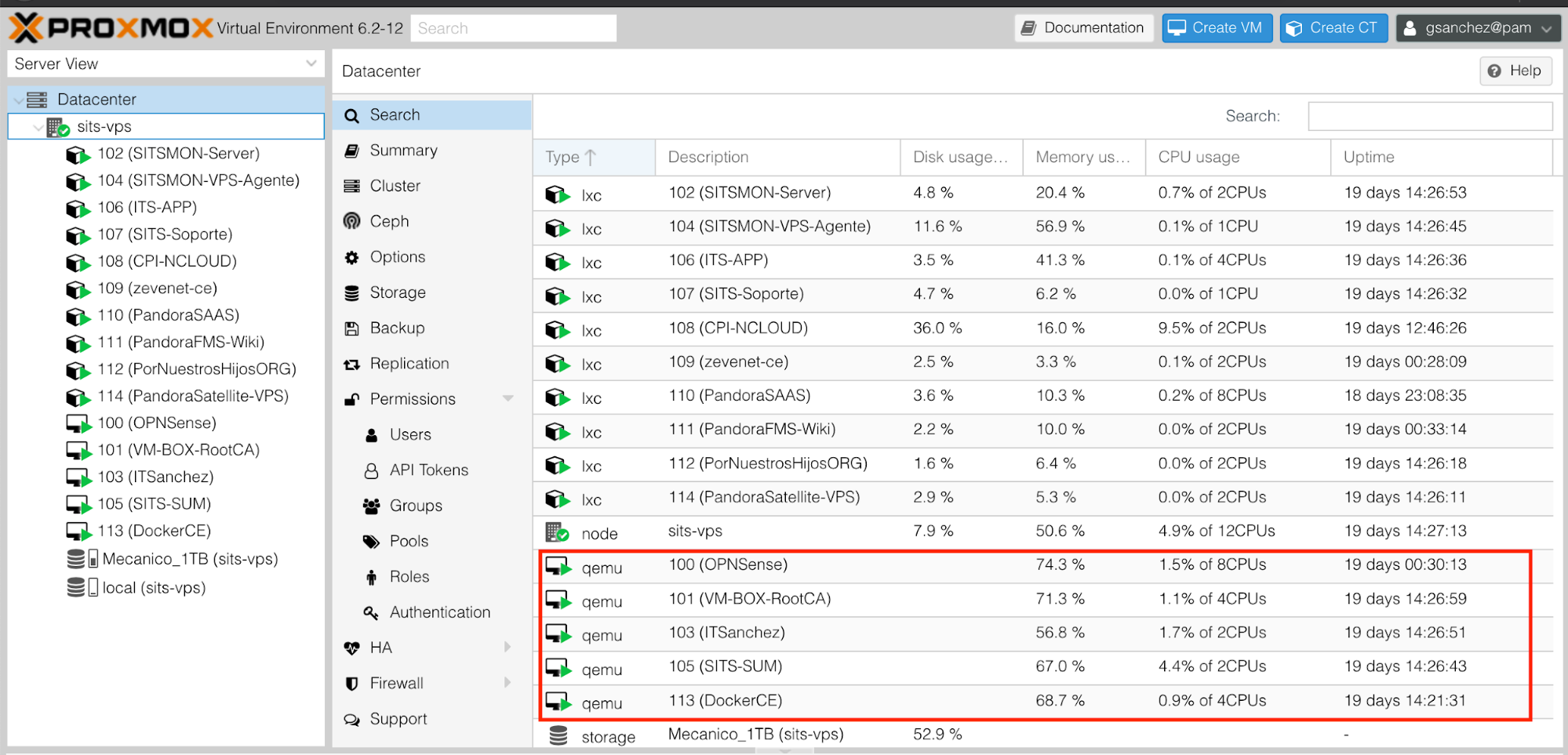
Containers (lxc)
Regarding those essential backups, Pandora FMS plugin has the ability to store the last backup state, along with the detailed task result.

Backup Task Details
How to install and configure Pandora FMS agent on Proxmox
If what we’ve read so far about Proxmox has convinced you, let’s get to the important part: bringing it under our control and monitoring that virtualization with Pandora FMS.
To do so, we’ll begin by installing the two required components:
- The general agent of Pandora FMS that collects the data.
- Pandora FMS Proxmox VE agent plugin, to connect both tools.
Agent installation and configuration on Debian
First, install Pandora FMS agent, which will act as our informant, collecting every important metric.
This step couldn’t be easier because it’s in the Debian 10 repositories, so just open the terminal on the Proxmox machine and run the following (I’ll assume you’re root or administrator, so I’ll omit `sudo`):
apt install pandorafms-agent -y
That installs the agent, but we still need to configure it (that will also be straightforward, as we’ll see). Before that, though, we need to install the Proxmox VE agent plugin.
Installing and configuring the Proxmox VE agent plugin in Pandora FMS
Pandora FMS is highly adaptable and extensible thanks to its plugins, so now we install the extension that will let us monitor Proxmox VE.
For that, I refer you to this documentation page, where you’ll find terminal commands. That way, we don’t elongate this guide and, above all, we make sure we always have up-to-date commands in case new plugin versions appear.
As you’ll see in the link, they’re just a few lines to copy & paste in the terminal. After installing both tools, one of the steps is to configure the agent to work with the plugin. As root, edit the file:
/etc/pandorafms/pandora_agent.conf
And add these lines at the end:
##### Proxmox VE – Plugin #######
module_plugin /etc/pandorafms/plugins/get_vms_mem.sh
module_plugin /etc/pandorafms/plugins/get_vms_status.sh
module_plugin /etc/pandorafms/plugins/get_cts_status.sh
Save the file and start the agent as a service (as specified in the documentation) using:
service pandorafms-agent restart
Once both are installed and the Proxmox VE agent plugin is running, we can now monitor our virtual machines in Proxmox.
Available metrics and examples in the Pandora FMS console
The agent works as our spy and the plugin allows us to view all the key information visually and just for each Proxmox element.
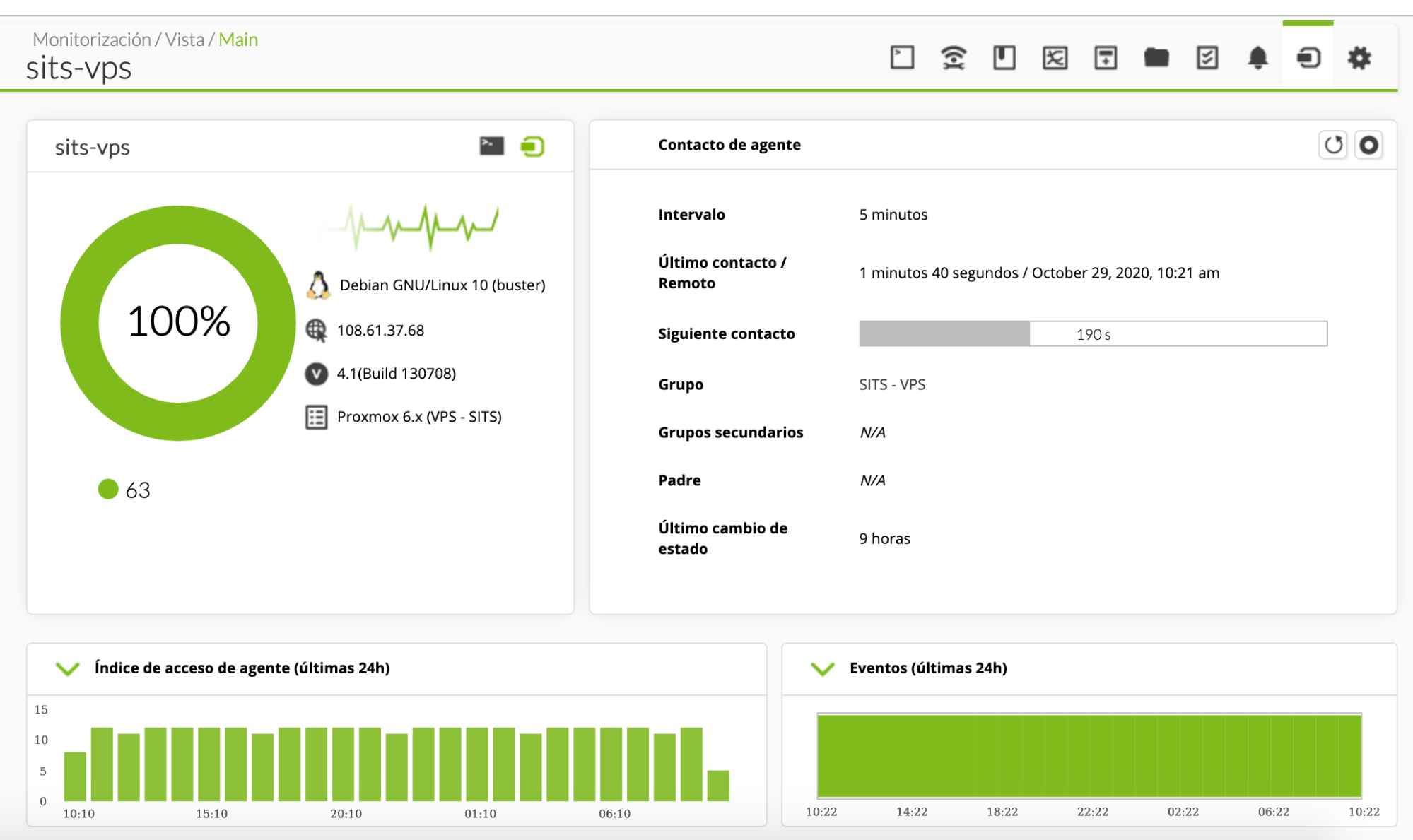
Proxmox VE Agent
Color codes let us see status at a glance, and everything is neatly ordered and ready for review when needed.
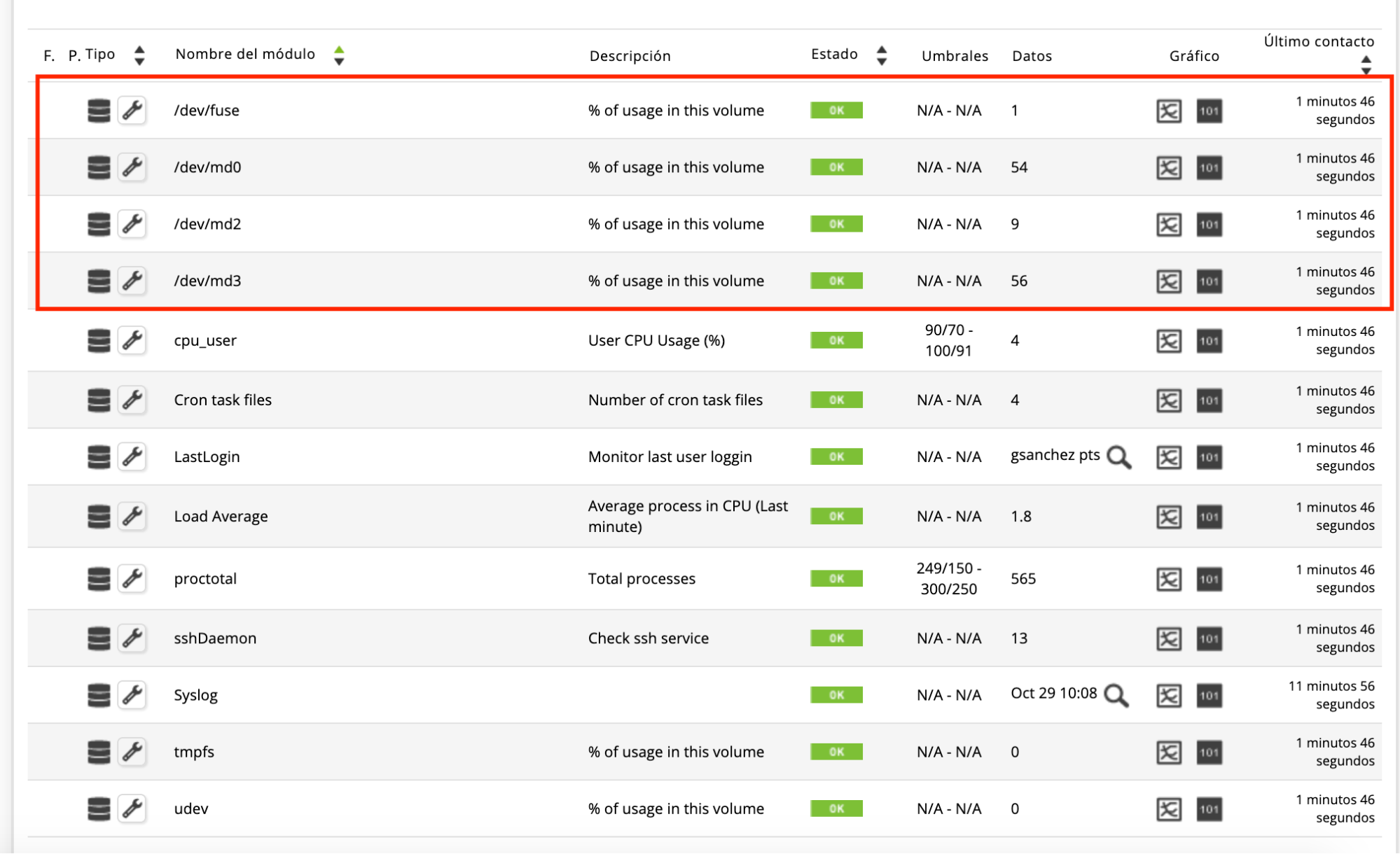
System Monitors (disks shown in the box)
The monitors in the previous image are part of the default Pandora FMS agent monitors for the OS.
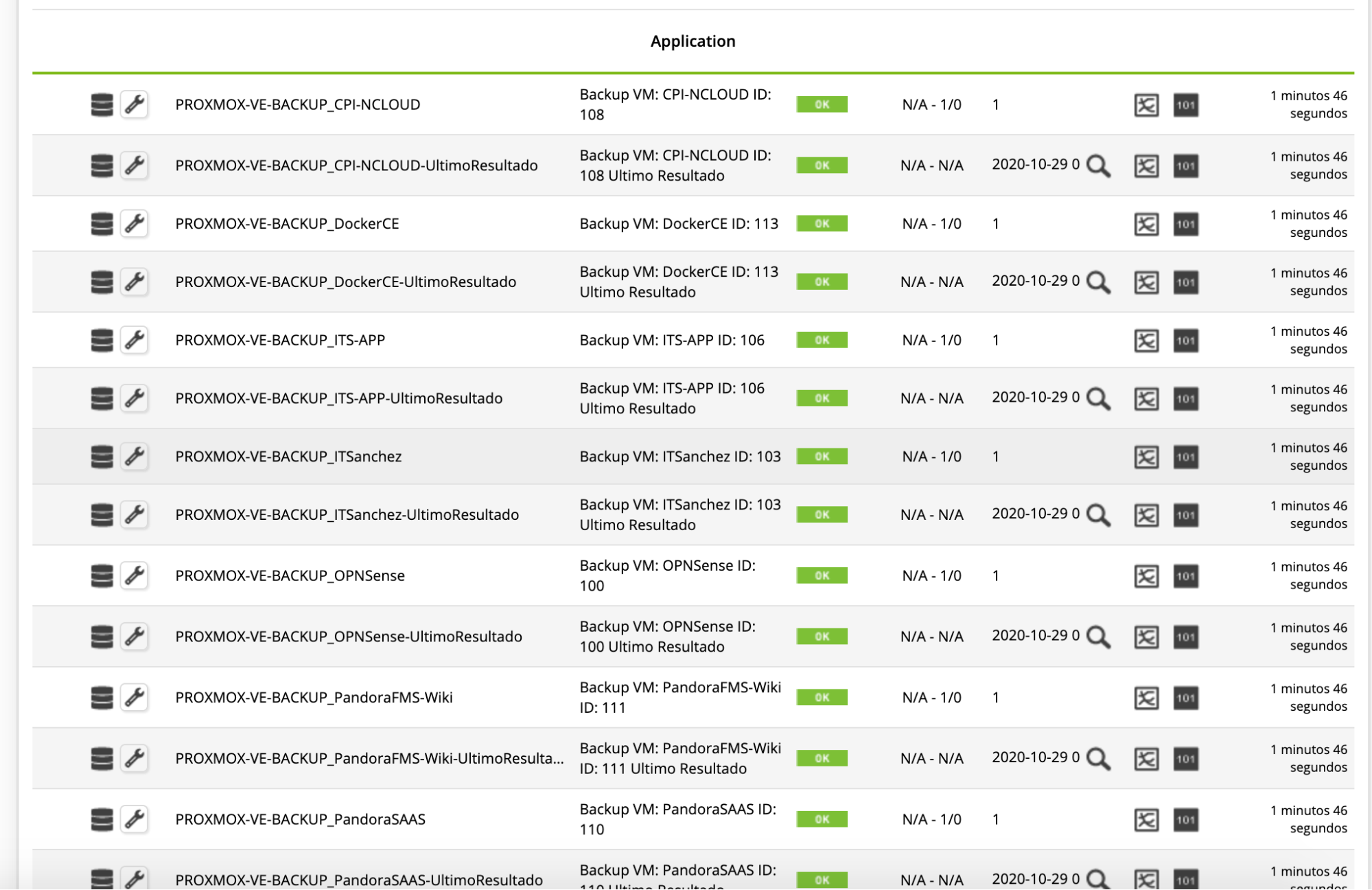
Proxmox VE Plugin Monitors
Proxmox VE KVM VM status in Pandora FMS
The plugin groups monitors into an Application for easier search, and below you’ll see a list of our virtualization elements complete with KVM.
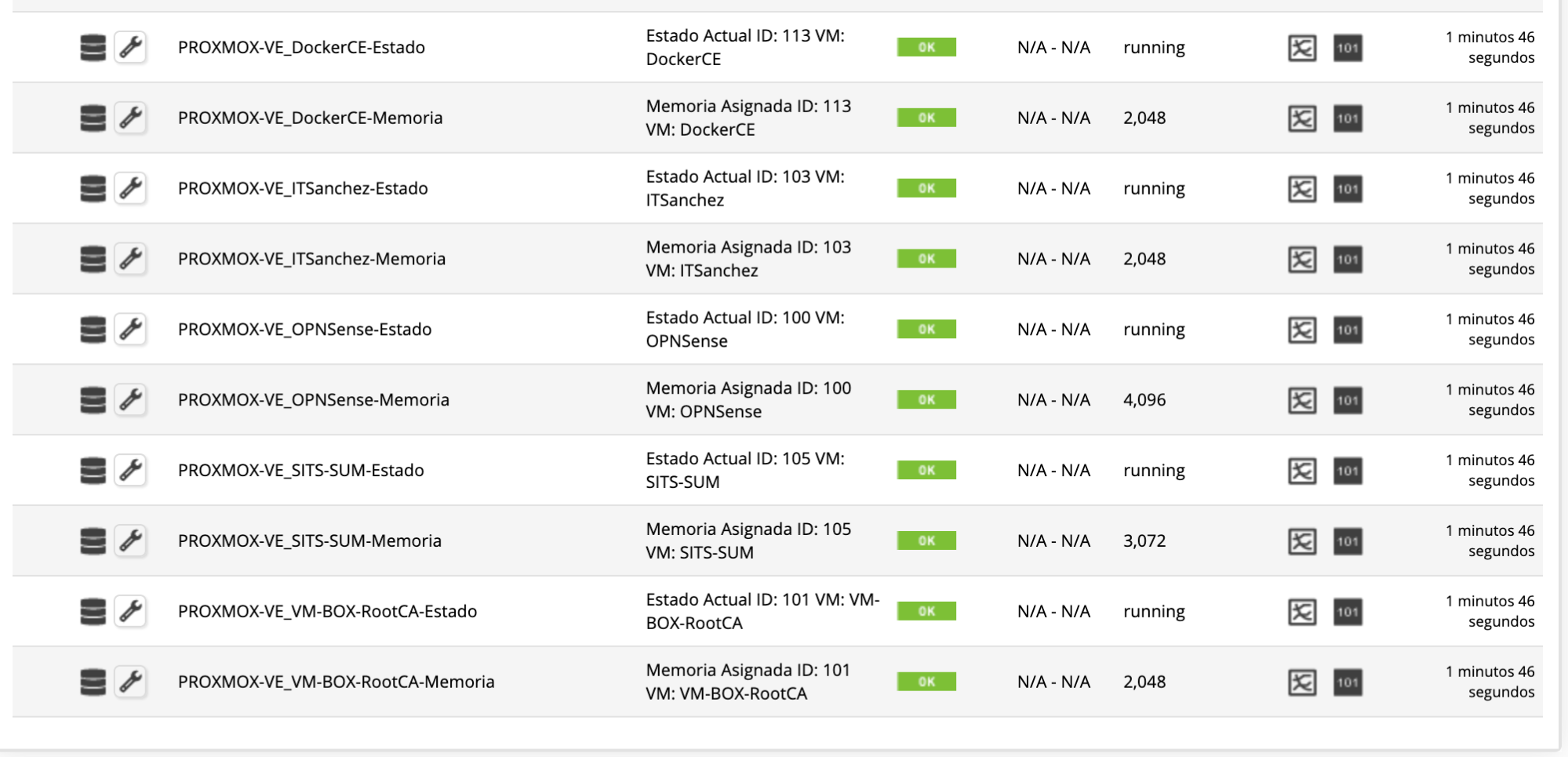
Virtual Machine View (KVM)
LXC container status
Likewise, you may also see virtualization via LXC containers, as shown in this image.

Container Status View (lxc)
Furthermore, if we create new VMs, containers, or backups, they will appear dynamically in our Pandora FMS server, so we don’t miss out on anything.
Backup and log status (with corresponding configuration)
If we want to also monitor Proxmox backups and see their status, no problem—but we must enable that feature first.
Following Linux tradition, we do this by adding one more line in Pandora FMS agent configuration file we saw earlier.
Before adding the line, make sure:
- Backups are enabled in Proxmox (obviously).
- You know the path where those backups are stored. To avoid confusion, I’ll use the same example path in the documentation at this point, e.g. /mnt/1tb/dump.
Then, as admin, we edit /etc/pandorafms/pandora_agent.conf and add:
module_plugin /etc/pandorafms/plugins/get_backup.sh /mnt/1tb/dump
Replacing /mnt/1tb/dump with your actual path.
Once backups are enabled, they will show up in Pandora FMS console monitoring and you’ll get 2 lines per Proxmox backup.
The first line reports status (1 if successful, 0 if failed). The second line gives key data such as date or description.
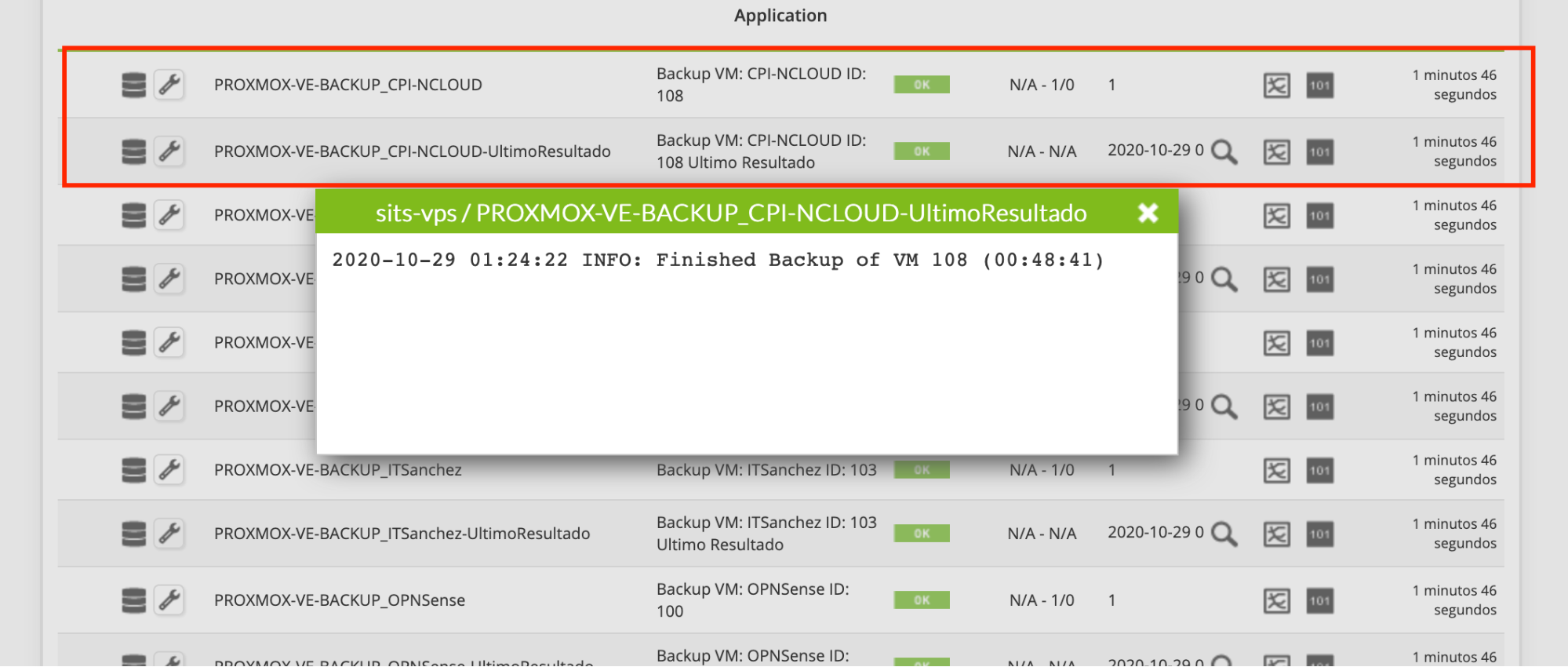
Backup Job View with Description
Advantages of Proxmox–Pandora FMS integration
Proxmox is a robust, mature, open-source alternative to VMware or Microsoft Hyper-V, ideal for Linux-based organizations needing virtualization and wanting a free but professional-grade option.
With Pandora FMS, you may integrate that piece fluidly and organically into our global monitoring, controlling our entire IT infrastructure from a single captain’s chair in the Star Fleet—whether physical machines, virtual machines, applications, services, processes…
Of course, Pandora FMS is a multi-award solution adaptable to any tools and scenarios. So if you’re also assessing other virtualization options beyond Proxmox, don’t hesitate to check out our analysis of VMware alternatives.
Highly recommended, especially after Broadcom’s astronomical price hikes.
The best part is that—you don’t have to take my word for it—you may check it yourself risk-free by downloading a free Pandora FMS demo, or following Proxmox-style open source by exploring its Community version.
Some frequently asked questions on monitoring Proxmox VE with Pandora FMS
We all skim (myself included), or go into TLDR mode (Too Long Didn’t Read) online. So here are answers to the most common questions about virtualization integration and monitoring with Proxmox and Pandora FMS.
How to install Pandora FMS agent on Proxmox VE?
Very easy, I wish all life problems were this simple. As we saw before, Pandora agent is in Debian’s repo, so installing it is just one terminal command away:
apt install pandorafms-agent -y
That gives you the general Pandora agent, and then you install and connect the Proxmox VE agent plugin.
Installing and configuring it is also pretty simple; you may check the beginning of this document or the official documentation.
Which metrics can be monitored in Proxmox with Pandora FMS?
All the essentials: full KVM virtual machines, LXC containers, and Proxmox backups—status (visually and simply), execution time, possible errors, groupings, configuration of each VM, container or backup…
You’ll find example detail screens under the Metrics section in Pandora FMS console in this same guide.
Is it possible to monitor Proxmox VE backups from Pandora FMS?
Yes. It’s not enabled by default, but it’s as simple as adding a line in the Pandora FMS agent configuration file after installing the agent and plugin.
You’ll find the details under the Backup & Logs status section (with its configuration) earlier in this guide.
Can I migrate from VMware to Proxmox and continue monitoring with Pandora FMS?
Yes, no problem. Pandora FMS works with Proxmox just as integrates easily and smoothly as with VMware.
In that case, the main challenge is migrating from VMware to Proxmox VE, not integration with Pandora FMS. Once the virtualization platform is changed, getting Proxmox and Pandora to work together is a blink and a relief—just like this guide shows.
So you know—if you want to start monitoring Proxmox VE with Pandora FMS, just click here.

Foundering Partner and CEO of SITS SOLUCIONES. Restless entrepreneur, Technologist by training and innovator by vocation, he has more 25 years of experience in the IT universe. He is going through digital transformation and creating innovative solutions, currently focused on Pro-Active Monitoring, Cloud and High Availability. He makes contributions to the Pandora FMS communities for Argentina, Chile and Uruguay. Founder partner and CEO of SITS SOLUCIONES. Restless entrepreneur, trained technologist and innovator by vocation, has more than 25 years of experience in the IT universe. Moving the digital transformation and creating innovative solutions, currently focused on Pro-Active Monitoring, Cloud and High Availability. He makes contributions to Pandora FMS communities for Argentina, Chile and Uruguay.