









Partner Onboarding
Everything you need to get started as a Pandora partner
Credentials, resources, contacts and next steps in one place.
Summarizes the essential operational aspects to start working with Pandora from day one.
Null
Welcome
Onboarding and public presence
Deal Registration
Licenses, NFR and first deployment
Resources for partners
Training and certification
Joint marketing activities
Contacts and escalation
Pandora partner support environment
Welcome and objective
This document summarizes the essential operational aspects to start working with Pandora from day one. It is not a program presentation or a product manual.
It is a practical reference: what you need to do, in what order, and who to contact.
- Sí
- Sí
- Sí
- Sí
- Sí
- Sí
- Sí
- No
- No
- No
NOTE: If you have any doubts about any point in this document, contact your Partner Manager or the channel team before acting. Contacts are in section 8.
Onboarding and public presence
Once the agreement has been signed, Pandora includes you in the official partner locator on the website. To do so, you need to send your company information in the correct format.
What must the partner do?
- Company name
- Logo in vector format (SVG or AI) and PNG with transparent background
- Your website URL
- Country and city / territory of operation
- Brief description of services (max. 150 words)
- Public commercial contact email
- The badge and brand materials are provided through the repositories and sections enabled by Pandora in the current environment
- It must be included on the website with a link to pandorafms.com
- Do not modify the badge colors, proportions or typography
3. Review the published listing: Once activated, please check that the details are correct.
What must the Partner NOT do?
- Use the Pandora logo without following the brand guidelines.
- Publish the partnership level without having formally accredited it.
- Register domains or profiles with the word ‘Pandora’ without written authorization.
Where to find it / Who to request it from
1. Brand guidelines and assets: Support > Downloads, or repositories enabled by Pandora.
2. Questions about public presence: marketing team (see section 8).
Deal Registration
Deal registration is the mechanism used to protect a sales opportunity against other partners and request the applicable terms. Without registration approved in due time and form, there is no channel protection. The terms and conditions relating to registration shall be governed as set out in the current Partner Agreement.
Where is it registered?
Deal registration is carried out within Pandora’s support environment, in the CRM > Deal Registrations module.
Direct URL:
https://support.pandorafms.com/itsm/customers/operation/crm/dealregistrations/list
From that screen the partner can view the list of registered opportunities and create or update records according to the enabled permissions.
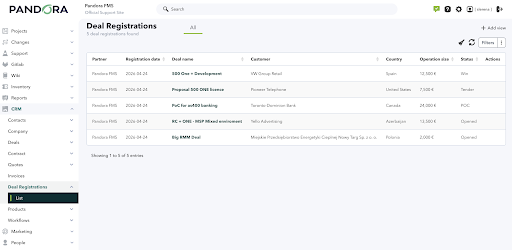

Opportunity registration form — CRM > Deal Registrations
Visible fields in the opportunity record
| Field | Description | Record use |
| Deal name | Descriptive name of the opportunity | Editable field |
| Description | Description of the opportunity, estimated scope and relevant context | Editable field |
| Status | Current status of the opportunity (Opened, POC, or others) | Editable field |
| Operation size (€) | Estimated value of the deal | Editable field |
| Customer | Name of the end customer associated with the opportunity | Field associated with the record |
| Owner | Sales owner of the record | Informational field |
The partner must keep the record up to date throughout the opportunity lifecycle: if the status changes, update the Status field; if the estimated scope changes, update the Operation size and Description fields. An out-of-date record may affect the protection of the opportunity.
The date shown is the creation date and cannot be changed once the opportunity has been created.
What should the partner NOT assume?
– Registering an opportunity does not imply its automatic approval.
– Pandora may request additional information before approving.
– An expired registration without an authorized extension loses the associated protection.
– The conditions applicable to the registration are governed by the current Partner Agreement.
Channel protection rules
1. The first partner to register an approved opportunity has priority in the event of conflict (with an additional discount percentage, independent of their partner level). This guarantees an advantage over other competitors.
2. If a customer contacts Pandora directly, we act in coordination with the registered partner and we will notify the partner of all details, protecting their customer.
3. Customers are not transferred between partners without the original partner’s consent, except for justified cause and always with notification.
NOTE: For deals handled through a distributor, registration rules may vary. Check with your Partner Manager.
Who to contact
1. Questions about registration or approval: Partner Manager (see section 8).
2. Full registration policy: see the Deal Registration Policy annex.
Licenses, NFR and first deployment
1. Customer license activation
When you close a deal, the partner places the license order with Pandora FMS indicating the name of the end customer. Pandora issues the invoice to the partner (never to the customer) and sends an AuthKey to activate the license in the customer’s environment.
How does the AuthKey work?
Pandora or its distributor sends the partner an AuthKey: a numeric string between 12 and 15 digits delivered in PDF or by email. This key can be used only once to generate the system License Key, which constitutes the core of the license associated with the Pandora instance.
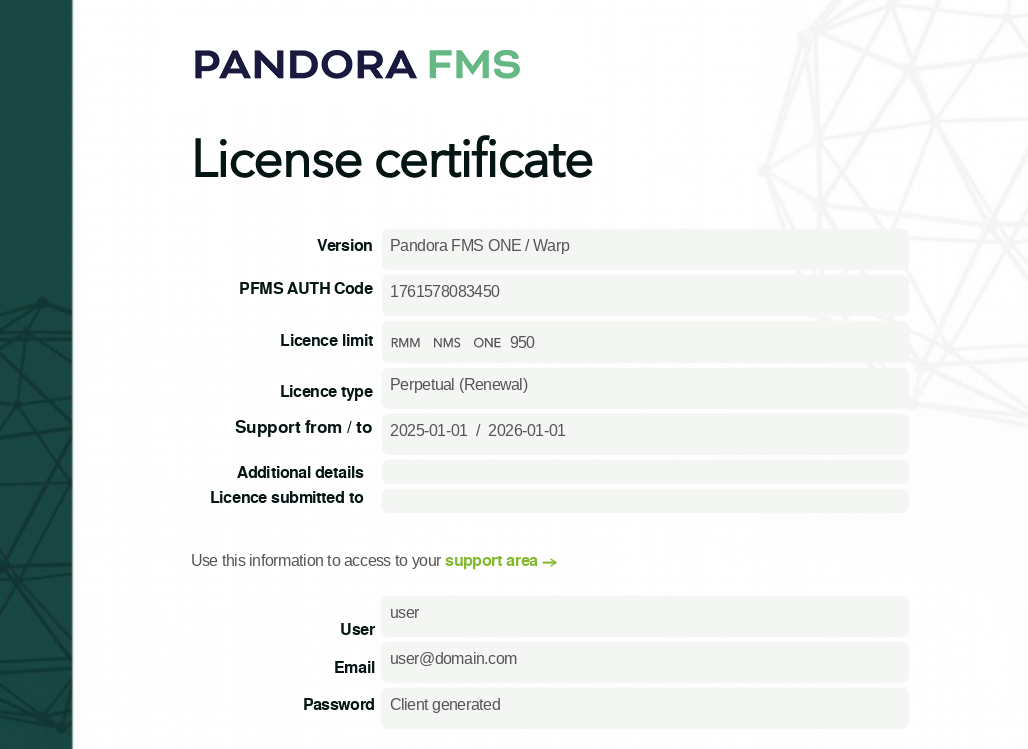
Example of a License Certificate with the AuthKey (PFMS AUTH Code)
Step-by-step activation process
1. Send the purchase order to Pandora’s sales team with the exact name of the end customer. The license will be assigned to that customer.
2. Receive the AuthKey from Pandora by email or in PDF. Keep it safe until activation.
3. Access the Pandora FMS console of the customer: Setup → License.
4. Click ‘Generate a new license’ (button in the lower-right corner). A pop-up window will open.
5. Enter the AuthKey in the Authentication key field. The system automatically generates the Request Key. Click ‘Online validation’.
6. Confirm the activation. The licence remains active and linked to the end customer.
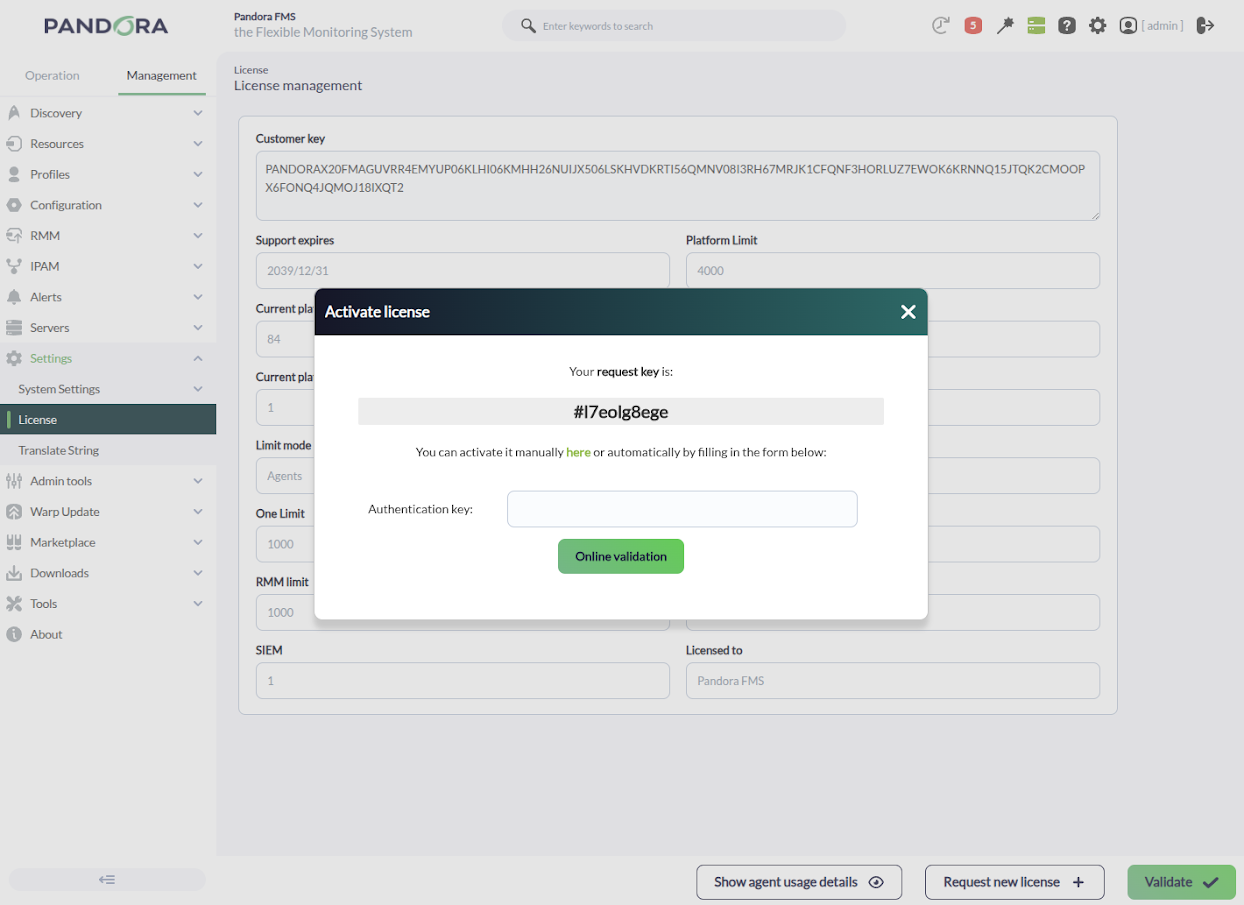
Activation window: the Request Key is generated automatically — enter the received AuthKey
NOTE: If the customer environment does not have internet access, there is an offline activation process. Consult the support team (see section 8).
Where to find it?
1. License orders: sales team (see section 8).
2. Quick offline activation guide: https://support.pandorafms.com/ → knowledge base.
2. NFR License (Not For Resale)
Gold and Platinum partners receive, after certifying their technicians according to their level, a 75-agent NFR license for internal use, lab environments and demos with prospective customers.
- Sí
- Sí
- Sí
- Sí
- No
- No
- No
How is it requested and activated?
1. Prerequisite having certified the technicians required according to the level (Gold: PAC + PAT&PAE; Platinum: PAC x2 + PAT&PAE x2).
2. Request send a request to the Partner Manager indicating the partnership level and completed certifications.
3. Receipt of the NFR AuthKey: Pandora sends the AuthKey corresponding to the NFR license.
4. Activation: follow the same process as for a customer license.
Minimum system requirements
| Parameter | Minimum requirement |
| Operating system | EL9 (Rocky Linux 9 / RHEL 9) or Ubuntu Server 22.04 |
| RAM | 8GB |
| SSD space | 50 GB |
| Internet connection | Required for online installation |
| User role | Admin (root) |
Online installation
The installer detects the operating system and automatically downloads, installs and configures all packages. Run as root:
LTS version (recommended for production environments and stable demos):
curl -SsL https://pfms.me/deployenterprise | PANDORA_LTS=1 bash
RRR version (latest features, for lab and testing):
curl -SsL https://pfms.me/deployenterprise | PANDORA_LTS=0 bash
Reference documentation
1. Official installation documentation: https://pandorafms.com/manual/
2. Detailed minimum hardware requirements: Manual → Installation → Requirements
3. Step-by-step installation guide: knowledge base at https://support.pandorafms.com/
NOTE: The NFR license is not available for the Silver level. If a certified technician leaves the company, the partner has 60 days to certify another technician and maintain the partnership level.
Resources for the partner
Pandora FMS makes commercial, technical and brand materials available to the partner to support sales, implementation and public presence. These resources are currently distributed through the support environment and the repositories enabled by Pandora.
Available resources
| Resource | Description | Where to find it |
| Corporate slideshows | Corporate PowerPoint presentations for partners | Partner Downloads > Pandora slideshows (Download link) |
| Vendor comparison | Pandora FMS vs. competitors comparisons — for partners’ internal use only | Partner Downloads > Vendor comparison |
| Market research | Articles about the ITIM monitoring space | Partner Downloads > Market research |
| Partner badges 2026 | Official badges and seals for the partner program | Partner Downloads > Partner_badges_2026.zip |
| Media kit / Media Kit | Logos, typography, color palette and brand guidelines | Partner Downloads > Media Kit / Media Kit |
| Version comparison | Pandora version comparison (ES / EN) | Partner Downloads > Version comparison | Feature map | Overview of product capabilities | Partner Downloads > Feature map | Technical documentation | Installation, integration and operation guides | Downloads > Pandora FMS | Success stories | Customer references for sales support | Upon request to the sales or marketing team |
What must the partner not do?
– Use outdated versions of logos or materials.
– Incorrect brand applications (as can be seen in the media kit).
– Publish confidential materials (prices, channel conditions) to the end customer.

Support > Downloads > Partner Downloads — access to program materials
Where to find it / Who to request it from
Downloads and materials: Pandora support environment > Support > Downloads
URL: https://support.pandorafms.com/itsm/download/operation/downloads/browser/list
Access to the environment: you will receive a set of credentials (username/password) for your staff. If you do not have them, request them from your Partner Manager.
Specific or customized materials: marketing team (see section 8).
1. Technical resources for first steps
Official documentation
Tutorials on YouTube: https://www.youtube.com/@pandorafmsEN
Introduction to Pandora FMS: available on the YouTube channel and in the official documentation.
Knowledge Base
Access: https://support.pandorafms.com/ → Support >Knowledge Base
Check before opening a ticket: See section 9.1 for the full procedure.
Plugin marketplace
The marketplace contains hundreds of modules to monitor specific technologies (Oracle, VMware, Cisco, AWS, etc.). The partner can directly install the plugins they need in their environment through the NFR license.
Access: https://marketplace.pandorafms.com/ — Use the same login details as for the support portal.
Modules marked as ONE require an active Pandora licence.
Updates
With internet connection: update from the console → Management > Warp Update (one click).
Without connection: use Warp Update Offline to download .fms packages (console) and .tar.gz packages (server) from the Warp portal.
Update process documentation: https://pandorafms.com/manual/
Training and certification
Pandora offers an official training program structured into sales and technical paths. Access to Pandora Academy is available free of charge for all accredited partner members under the current program conditions. Official certifications have a cost.
Pandora Academy – Online training
– Information about training and certifications: https://pandorafms.com/en/training-certifications/
– Content: technical, sales and product courses at your own pace.
– Access is enabled through the Partner Manager or through the channels defined by Pandora.
How to request access to Pandora Academy
1. Contact the Partner Manager indicating that access to the training platform is needed.
2. Provide the list of users: full name and email address of each person who needs access.
3. The Partner Manager enables access for each specified user. Additional users can be added at any time using the same process.
On-site training
Subject to schedule availability and conditions.
Cost: See Annex II of the agreement (current rates).
1. Certification paths by level
| Level | Required certifications | Deadline |
| Silver | PAC (Pandora Advanced Certification) | Within the first 90 days |
| Gold | PAC + PAT & PAE | Before requesting NFR |
| Platinum | PAC x2 + PAT & PAE x2 | Before requesting NFR |
What must the partner NOT do?
– Count as certified a person who has left the company or business unit.
– If a certified technician leaves, the partner has 60 days to recertify another team member.
Joint marketing activities
Pandora can collaborate with the partner on joint marketing and demand generation activities. These activities require prior proposal, express approval and subsequent justification. They are not an automatic benefit or an open fund.
1. What we can do together
| Activity | What Pandora provides | What the partner provides |
| Webinar / workshop | Content, technical/commercial review, speaker or presales, invitation support. | Audience, invitation and sales follow-up. |
| Success story / co-branded asset | Copy, design, technical and commercial validation, promotion. | Reference customer, validation, commercial use. |
| Business breakfast / small event | Content, sales or presales support, brand approval. | Local organization, guest list, execution. |
| Digital campaign / joint newsletter | Content, validation, coordination of the activity and distribution or database where applicable. | Execution, sales coordination, distribution or database where applicable, and results follow-up. |
2. How an activity is proposed
1. Proposal. The partner sends the proposal to the channel or marketing contact indicating:
- Type of activity
- Objective and target audience
- Planned date
- Estimated budget
- Expected result
2. Approval. Pandora reviews and confirms:
- Whether the activity is approved
- What each party provides
- Whether co-funding applies and under what conditions
- Agreed deliverables and deadlines
3. Execution. The partner executes the activity as approved and keeps evidence of execution and expenditure.
4. Closing / reimbursement. If co-funding applies, the partner submits the agreed documentation. Pandora processes the reimbursement or compensation in accordance with the prior approval.
3. Co-funding
Co-funding is not automatic. It only applies to activities previously approved by Pandora and is subject to the partner level, the approved activity and budget availability. It requires subsequent justification of execution and expenditure.
Eligible expenses
– Approved digital campaigns (LinkedIn Ads, email marketing)
– A suitable venue and catering for small events
– Approved external design or production
– Campaign-specific materials
Non-eligible expenses
– The partner’s internal salaries
– Travel not approved in advance
– Generic promotional merchandise not directly related to the campaign
– Expenses already incurred without prior approval
– Campaigns with no evidence of implementation
Limits and conditions
The limits and conditions of co-funding will be agreed case by case with Pandora according to the partner level and the current joint plan. There is no open fund or guaranteed amount.
4. How it is measured
Every joint activity must be justified with minimum metrics. Without measurement, there is no approval for future activities.
- Number of registrations or attendees
- Valid leads generated (MQL)
- Derived sales meetings
- Open opportunities in CRM
- Estimated pipeline
- Materials or evidence delivered
Where to send the proposal / Who to request it from
– Joint activity proposals: marketing team (see section 8).
– Co-funding approval: requires validation by the channel and marketing team.
Contacts and escalation
Use the right contact from the start. Each function has a clear scope. Escalating incorrectly slows down resolution.
| Function | What to use it for | Contact |
| Partner Manager | Commercial conditions, partnership levels, business plan, deal registration, channel conflicts, NFR, proposal support, customer visits, etc. | Each partner has a dedicated Partner Manager. If in doubt, write to [email protected] |
| Presales | PoC, sizing, architecture, technical support in proposals, joint demos, first opportunity | Coordinate through the Partner Manager. |
| Marketing | Listing in the locator, badges, media kit, joint activities, success stories, campaigns… | [email protected] |
| Technical support | Product incidents, tickets, L2–L4 escalation. Use the support portal with the partner credentials. | https://support.pandorafms.com/ |
| Training and certification | Enrollment in on-site courses, access to Pandora Academy, questions about certification paths | Via the Partner Manager or through [email protected] |
Pandora partner support environment
The current operation of the partner program is managed through Pandora’s support environment, which integrates functionalities such as deal registration, technical support, knowledge base and downloads. Pandora will continue expanding this environment to support more channel processes.
What is currently managed in this environment?
– Deal registration: CRM > Deal Registrations — https://support.pandorafms.com/itsm/customers/operation/crm/dealregistrations/list
– Technical support tickets with partner credentials.
– Knowledge base and documentation.
– Downloads and materials: Support > Downloads — https://support.pandorafms.com/itsm/download/operation/downloads/browser/list
Access to the environment
– Main URL: https://support.pandorafms.com/
– Credentials: Supplied by the Partner Manager. If you have lost the password, you can recover it or generate a new one through your platform email/login.
– Access profile: The partner may have users with full access to all partner materials, or users with technical-only access (support, knowledge base).
1. How to use technical support
This technical support is exclusive to the partner and its credentials must not be shared with customers, since they could see sections they should not see (partner-oriented information, prices, presentations, deal registration, contracts, etc.).
If the customer is to have direct access to the manufacturer’s technical support, they will be provided with their own login details, which must be supplied at the time the licence is issued. Whether to grant the customer direct access to the manufacturer’s support is a decision for the partner; they may prefer to act as an intermediary to add value and escalate issues to the manufacturer, or they may choose to let the customer deal directly with Pandora.
Before opening a ticket
The support portal knowledge base contains solutions to frequent issues and configuration guides. Checking it before opening a ticket reduces resolution times.
– Access: https://support.pandorafms.com/ → Support > Knowledge Base > Browse
– Problem-type articles: documented solution to real incidents
– Article-type articles: step-by-step setup guides
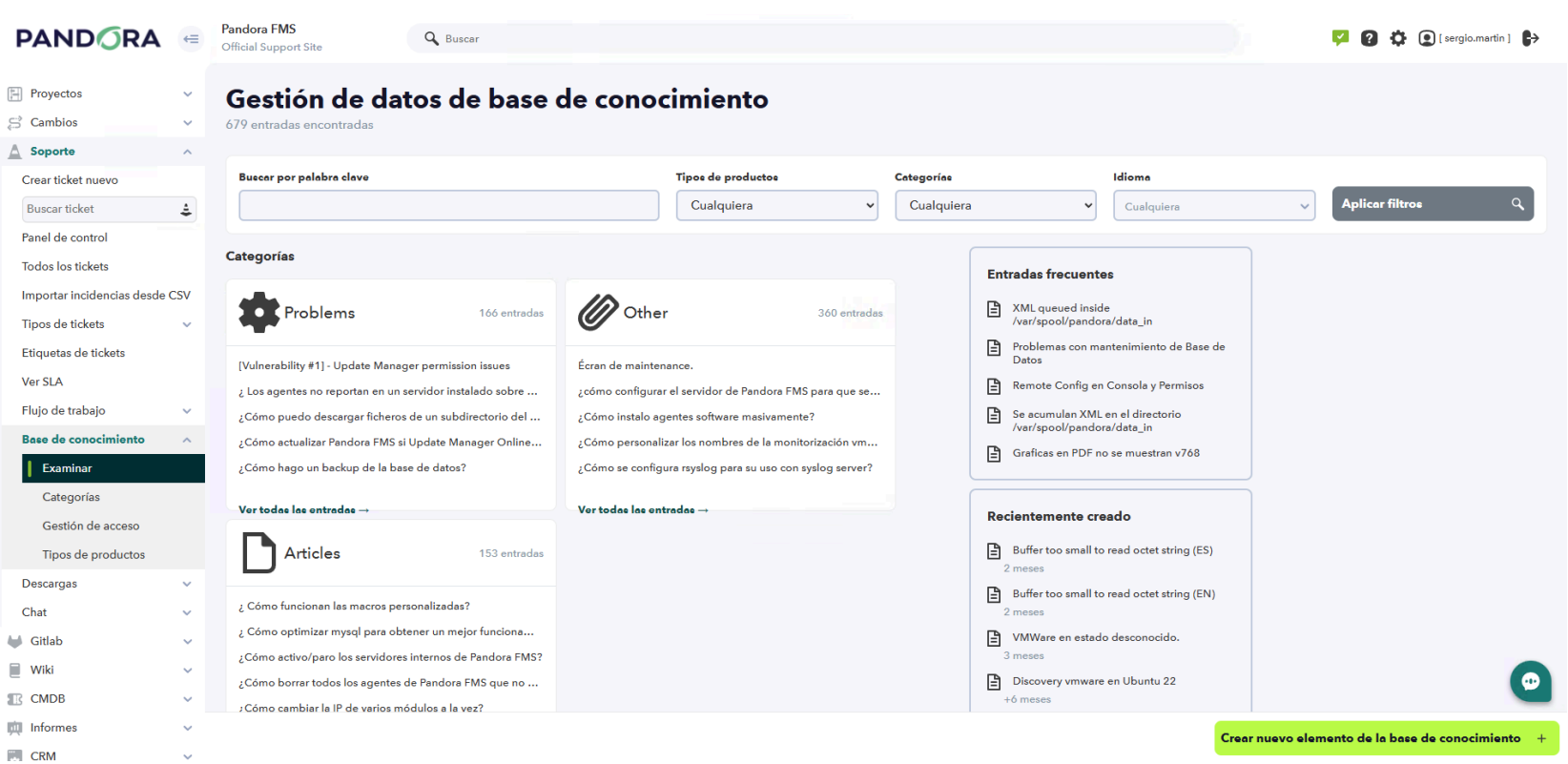
Support > Knowledge Base — check before opening a ticket
Open a ticket
– Support → Create new ticket.
– Short title that identifies the problem.
– In the description always include: version where it occurs, observed symptoms, returned result, expected result. The more information, the faster the resolution.
– Select the type of incident. Additional fields will appear. Attach screenshots if they help.
– Click Create. You will receive a confirmation email containing a tracking link.
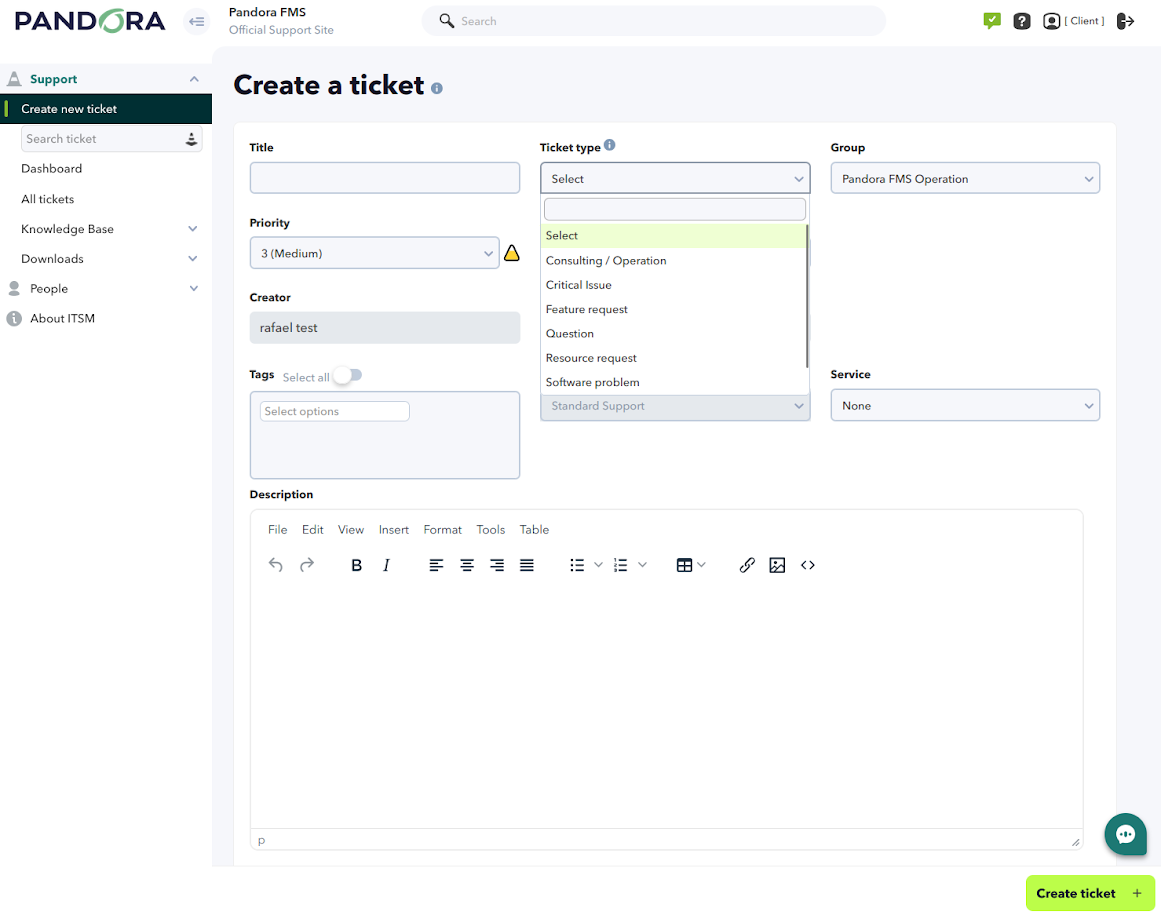
Ticket creation form — Support > Create new ticket
Follow-up and closure
– Follow-up: go to the ticket → Follow-up tab.
– Add information: Add Workunit → write a comment.
– Replying to the notification email updates the ticket automatically.
– If the issue is resolved: add a Workunit or close the ticket directly.
– Tickets without a customer response for 15 days are closed automatically.
NOTE: Support access credentials are specific to the partner and must not be shared with the end customer.

We hope this guide has been useful to you
If you have any questions, do not hesitate to contact the Pandora FMS technical support team.
