

 Home
Home

Configuring and using Data Translations
Introduction
This feature only affects the display and in no case the database. If you need to convert and save the values, check the option Post process.
Once the necessary data translations are configured, they can be used in modules, local components, network components and monitoring policies.
Configuration
Menu Management → Configuration → Data translations.
Command Center, menu Centralised management → Module Management → Data translations  .
.

By default, some of the most common translations are included and they are classified into two groups:
- String: It allows converting one or more alphanumeric string(s) into another/others.
- Math operation: It allows applying an arithmetic operation to a numeric value and obtaining a result (and specifying, optionally, the unit of said result).
- You must have a Pandora Administrator or superadmin profile to be able to access the data translation configuration.
- In Command Center, and before performing the centralization process, the editing and creation of elements will be in read-only mode. Once the nodes are merged and each one provides its data translations, you will be able to edit and create data translations in a unified way.
String translation
Menu Management → Configuration → Data translations → Create → Type → String translation.
Command Center, menu Centralised management → Module Management → Data translations → Create → Type → String translation.

It allows adding as many alphanumeric translation strings as needed by clicking the Add + button each time. They must be added in pairs of values, translation strings that lack both values will be automatically deleted upon saving. The lack of one of the pairs of values is not warned when saving.
Once saved, in the edition the translation type will always be the same.
Only single quotes 'text' can be used instead of double quotes.
Math operation
Menu Management → Configuration → Data translations → Create → Type → Math operation.
Command Center, menu Centralised management → Module Management → Data translations → Create → Type → Math operation.

Only a single calculation can be performed for each data translation. It is highly important to verify that value is written in the formula since that verification is omitted when saving. Divisions by zero are not warned either upon saving. The unit is an optional alphanumeric string. Once saved, the translation type cannot be changed when editing.
Uses
Modules
Menu Management → Resources → Manage agents, choose an agent from the list and click on Modules.

To add the data translation, click on the name of the module to be translated and then access the Data → Data translation tab.

When selecting a data translation for the desired module, it will stop using the assigned unit (if applicable) and said option will become disabled.
If the module description mentions the unit, it must be changed as well.
For modules of type String only the String translation will be available.
When saving the changes in the module, the translation can be observed if you hover the pointer for a few seconds over the corresponding icon in the status column:

Local components
Similarly to the configuration of modules with data translations, local components, both in their creation and editing, can be accompanied by a data translation, so that this model will be available for creating agent modules:

Remote components
In the case of Remote components some of them are read-only so they can be copied in the Actions column  and then edited:

This way when editing you can proceed just like with the modules:

Monitoring policy modules
To apply data translations in Policies you must go to the module editing of a monitoring policy and access the Data tab and follow the instructions used in the modules:

Views where Data Translations are used
- Agent setup view, modules tab:

- Agent detail view, module filtering:

- Tree view with module filtering:

- Monitor view, module filtering:

- Heat map view, module detail:

- Agent/Module view and its graphic detail (configurable in options):


- In Custom graphs, a specific Data Translation can be chosen for each of them, applied to all the graphs contained therein (later, during execution, it can be changed or deleted):

You can always change and view the graph however you want at any time:
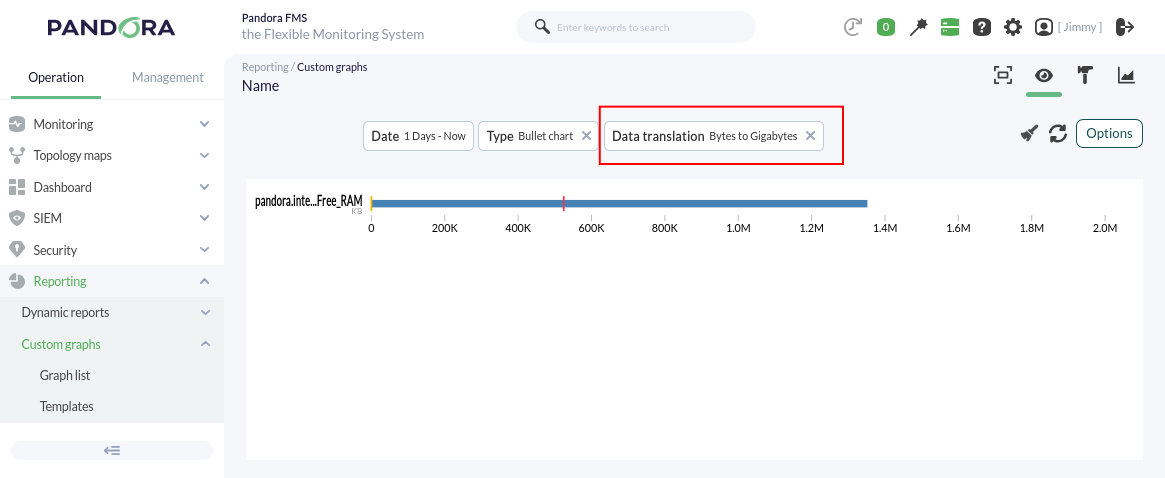
In the graphs, only math operation types can be selected. In the Interface graphs it works the same way.
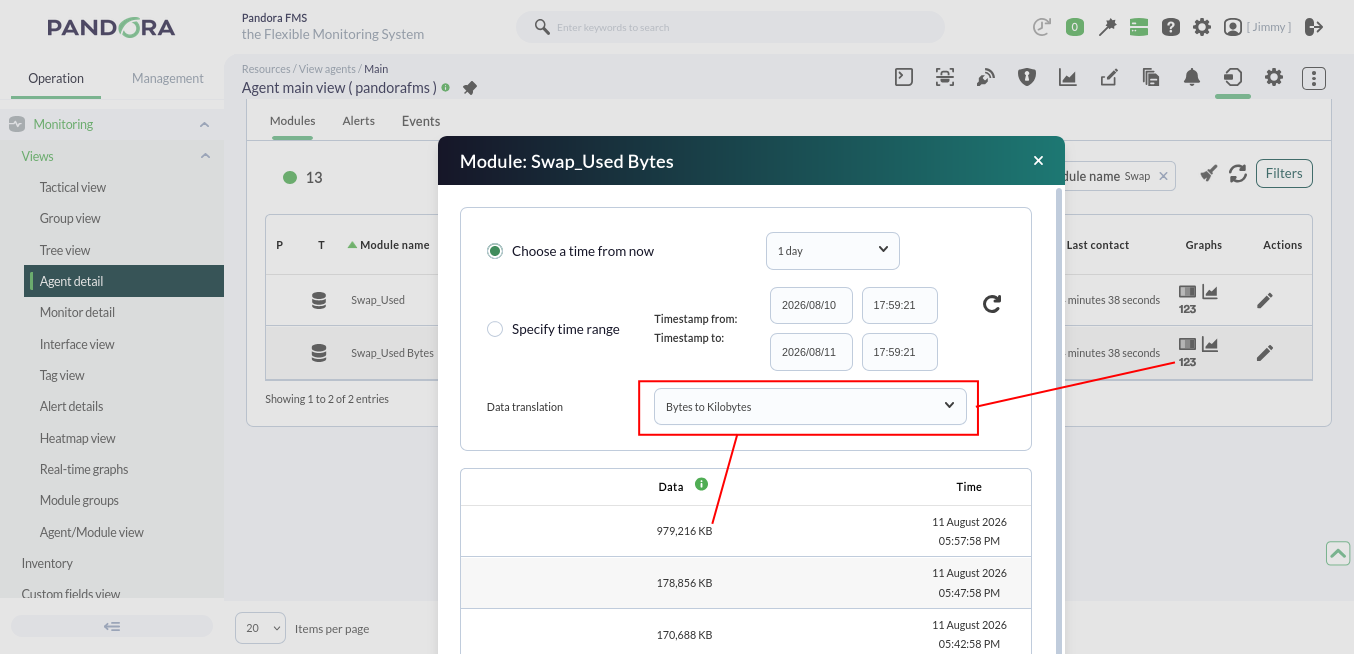
- In the Modulo details tables you can select the data translation on the spot:
Macros
See the list of macros in alerts.


