
4. Detecting and monitoring new systems with Discovery
The Pandora FMS Discovery tool provides a set of features to simplify monitoring through wizards, including the Discovery Network Scan function.
To use it, the following steps must be followed. In the side menu: Management → Discovery → Host&Devices → Network Scan.
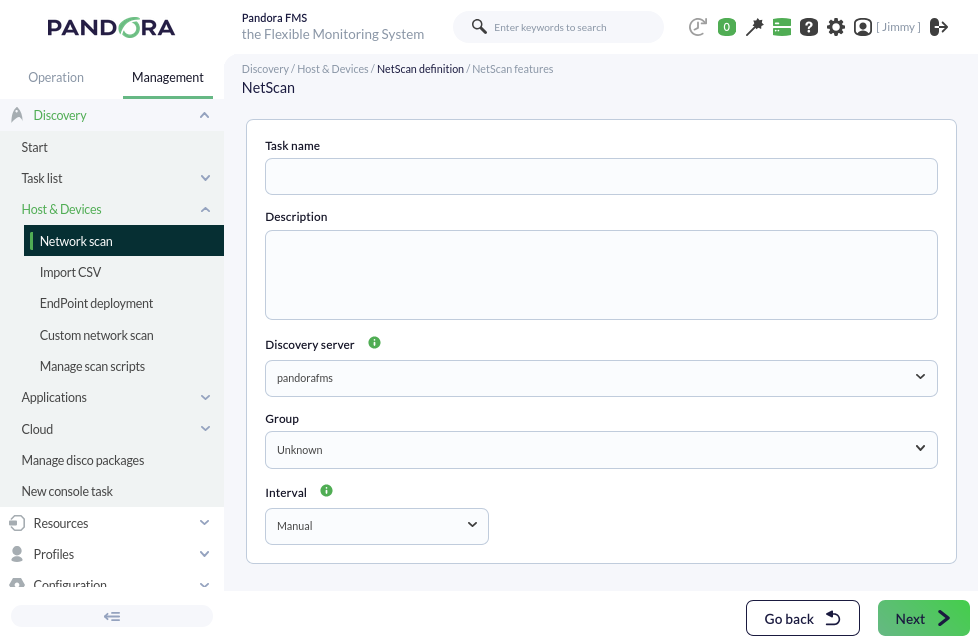
We will create the task as follows: Select the Unknown group, which will be used to contain the devices detected in that group, the Manual interval, and the default Discovery Server. From now on, we will generically call the devices managed and/or monitored by Pandora FMS "agents". Move on to the next step; by default, it will show simple scanning:
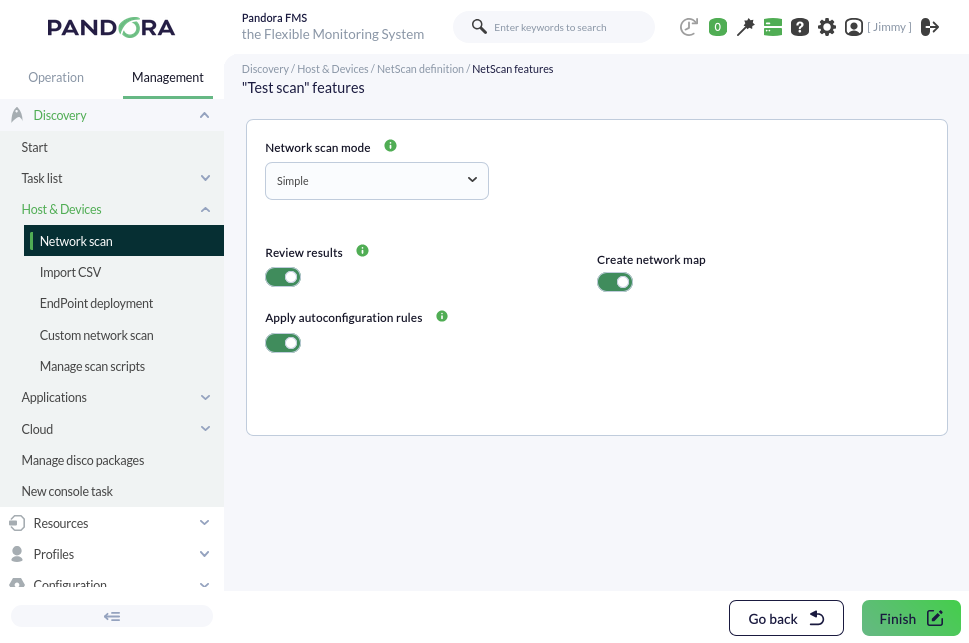
Although you can leave this option and save, it is better to specify a network to reduce the workload since, by default, all networks to which the PFMS Server has access will be scanned. To do this, choose the Advanced option.
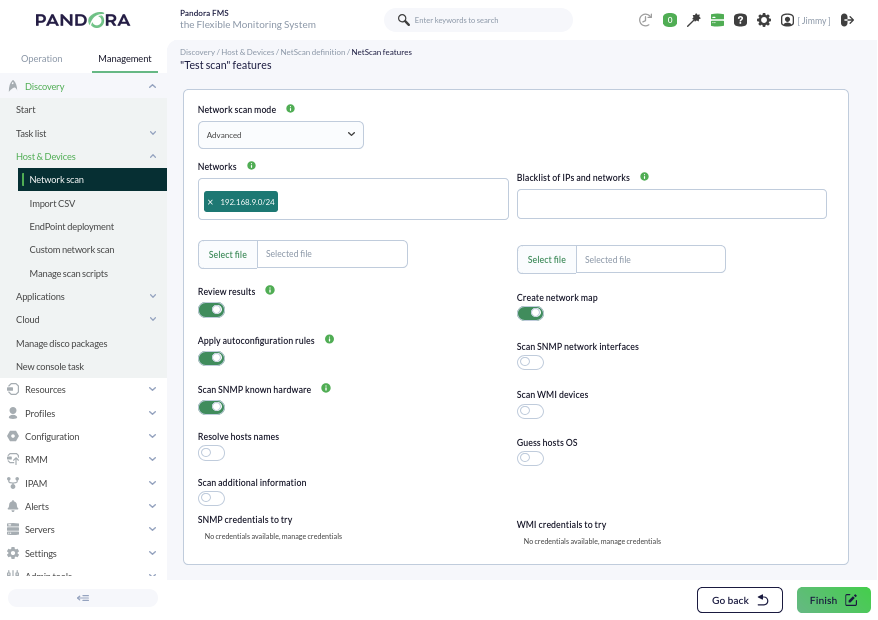
We can select different aspects of the initial monitoring that will be applied to the discovered devices. By default, the option to apply autoconfiguration rules (Apply autoconfiguration rules) is enabled as seen in the image. We will leave the Review results option checked. There are several more options that you can explore as you practice with the tool.
Once the reconnaissance task is created, since it was created with a manual interval, it must be started manually. To do this, in the discovery task list, force its execution:
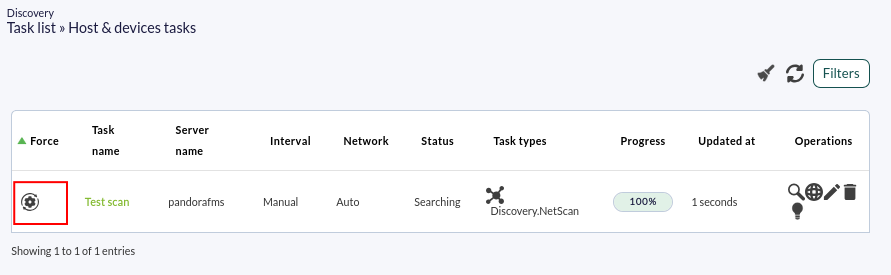
Its progress will be updated over time:
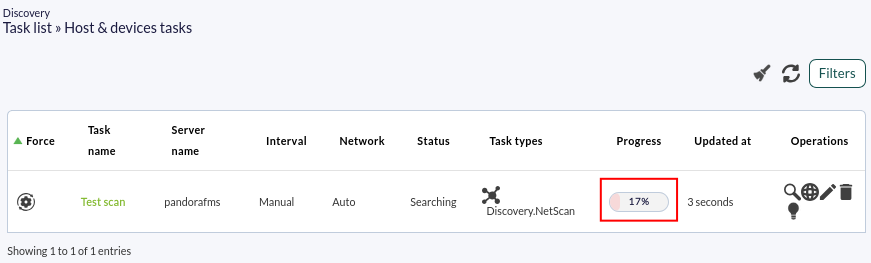
At any time, we can click on the magnifying glass icon to see the task details:
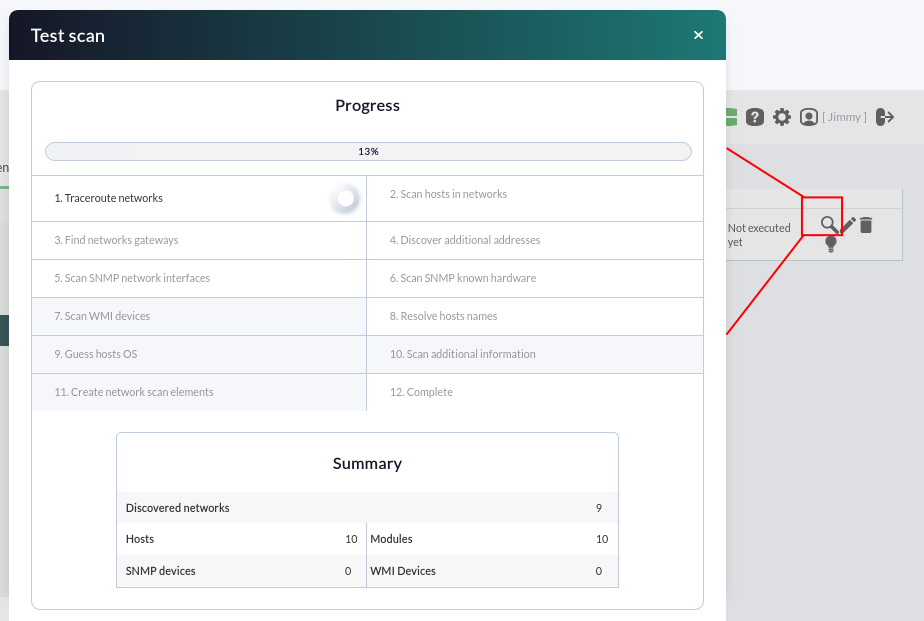
At this point, it is best to wait until the entire network has been detected.
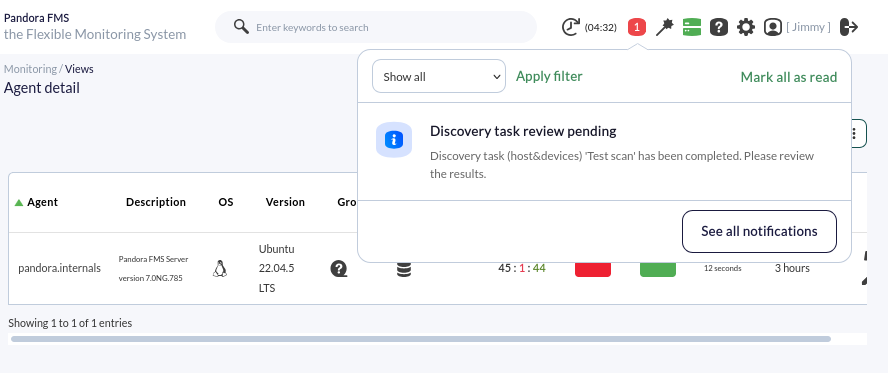
Even if other tasks are performed during the scan, and since we left the "Review results" option checked, if we have the notification system enabled, we will be notified in a timely manner:
A summary of what has been collected will be presented. You will see several systems that have been detected. In some cases, the system name will have been resolved (if possible via DNS) and in others, it will have detected the type of Operating System, according to the options selected in the network scan performed with Discovery. Each element will have its selection box to include those considered necessary:
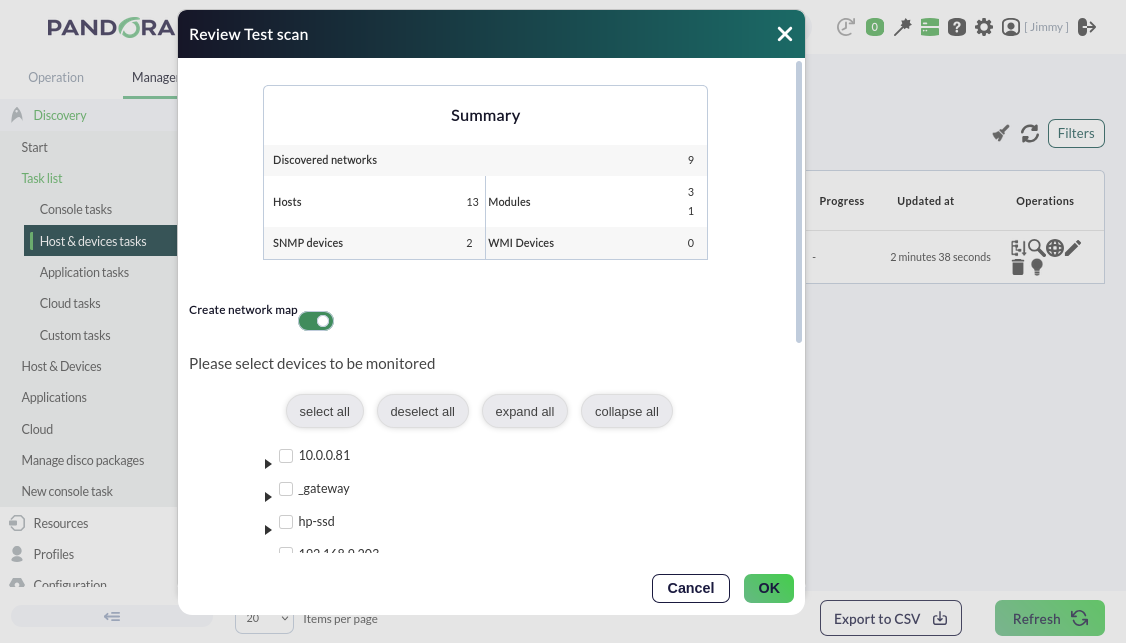
The basic checks are of the ICMP type: the "Host alive" module, a check that verifies the machine is "alive" and responding from the network, and the "Host Latency" module, which calculates the time the server takes to communicate with the machine. Select some of them, along with other elements you consider of interest. When you press OK, another pop-up window will appear with the selected elements:
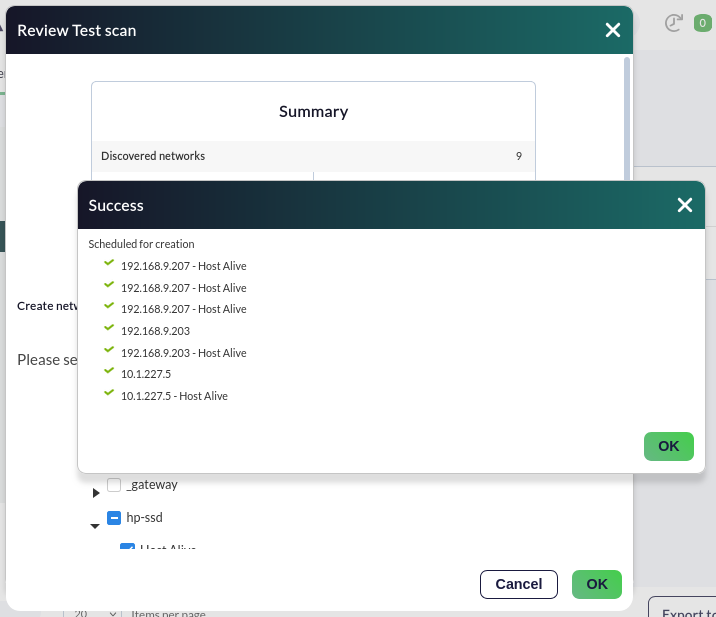
When finished, you will access the agent detail view to see all the detected and selected systems.
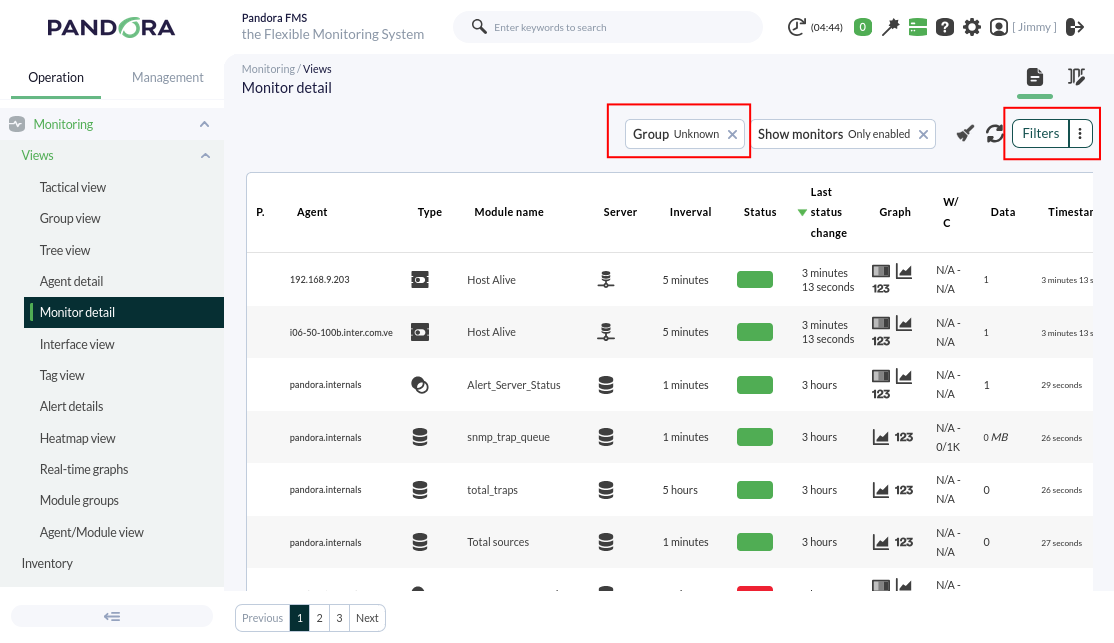
Menu Operation → Monitoring → Views → Monitor detail, filtering by the Unknown group:
If you do not need further monitoring or configuration, let's move on to metric alerting here. Are the results explained in the chapter not being achieved? Access the help or support section.