
Configuration in Pandora FMS: creating an alert action
The Telegram® plugin is fully integrated into Pandora FMS 800.
Go to the Management→Alerts→ Actions menu and in Filter select Pandora Telegram in the Command or search field. The alert actions that use the Pandora Telegram command will be displayed:

You may:
- Use the default action
when installingon Pandora FMS. - Copy the previous action and customize it as needed. (It may be the case that several groups of agents use different alert actions configured according to each
case.case) - Create an action based on the Telegram alert command (read-only).
ForIn any of the three cases, the Chat ID must always be configured, obtained as indicated in the previous topic.
Whether editing, copying and editing, or creating,case, the configuration process is similar:
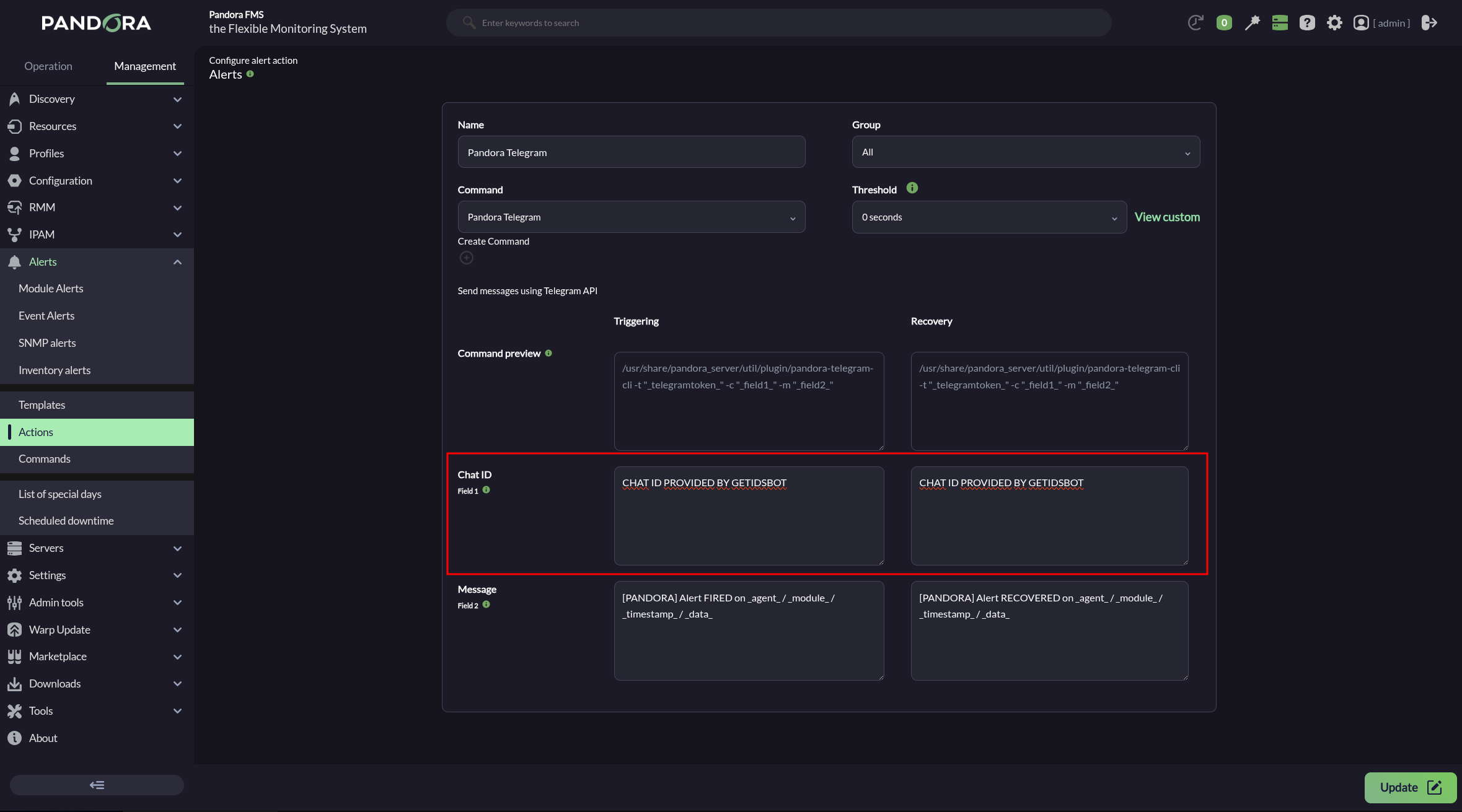
- Indicate and select the name and
group as appropriate.group. - Ensure that
- In Chat ID, enter the corresponding
identifier.identifierThis field does not accept macros; only enter the identifier.. InThethedefault Message field for Triggering, if itisempty, insert[PANDORA] Alert FIRED on _agent_ / _module_ / _timestamp_ / _data_. See the other macros available to insert more information.InThethedefault Message field for Recovery, if itisempty,insert[PANDORA] Alert RECOVERED on _agent_ / _module_ / _timestamp_ / _data_.- Press the Create button if you are creating an alert action or
(Update if you areediting)editing to save the parameters.
Click Create. Once you have created this alert action, it can be included in a policy, a template, or Module.
If additional information is required, please visit the documentation for the plugin.