
Pandora FMS Configuration: Creating an Alert Action
The zip package where the binary comes also contains a file called test-exec.txt which contains information about additional parameters that will enrich the sent message (subtitle, color, web link button, etc.).
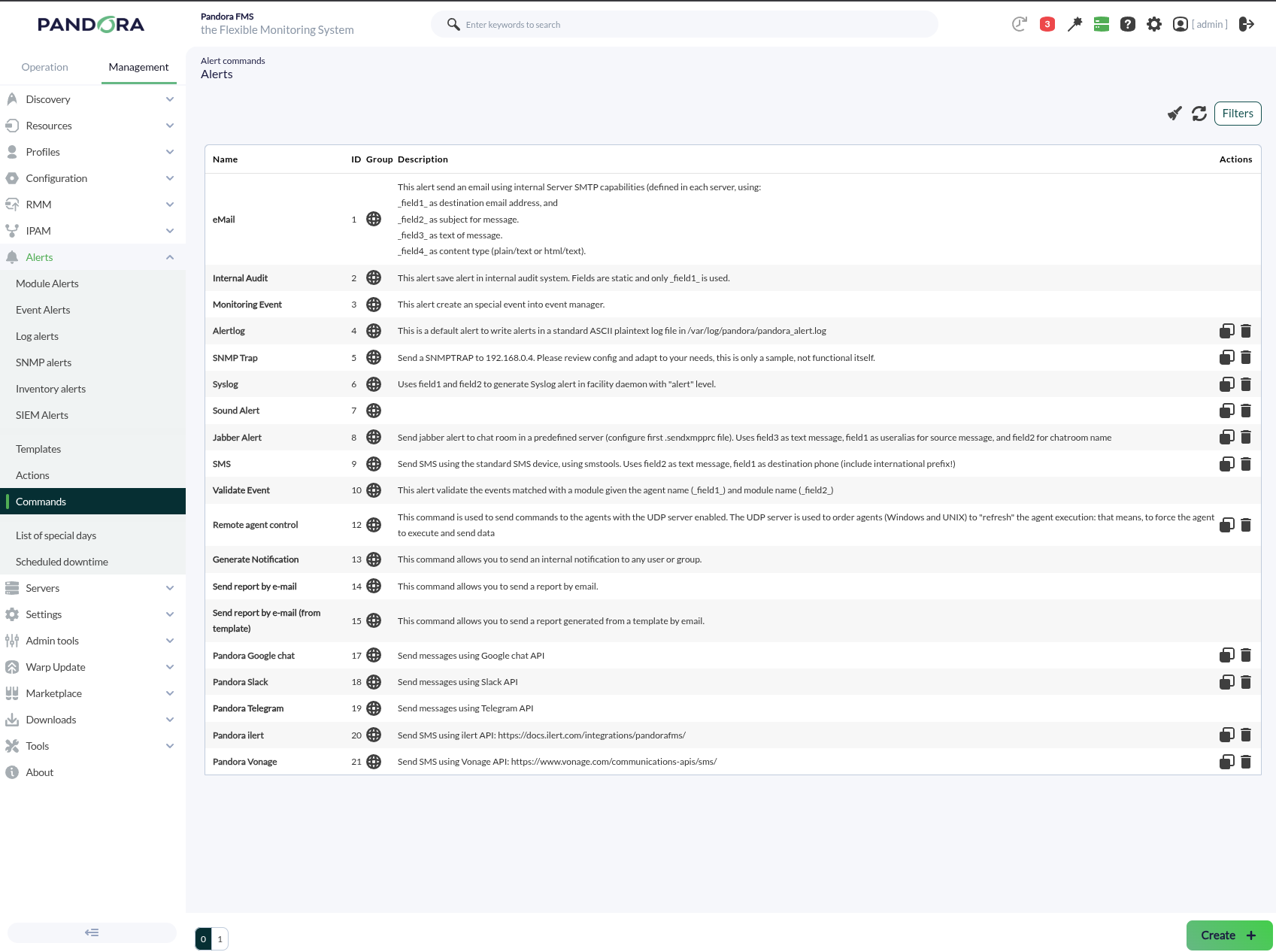
To create an alert command, go to the Pandora FMS Web Console and click on Alerts -> Commands -> Create.
Next, define the eight necessary fields plus the last two parameters which are constants. Make sure that field number two has the Hide box checked and enter the authorization link obtained on the previous page there.
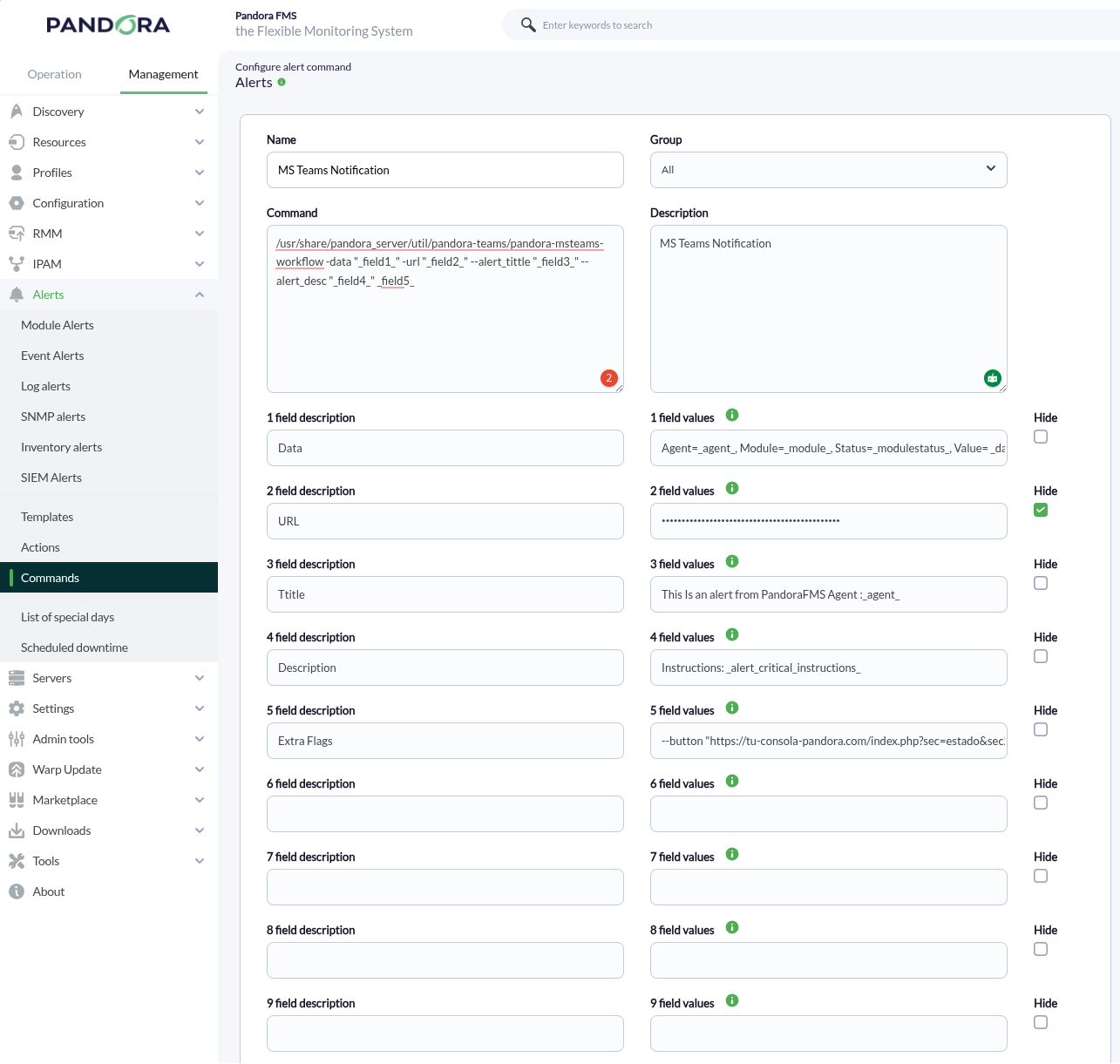
The test-exec file that accompanies the Slack connector CLI contains information that you can use to fill in these fields. Click the Create button to save the alert command.
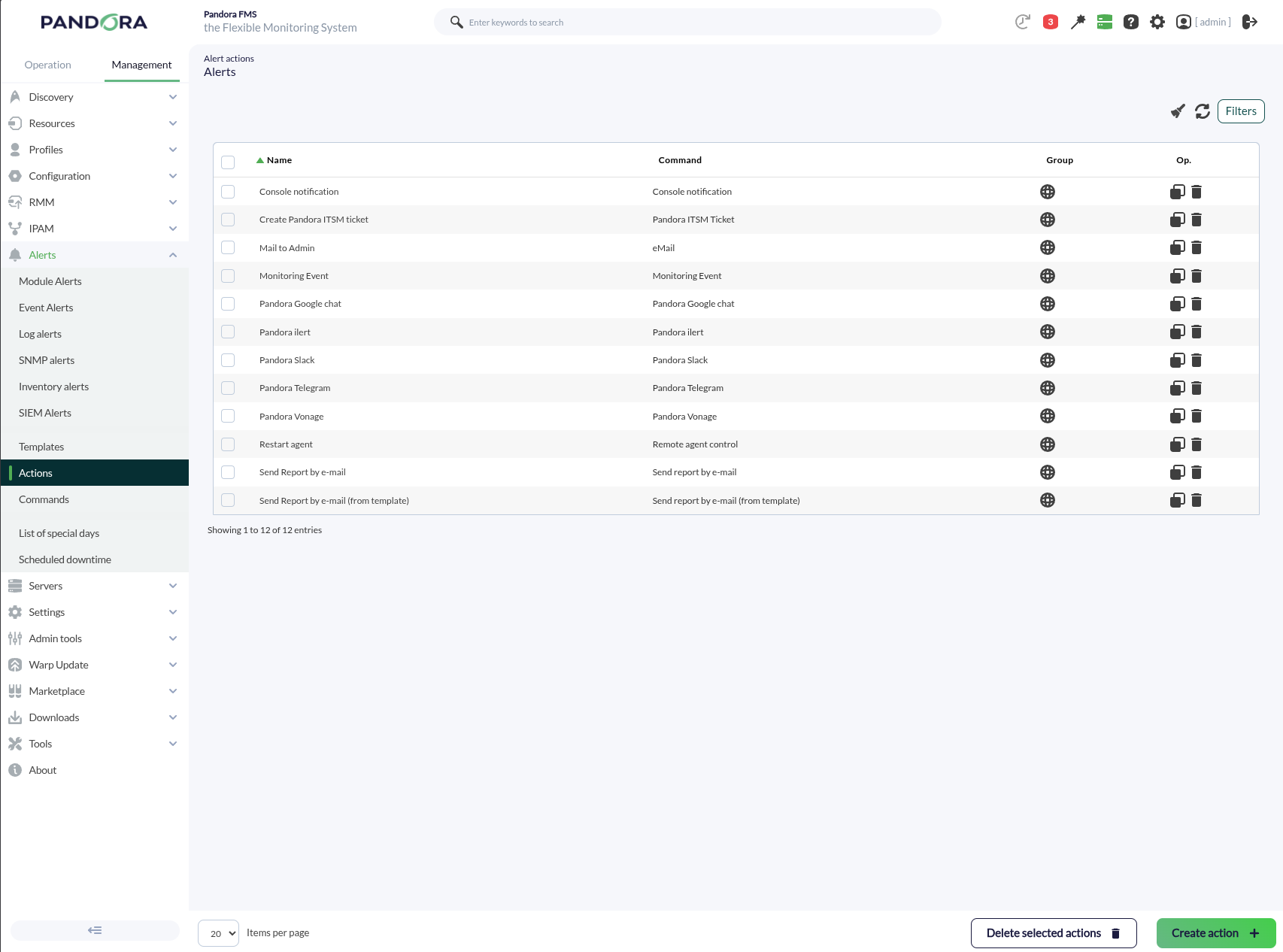
Alert actions allow you to define how to launch the command. Go to the Alerts -> Actions -> Create menu.
Select the alert command created on the previous page in Command; the fields will be filled automatically. However, you can always customize the icons or messages for Triggering and Recovery events, for example.
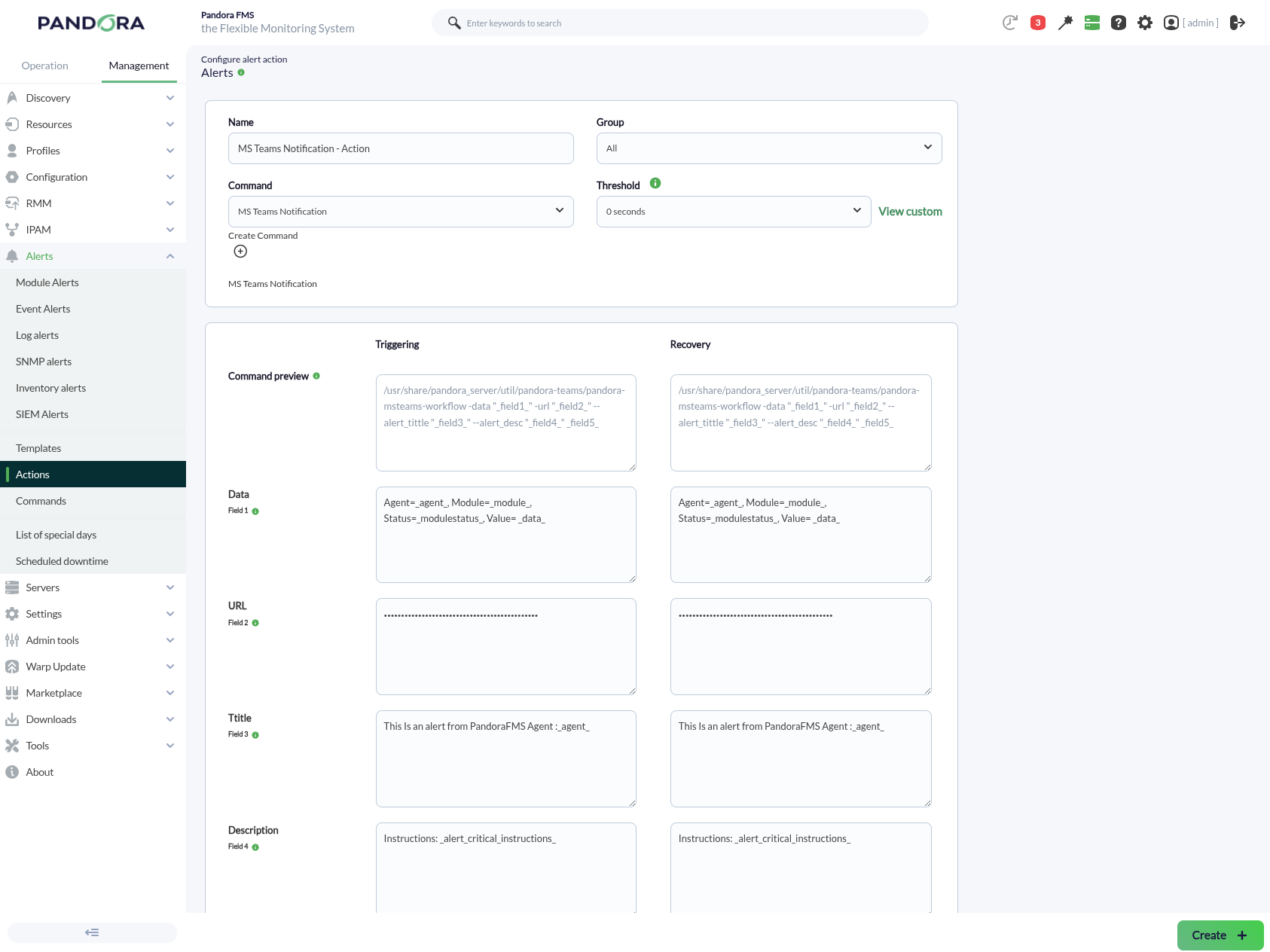
To save, click Create. To apply this action, whether to a Module or Policy, set an alert template for that purpose.