
15. Visual Console Creation
Creating a Parent visualVisual console creationConsole
In this first map, we willare going to add the status of several agents distributed inacross a world map. ItThis can be done manually, one by oneone, or through the Wizard. To makefacilitate its creation easier,creation, we are going to use the Wizard in thethis example.
The first stepthing we need to do is creatingcreate a new map, inwhich thiswe examplewill calledcall World Map.


Once created, we click on the ElementsElement Wizard:
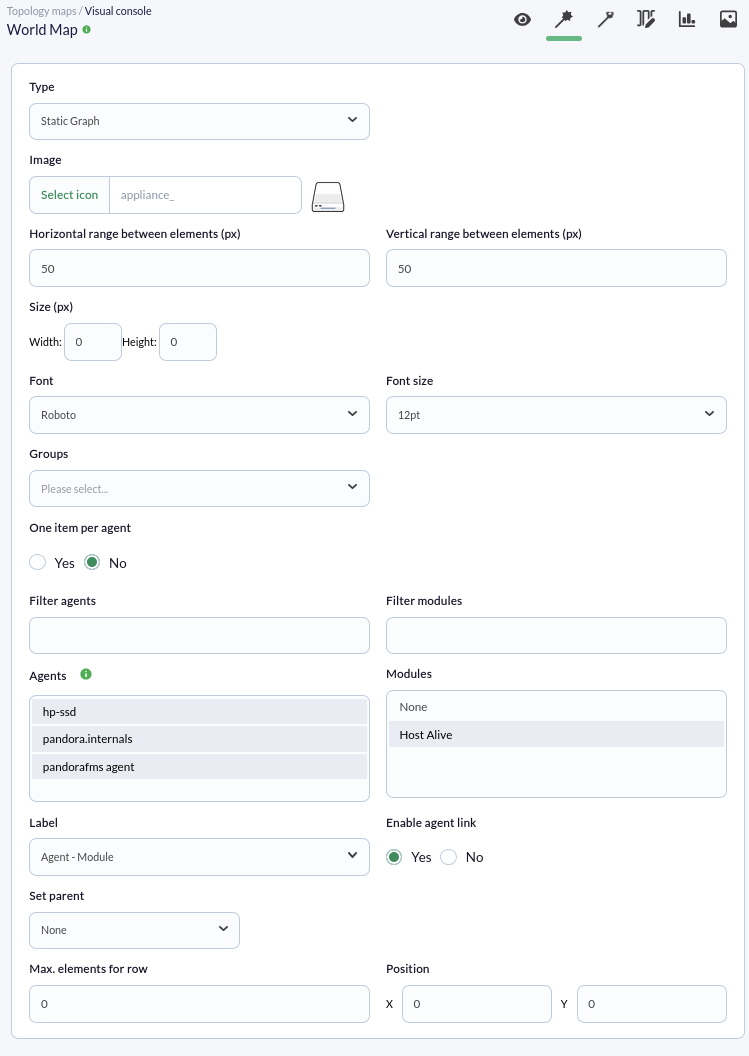
In the Wizard, we select the element type (type—in this exampleexample, Static Graph)Graph (previous screenshot)—the image youwe wishwant to use, whether youwe want to use anone item byper agent or byper module, and we select the agents youalong arewith goingthe modules to addbe insideadded from the list that appears.

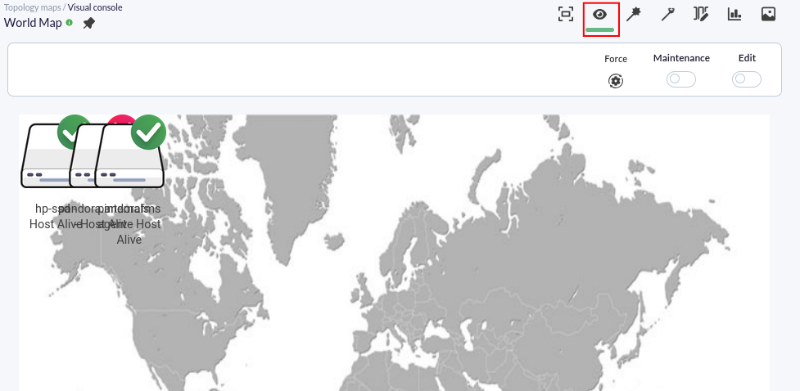
Clickclick add,the add button, go to the "View" tabtab, and all the created elements created will appear on the map, as seenshown in the following screenshot.screenshot:
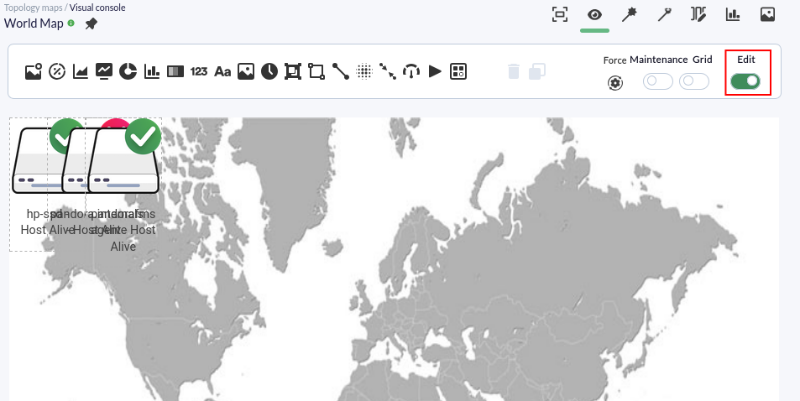
To be able to move or add elements, we must enable the Edit token.
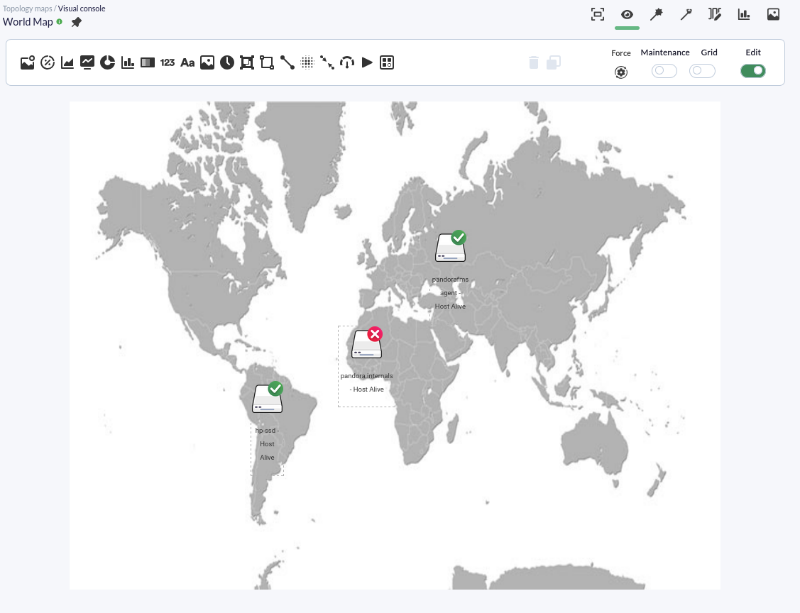
MoveWe move all the elements to theirwhere appropriatewe want them positioned on the map positions, by clicking and dragging them overacross it.
To move or add elements, enable the "Edit" token.
Creating a Child visualVisual console creationConsole
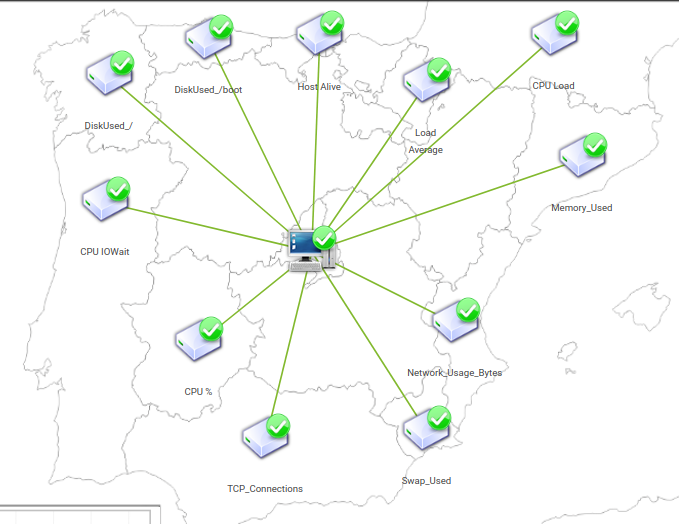
In the second map, an element thatwill indicatesbe created to indicate the statestatus of one of the main agents will be created, togetheragents, with all theits givenmodules modules.linked Youto will also see in this map a graph of the DiskUsed_/ module from the same agent.it.
The first step is to create the new map likejust before:as we did last time:
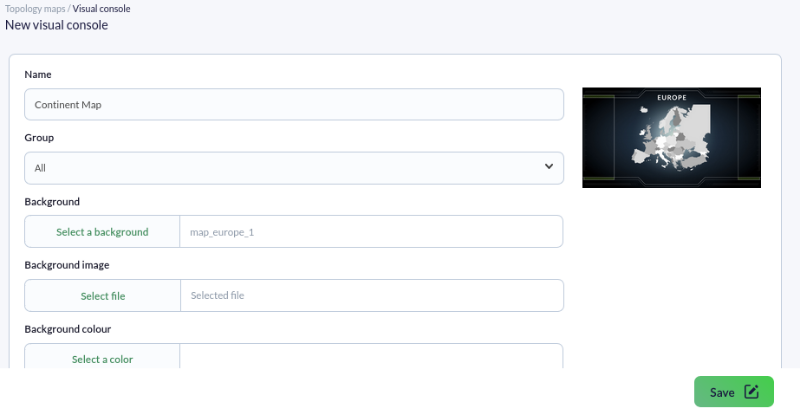
Once created, we add the element that shows the stateagent of the agentstatus by selecting the Static Graphimage item,element astype:
We also create a chart by choosing the attached image:
 |  |
Create the graph clicking on the Basic chart item with the attached configuration,element, adding the agent and module thatwhose yougraph willwe seewant representedreflected.
We have now created the graph.
 |  |
The main element of the mapmap; isnow created.we Noware going to create a new element for each of the agentmodules modules.existing Forin that,the agent. To do this, we will use the Wizard,Wizard configuringfor itconfiguration. asWe seen inselect the attachedagent's screenshot. Select the agent Static Graph and the modulesindicated youmodules. indicate. Set asWe label it with the module name and assign to this itemit a parent previously created inparent on the Visual Map, Map—in this casecase, the previous element that youwe added.
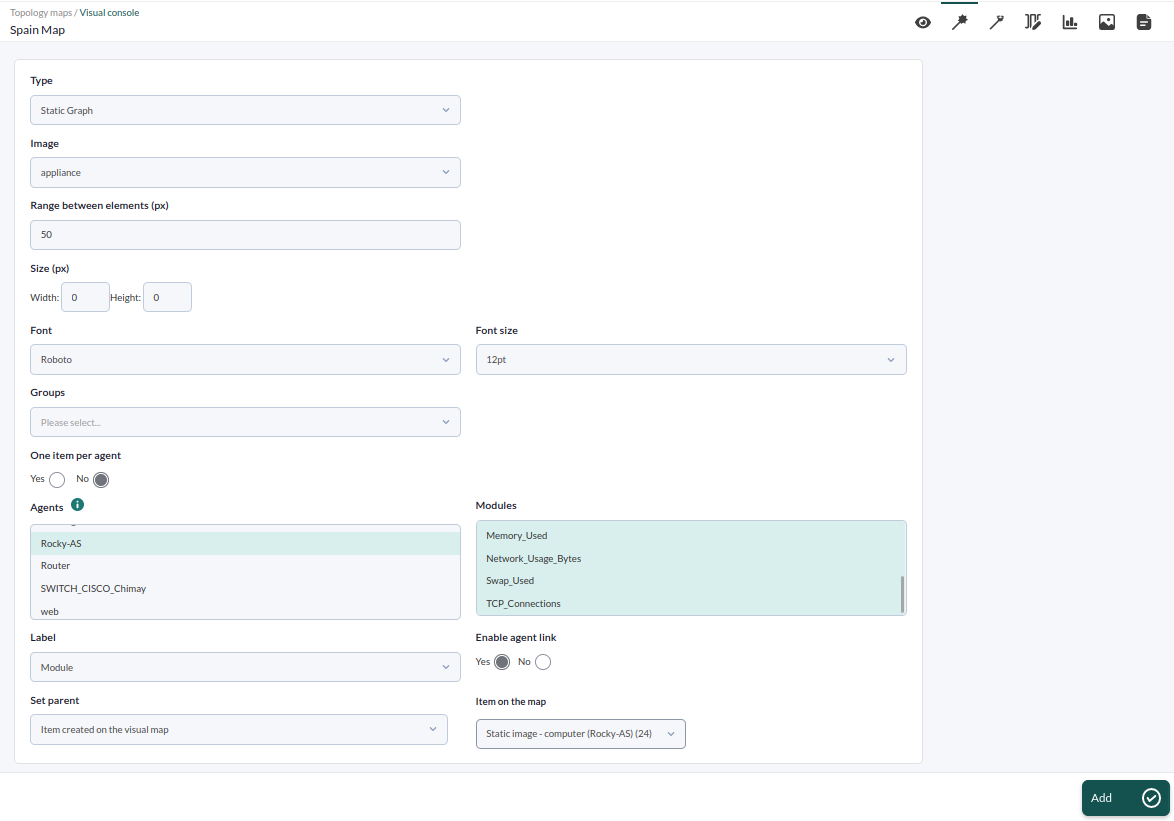
togetherlinked withto the main elementelement, and youwe maycan move them by dragging them directly with the mouse to the positiondesired you wish.position.
MapLinking linkingBetween Maps
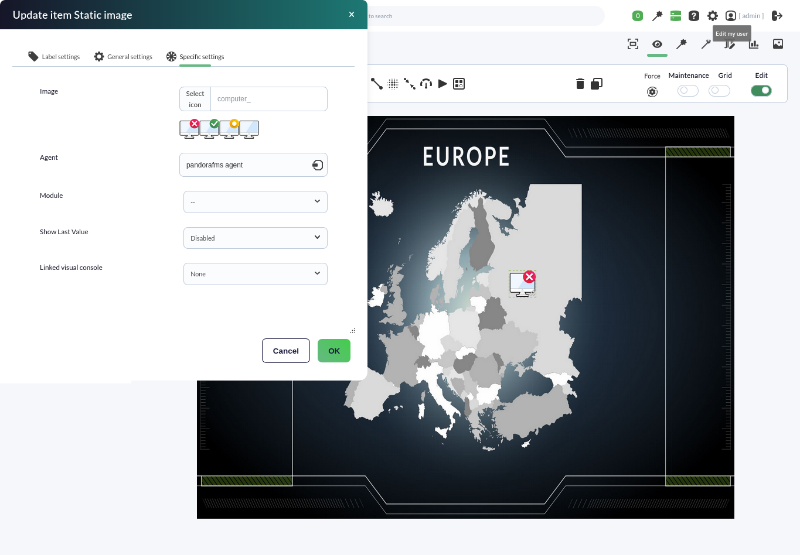
In the previous stepssteps, we created the two maps. In this stepstep, we will indicateshow how to clickclicking on the element located onover Spain inon the "World Map", opening directly opens the map "SpainContinent Map".
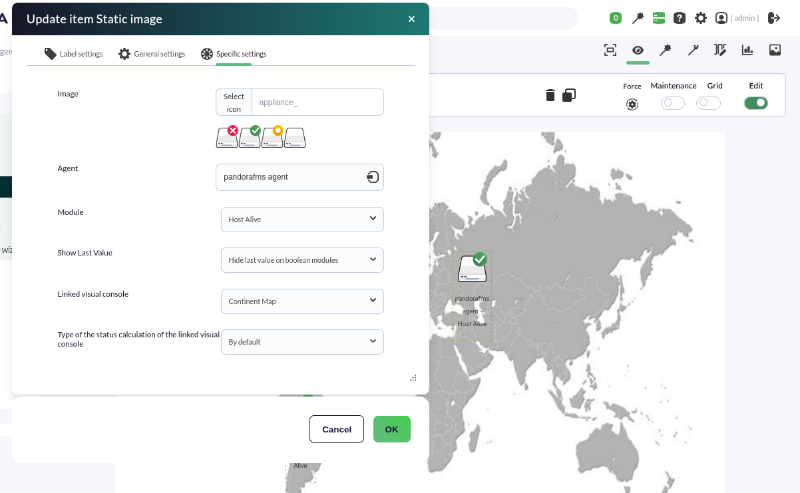
To do that,this, we open the World Map in edit mode by double-clicking on the element 192.168.70.45. This will allow to editopen theits element,editor. We click on advanced options andand, in the option Linked visual console,console option, we select SpainContinent Map. UpdateWe update the element by clicking OK.the OK button.
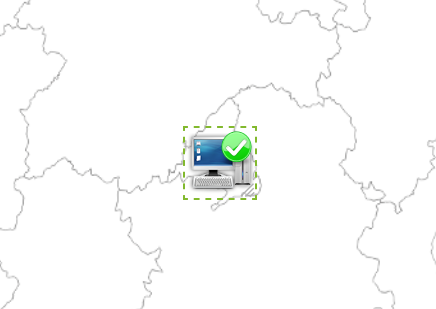
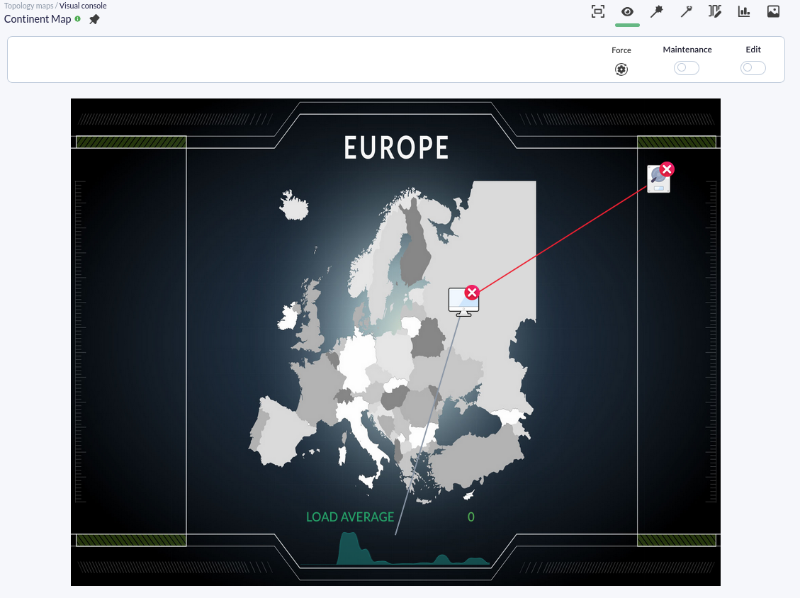
When you returnReturning to the World Map view, we click on the itemelement abovelocated Spainover "pandora fms agent" and the Continent map of Spain will open directly. IfEven there isif only one element in red on the map ofwere Spain,red, the icon representing Spainthe Continent map on the parent map willwould also be displayedappear in red.
 |  |
DidAre you not getachieving the expectedresults results?explained Goin tothis chapter? Access the help or support sections.section.