
13. Email Alert
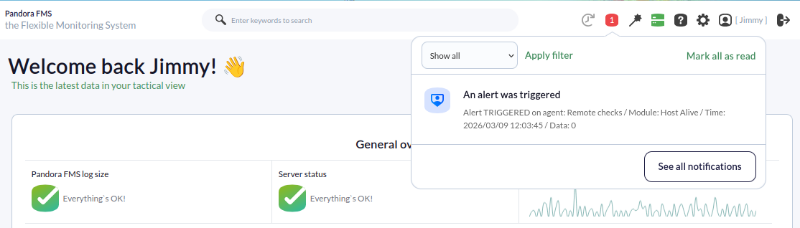
In Pandora FMS, alerts are assigned to specific agentmodules modules.of Therean areagent. moreWhen advancedsaid tasksmodule (alertsenters ona events,particular correlation,state, etc.)actions butcan thosebe areperformed, notsuch includedas innotifications thisto guide.a particular user via the Web Console:
The first alert iswe justare going to create consists of sending an email message when connection is lost on one of the machines that are already being monitored (from the previous step) is down.monitored.
Alerts in Pandora FMS alerts are madecomposed up byof three elements:
- Command (send an email)
,. - Action (send
anaemailmessage to a specific user, using the previous command). - Template (execute a specific action when a
certain termcondition is met).
In this specific case, we are going to use a predefined command (sendsending emails), wewill arebe going to modifyused, an existing action (Mail to XXX)Admin) will be modified to send it tovia a specific mailbox, and an specific email and we are going to use an already existing template,template will be used, the template ''Critical condition'',condition template, which will runtrigger the alert when the module goesin intoquestion critical.appears in a critical state.
With the alerts youwe maycan do many more things, such as creating aan scaling,escalation, creating yourour own commands (to makeperform more complex integrations or notifications), sending recovery warnings, setting correlationsnotices, and mass assigning alerts,alerts in bulk, but we will leave all that is for another typetime. ofThis guide.is a quick guide, right?
Configuring the email alert
Configuring email alerts
Pandora FMS already contains an email delivery server in its installation aby server to send emails,default whose default sender is [email protected][email protected]. AlthoughGenerally, generallythose theseemails are classified as SPAM by any receiver.recipient. InTo case you want to change the email address in charge of sending notifications,notifications, and the server that processes them, gowe tomust access from the console,console tothe section SetupManagement >→ Settings → System Settings → General Setup. >In General Setup. At the bottomone of the configuration pagetabs you will find the MailAlerts configuration section.section:
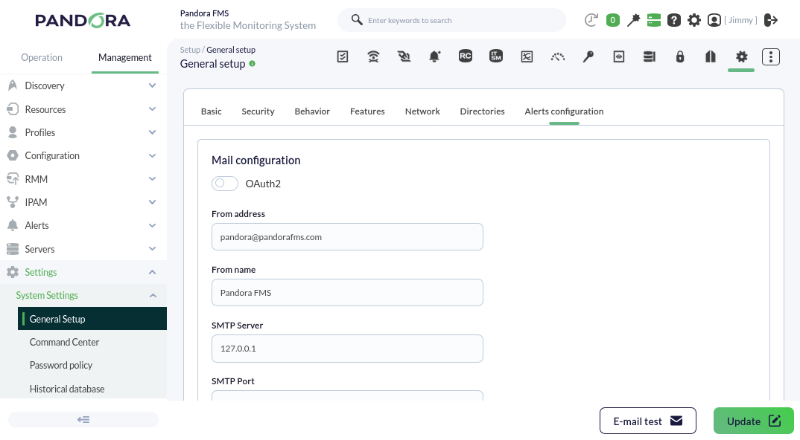
If you use the local server (127.0.0.) you 1)1maywill not be able to send emailsmessages correctly, as it will depend on the configuration of your environment will depend on it.environment. If you need more information,information clickyou can consult herethis link.
To prevent emails from being classifiedidentified as spam,spam, we recommend that you use a corporate email (exchange,Gmail®, gmail,Proton®, etc)etc.).
To be able to configure the recipient of an alert, you only need to modify the action. The action is "Mail to XXX"Admin in AlertsManagement→ >Actions: Actions.
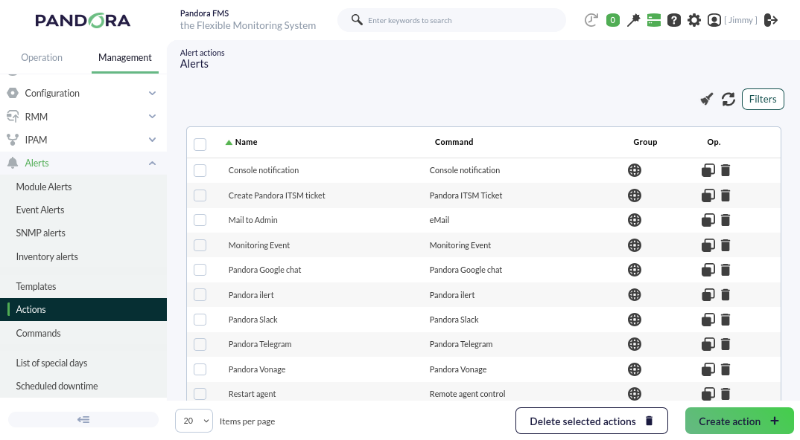
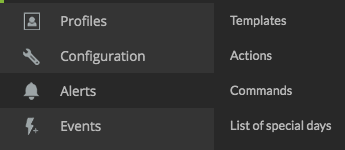
ClickEdit the Mail to Admin action (by clicking on theits action name to add the configuration. Follow the menu "Alerts -> Actions".
Edit "Mail to" actionname) and use this example as a reference:
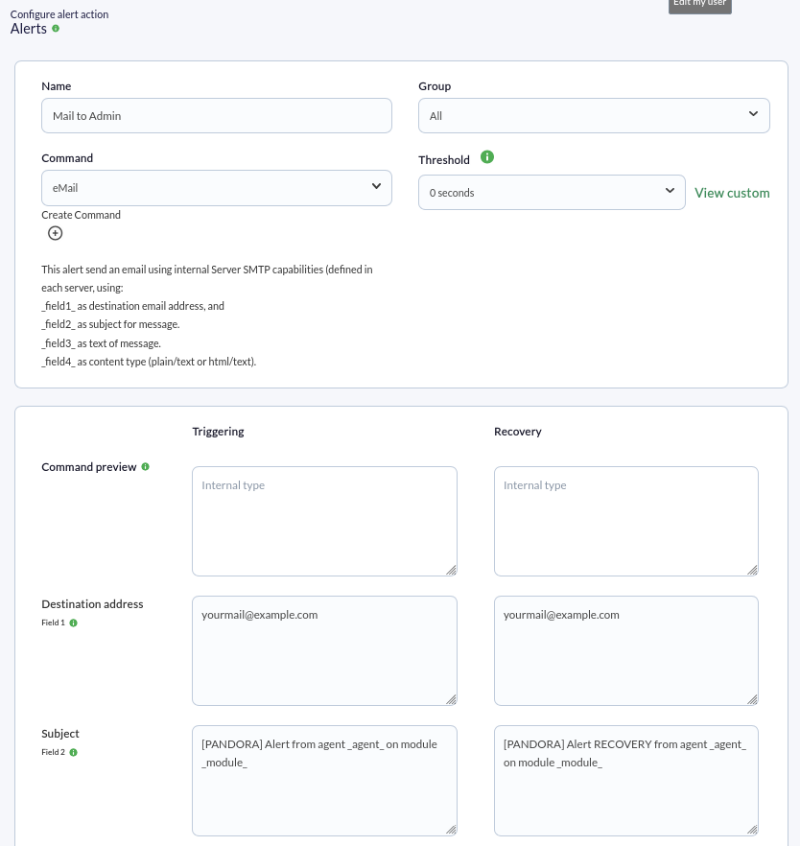
Field 1 (Destination address)address) will be modified and the destination emailmailbox address mustwill be added.placed.
In field 22, enterleave the text fromthat is in the screenshot.capture. Here two macros ( _agent_ and _module_ ) are being used (_agent_ and _module_) and theywhich will replace atthe runname timeof the agent name and the module that generated by the alert.alert at runtime.
There are about forty macros that you maycan use to obtain values at the time ofwhen executing alerts. ReadSee the documentation.documentation.
Field 3 couldcan be used to shapegive body to the email, in HTML or plain text:
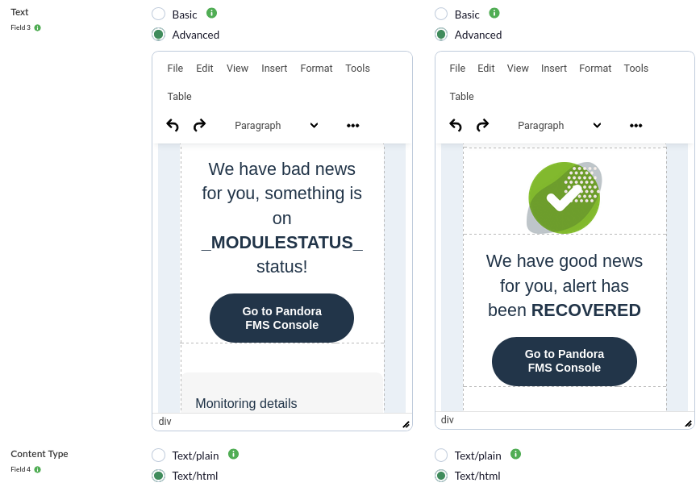
Although Pandora FMS includes an HTML viewer, we recommend that if you are going to writecompose emails in HTML, copy and paste the code here:here
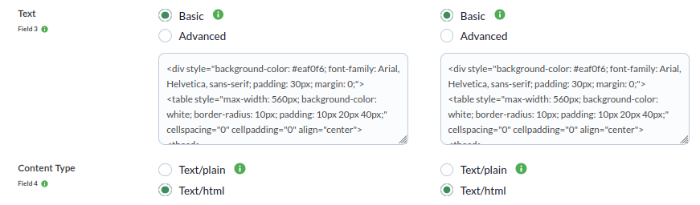
If you didhave not changemodified the default action, the HTML template of the mailemail will be similar to this one.this. You maycan modify it later, now let uslet's see how alerts are assigned.
Assigning anthe alert to a module

Now we add the module (for example, Host Alive), the template (Critical Condition) and the action that youwe configured in the previous step ( Mail to XXX)XXX ). Add the alert:
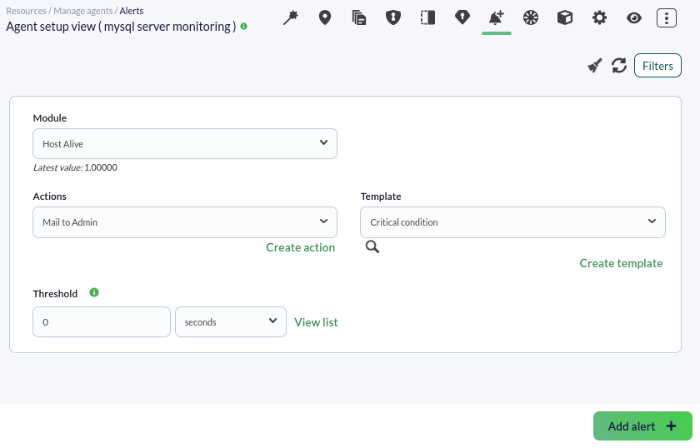
Once added, youwe maycan seeobserve it in the agent view,view checking whetherif it is executedrunning or not, seeingby looking at the color of its state:status:

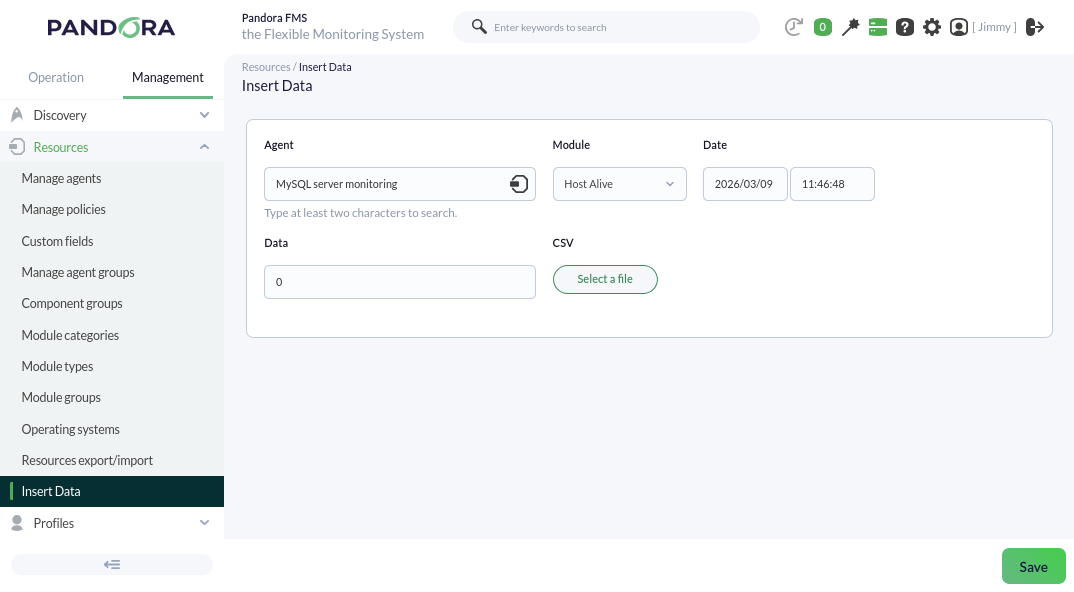
YouWe maycan wait (or forceforce) the host to failgo down to see if the alert works,works; orone youway mayis "forceto insert a zero value directly into the alert"module, to see if the mailwhich is actuallyof sent.true/false Click on the force icon (see image):type:

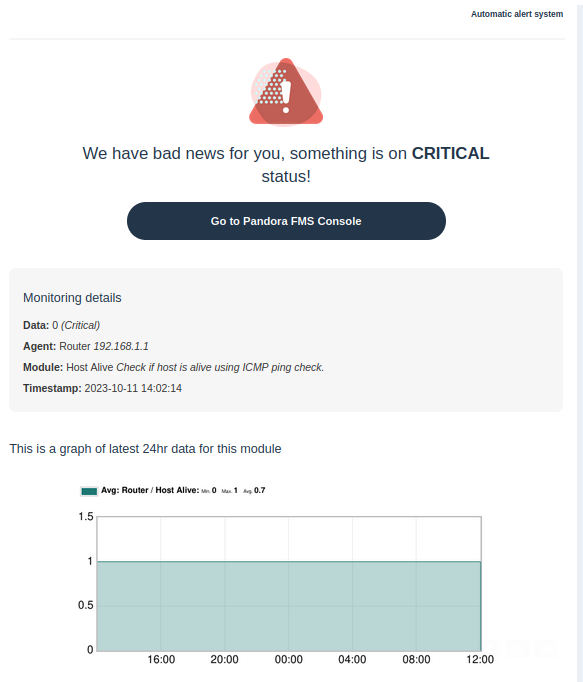
An email with the alert should bearrive sent toat the mailbox. As it is a "forced" alert, in the data field it says N/A. In real fife it would show the real module value, like this one:mailbox:
DidAre you not achieveachieving the expectedresults results?explained Goin tothis chapter? Access the help or support sections.section.