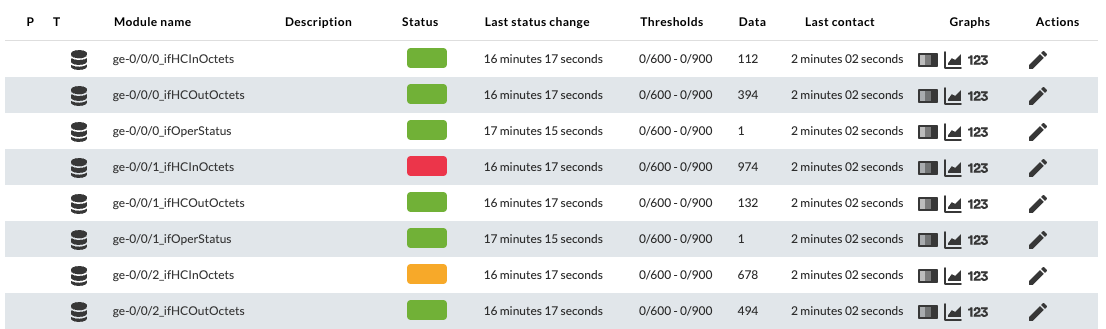
Configuration in Pandora FMS
To configure this as a Server plugin in Pandora FMS, you can follow these steps:
1. Upload the plugin to Pandora FMS, for example at the following path.
/usr/share/pandora_server/util/plugin2. Create a server plugin in the Plugins section.
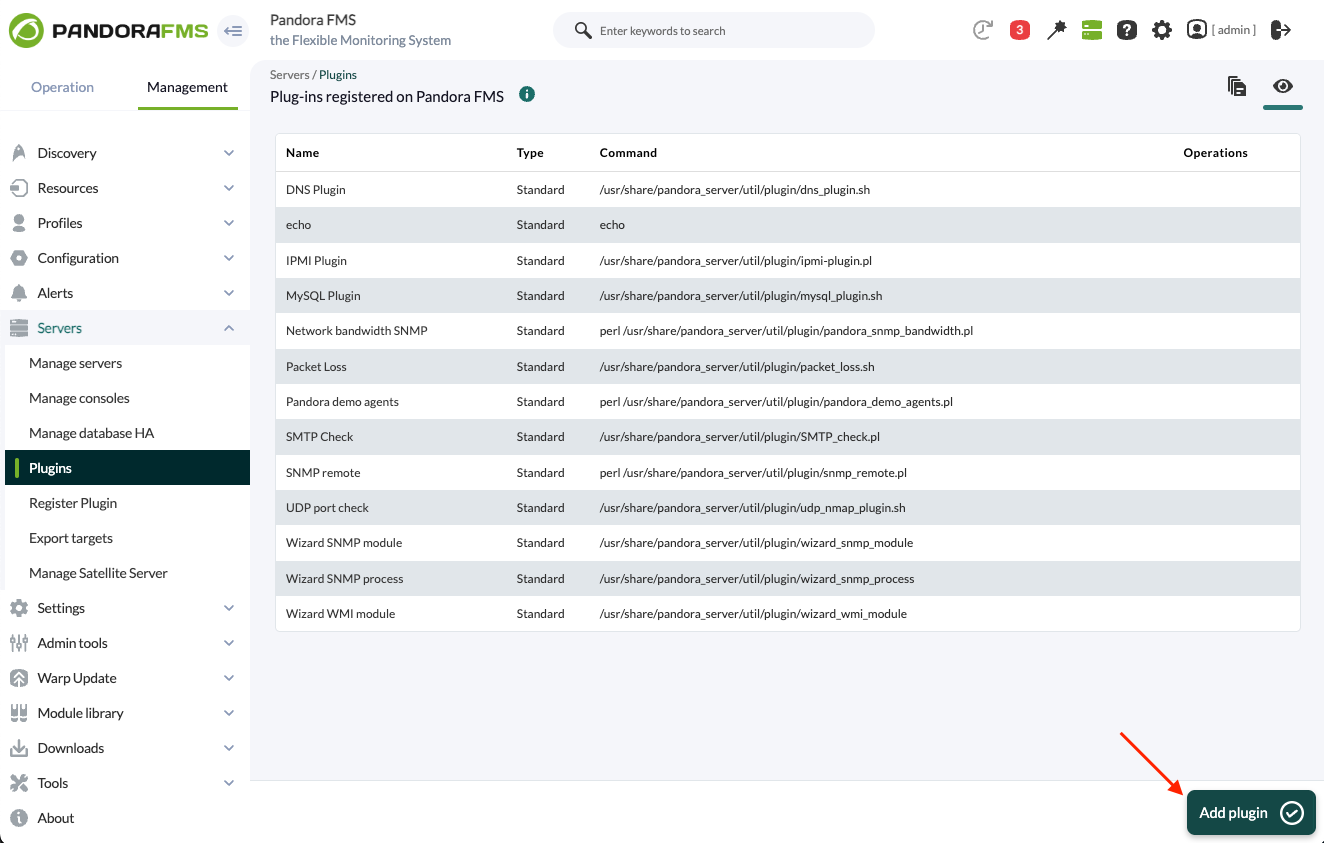
3. Add name, description and timeout.
This plugin may take some time to execute, so it is recommended to configure a timeout of at least 20 seconds. It is possible that the global parameter ‘plugin_timeout’ of the pandora_server.conf should be adjusted as well.
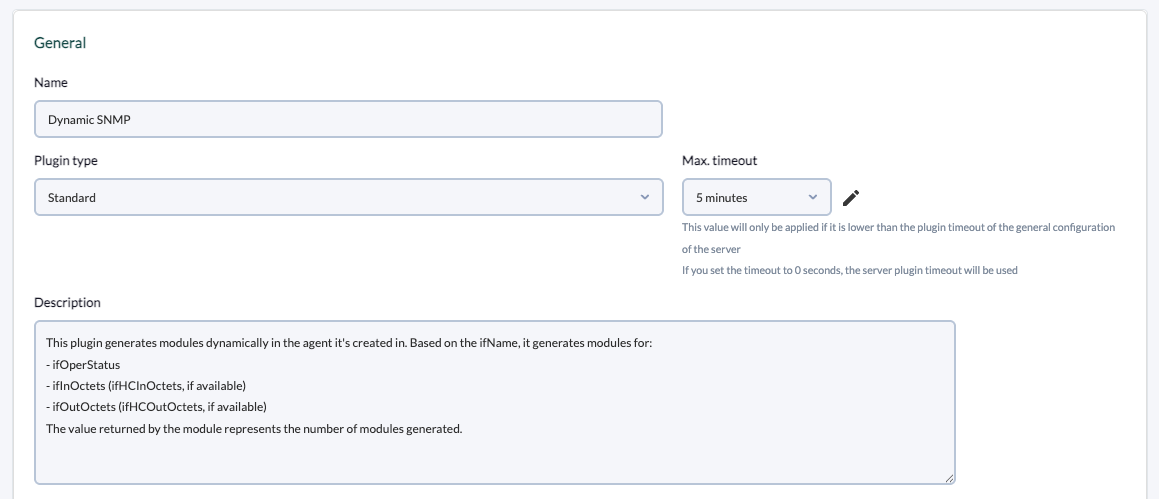
Description used in the example:
This plugin generates modules dynamically in the agent it's created in. Based on the ifName, it generates modules for:
- ifOperStatus
- ifInOctets (ifHCInOctets, if available)
- ifOutOctets (ifHCOutOctets, if available)
The value returned by the module represents the number of modules generated.
4. Add the path to the plugin in the command and the necessary parameters for its execution.
This example is configured for monitoring interfaces with SNMPv2, indicating filters for the interfaces and status thresholds for the generated modules. The _agentname_ and _address_ server macros will be used to avoid having to manually indicate the agent name and IP address of the device in each execution.
For each parameter a macro must be configured, the syntax of this macro being the following : _fieldx_, where x is the positional number of the parameter.
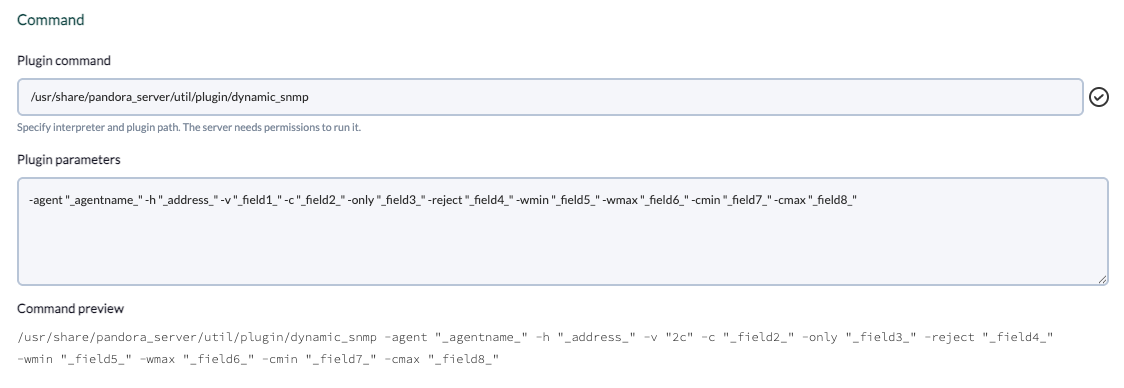
Plugin parameters used in the example:
-agent "_agentname_" -h "_address_" -v "_field1_" -c "_field2_" -only "_field3_" -reject "_field4_" -wmin "_field5_" -wmax "_field6_" -cmin "_field7_" -cmax "_field8_"5. Configure the macros shown above, adding in each one the description of the parameter.
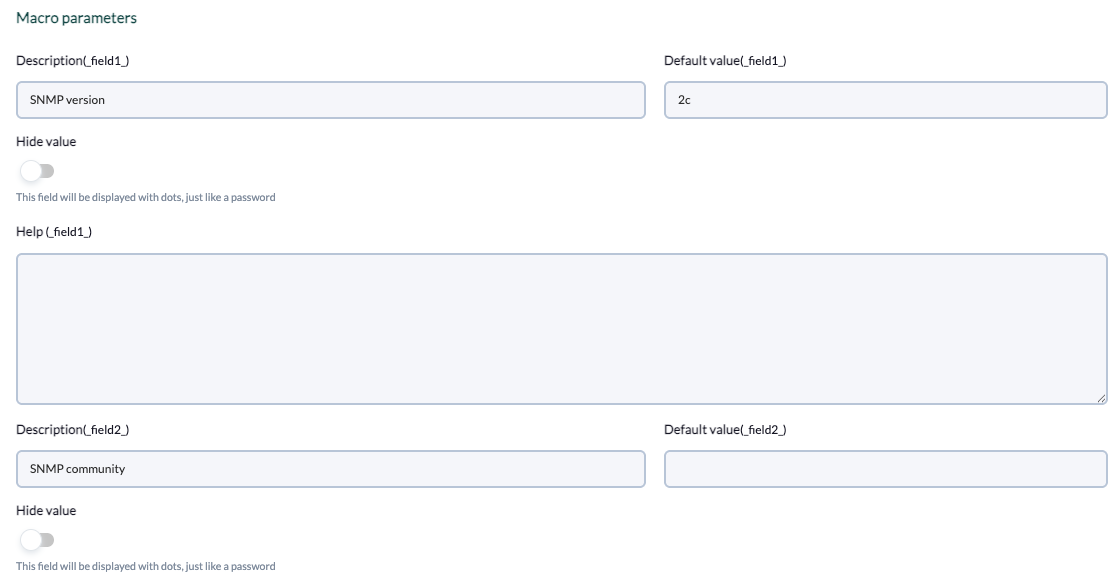
Fields included in the example:
- Field 1
- Description:
SNMP version - Default value:
2c
- Description:
- Field 2
- Description:
SNMP community
- Description:
- Field 3:
- Description:
Filter interfaces by name - Help:
Optional: allows filtering interfaces by name, separated by commas. For example: ‘ge,fe’, will only generate modules for interfaces whose name contains ‘ge’ or ‘fe’.
- Description:
- Field 4:
- Description:
Exclude interfaces by name - Help:
Optional: allows to exclude interfaces by name, separated by comma. For example: ‘ge,fe’ will generate modules for all available interfaces except if their name contains ‘ge’ or ‘fe’.
- Description:
- Field 5:
- Description:
Warning threshold (min) - Help:
Optional: Allows to specify the min threshold for Warning status in the generated modules.
- Description:
- Field 6:
- Description:
Warning threshold (max) - Help:
Optional: Allows to specify the max threshold for Warning status in the generated modules.
- Description:
- Field 7:
- Description:
Critical threshold (min) - Help:
Optional: Allows to specify the min threshold for Critical status in the generated modules.
- Description:
- Field 8:
- Description:
Critical threshold (max) - Help:
Allows to specify the max threshold for Critical status in the generated modules.
- Description:
6. Once configured, you must create a module in an agent that will execute the plugin. In the module menu of an agent, create a module of plugin server type.
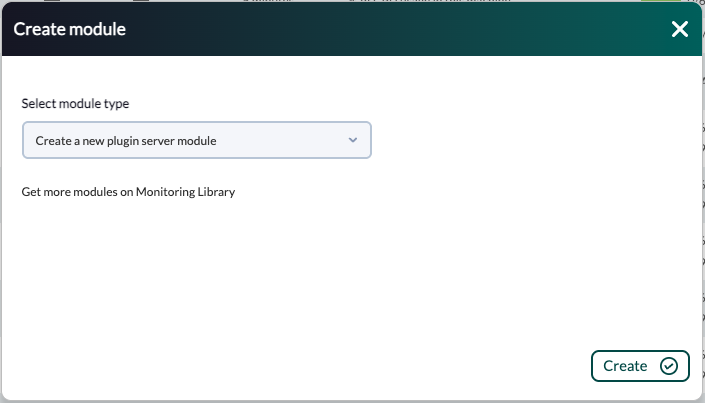
7. In the module configuration menu, enter a name, select the plugin and fill in the required fields.
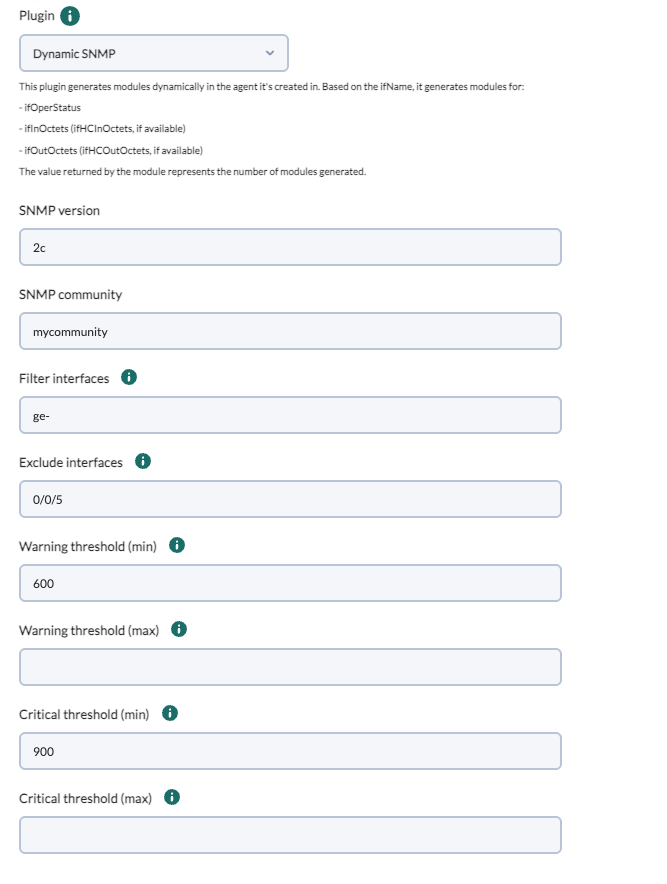
8. Once the module is created, the plugin will run and generate the modules that match the specified filters.