Use in Pandora FMS
The firstTelegram® thing we should doplugin is tofully uploadintegrated the script to an accessible path in the machine where we have deployed theinto Pandora FMS server,version in800.
The casedefault Iscript willis placelocated itat: in//usr/share/pandora_server/util/pandora-telegram-cli.. However,py.py you can use any location can be used as long as the pandoraPFMS serverServer has access to it.
Also, weYou must make sureensure that we have theall dependencies are installed for the plugin execution or that we have the compiled version in its default. To, check itthis, we simply execute the plugin without any parameter, which should give us an answer similar to:run:
python3 pandora-telegram-cli.pyYou will get a response similar to this:

InIf casethere is an error, the dependencies must be reinstalled:
pip3 install -r requirements.txtTelegram alert command
To verify the installation of its command, use the Management → Alerts→Commands menu and enter the search key in Filter:
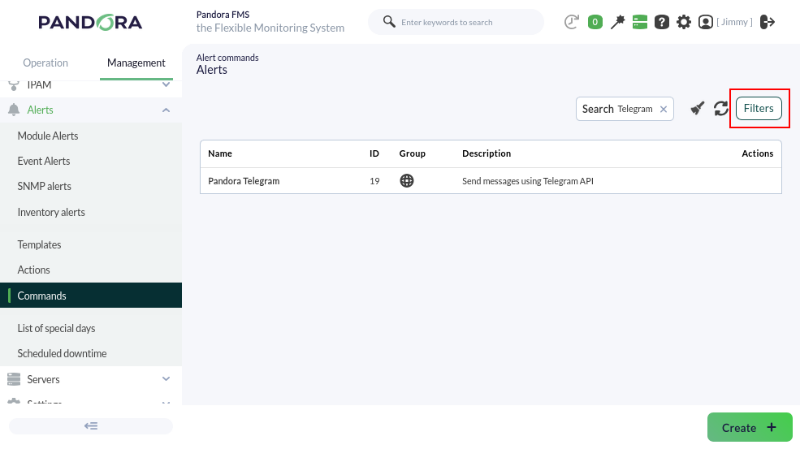
This command does not allow editing or deletion, so it is considered read-only and is used by the system. Therefore, you have any error,must go to the plugingeneral configuration section of this guide where it is described howsettings to installsave the dependencies.
Having the pluginobtained in the serverprevious andtopic.
Managements correctly,→ nowSettings we→ haveSystem settings → General setup → Alerts configuration menu:
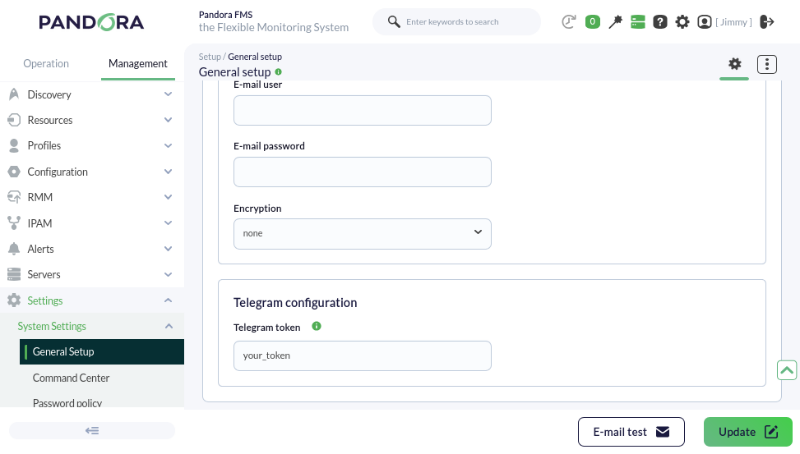
The field displays the token in plain text. Take the necessary precautions to declareprevent itthird parties from viewing it.
When finished, click the Update button to save the Telegram token in the Pandora FMS web console.database.
Telegram action command
Once we access as administrator (or with alert management permissions) we will goGo to the AlertsManagement→Alerts→ >Actions Commandsmenu section.and in Filter select Pandora Telegram in the Command field. The alert actions that use the Pandora Telegram command will be displayed:
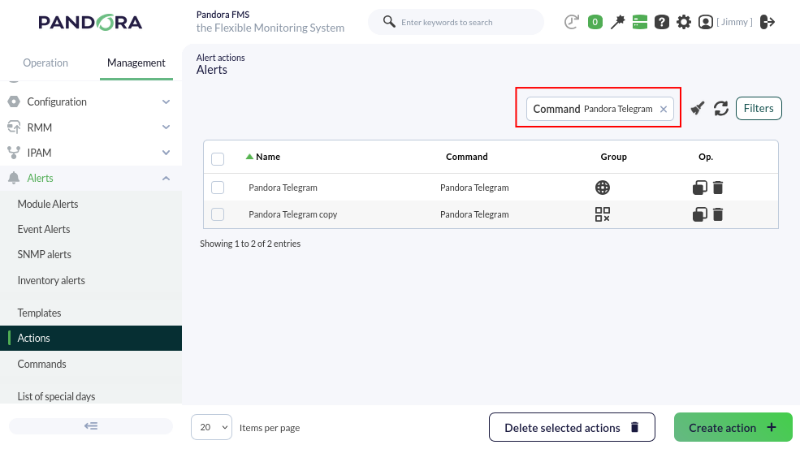
ClickYou may:
- Use the default action when installing Pandora FMS.
- Copy the previous action and customize it as needed. It may be the case that several groups of agents use different alert actions configured according to each case.
- Create an action based on
createthenewTelegramcommand.alert command (read-only).
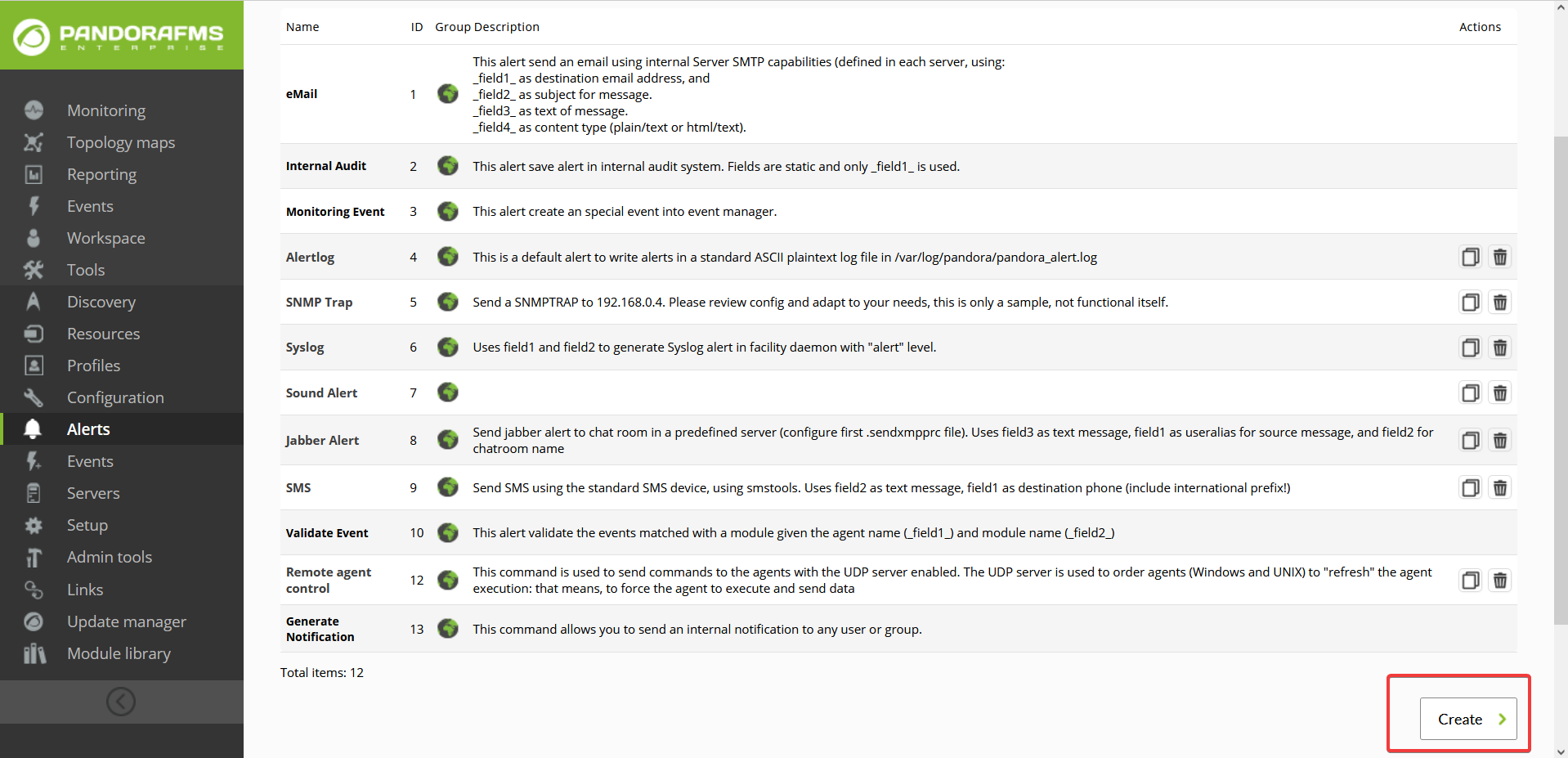
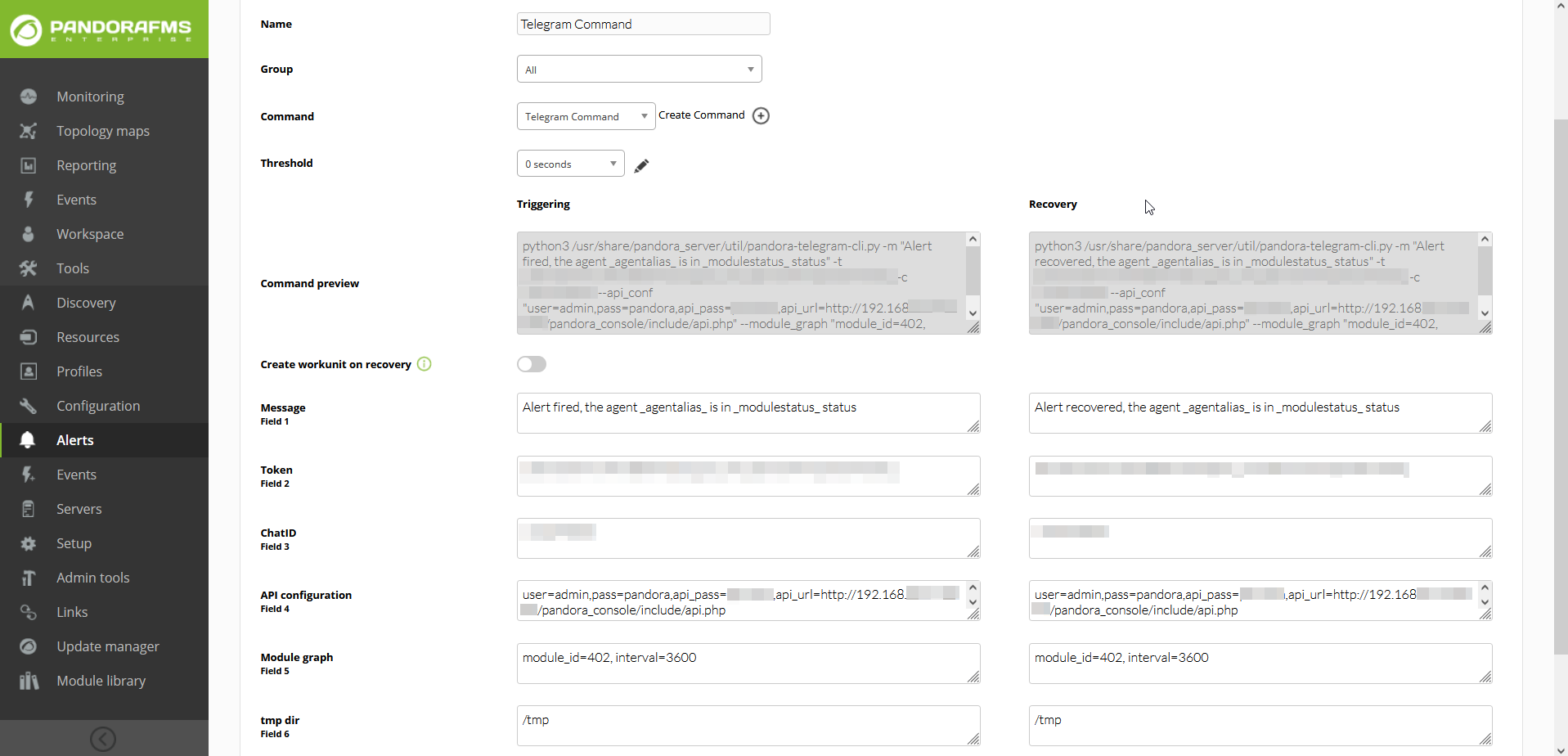
Here we will define the execution of the script and the parameters that we will use making use of the PandoraFMS macros.My definition will be:
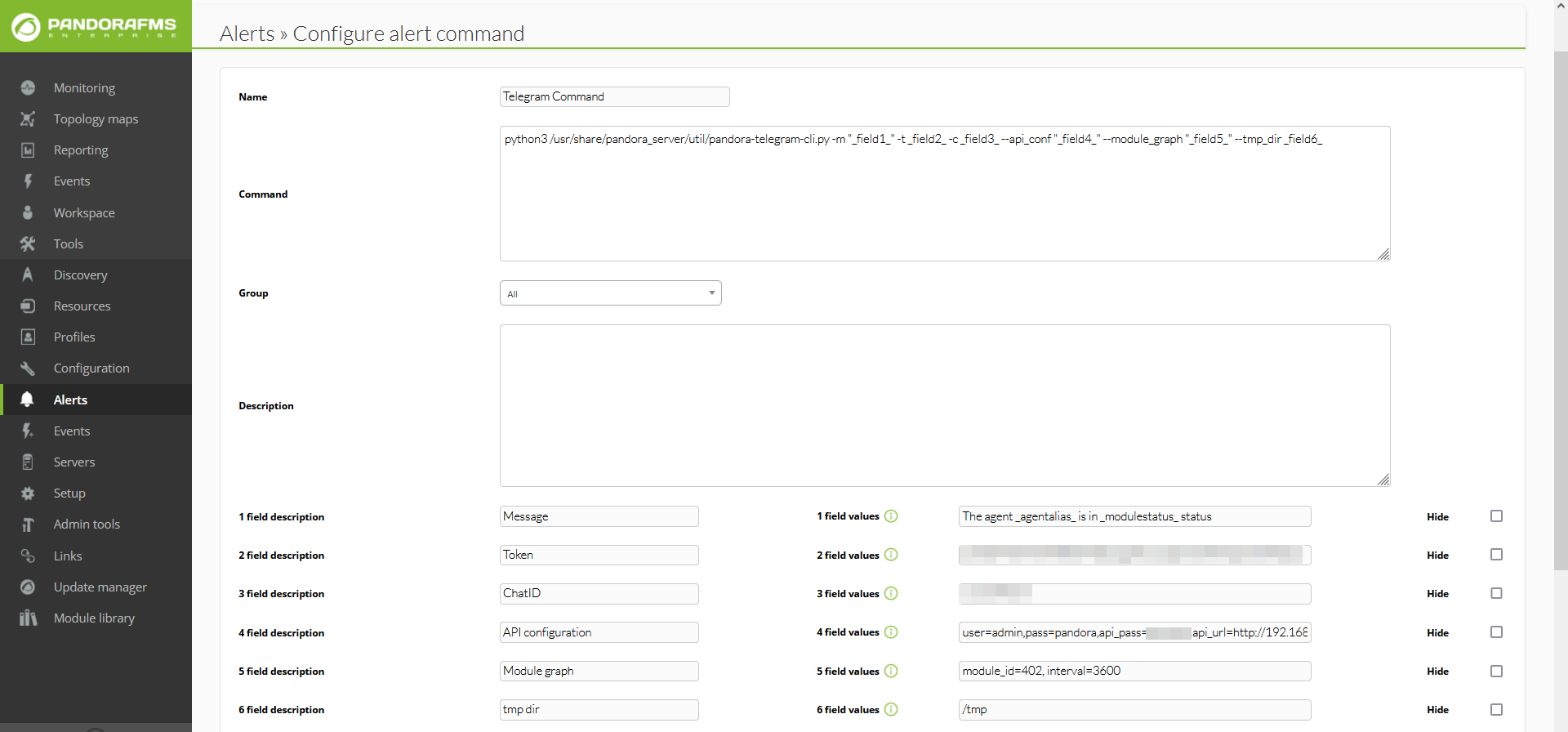
Here we define a field for each parameter that the plugin will have. If we don't want to useFor any of the optionalthree parameterscases, wethe canChat simplyID leavemust themalways blank,be configured, obtained as indicated in the previous topic.
Whether editing, copying and editing, or not define them at all.
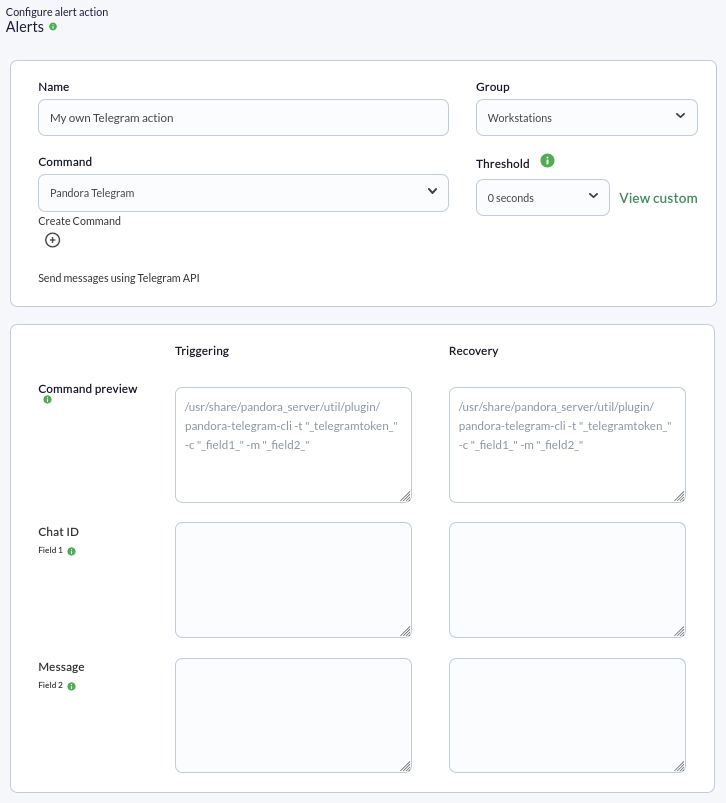
Now we can go to configurecreating, the actionconfiguration usingprocess ouris command. We go to Alerts > Actions.similar:
Click
- Indicate
Create.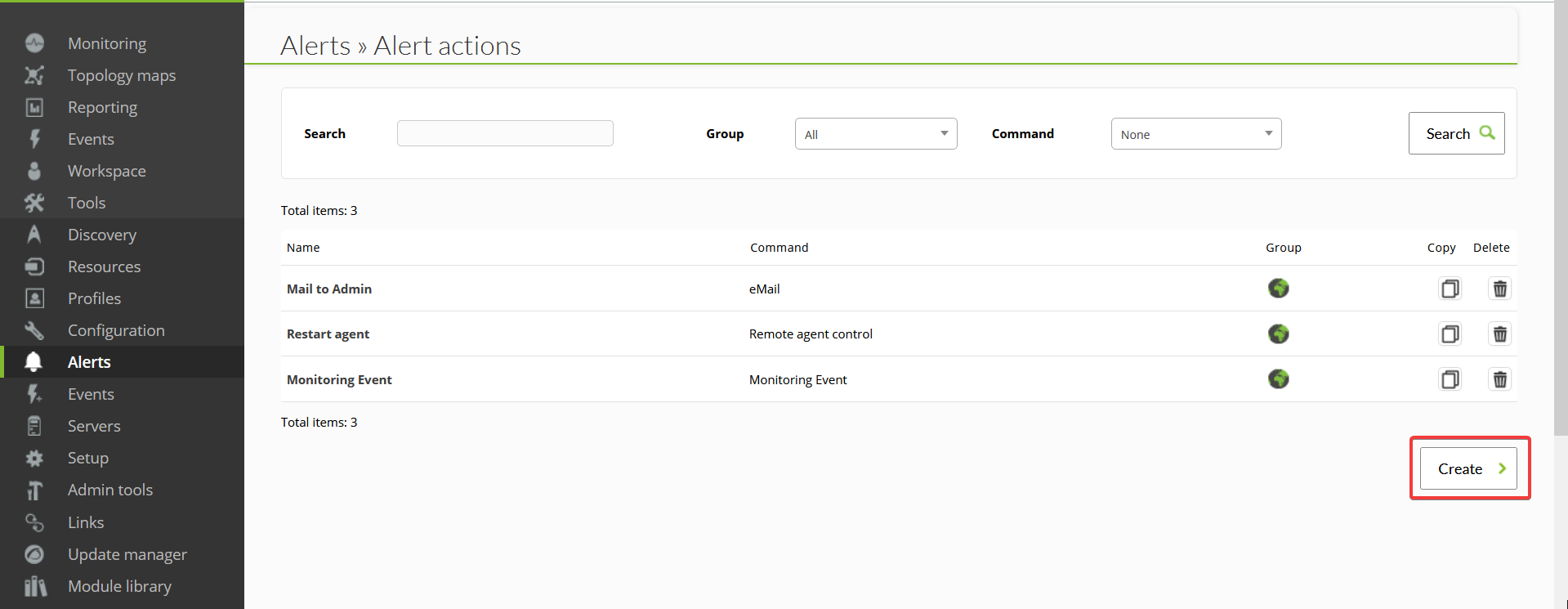
Weand select thecommandnameweandwantgroup as appropriate. - Ensure that Pandora Telegram is selected in Command list.
- In Chat ID, enter the corresponding identifier. This field does not accept macros; only enter the identifier.
- In the Message field for Triggering, if it is empty, insert
[PANDORA] Alert FIRED on _agent_ / _module_ / _timestamp_ / _data_. See the other macros available touse,insert more information. - In the Message field for Recovery, if it is empty, insert
[PANDORA] Alert RECOVERED on _agent_ / _module_ / _timestamp_ / _data_. See the other macros available to insert more information. - Press the Create button if you are creating an alert action or (Update if you are editing) to save the parameters.
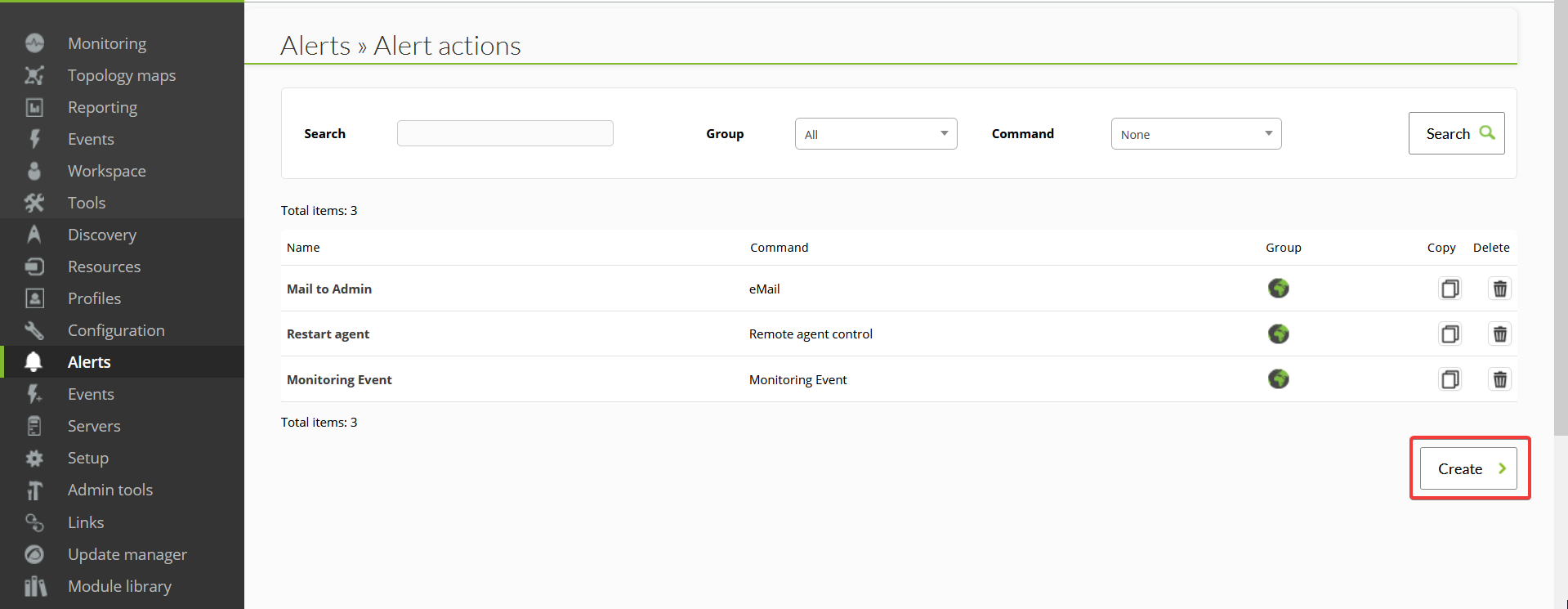
Click Create. Once you have created this alert action, it can be included in thisa casepolicy, a template, or Module.
If additional information is required, please visit the one we have just createddocumentation for the Telegram bot.plugin.
Here we can define and modify the fields corresponding to the fields that we have defined, I have left it as default configuration in the command, so we can use it with what we have defined, but we can change it at the level of specific actions if we want to change the data that is sent for each action and change the trigger text and the recovery text.
Having the action configured we can simply go to a module or policy and apply this action with the corresponding template.For more information about alerts configuration go to PandoraFMS official documentation: