Configuration in PandoraFMS
As a server plugin
Manual installation
Go to serversServers > plugins:Plugins in the Pandora FMS console and click Add.
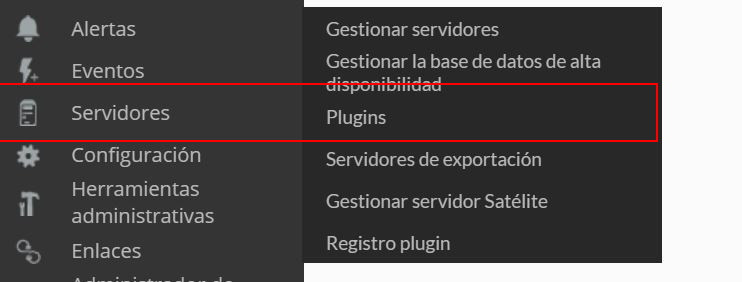
Click on add:

We put indesired name and description. In the description that is preferred.
We put as command thefield, execution withenter the full path ofto the plugin:executable:
/usr/share/pandora_server/util/plugin/pandora_kafka
/path_pandora_kafka
Remember that theThe recommended pathdirectory for the use of the server plugins is:
/usr/share/pandora_server/util/plugin/
And in parameters ofIn the plugin weparameters, willinclude introduce--bootstrap_servers theseas followeda required field and add any other arguments you need using _field<N>_ macros.
Example:
--bootstrap_servers _field1_ --topics _field2_ --agent_prefix _field3_ --module_prefix _field4_ --transfer_mode tentacle --tentacle_ip 127.0.0.1 --tentacle_port 41121
After creating the server plugin, open an agent, create a plugin module, and select the configured plugin. This module receives the final 1 or 0 returned by the macroexecution, "_field<N>_",while the obligatoryKafka onemetrics forare itsent tothrough workseparate isXML --conf.Although it is not mandatory, it is highly recommended the use of the --agent_alias parameter, since it allows us to customize the name of the agent that will contain the modules created for each customized query. It is also advisable to use the --module_prefix parameter, since this will allow us to assign a prefix to the modules, which can be useful to recognize them faster and differentiate them if we create several executions for different databases.agents.
Once this is done, we will click on "create".
Once this is done, the only thing left to do is to call it, so we will go to some agent's view and create an add-in module:
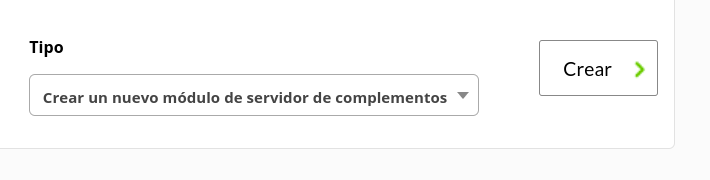
We will give it a name and in the section "plugin" we will put the one we have just configured.
Once this is done, click on create.
If the module is shown with 1, it means that it is running correctly.