
19. Working with Policies in Pandora FMS
Pandora FMS offers us the possibility ofto workingwork with previouslythe seen alertmodule and modulealert creation and management tools seen previously in more efficient ways. One of themthese is the mass operations tool.
However, the most powerful amongof these tools are monitoring policies.policies (or simply policies).
Policies are groups of settingsconfigurations where youwe add elements that you maycan later massbe loadloaded in thebulk onto agents or agentgroups groups.of Thoseagents. These elements can be monitoring modules (remote or local), alertsalerts, inventory, and script collections for local monitoring.
PoliciesMonitoring policies are an advanced feature.feature of PFMS.
Policies are conceiveddesigned to makefacilitate monitoring'sthe initial deployment easierof all monitoring and also to homogenizestandardize monitoring management, sinceas youwe maycan unify checks byusing different criteria such as Operating System, applications, network..., that is, by any common factor of the softwareEndPoints and remote agents previouslyremotes installed or included.included previously.
If you go to Configuration → Manage policies, youWe will see some already created by default,default and others that we have created especiallyspecifically for the monitoring youimplemented implementedby us specifically according to the applications to be used.
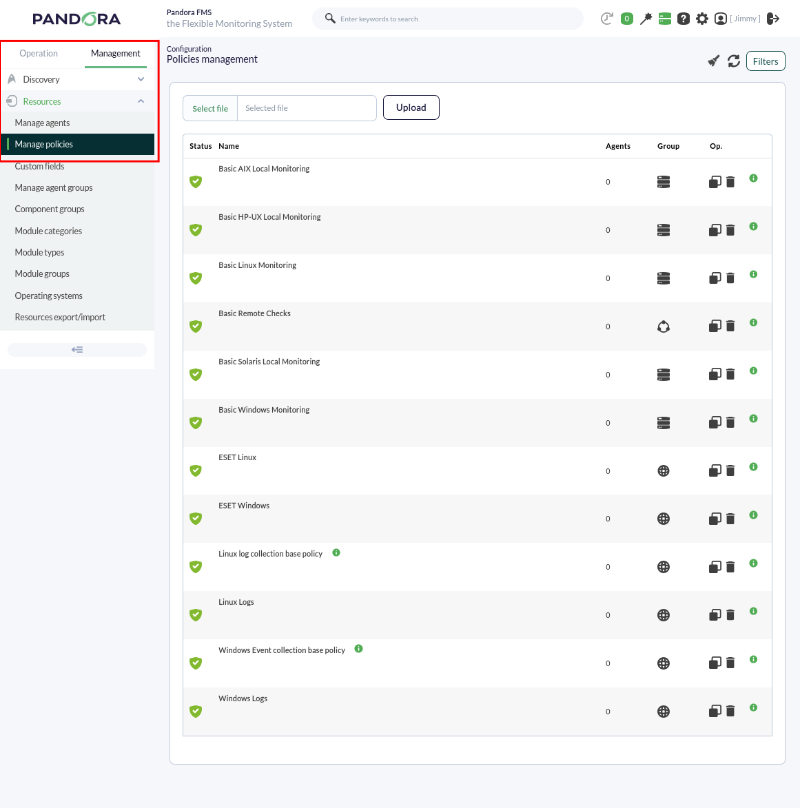
If you take awe look at the policies located at the top, youwe find those intended for operating systems such as MS Windows®, GNU/Linux®, or Solaris®.
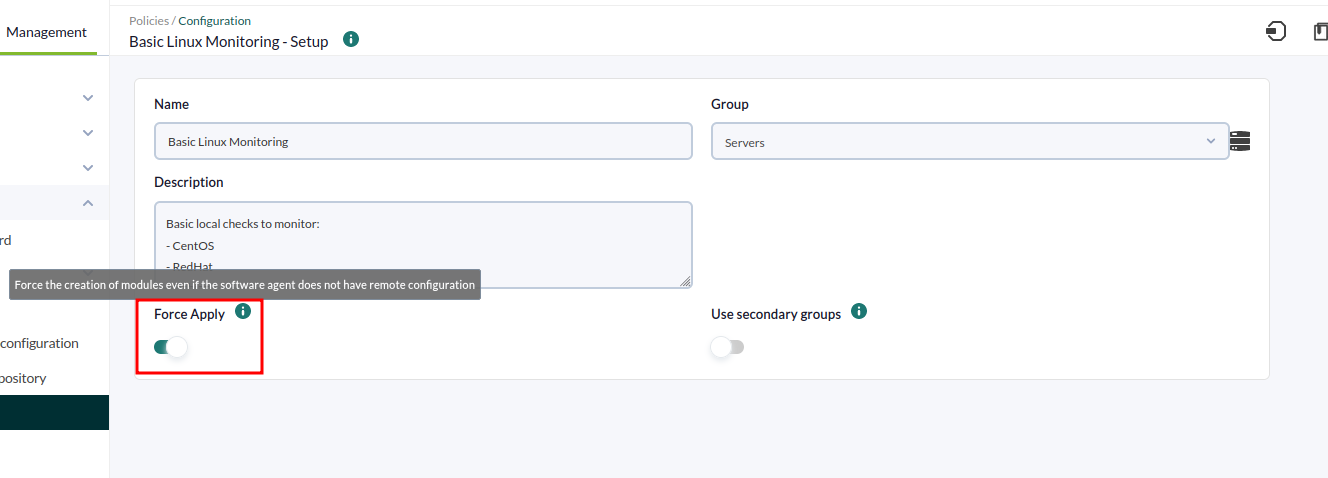
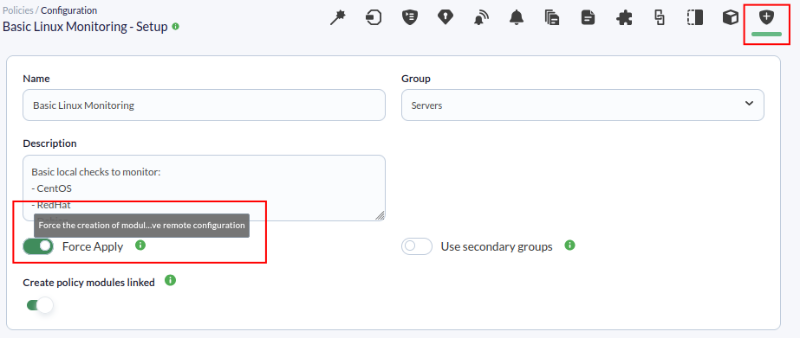
It is important to mention that local type modules will be applied if the EndPoint has remote configuration enabled,; in any case, youwe maycan force the creation of local modules from the policy configuration,configuration by enabling the token "Force Apply":Apply token:
Policy modules
For example, with the basic LinuxLinux® policy, if youwe gomove to modulethe section,modules youpart, maywe see some already pre-loadedpreloaded to obtain thechecks corresponding checks onto CPU usage, available memorymemory, and other metrics. These modules can be both local and remote:
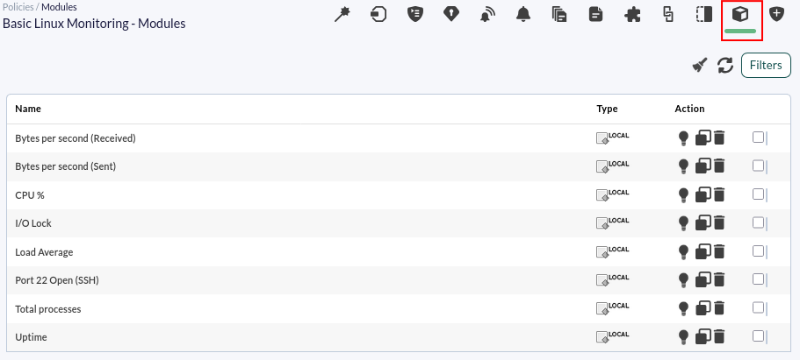
Right next to it therewe ishave another menu with options likesuch as a Wizard to create both interface and WMI modules. YouWe will be able tocan create inventory modules, link policies and modules, use agent plugins to monitor applications, use collections to upload files between Pandorathe FMSPFMS serverServer and the EndPointEndPoint, or create both internal and external alerts.
External alerts
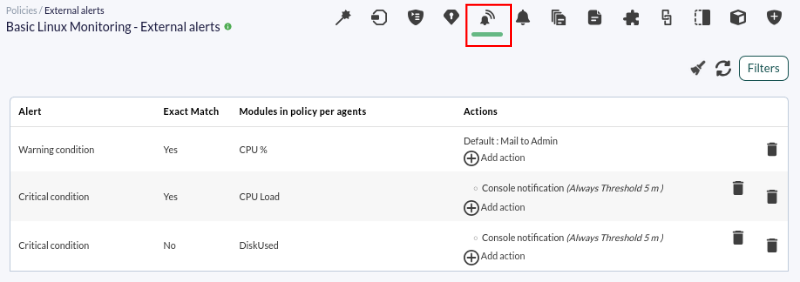
In policies, youwe maycan establish external alerts, which are alerts for modules defined in the agents to which the policy washas assigned,been assigned—that is to say,is, modules belonging to the agents and not to the policy itself. To do this, we go to the External Alerts tab and click on Add.

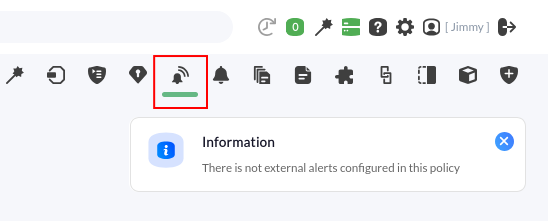
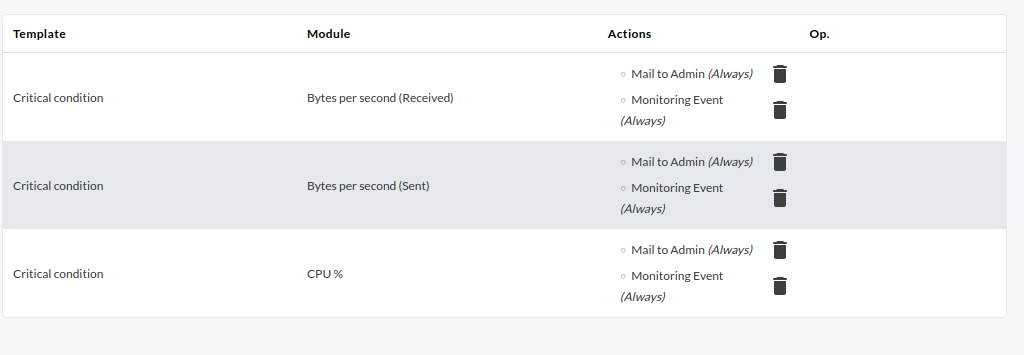
The following window will be shown,displayed, inwhere which youwe must choose the modules that willto be added to the alert, inunder whichwhat condition it will be triggeredtrigger (in this casecase, when the module status of the modules is critical), and the action that willto be launched.
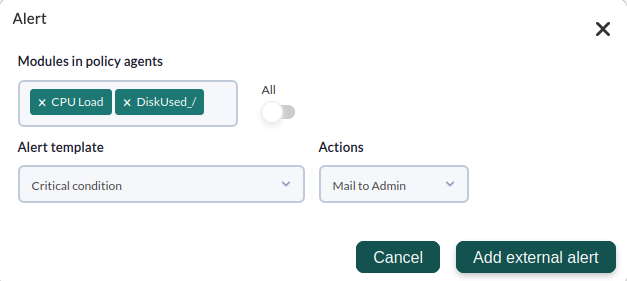
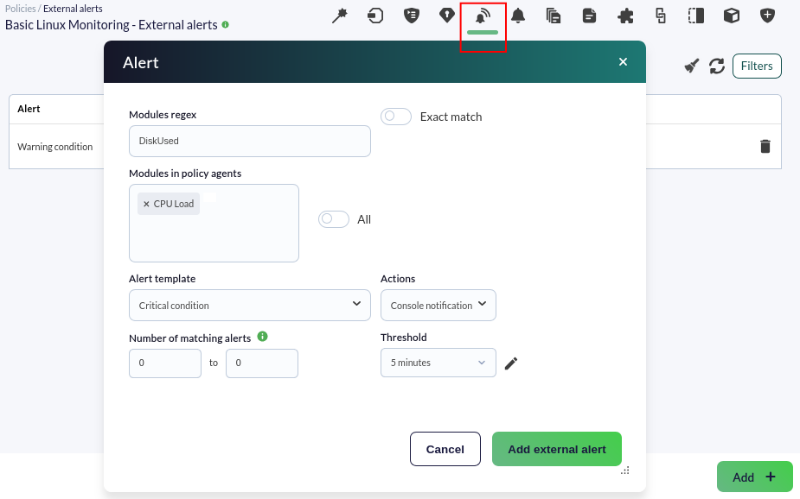
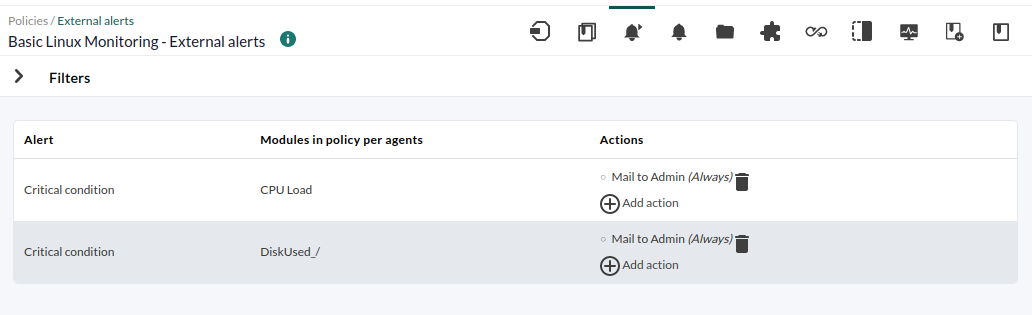
Click on Add external alert and seeobserve the alertscreated created:
alerts:
Alerts
This type of alertsalert areis setestablished only to thefor modules defined in the policy,policy; we go to the Alerts tab and click on Add.

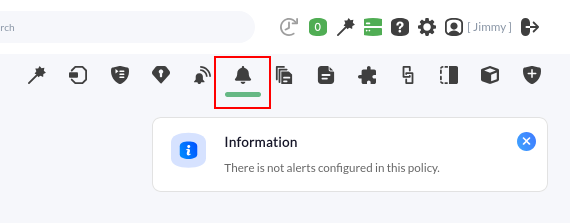
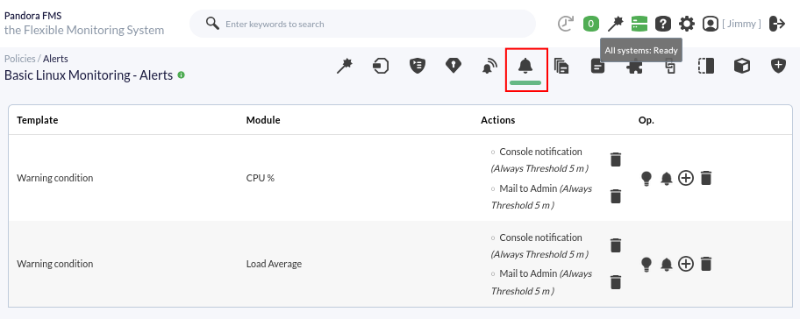
A window similar to the previous one will be shown,displayed inwhere which you maywe select the modules assigned to the alert, the condition inunder which the alert will be triggeredtrigger, and the action to perform when the alert is launched.
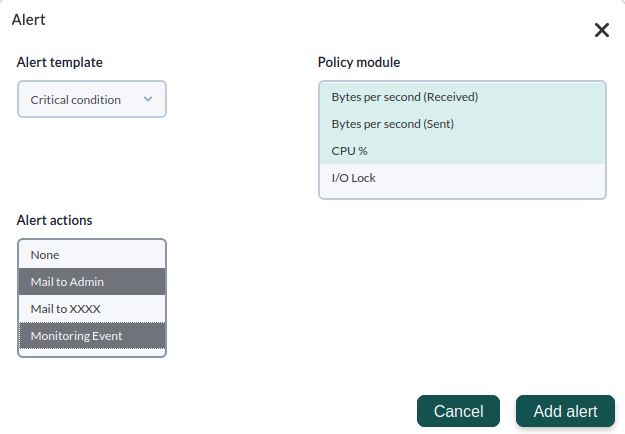
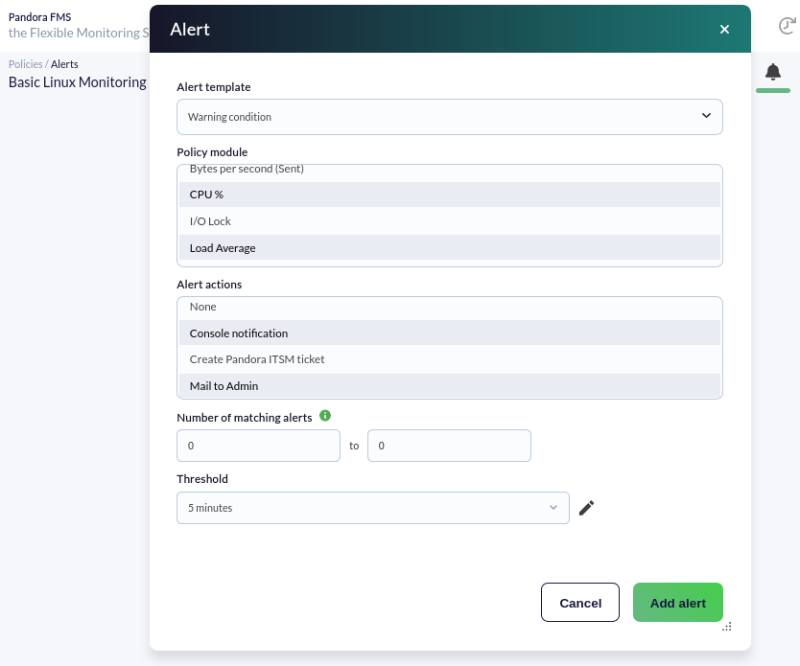
Click on Add alert and seeobserve the alertscreated created.
alerts.
Collections
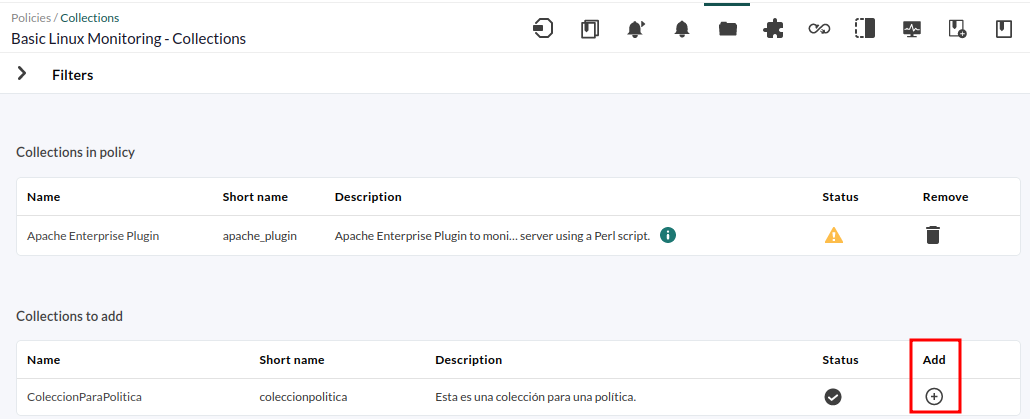
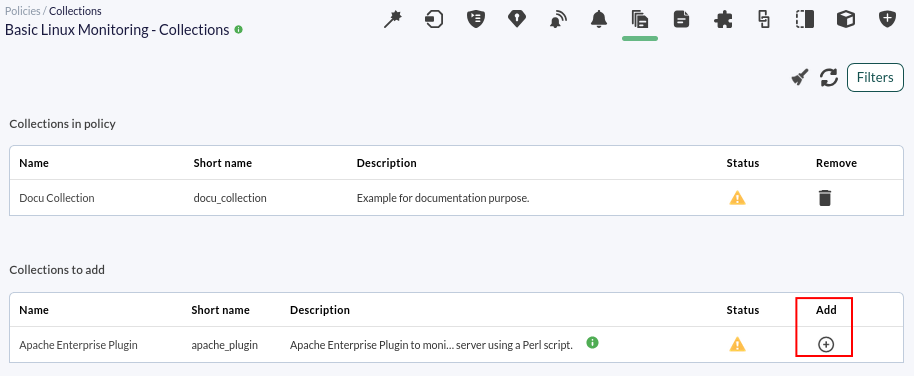
The collectionsCollections are sets of files that youwe may masscan deploy in yourbulk to our EndPoints byusing meanspolicies; ofto policies,do forthis, thatwe go to the "Collections" tab.
SeeWe observe the collections that are applied to the policy,policy; to add another collectioncollection, click on the Add(+). button.
Agent plugins
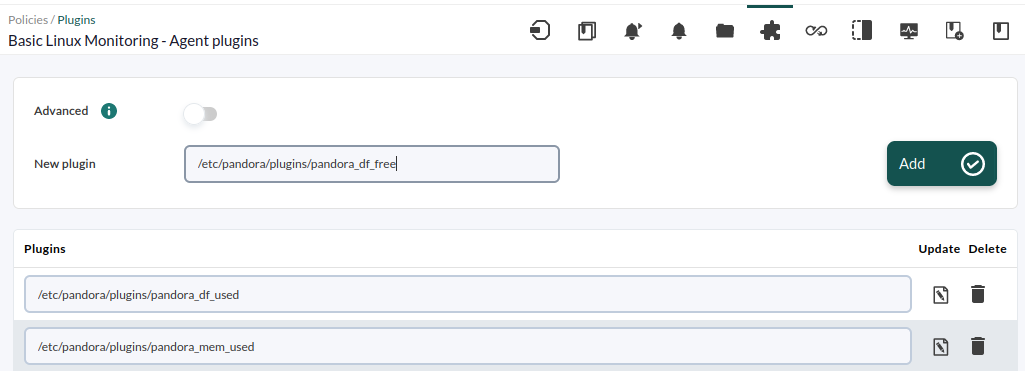
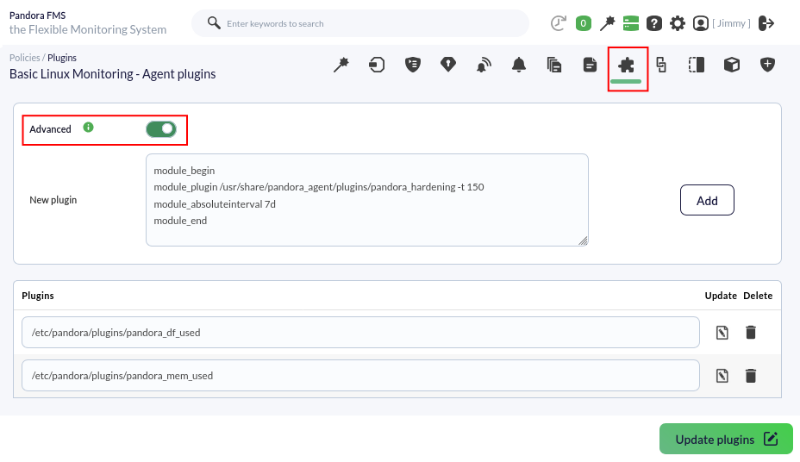
YouWe maycan also mass deploy agent plugins in bulk through policies,policies; youwe may see theobserve existing ones and add the new ones from the Agent plugins tab.
Linking
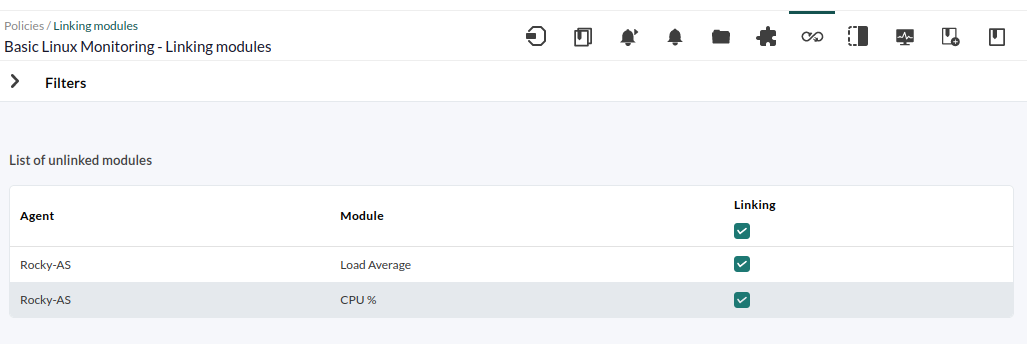
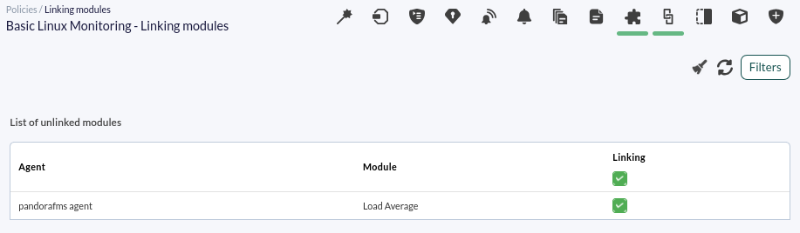
TheHere appear the policy modules that are not linked to the agent appear here,agent, so the changes youmade make into those modules will not take effect inon the agents,agents unless youwe link them again by checking the modules and clicking on the Link button.
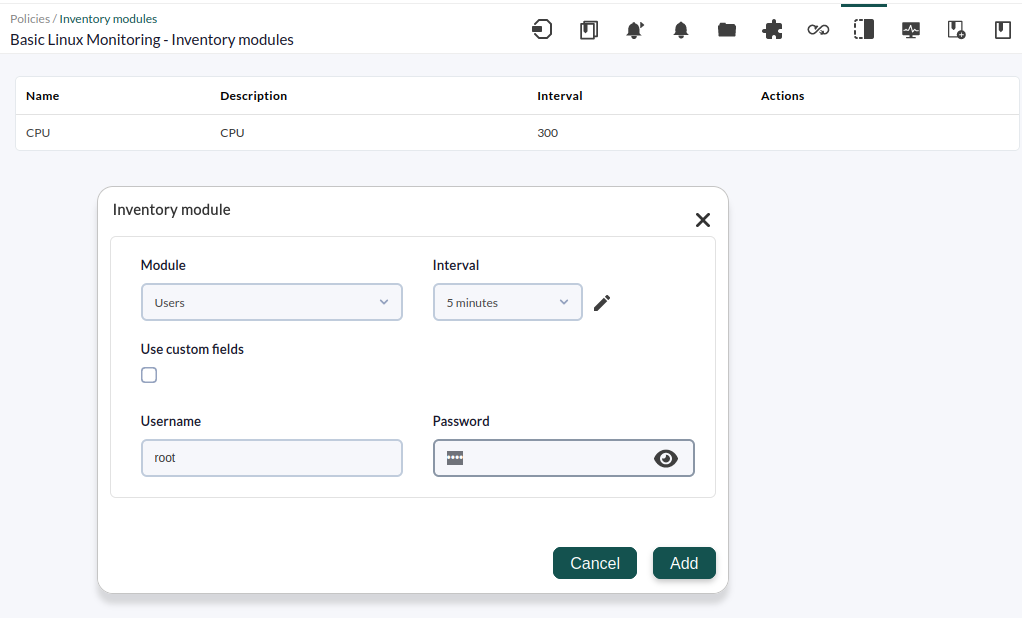
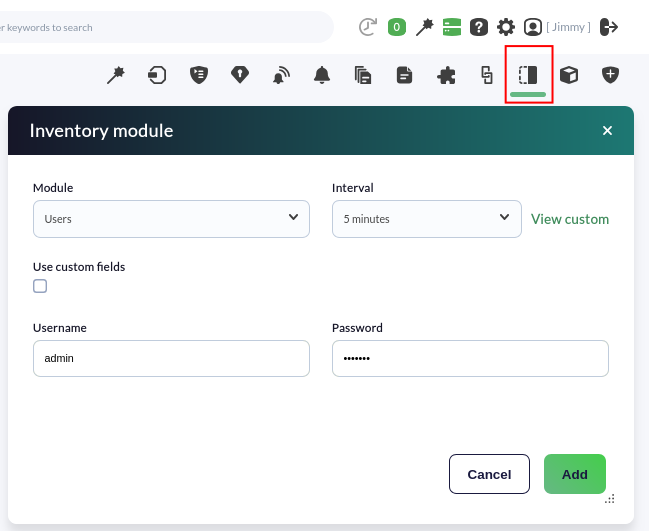
Inventory modules
YouWe maycan also mass add inventory modules in bulk with the policies from the Inventory modules tab, although theinventory inventorycollection is retrievedperformed remotely, so all agents to which youwe assign the policy must have the same access credentials.
Assign agents to the policy
Once a policy has beenis defined, we will assign it to new agents:
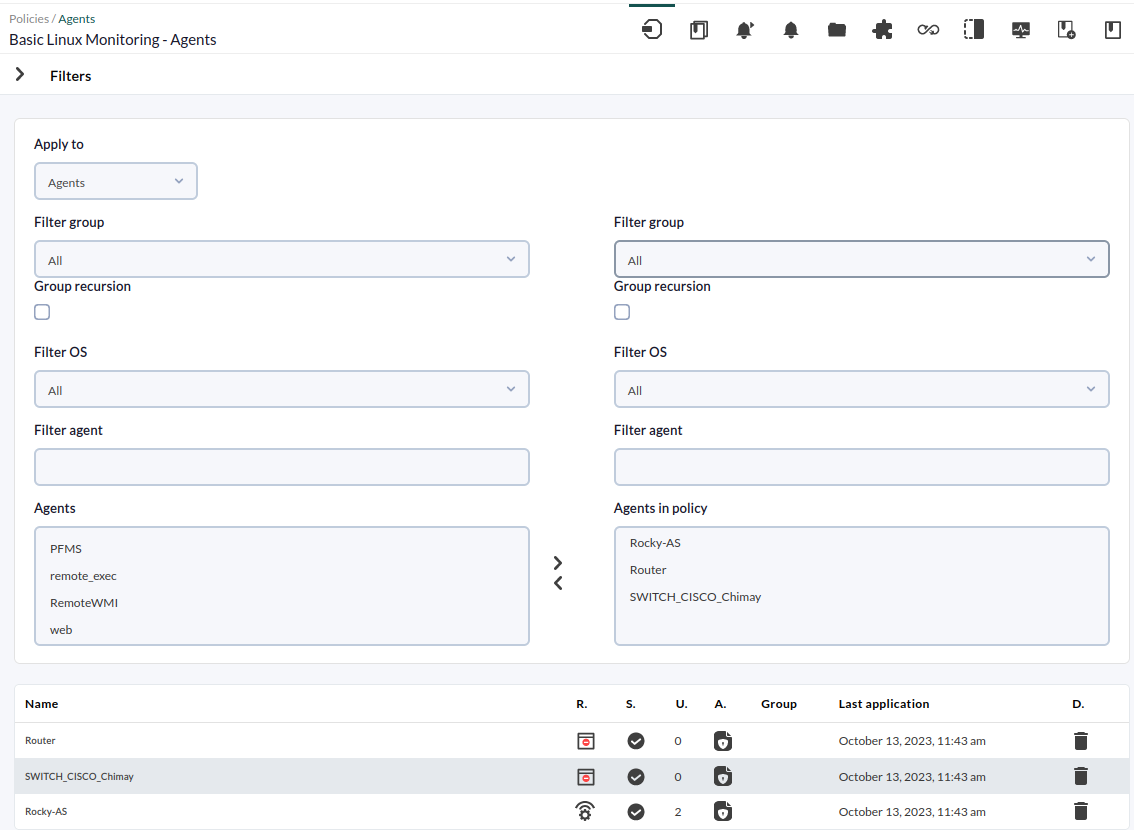
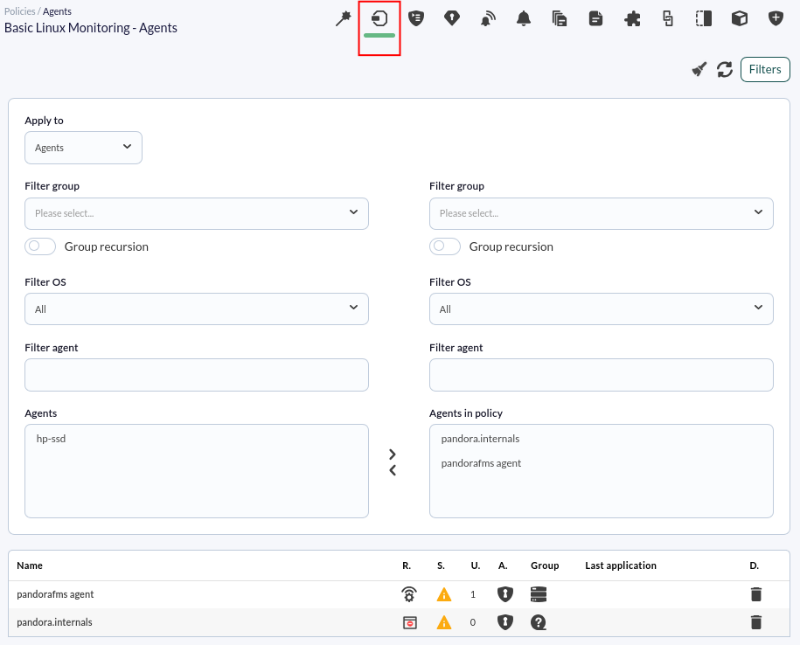
And we will apply the policy to the agents assigned to thisthat policy. ThatIn waythis youway, willwe "synchronize" the configuration of all agents and you will make sureensure that their monitoring configuration is the same for all policyagents agents.in said policy.
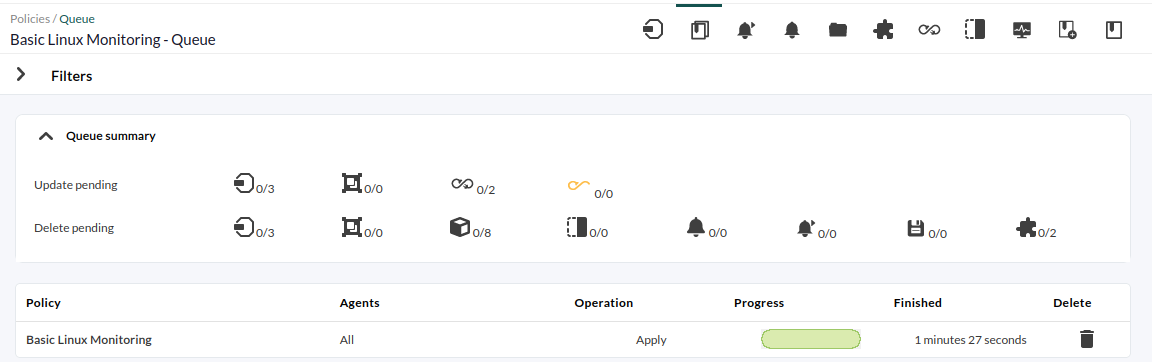
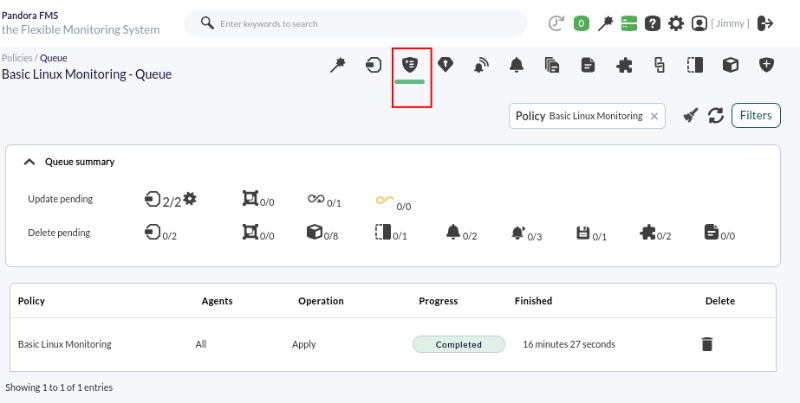
Once this last operation has beenis carried out, all selected agents will have in their configuration the modules includedthat inthis thepolicy policy,brings, alerts, plugins, collectionscollections, and inventory in a massive,mass, simplesimple, and fast way.
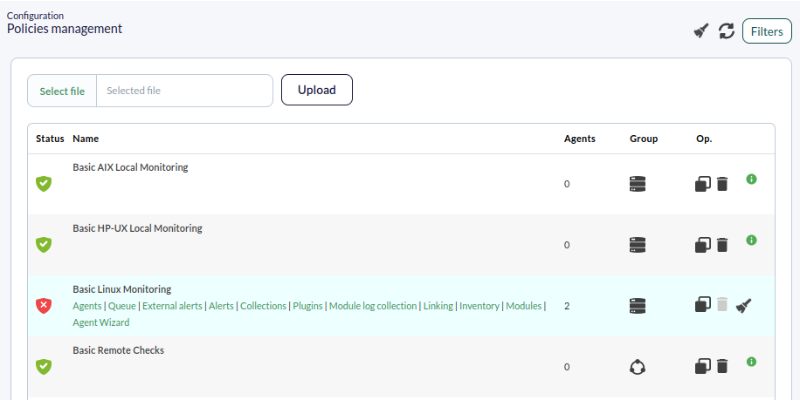
If this icon appears when displayingviewing all existing policies,policies that icon appears, it means that the policy has undergonehad changes and is pending application inon all theinvolved agents involved.agents.

Delete policy
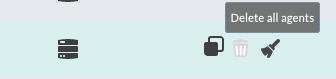
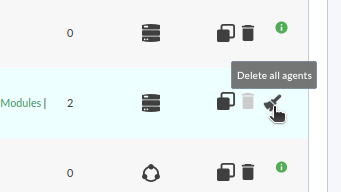
To delete a policypolicy, deletewe must remove all the applied agents from it,it; thiswe can bedo donethis by clicking on the broom icon, then the trash can button will be enabled to delete the policy.
DidAre you not achieveachieving the expectedresults results?explained Goin tothe chapter? Access the help or support sections.section.