Azure Backups
This document describes the Azure Microsoft Compute functionality of PandoraFMS discovery.
- Introduction
- Compatibility matrix
- Pre requisites
- Parameters
- Manual execution
- Discovery
- Agents and modules generated by the plugin
Introduction
This plugin aims to monitor the status of backups in Microsoft Azure, allowing you to continuously check whether protected resources are performing their backups correctly. Thanks to this monitoring, it is possible to detect backup failures, find out the protection status of resources, and verify when the last backup was performed, which helps to ensure data availability and recovery capability in the event of incidents.
The plugin connects to the Azure environment to obtain information about the backup services configured in the subscription. With this data, it generates different metrics related to the status of the backups, such as the time elapsed since the last backup, the number of available recovery points, or the overall protection status.
This information is then sent to Pandora FMS, where the necessary agents and modules are created to view and monitor the status of backups from the monitoring console. This gives the customer a clear, centralized view of the status of their backups in Azure and allows them to act quickly in the event of any problems.
Compatibility matrix
| Systems where it has been tested | Rocky linux |
| Systems where it works | Cualquier sistema linux |
Pre requisites
- Azure API Connectivity
The plugin is a binary that contains packaged dependencies so it is not necessary to install any type of dependency for its use.
- Credentials
SUBSCRIPTION_ID
Go to your subscription, you can find the subscription ID, in the top menu.

TENANT_ID
To get the tenant ID. Go to the azure Portal and search for "Entra Id". On the Overview overview page.The Directory (tenant) ID is displayed. Copy this ID. That's your tenant ID.

.
CLIENT_ID AND SECRET
For the Client ID and secret, you will need to create these as a app registration.
To create a new App registration you will need to follow the steps here:
https://learn.microsoft.com/en-us/azure/healthcare-apis/register-application
On there you will get the Application ID (Client ID) and create also the Client Secret. You can then copy the values and use.
- Permissions
To make requests through the API, the account used to authenticate during execution requires certain permissions.
Permission Assignment
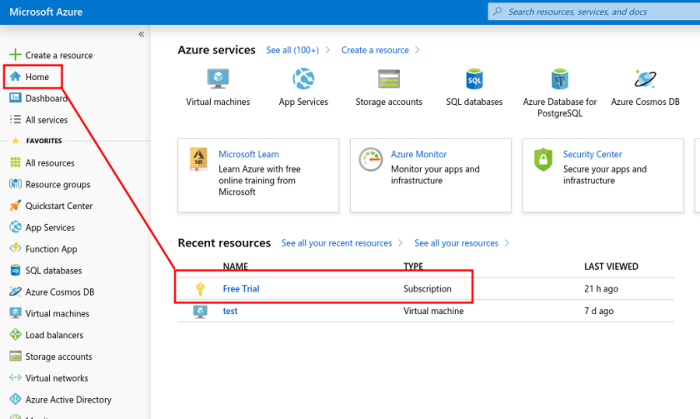
You must assign a role to the account with which you are going to operate the app. To do this, go to Home and enter Subscription:
Within the subscription, select Access control (IAM):
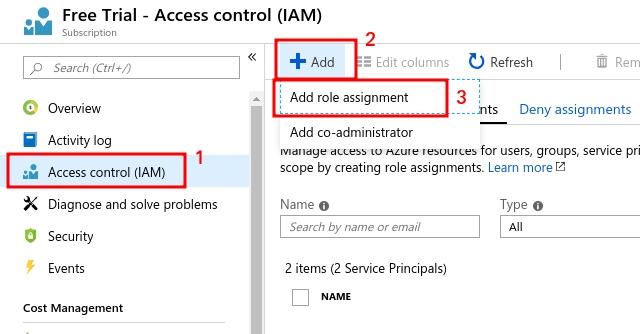
A new role assignment will be added in which you must select Reader for the created app:
The created app can be searched in members (main service)

Save your changes by clicking Save.
From that moment on you will be able to connect with the service and make requests through this plugin.
Parameters
Parameters
| --conf | Path to the configuration file |
agents_group_name = < Name of the target group for the agents created >
agent_name        = < Name of the agent that will contain the modules (only if agent_per_mv is not enabled) >
interval          = < Agent creation interval >
agent_prefix      = < Prefix for created agents >
module_prefix     = < Prefix for created modules >

transfer_mode      = < Transfer mode, tentacle or local >
tentacle_ip        = < IP of the destination machine for created agents >
tentacle_port      = < Tentacle port, default: 41121 >
tentacle_opts      = < Additional tentacle client options >

use_proxy         = < Check this option to specify a proxy URL >
proxy_url         = < Proxy URL >
ssl_check         = < Check to enable SSL checking >
agent_per_vm      = < Enable to create one agent per virtual machine >
debug_mode        = < Enable to activate debug mode >

allow_regexp = < Regexp pattern. Metrics that match the pattern will be monitored >
deny_regexp = < Regexp pattern. Metrics that match the pattern will be discarded >
creds_b64 = < Base64 credentials from the JSON file for authentication >
Example
agents_group_name = azure
agent_name        = Azure backups
interval          = 3600
threads           = 1
temporal          = 0
data_dir          = "/var/spool/pandora/data_in/"
agent_prefix      =
module_prefix     =

transfer_mode     = "tentacle"
tentacle_client   = "tentacle_client"
tentacle_ip       = "192.168.50.61"
tentacle_port     = 41121
tentacle_opts     =

use_proxy         = 0
proxy_url         =
ssl_check         = 0
agent_per_vm      = 0
debug_mode        = 1

allow_regexp      =
deny_regexp       =

creds_b64 = oiZJDNNJKCDJndkdKDNJDKDKNDhjdkdmdNHFJFKfFMFNFJFKk5IinDJFJKFKfmnfDHHDKDKDldjjDfmFJFNFFMNFNFMFNFmFNFFJJFmf==
Manual execution
The plugin execution format is as follows:
./pandora_azure_backup --conf < ruta al fichero de configuración >For example:
./pandora_azure_backup --conf /usr/share/pandora_server/util/plugin/azure.confThe execution will return output in JSON format with information about the execution, and will generate an XML file for each monitored agent that will be sent to the Pandora FMS server using the transfer method specified in the configuration.
For example:
{"summary": {"Total agents": 3}Discovery
This plugin can be integrated with Pandora FMS Discovery.
To do so, you must load the “.disco” package, which can be downloaded from the Pandora FMS library:
https://pandorafms.com/library/
Once loaded, Microsoft Azure Compute environments can be monitored by creating Discovery tasks from the Management > Discovery > Cloud section.
The following minimum data will be requested for each task:
- Azure credentials: Connection credentials to the Microsoft Azure API to be used by the task. They must be previously registered in the Pandora FMS credential store.
- Use proxy: Enable to specify a proxy address
- Proxy url: Proxy URL
- Verify proxy SSL: Enable SSL check
- Tentacle IP: IP of the Tentacle server to which the agent data will be sent. Normally, this parameter will not be modified.
- Tentacle port: Port of the Tentacle server to which the data will be sent. Normally, this parameter will not be modified.
- Tentacle extra options: Additional options for sending data via the Tentacle client. Normally, this parameter will not be modified.
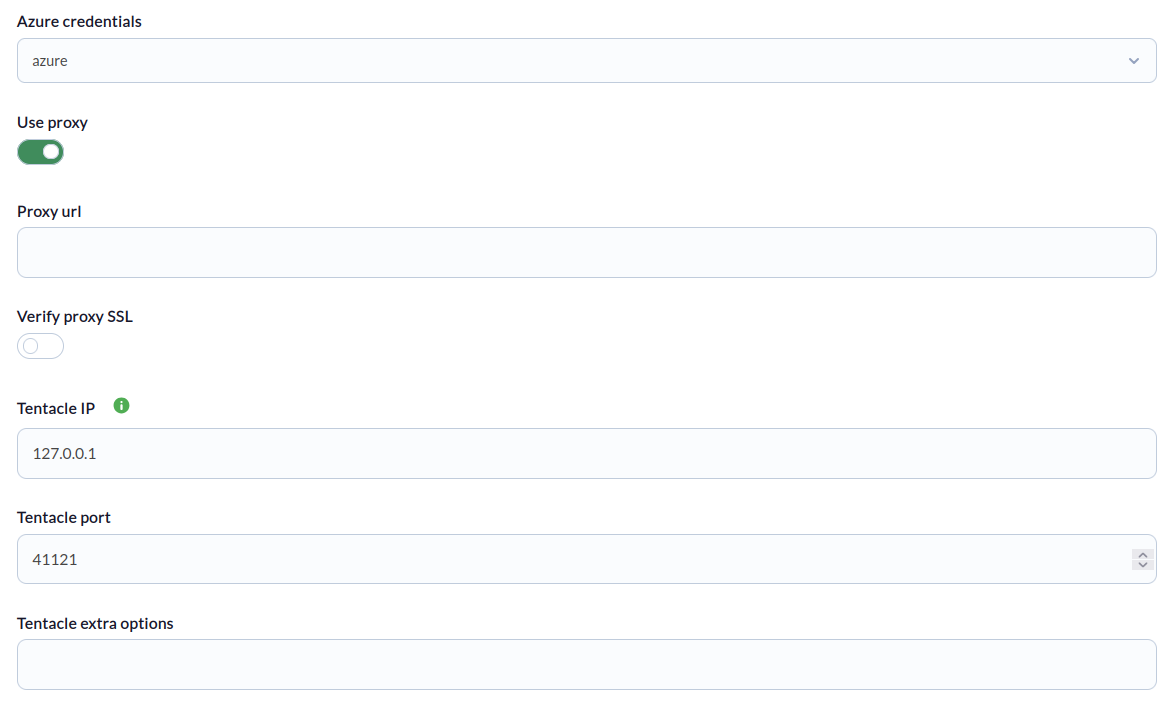
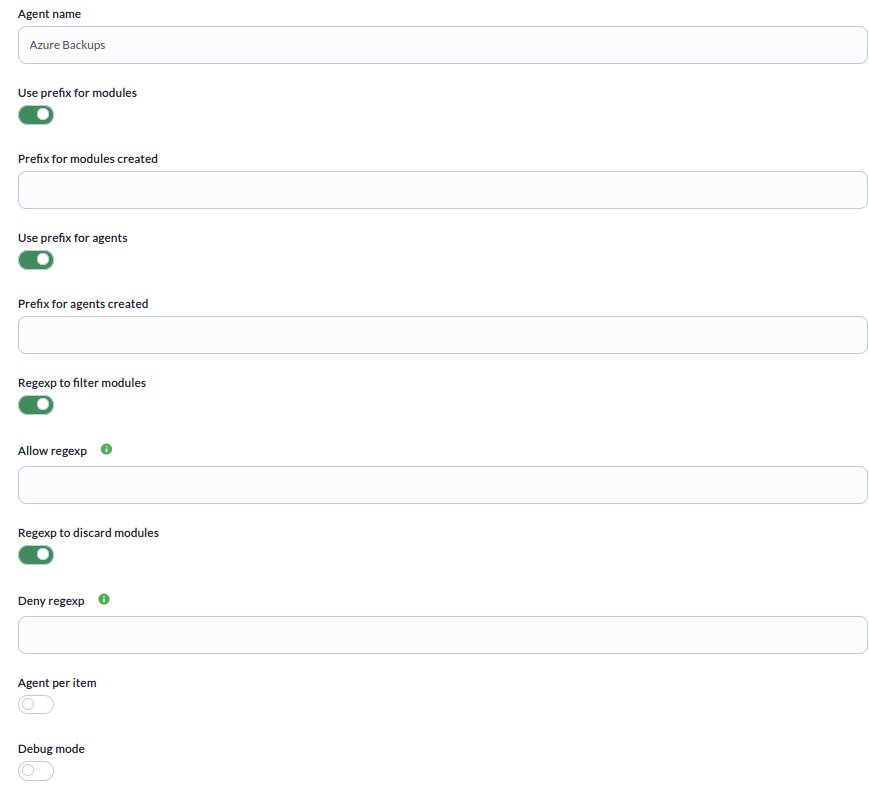
Finally, you can adjust the monitoring settings as desired:
-
Agent name: Name of the agent that will contain the modules (only if Agent per item is not enabled)
-
Use prefix for modules: To specify a prefix for the modules created
-
Prefix for modules created: Prefix for the modules created
-
Use prefix for agents: To specify a prefix for the agents created
- Prefix for agents created: Prefix for agents created
- Regexp to filter modules: Enable to specify a regexp pattern
- Allow regexp: Regexp pattern. Backups of items that match the pattern will be monitored
- Regexp to discard modules: Enable to specify a regexp pattern
- Deny regexp: Regexp pattern. Backups of items that match the pattern will be discarded
- Agent per item: Enable to create an agent for each item that will contain its backups
- Debug mode: Enable to obtain more information in the task execution output
Successfully completed tasks will have an execution summary with the following information:
- Total agents: Total number of agents generated by the task.
Tasks that are not successfully completed will have an execution summary recording the errors that occurred.
Agents and modules generated by the plugin
Running the plugin will create a single agent or one per VM if the agent_per_vm token is enabled. It will create the following modules:
| <item_name> Last backup | Indicates the time elapsed since the last backup was performed for that resource. This metric allows you to quickly detect if a backup has not been performed for too long. |
| <item_name> Recovery points | Displays the total number of recovery points available for the resource. The module description also indicates how many backups have completed successfully and how many have failed. |
| <item_name> Protection state | Indicates the protection status of the resource within the Azure backup system. It lets you know if the resource is properly protected or if protection is stopped, paused, or has an error. |
| <item_name> Last backup status | Status of the last backup performed. It allows you to know if the last execution was successful or if there were any problems. |
| <item_name> Health status | Overall health status of the resource within the backup system, indicating whether Azure detects any recommended or required actions. |
| <item_name> Protection status | Indicates whether the resource protection is in a healthy state or if there is a problem that could affect the correct execution of backups. |
The modules "Protection state," "Last backup status," "Health status," and "Protection status" create a numerical value module, assigned to a status, with the following equivalencies:
Protection State
| Protected | 1 |
| IRPending | 2 |
| Invalid | 3 |
| BackupsSuspended | 4 |
| ProtectionPaused | 5 |
| ProtectionStopped | 6 |
| ProtectionError | 7 |
Last backup status
| Healthy | 1 |
| IRPending | 2 |
| Invalid | 3 |
| Unhealthy | 4 |
Health status
| Passed | 1 |
| ActionSuggested | 2 |
| ActionRequired | 3 |
| Invalid | 4 |
Protection status
| Healthy | 1 |
| Unhealthy | 2 |
item name is the name of the resource that has the backup configured in Azure. In other words, it identifies the protected item within the backup system, such as a virtual machine, database, or storage resource.