# Websphere

# Introduction

Ver. 17-11-2021

This plugin takes data from every active instance in your websphere environment.

Type: Agent plug-in

# Compatibility matrix

<table border="1" id="bkmrk-sistemas-donde-se-ha" style="border-collapse: collapse; width: 100%; height: 56px;"><tbody><tr style="height: 28px;"><td style="width: 50%; height: 28px;">**Systems where it has been tested**</td><td style="width: 50%; height: 28px;">CentOS 7, Fedora, AIX 7.2 , AIX 7.2

</td></tr><tr style="height: 28px;"><td style="width: 50%; height: 28px;">**Systems where it should work**</td><td style="width: 50%; height: 28px;">Any linux system

</td></tr></tbody></table>

# Prerequisites

Required :

- A websphere environment
- Have instances (application servers) running
- Have the PluginTools.pm module in a directory called PandoraFms
- Have Pandora FMS Data Server enabled
- Have the Pandora FMS Plugin Server enabled

# Configuration

In the websphere environment, we must have the servers running, as this is what we are going to monitor.

**[![1.png](https://pandorafms.com/guides/public/uploads/images/gallery/2021-11/scaled-1680-/1.png)](https://pandorafms.com/guides/public/uploads/images/gallery/2021-11/1.png)**

**Pandora\_websphere.conf to send the monitoring data to your pandora machine.**

```
wsadmin;<path wsadmin.sh>
jython;<path listservers.py>
user;wasadmin
password;wasadmin
mode;<tentacle>
tentacle_ip;<ip pandora>
tentacle_port;<tentacle port>
```

Example :

[![2.png](https://pandorafms.com/guides/public/uploads/images/gallery/2021-11/scaled-1680-/2.png)](https://pandorafms.com/guides/public/uploads/images/gallery/2021-11/2.png)

# Plugin general parameters

Once the conf has been edited with the data that corresponds to our environment (your wsadmin path, pandora ip, tentacle port, etc.) we will execute the plugin in this way.

The most recommended is to put pandora\_websphere.pl, pandora\_websphere.conf and listservers.py in the same folder.

```
perl pandora_websphere.pl pandora_websphere.conf
```

**\* Remember that in the conf you must put well the path of your wsadmin, and of the jython script.**

**Example:**

**[![3.png](https://pandorafms.com/guides/public/uploads/images/gallery/2021-11/scaled-1680-/3.png)](https://pandorafms.com/guides/public/uploads/images/gallery/2021-11/3.png)**

# Configuration in PandoraFMS

**pspz2 installation**

You can install the plugin from servers &gt; register plugin

[![Captura desde 2025-07-21 11-44-32.png](https://pandorafms.com/guides/public/uploads/images/gallery/2025-07/scaled-1680-/captura-desde-2025-07-21-11-44-32.png)](https://pandorafms.com/guides/public/uploads/images/gallery/2025-07/captura-desde-2025-07-21-11-44-32.png)

On this page you can load the pspz2 file of the plug-in.

[![Captura desde 2025-07-22 17-44-54.png](https://pandorafms.com/guides/public/uploads/images/gallery/2025-07/scaled-1680-/captura-desde-2025-07-22-17-44-54.png)](https://pandorafms.com/guides/public/uploads/images/gallery/2025-07/captura-desde-2025-07-22-17-44-54.png)

**Manual installation**

Go to servers &gt; plugins:

[![servers_plugins.png](https://pandorafms.com/guides/public/uploads/images/gallery/2025-07/scaled-1680-/servers-plugins.png)](https://pandorafms.com/guides/public/uploads/images/gallery/2025-07/servers-plugins.png)

Click on add plugin:

[![add_plugin.png](https://pandorafms.com/guides/public/uploads/images/gallery/2025-07/scaled-1680-/add-plugin.png)](https://pandorafms.com/guides/public/uploads/images/gallery/2025-07/add-plugin.png)

We put in name and the description that you prefer.

We put as command the execution with the path of the plugin:

```
/path pandora_websphere
```

<p class="callout info align-center">Remember that the recommended path for the use of the server plugins is: /usr/share/pandora\_server/util/plugin/</p>

And in plugin parameters we will introduce the macro “\_field1\_”, to call its conf file.

Once this is done, click on “create”.

**Agent configuration**

Once this is done, the only thing left to do is to call it, so we will go to some agent's view and create an add-on module:

[![Captura desde 2025-07-21 11-51-43.png](https://pandorafms.com/guides/public/uploads/images/gallery/2025-07/scaled-1680-/captura-desde-2025-07-21-11-51-43.png)](https://pandorafms.com/guides/public/uploads/images/gallery/2025-07/captura-desde-2025-07-21-11-51-43.png)
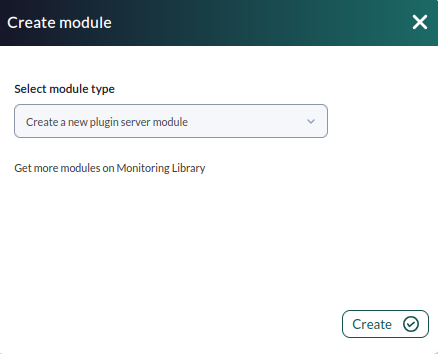
We will give it a name and in the section “plugin” we will put the one we have just configured.

Once this is done, click on create.

If the module is shown with 1, it means that it is running correctly.

# Modules generated by the plugin

Once the plugin is executed as specified in "General plugin parameters" and editing pandora\_websphere.conf as specified in "Configuration", an agent will be created for each websphere instance with the name of these and with the following modules:

<table border="1" id="bkmrk-free-memory-heapsize" style="border-collapse: collapse; width: 100%; height: 261px;"><tbody><tr style="height: 29px;"><td style="width: 100%; height: 29px;">Free memory</td></tr><tr style="height: 29px;"><td style="width: 100%; height: 29px;">Heapsize</td></tr><tr style="height: 29px;"><td style="width: 100%; height: 29px;">Id</td></tr><tr style="height: 29px;"><td style="width: 100%; height: 29px;">Número de aplicaciones</td></tr><tr style="height: 29px;"><td style="width: 100%; height: 29px;">OS</td></tr><tr style="height: 29px;"><td style="width: 100%; height: 29px;">Proceso</td></tr><tr style="height: 29px;"><td style="width: 100%; height: 29px;">Status</td></tr><tr style="height: 29px;"><td style="width: 100%; height: 29px;">Threadpool ActiveCount</td></tr><tr style="height: 29px;"><td style="width: 100%; height: 29px;">Threadpool Poolsize</td></tr></tbody></table>

[![Captura desde 2025-07-22 17-41-22.png](https://pandorafms.com/guides/public/uploads/images/gallery/2025-07/scaled-1680-/RSEcaptura-desde-2025-07-22-17-41-22.png)](https://pandorafms.com/guides/public/uploads/images/gallery/2025-07/RSEcaptura-desde-2025-07-22-17-41-22.png)