The Telegram® plugin is fully integrated into Pandora FMS version 800.
The default *script* is located at: `/usr/share/pandora_server/util/pandora-telegram-cli.py`. However, any location can be used as long as the PFMS Server has access to it. **You must ensure that all dependencies are installed**, check this, run: ``` python3 pandora-telegram-cli.py ``` You will get a response similar to this: [](https://pandorafms.com/guides/public/uploads/images/gallery/2021-08/image-1629719592284.png) If there is an error, the dependencies must be reinstalled: ```bash pip3 install -r requirements.txt ``` #### Telegram alert command To verify the installation of its command, use the **Management → Alerts→Commands** menu and enter the search key in **Filter**: [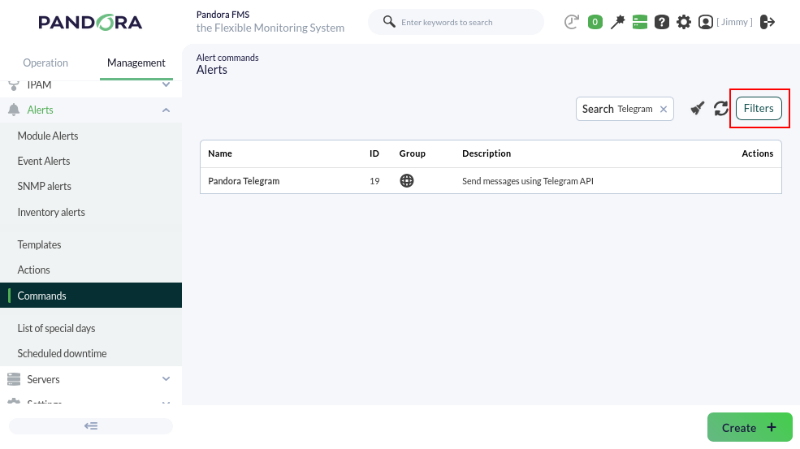](https://pandorafms.com/guides/public/uploads/images/gallery/2026-01/pfms-telegram-integration-140.png) This command does not allow editing or deletion, so it is considered read-only and is used by the system. Therefore, you must go to the general settings to save the token obtained in the previous topic. **Managements → Settings → System settings → General setup → Alerts configuration** menu: [](https://pandorafms.com/guides/public/uploads/images/gallery/2026-01/pfms-telegram-integration-142.png)The field displays the token in plain text. Take the necessary precautions to prevent third parties from viewing it.
When finished, click the **Update** button to save the Telegram token in the database. #### Telegram action command Go to the **Management→Alerts→ Actions** menu and in **Filter** select **Pandora Telegram** in the **Command** field. The alert actions that use the **Pandora Telegram** command will be displayed: [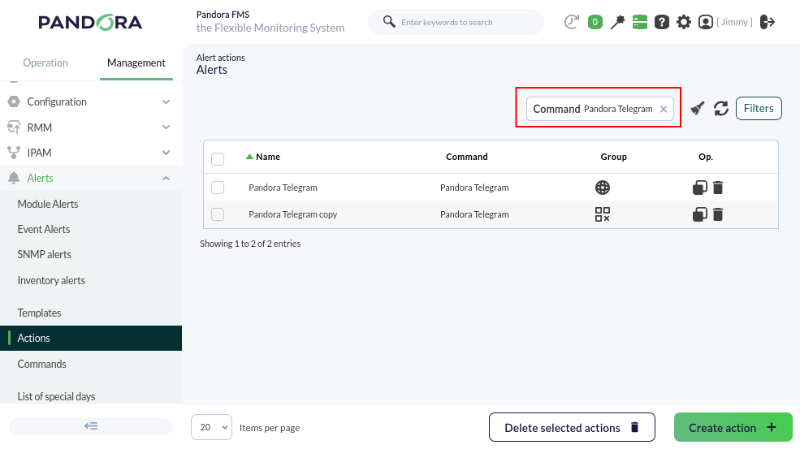](https://pandorafms.com/guides/public/uploads/images/gallery/2026-01/pfms-telegram-integration-144.png) You may: - Use the default action when installing Pandora FMS. - Copy the previous action and customize it as needed. It may be the case that several groups of agents use different alert actions configured according to each case. - Create an action based on the Telegram alert command (read-only).For any of the three cases, the Chat ID must always be configured, obtained as indicated in the [previous topic](https://pandorafms.com/guides/public/books/telegram-bot-cli-8f8/page/configuration).
Whether editing, copying and editing, or creating, the configuration process is similar: [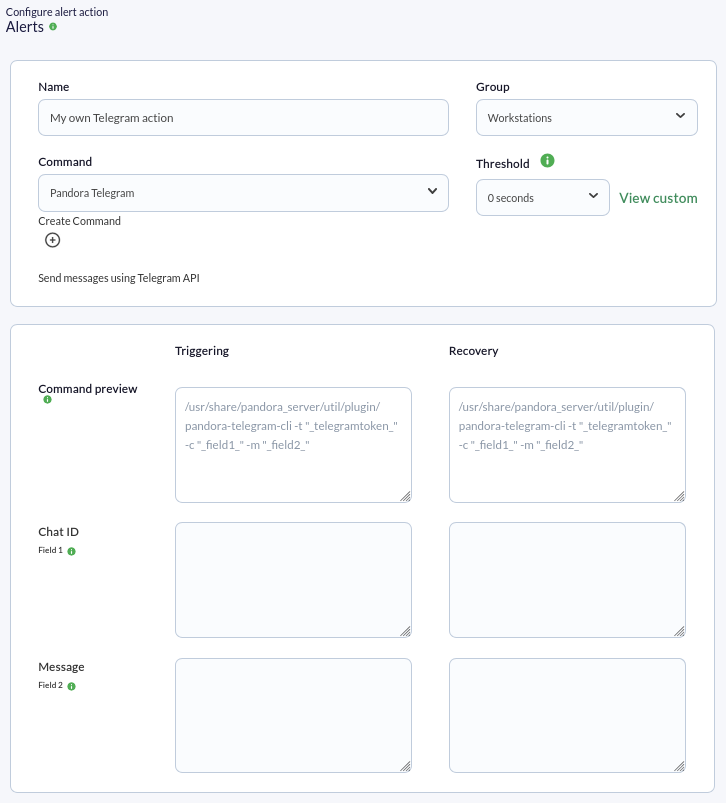](https://pandorafms.com/guides/public/uploads/images/gallery/2026-01/pfms-telegram-integration-146.png) - Indicate and select the name and group as appropriate. - Ensure that **Pandora Telegram** is selected in **Command** list. - In **Chat ID**, enter the corresponding identifier. *This field does not accept macros; only enter the identifier.* - In the **Message** field for **Triggering**, if it is empty, insert `[PANDORA] Alert FIRED on _agent_ / _module_ / _timestamp_ / _data_` . See the other [macros available](https://pandorafms.com/manual/en/documentation/pandorafms/management_and_operation/01_alerts#ks15) to insert more information. - In the **Message** field for **Recovery**, if it is empty, insert `[PANDORA] Alert RECOVERED on _agent_ / _module_ / _timestamp_ / _data_` . See the other [macros available](https://pandorafms.com/manual/en/documentation/pandorafms/management_and_operation/01_alerts#ks15) to insert more information. - Press the **Create** button if you are creating an alert action or (**Update** if you are editing) to save the parameters. Click **Create**. Once you have created this alert action, it can be included in [a policy](https://pandorafms.com/manual/en/documentation/pandorafms/complex_environments_and_optimization/02_policy "PFMS: Policies monitoring"), [a template](https://pandorafms.com/manual/en/documentation/pandorafms/technical_annexes/34_pfms_templates_policies_massives "PFMS: Differences between Templates, Policies, and Mass Operations"), or [Module](https://pandorafms.com/manual/es/documentation/pandorafms/management_and_operation/01_alerts#ks5_2 "PFMS: Gestionar alertas desde el agente").If additional information is required, please visit the [documentation for the *plugin*](https://pandorafms.com/library/telegram-bot-cli/).