# Configuration

#### <span dir="ltr" role="presentation">Creation of the BOT on Telegram</span>

<span dir="ltr" role="presentation">From a Telegram® account, you must type</span> `<span dir="ltr" role="presentation">/start</span>` <span dir="ltr" role="presentation">to the user</span> [**<span dir="ltr" role="presentation">BotFather</span>**](https://telegram.me/botfather "BotFather is the one bot to rule them all. Use it to create new bot accounts and manage your existing bots.") <span dir="ltr" role="presentation">to create a *bot*.</span>

<span dir="ltr" role="presentation">It will return a series of parameters and instructions</span> <span dir="ltr" role="presentation">available for the </span><span dir="ltr" role="presentation">creation and manipulation of *bots*:</span>

[![image-1626693442412.png](https://pandorafms.com/guides/public/uploads/images/gallery/2021-07/scaled-1680-/image-1626693442412.png)](https://pandorafms.com/guides/public/uploads/images/gallery/2021-07/image-1626693442412.png)

Use the `/newbot` option to create a new *bot*.

<span dir="ltr" role="presentation"><span dir="ltr" role="presentation">It will ask for the name, in this case `Pandora_FMS_Test_bot` , you can use any name you prefer</span><span dir="ltr" role="presentation">.</span></span>

Now you will be asked for a user ID for the bot, which must end in `_bot`. In this case, use the same one as before: `Pandora_FMS_Test_bot`.

It will now return information about our bot and some instructions for its administration. You must copy and save the API token, which is what we will use to authenticate ourselves as that bot.

[![image-1629719317095.png](https://pandorafms.com/guides/public/uploads/images/gallery/2021-08/scaled-1680-/image-1629719317095.png)](https://pandorafms.com/guides/public/uploads/images/gallery/2021-08/image-1629719317095.png)<span dir="ltr" role="presentation"> </span>

#### <span dir="ltr" role="presentation">Create a group and add the bot</span>

  
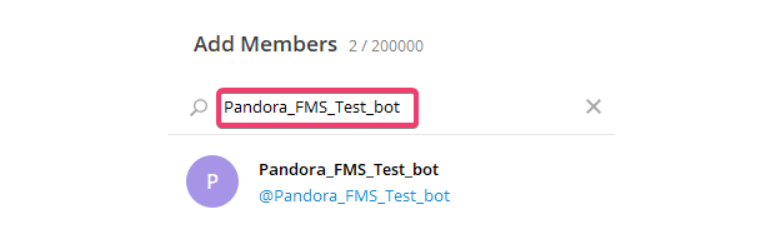
<span dir="ltr" role="presentation">To create a group from Telegram, you must </span><span dir="ltr" role="presentation">click on create group and </span><span dir="ltr" role="presentation">select the users who will be in that group. **It is important that one of those users** </span><span dir="ltr" role="presentation">**is our bot in order to send messages to that group specifically**.</span>

<p class="callout info"><span dir="ltr" role="presentation"><span dir="ltr" role="presentation">You can also </span><span dir="ltr" role="presentation">simply add the *bot* to an existing group</span><span dir="ltr" role="presentation">.</span></span></p>

#### [![image-1626695074691.png](https://pandorafms.com/guides/public/uploads/images/gallery/2021-07/scaled-1680-/image-1626695074691.png)](https://pandorafms.com/guides/public/uploads/images/gallery/2021-07/image-1626695074691.png)

#### <span dir="ltr" role="presentation">Obtain the group ID to send messages from</span> <span dir="ltr" role="presentation">the CLI</span>

Now we need to obtain the **id** of the group where we added our *bot*. There are different ways to do this. One of the simplest is to add another bot that extracts this information very easily: [**GetIDs Bot**](https://t.me/getidsbot "This bot gives you telegram-internal information about messages").

We add it to the group we want to know the **id** of, and it will give a series of instructions for its use. Just by adding it, it provides the information we need (**id** of the group).

[![image-1629719396585.png](https://pandorafms.com/guides/public/uploads/images/gallery/2021-08/scaled-1680-/image-1629719396585.png)](https://pandorafms.com/guides/public/uploads/images/gallery/2021-08/image-1629719396585.png)
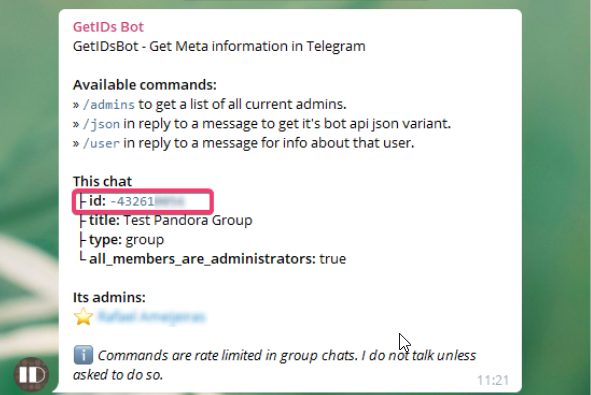
<span dir="ltr" role="presentation">Once we have the group ID, we copy and save it.</span>

<p class="callout info">We can remove this [**GetIDs Bot**](https://t.me/getidsbot "This bot gives you telegram-internal information about messages") from the group because it has already fulfilled its purpose of giving us the ID.</p>

#### Configure Pandora-Telegram CLI

<span dir="ltr" role="presentation">  
</span><span dir="ltr" role="presentation">To use Pandora Telegram CLI (source code), you must </span><span dir="ltr" role="presentation">have Python version 3 and Pip version 3 installed for dependencies. To install the dependencies, in the package to be downloaded, you will see the file `requirements.txt`. Go to its directory and run:</span>

```bash
pip3 install -r requirements.txt
```

<span dir="ltr" role="presentation">This will download and install the necessary dependencies.</span>

<span dir="ltr" role="presentation">Once the dependencies are installed, run the</span> <span dir="ltr" role="presentation">`pandora-telegram-cli.py -h` file with </span><span dir="ltr" role="presentation">the Python interpreter to view its help:</span>

```bash
python3 pandora-telegram-cli.py -h
usage: pandora-telegram-cli.py [-h] -m MESSAGE -t TOKEN -c CHAT_ID
Bot telegram cli
optional arguments:
-h, --help show this help message and exit
-m MESSAGE, --message MESSAGE
Message to be send
-t TOKEN, --token TOKEN
Bot token
-c CHAT_ID, --chat_id CHAT_ID
chat id to send messages
```

<p class="callout success"><span dir="ltr" role="presentation">If we see the help without any errors, then we are ready to use it.</span></p>