Redmine Plugin
Plugin to create, update and delete tickets in a redmine project.
- Introduction
- Compatibility matrix
- Pre requisites
- Configuration
- Parameters
- Create ticket
- Update ticket
- Delete ticket
- Configuration in PandoraFMS
Introduction
Plugin to manage tickets for your Redmine projects, you can create, edit or delete tickets from the terminal or from the PandoraFMS console.
Compatibility matrix
| Systems where it has been tested |
CentOS 7, Fedora |
| Systems where it should work |
Any linux system |
Pre requisites
Required:
- Enable rest web services in redmine
- * Python3
- * Module requests
* In the binary version of the plugin it is not necessary to install these dependencies, since they are already included in the plugin.
Configuration
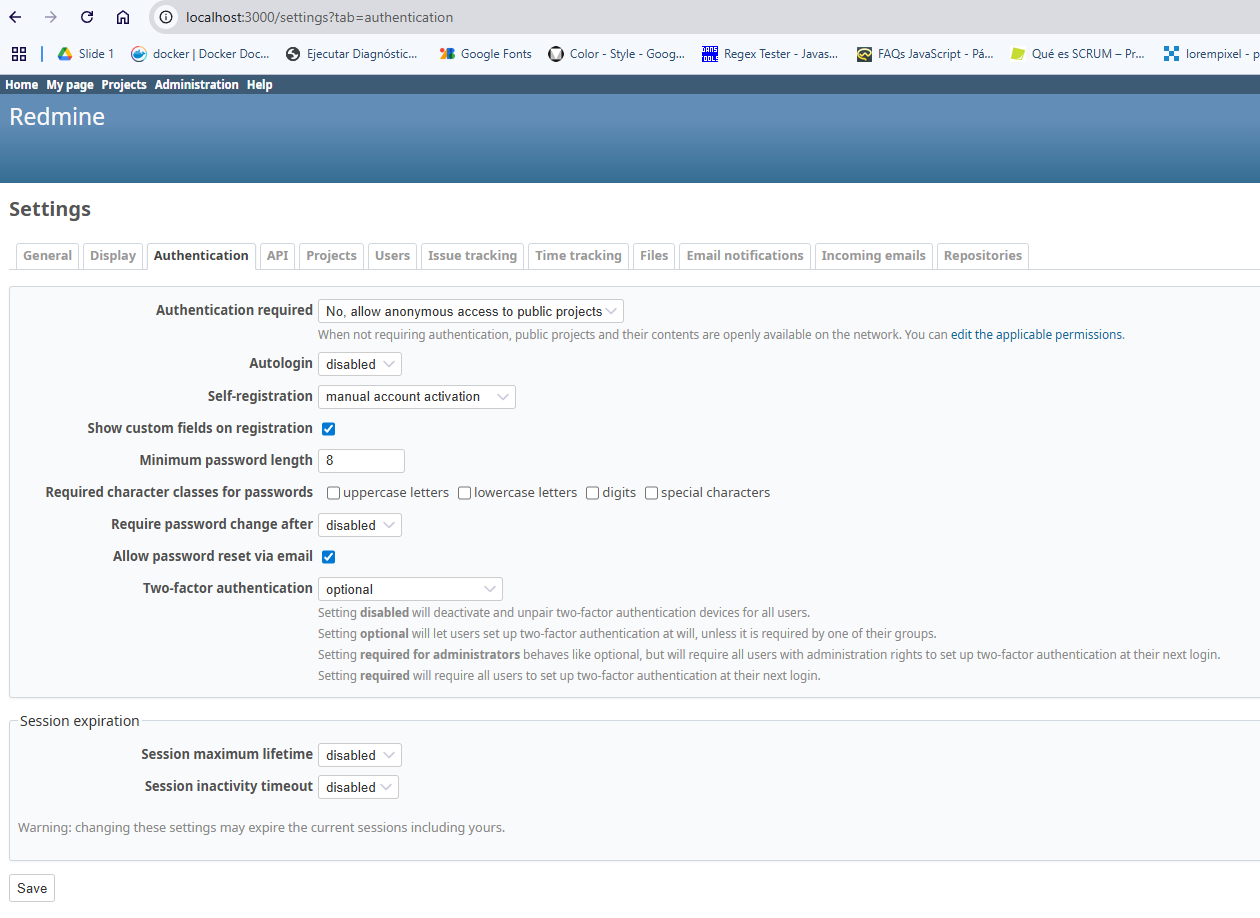
Web service rest must be enabled to use the plugin as it communicates with the API.
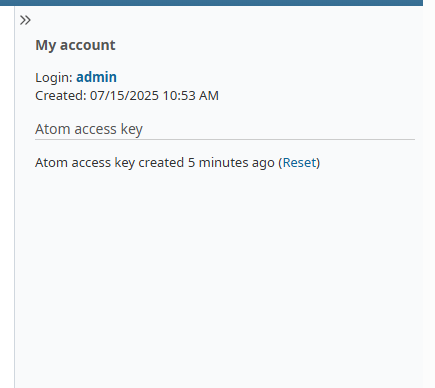
The API token can be seen in "my account":
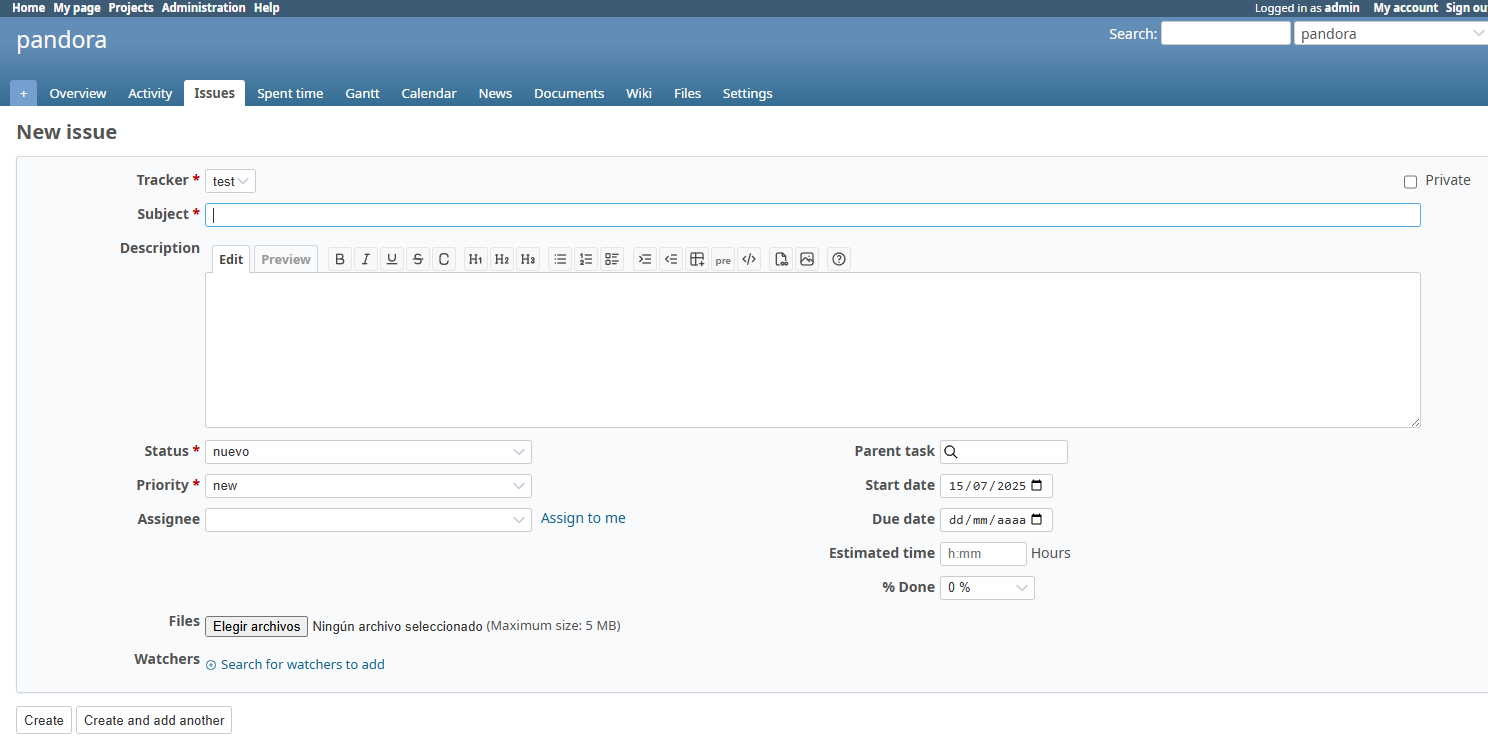
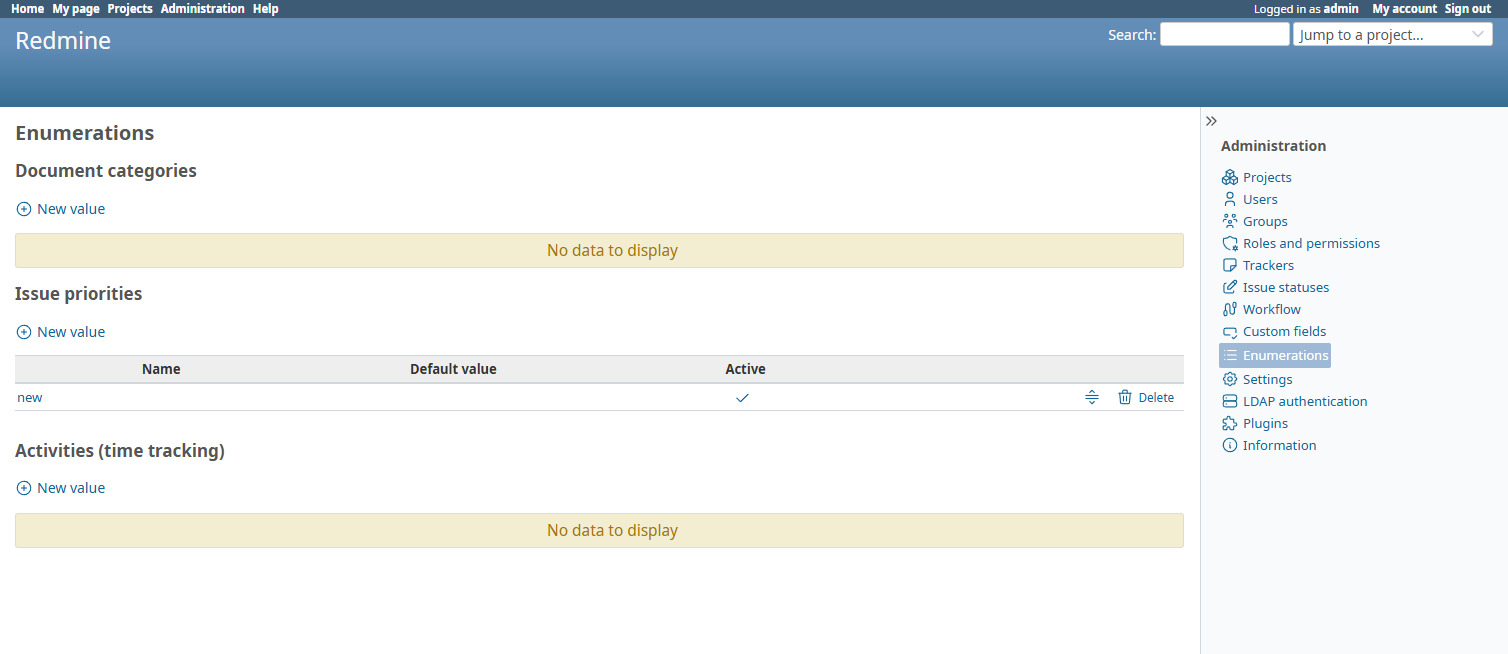
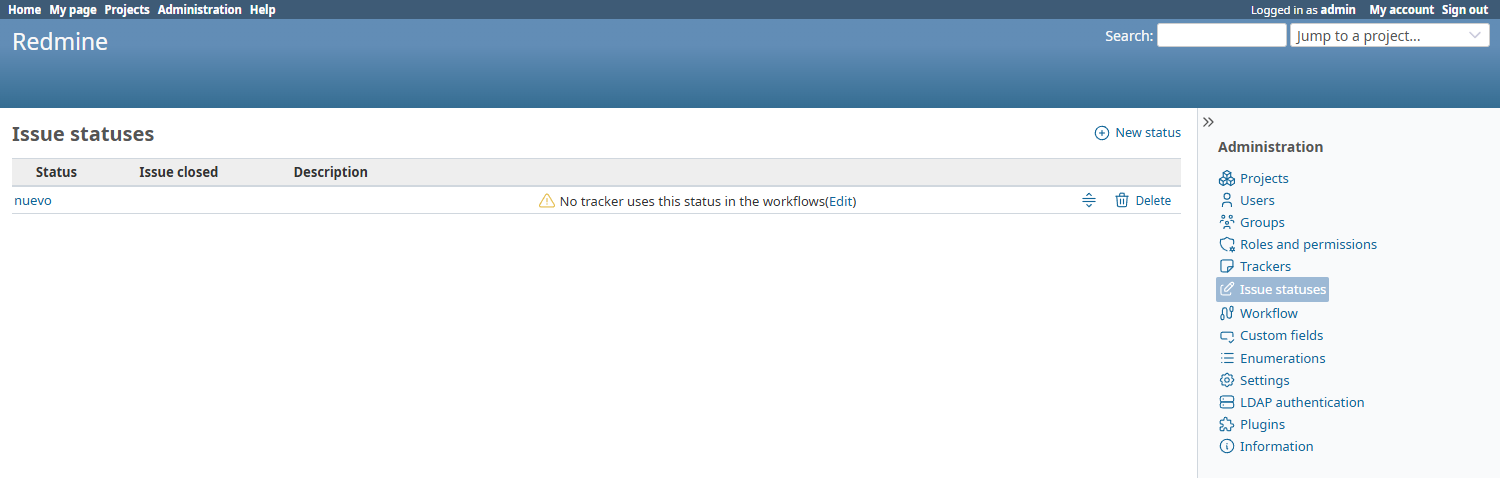
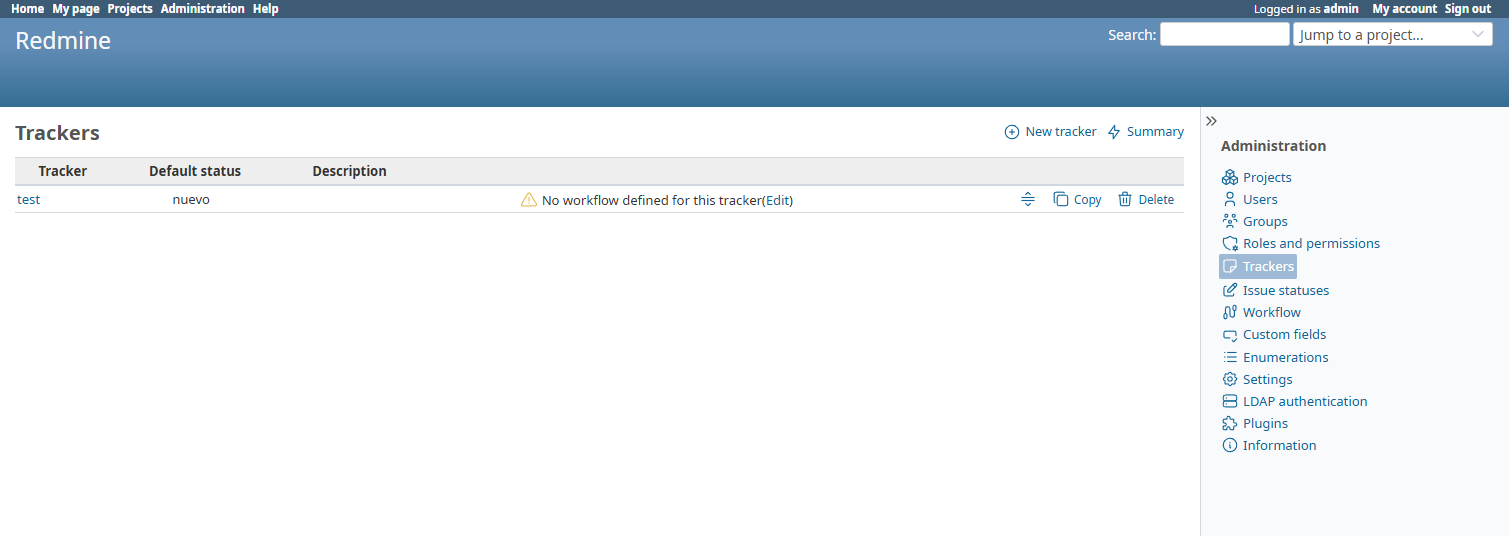
* Remember that to create tickets (even manually in redmine) you have to do some basic configuration, like creating a ticket type, status and priority, this can be done in the administration menu:
Parameters
Parameters
| Method | -m | post,put o delete |
| host | -i, --ip | site redmine |
| token | -t | token API |
| project id | -p | id project |
| ticket id | -tid | ticket id |
| subject | -s | subject |
| description | -d | description |
| priority id | -pi | priority |
| status id | -st | state |
| assigned to id | -a | allocation request |
Methods
Get to list, post to create ticket, put to update ticket and delete to delete ticket.
Create ticket
Necessary arguments
-m (post)
-i (host)
-t (token)
-p (project id)
-s (subject)
-d (description)
-pi (priority id)
-st (status id)
-a (asigned to id)
Example manual execution
./pandora_redmine -m post -i http://pandorap.m.redmine.org -t <token> -p 1 -s "this is the subject" -d "the description" -pi 1 -st 1 -a 1The request will be created in our project.

Update ticket
Necessary arguments
-m (post)
-i (host)
-t (token)
-p (project id)
-tid (ticket id)
-s (subject)
-d (description)
-pi (priority id)
-st (status id)
-a (asigned to id)
Example manual execution
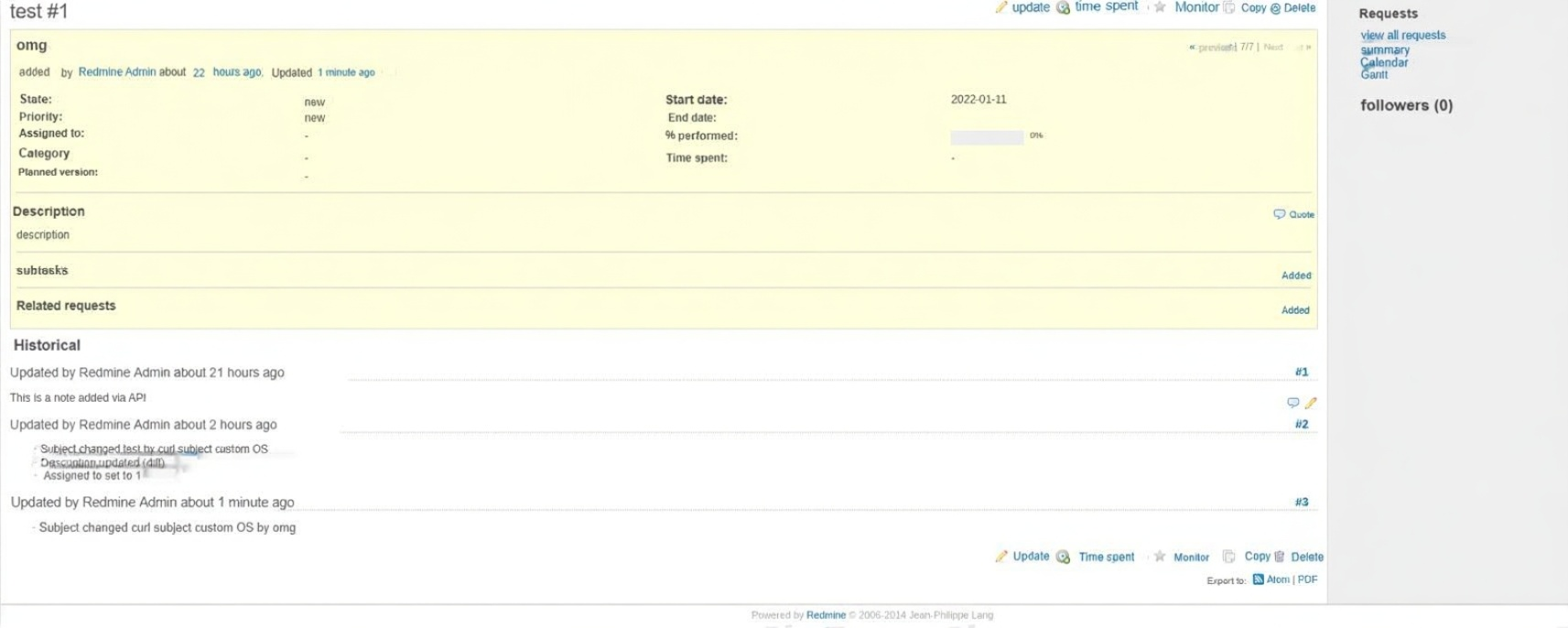
./pandora_redmine -m put -tid 1 -i http://pandorap.m.redmine.org -t <token> -p 1 -s "omg" -d "descripcion" -pi 1 -st 1 -a 1The ticket with id #1 will be updated
Delete ticket
It will be eliminated by searching the request by id.
Example manual execution:
./pandora_redmine -m delete -tid 2 -i http://pandorap.m.redmine.org -t <token>Configuration in PandoraFMS
Manual installation
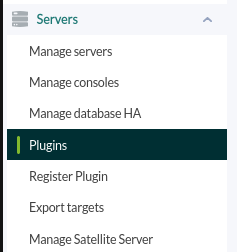
Go to servers > plugins:
Click on add plugin:
We put in name and the description that you prefer.
We put as command the execution with the path of the plugin:
/path pandora_redmineRemember that the recommended path for the use of the server plugins is: /usr/share/pandora_server/util/plugin/
We enter the path to the plugin as a command, and as parameters we will configure the “_field_” fields, which are macros that we will define below. Review the “create ticket,” “edit ticket,” and “delete ticket” sections to configure the parameters according to your needs.
Once this is done, click on “create”.
Agent configuration
Once this is done, the only thing left to do is to call it, so we will go to some agent's view and create an add-on module:
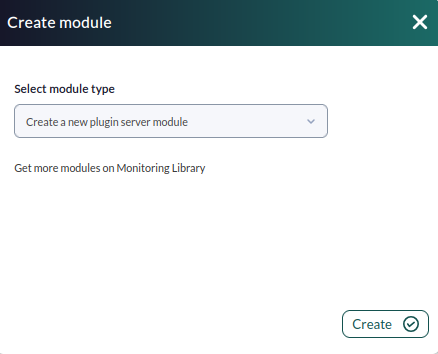
We will give it a name and in the section “plugin” we will put the one we have just configured.
Once this is done, click on create.
If the module is shown with 1, it means that it is running correctly.