# RabbitMQ
# Introducción
Este plugin permite obtener datos de monitorización de un entorno de RabbitMQ.
La información es obtenida vía web a través del API de RabbitMQ, por lo que no es necesario instalar ningún software adicional para su funcionamiento.
**Este plugin está diseñado para funcionar tanto como plugin de servidor como plugin de agente, ofreciendo flexibilidad en su despliegue según tus necesidades de infraestructura y monitorización.**
# Matriz de compatibilidad
Desarrollado contra:
- RabbitMQ 3.7.18
# Prerrequisitos
Se requiere conexión con el API de RabbitMQ desde el equipo donde se lance el plugin.
Se requiere conexión con el servicio Tentacle asociado a su servidor de Pandora FMS si no se ejecuta como plugin de agente.
El despliegue de este plugin por binarios no requiere ningún requisito especial.
# Configuración
El fichero de configuración del plugin se divide en bloques:
**Configuraciones de acceso al API**
\##################
\## RabbitMQ access
\##################
\## API host:port
host=192.168.80.20:8080
\## OVM Manager user
user=guest
\## OVM Manager password
pass=guest
**host**
Dirección IP y puerto de conexión para el API de RabbitMQ
**user**
Usuario de acceso al API de RabbitMQ
**pass**
Contraseña del usuario indicado
##
**Configuraciones del agente**
\###################
\## Agent parameters
\###################
\## Agent name (if not running as agent plugin)
agent\_name=RabbitMQ
\## Agent interval
interval=300
**agent\_name**
Nombre del agente al que se enviará la monitorización si el plugin no se ejecuta como plugin de agente.
**interval**
Intervalo de monitorización para el agente indicado.
**Configuraciones de transferencia de los ficheros XML**
\######################
\## Transfer parameters
\######################
\## Temporal folder
tmp=/tmp
\## Transfer mode used to send XML file (tentacle or local)
transfer\_mode=tentacle
\## Local folder to copy XML file (used only if transfer\_mode is not tentacle)
local\_folder=/var/spool/pandora/data\_in/
\## Tentacle server IP
tentacle\_ip=127.0.0.1
\## Tentacle server port
tentacle\_port=41121
\## Tentacle extra options (if needed)
\#tentacle\_opts=
\## Define Module Group
\#module\_group=General
**tmp**
Directorio temporal en el que se generarán los ficheros XML del agente antes de su transferencia al servidor de Pandora FMS (si el plugin no se ejecuta como plugin de agente).
**transfer\_mode**
Método de transferencia de ficheros que se utilizará. Si no se establece como “*tentacle*” se considerará que el método de transferencia es “*local*” (copiando los ficheros XML del directorio temporal a uno definido).
**local\_folder**
Directorio al que se copiarán los ficheros XML si el método de transferencia no se establece como “*tentacle*”.
**tentacle\_ip**
Dirección IP al que se enviarán los ficheros XML si el método de transferencia se establece como “*tentacle*”.
**tentacle\_port**
Puerto al que conectarse al servidor de Tentacle indicado en el parámetro “*tentacle\_ip*”.
**tentacle\_opts**
Opciones adicionales para la transferencia de ficheros al servidor de Tentacle indicado.
**module\_group**
Define el grupo al que pertenecerán los módulos.
**Configuraciones adicionales**
\###################
\## Extra parameters
\###################
\## Set to 1 to run de plugin as an agent plugin
as\_agent\_plugin=1
**as\_agent\_plugin**
Si se establece a “1” el plugin se ejecutará como plugin de agente. Si se establece a “0” el plugin generará ficheros XML que transferirá al servidor de Pandora FMS para ser procesados.
# Ejecución manual
Para ejecutar el plugin configure el archivo de configuración “*rabbitmq\_monitor.conf*” según las instrucciones precedentes.
Ejecución del plugin:
```
./rabbitmq_monitor rabbitmq_monitor.conf
```
Con as\_agent\_plugin 1:
Imprimirá por consola el XML con la información del RabbitMQ.
[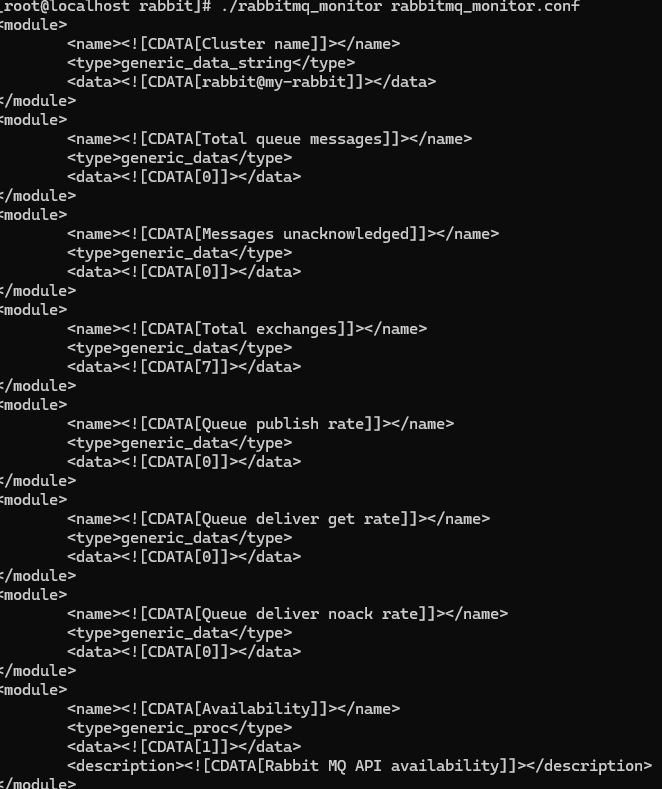](https://pandorafms.com/guides/public/uploads/images/gallery/2025-07/hP6image.png)
Con as\_agent\_plugin 0:
Creará el agente y los módulos asociados en Pandora, imprimiendo 1 como resultado final.
[](https://pandorafms.com/guides/public/uploads/images/gallery/2025-07/screenshot-2025-07-11-062033.png)
# Configuración en pandora
**Como plugin de servidor**
Iremos a servidores > plugins:
[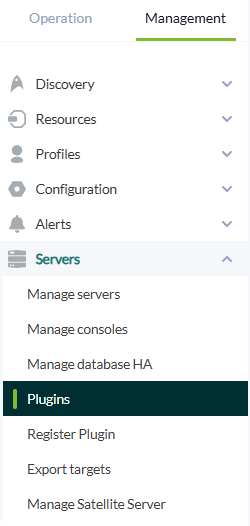](https://pandorafms.com/guides/public/uploads/images/gallery/2025-07/qRtimage.png)
Pinchamos en añadir plugin:
[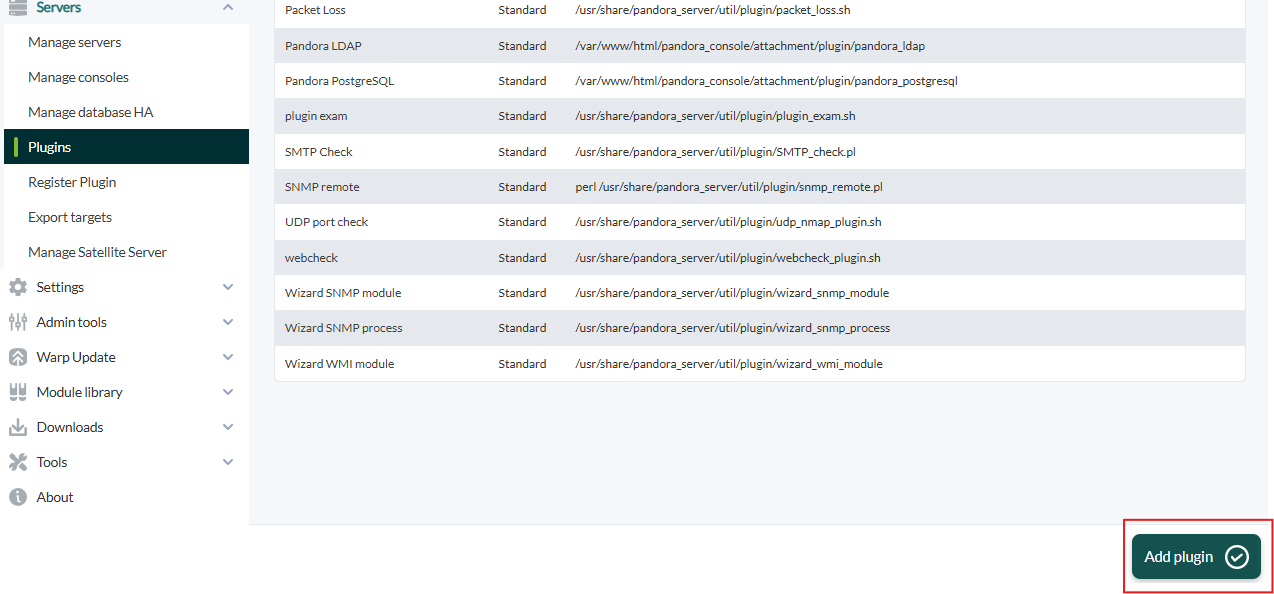](https://pandorafms.com/guides/public/uploads/images/gallery/2025-07/Lnfimage.png)
Le ponemos el nombre y la descripción que se prefiera:
[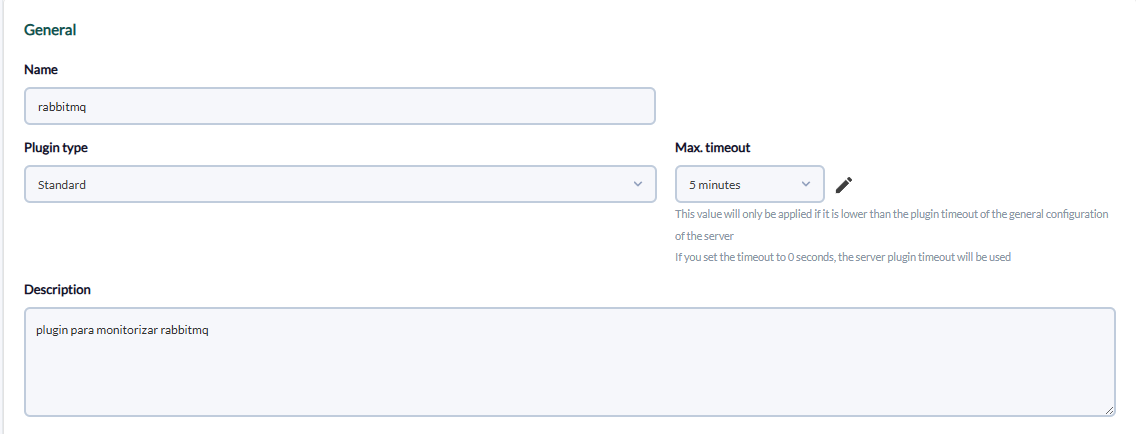](https://pandorafms.com/guides/public/uploads/images/gallery/2025-07/QgWimage.png)
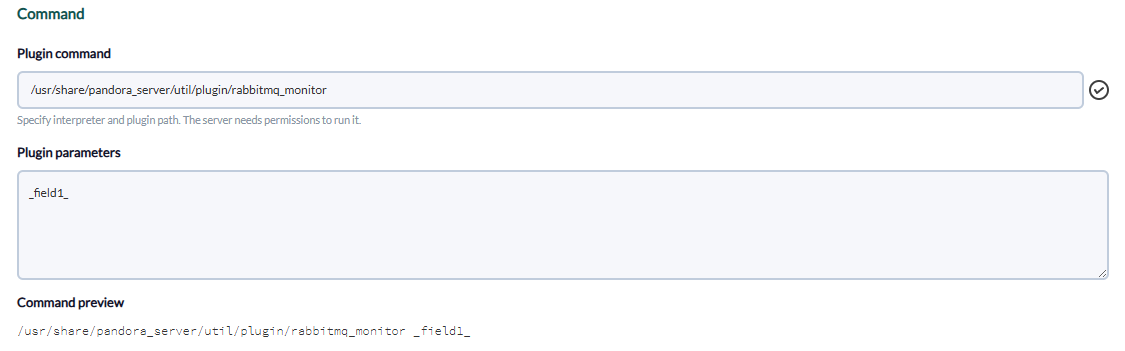
Metemos como comando la ruta al plugin, y como parámetros los que hemos metido ejecutando el plugin, los campos "\_field\_" son macros definidas más abajo.
[](https://pandorafms.com/guides/public/uploads/images/gallery/2025-07/Czrimage.png)
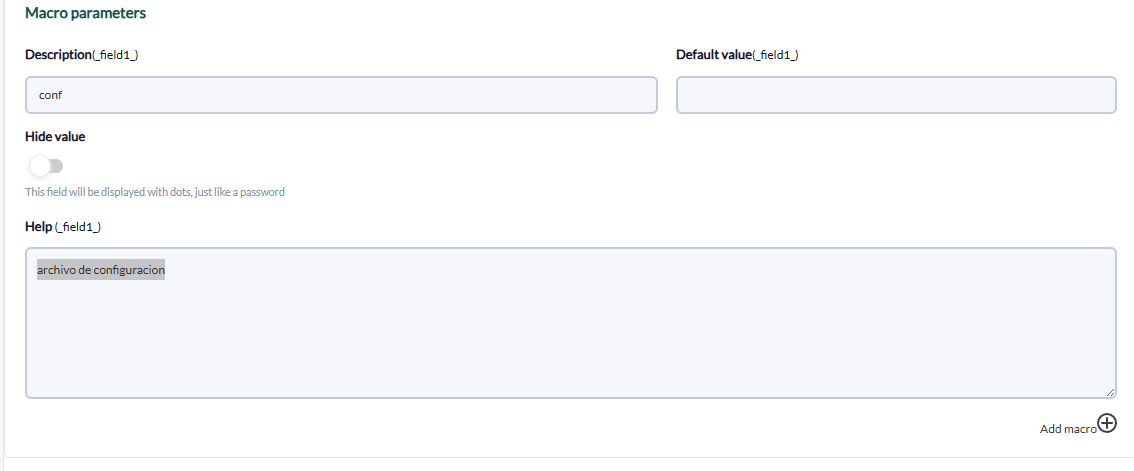
Ponemos por cada macro la descripción que se prefiera y como valor los datos de rabbitMQ
[](https://pandorafms.com/guides/public/uploads/images/gallery/2025-07/9cEimage.png)
**Como plugin de agente**
Deberemos habilitar la configuración remota, para habilitarla tenemos que abrir el archivo pandora\_agent.conf :
```bash
vim /etc/pandora/pandora_agent.conf
```
[](https://pandorafms.com/guides/public/uploads/images/gallery/2025-07/uftimage.png)
Y después de esto reiniciamos el agente :
```bash
/etc/init.d/pandora_agent_daemon restart
```
Se nos habrá activado la configuración remota, vamos al menu de agentes y pinchamos en el icono de configuración remota que es el siguiente :
[](https://pandorafms.com/guides/public/uploads/images/gallery/2025-07/0Wfimage.png)
Luego vamos al menu de plugins :
[](https://pandorafms.com/guides/public/uploads/images/gallery/2025-07/8Quimage.png)
Metemos el comando tal como lo ejecutamos y damos a "añadir":
[](https://pandorafms.com/guides/public/uploads/images/gallery/2025-07/UHzimage.png)
Ejemplo :
```bash
/usr/share/pandora_server/util/plugin/rabbitmq_monitor /usr/share/pandora_server/util/plugin/rabbitmq_monitor.conf
```
Se nos habra creado un nuevo plugin:
[](https://pandorafms.com/guides/public/uploads/images/gallery/2025-07/IDLimage.png)
Hecho esto, reiniciamos el agente :
```bash
/etc/init.d/pandora_agent_daemon restart
```
Y si vamos al agente con la configuración remota se habrán creado los módulos de rabbitMQ.
# Módulos generados por el plugin
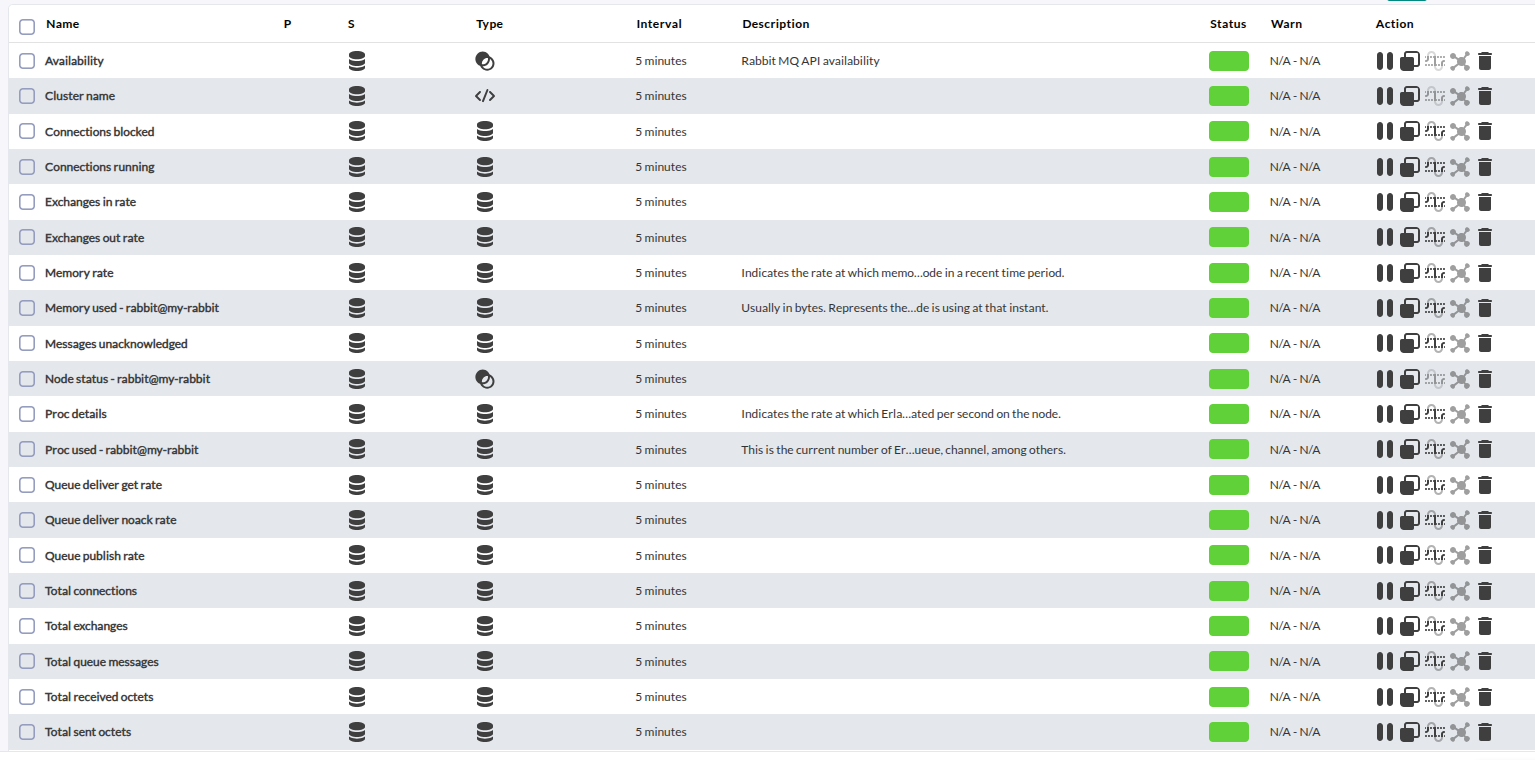
La ejecución estándar de este plugin devolverá los siguientes módulos:
- Availability.
- Cluster name.
- Total queue messages.
- Messages unacknowledged.
- Total exchanges.
- Queue publish rate.
- Queue deliver get rate.
- Queue deliver noack rate.
- Mem used rate - *nodename*.
- Proc used rate - *nodename*.
- Node status - *nodename*.
- Exchanges in rate.
- Exchanges out rate.
- Total connections.
- Connections running.
- Connections blocked.
- Total received octets.
- Total sent octets.
[](https://pandorafms.com/guides/public/uploads/images/gallery/2025-09/vj6image.png)