This section is for Enterprise version users only. If you would like to evaluate a *demo*, [please contact us.](https://pandorafms.com/en/contact/ "https://pandorafms.com/es/contactar/")
If you have licensed a **Metaconsole** license you can skip this step as this type of license automatically activates each associated node.**It is important not to start the *daemon*** `pandora_server` with the Enterprise version of it installed, without first enabling the Enterprise version of the Console, as errors will occur.
You can also get more information in the tutorial video [«How to renew Pandora FMS License online»](https://www.youtube.com/watch?v=Yd-BfFMnOqE "https://www.youtube.com/watch?v=sgCb9b4nE00") or «[offline](https://www.youtube.com/watch?v=9n8LVcPyXhI "https://www.youtube.com/watch?v=D_qze4eMRzg")». Once Pandora FMS has been accessed through the browser, you will be asked to enter a valid license. Click on **Request new license** and proceed to the next step. In this step you must fill in the contact information and the **Auth key** [commercial department](mailto:mailto:sales@pandorafms.com "mailto:sales@pandorafms.com") [commercial department](mailto:mailto:sales@pandorafms.com "mailto:sales@pandorafms.com") has sent you. Proceed to the next step by clicking on **Online validation**: [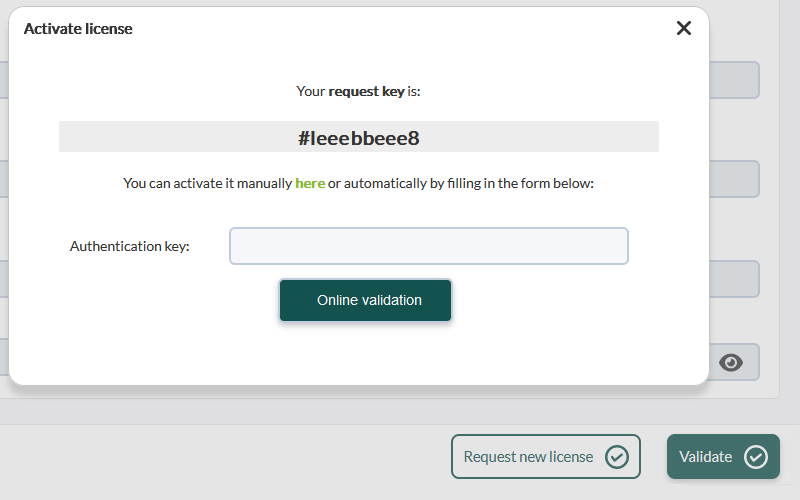](https://pandorafms.com/guides/public/uploads/images/gallery/2023-08/pfms-activate-license.png) Once this step is done, it will automatically output the license ready to validate. Finished all the steps, the console is ready to be used.