This section is only for Enterprise version users. If you wish to request a *demo*, [please contact us.](https://pandorafms.com/en/contact/ "https://pandorafms.com/en/contact/")
If you have a **Metaconsole** license, you may skip this step, since this type of license automatically activates each associated node.**It is important not to start the *daemon*** `pandora_server` with the Enterprise version installed if the Console Enterprise version has not been previously activated, as that may be the cause for errors.
You may also get more information in the video tutorial "[How to renew Pandora FMS License](https://www.youtube.com/watch?v=Yd-BfFMnOqE&t=0s)" or "[offline](https://www.youtube.com/watch?v=9n8LVcPyXhI&t=0s)". Once you have accessed Pandora FMS through the browser, you will be asked to enter a valid license. Click on **Request new license** and proceed to the next step. In this step you should fill in the contact information and the **Auth key** that the commercial department sent you. Proceed to the next step by clicking on **Online validation**: [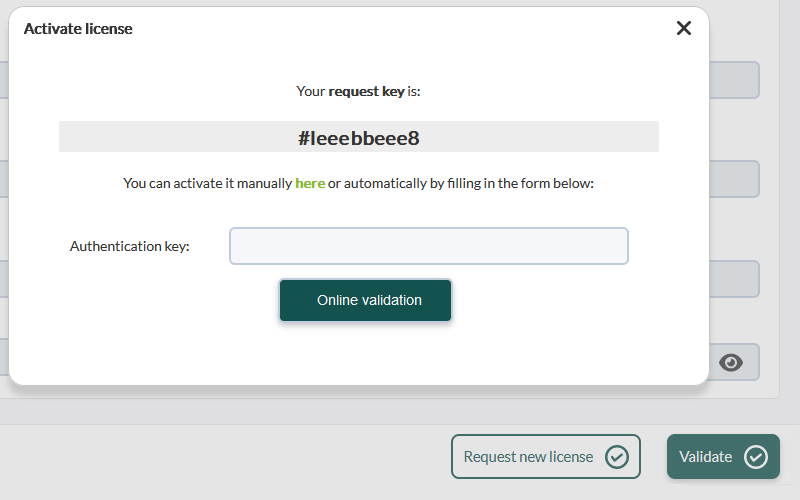](https://pandorafms.com/guides/public/uploads/images/gallery/2023-08/pfms-activate-license.png) Once finished, a license will be ready to be validated. Finish all steps, the console is ready for use.