# 9. Monitorización de servidores remotamente

<p class="callout info"><span style="font-size: 11pt; font-family: Arial; background-color: transparent; font-weight: 400; font-style: normal; font-variant: normal; text-decoration: none; vertical-align: baseline; white-space: pre-wrap;">Pandora FMS nos ofrece también la posibilidad de monitorizar ordenadores que utilicen sistema operativo Linux® o MS Windows® de manera remota sin necesidad de instalar un EndPoint.</span></p>

<span style="font-size: 11pt; font-family: Arial; background-color: transparent; font-weight: 400; font-style: normal; font-variant: normal; text-decoration: none; vertical-align: baseline; white-space: pre-wrap;">Para conseguir esto necesitaremos crear **módulos de ejecución remota** que nos permitan interrogar al dispositivo desde nuestra instalación de Pandora FMS ejecutando un comando de manera remota y obteniendo el resultado deseado. Por motivos de seguridad se necesitan de credenciales de usuario autorizados en cada sistema operativo por lo que primero haremos uso de la funcionalidad **Almacén de Credenciales** en PFMS y luego crearemos un módulo de ejecución remota para cada sistema operativo mencionado.</span>

### Almacén de Credenciales

<p class="callout info"><span style="font-size: 11pt; font-family: Arial; background-color: transparent; font-weight: 400; font-style: normal; font-variant: normal; text-decoration: none; vertical-align: baseline; white-space: pre-wrap;">El almacén de credenciales almacena conjuntos de *usuario/password* de manera que se puedan reutilizar en diferentes chequeos y cuyos datos no son mostrados en la configuración del chequeo.</span></p>

Por medio del menú **Management→Configuration→Credential Store** se accede a dicha funcionalidad y se debe pulsar el botón **Add key.**

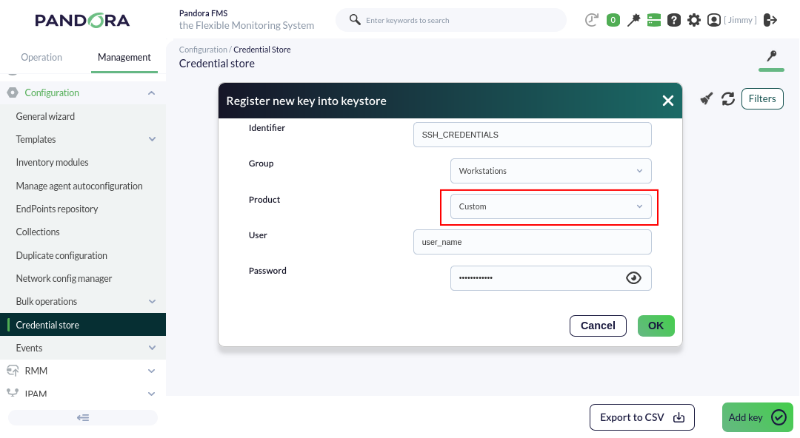
Primero crearemos una credencial para conectar a un ordenador GNU/Debian® (Ubuntu®) por medio de SSH:

[![pfms-first-steps-remote-monitoring-image-010.png](https://pandorafms.com/guides/public/uploads/images/gallery/2026-03/scaled-1680-/pfms-first-steps-remote-monitoring-image-010.png)](https://pandorafms.com/guides/public/uploads/images/gallery/2026-03/pfms-first-steps-remote-monitoring-image-010.png)
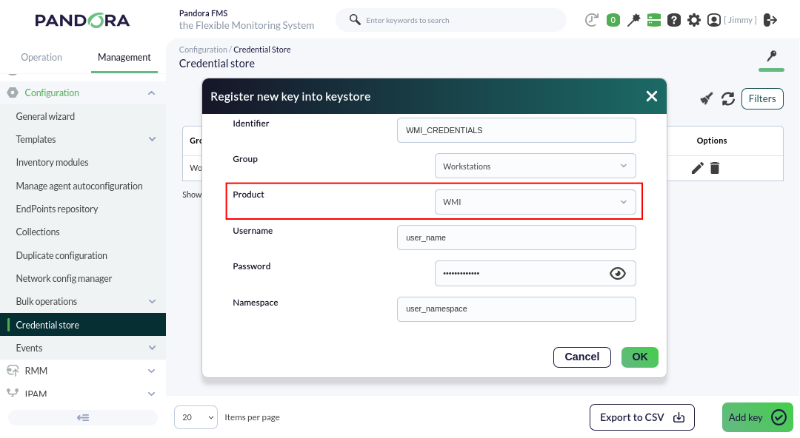
Y luego agregamos una credencial para un ordenador MS Windows® por medio de WMI:

[![pfms-first-steps-remote-monitoring-image-020.png](https://pandorafms.com/guides/public/uploads/images/gallery/2026-03/scaled-1680-/pfms-first-steps-remote-monitoring-image-020.png)](https://pandorafms.com/guides/public/uploads/images/gallery/2026-03/pfms-first-steps-remote-monitoring-image-020.png)
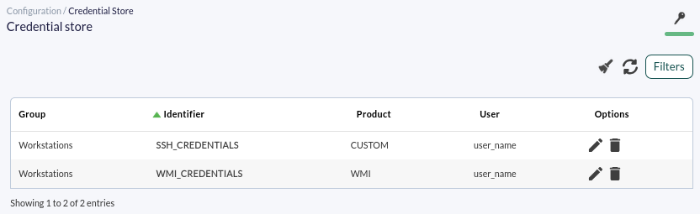
Nuestras credenciales deberán verse de manera similar a esto:

[![pfms-first-steps-remote-monitoring-image-030.png](https://pandorafms.com/guides/public/uploads/images/gallery/2026-03/scaled-1680-/pfms-first-steps-remote-monitoring-image-030.png)](https://pandorafms.com/guides/public/uploads/images/gallery/2026-03/pfms-first-steps-remote-monitoring-image-030.png)
### Módulos de ejecución remota

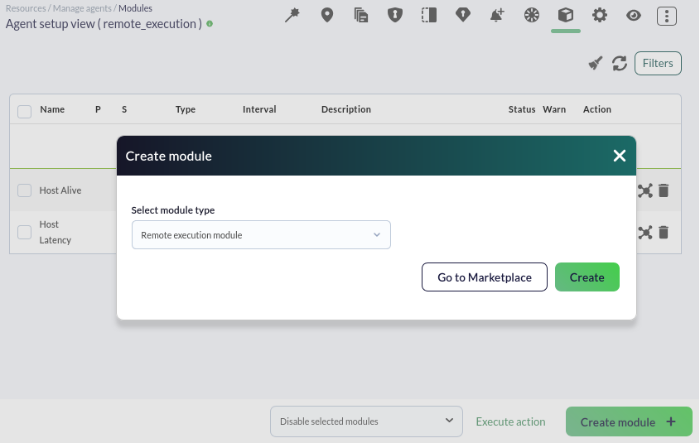
<span style="font-size: 11pt; font-family: Arial; background-color: transparent; font-weight: 400; font-style: normal; font-variant: normal; text-decoration: none; vertical-align: baseline; white-space: pre-wrap;">Cree un módulo de ejecución remota en al agente deseado: </span>

<span style="font-size: 11pt; font-family: Arial; background-color: transparent; font-weight: 400; font-style: normal; font-variant: normal; text-decoration: none; vertical-align: baseline; white-space: pre-wrap;">[![pfms-first-steps-remote-monitoring-image-050.png](https://pandorafms.com/guides/public/uploads/images/gallery/2026-03/scaled-1680-/pfms-first-steps-remote-monitoring-image-050.png)](https://pandorafms.com/guides/public/uploads/images/gallery/2026-03/pfms-first-steps-remote-monitoring-image-050.png)</span>

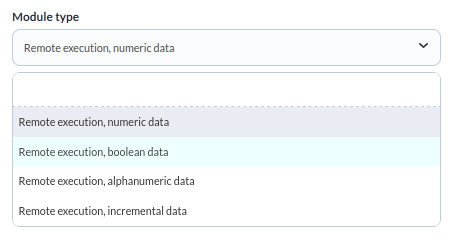
<span style="font-size: 11pt; font-family: Arial; background-color: transparent; font-weight: 400; font-style: normal; font-variant: normal; text-decoration: none; vertical-align: baseline; white-space: pre-wrap;">En el tipo de módulo, para este caso, elegiremos el correspondiente a dato numérico, **Remote execution, numeric data**:</span>

<span style="font-size: 11pt; font-family: Arial; background-color: transparent; font-weight: 400; font-style: normal; font-variant: normal; text-decoration: none; vertical-align: baseline; white-space: pre-wrap;">[![pfms-first-steps-remote-monitoring-image-060.png](https://pandorafms.com/guides/public/uploads/images/gallery/2026-03/scaled-1680-/pfms-first-steps-remote-monitoring-image-060.png)](https://pandorafms.com/guides/public/uploads/images/gallery/2026-03/pfms-first-steps-remote-monitoring-image-060.png)</span>

<p class="callout info"><span style="font-size: 11pt; font-family: Arial; background-color: transparent; font-weight: 400; font-style: normal; font-variant: normal; text-decoration: none; vertical-align: baseline; white-space: pre-wrap;">Si se desea monitorizar algo que devuelve un estado verdadero o falso, como por ejemplo, el estado de un proceso, solamente tiene que asegurarse de que su comando devuelva el valor 0 para el valor erróneo y distinto de cero para el valor correcto. Deberá usar un tipo de dato **Remote execution, boolean data** para que Pandora FMS lo interprete como tal y omita el uso de umbral alguno.</span></p>

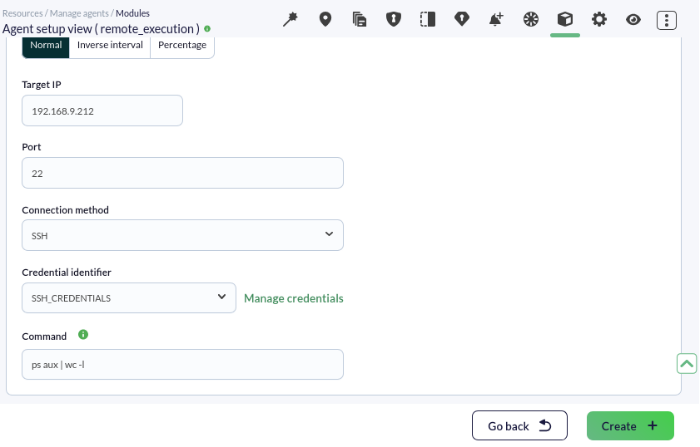
<span style="font-size: 11pt; font-family: Arial; background-color: transparent; font-weight: 400; font-style: normal; font-variant: normal; text-decoration: none; vertical-align: baseline; white-space: pre-wrap;">Ahora vamos a configurar el chequeo en sí mismo y agregar los comandos a ejecutar para conocer el número de procesos o tareas que está ejecutando ese ordenador remoto. Este valor es uno de los indicios de la carga de trabajo que realiza la máquina en cuestión:</span>

<span style="font-size: 11pt; font-family: Arial; background-color: transparent; font-weight: 400; font-style: normal; font-variant: normal; text-decoration: none; vertical-align: baseline; white-space: pre-wrap;">[![pfms-first-steps-remote-monitoring-image-070.png](https://pandorafms.com/guides/public/uploads/images/gallery/2026-03/scaled-1680-/pfms-first-steps-remote-monitoring-image-070.png)](https://pandorafms.com/guides/public/uploads/images/gallery/2026-03/pfms-first-steps-remote-monitoring-image-070.png)</span>

<span style="font-size: 11pt; font-family: Arial; background-color: transparent; font-weight: 400; font-style: normal; font-variant: normal; text-decoration: none; vertical-align: baseline; white-space: pre-wrap;">Nótese que:</span>

- <span style="font-size: 11pt; font-family: Arial; background-color: transparent; font-weight: 400; font-style: normal; font-variant: normal; text-decoration: none; vertical-align: baseline; white-space: pre-wrap;">Se debe colocar la dirección IP o URL del ordenador a chequear. *Esto es independiente de la dirección IP que se haya agregado, si es el caso, al agente que contiene al módulo de marras.*</span>
- <span style="font-size: 11pt; font-family: Arial; background-color: transparent; font-weight: 400; font-style: normal; font-variant: normal; text-decoration: none; vertical-align: baseline; white-space: pre-wrap;">Seleccionar la credencial adecuada en **Credential identifier**.</span>

<span style="font-size: 11pt; font-family: Arial; background-color: transparent; font-weight: 400; font-style: normal; font-variant: normal; text-decoration: none; vertical-align: baseline; white-space: pre-wrap;">Los comandos a utilizar son:</span>

<span style="font-size: 11pt; font-family: Arial; background-color: transparent; font-weight: 400; font-style: normal; font-variant: normal; text-decoration: none; vertical-align: baseline; white-space: pre-wrap;">Para Linux®:</span>

```bash
ps aux | wc -l
```

Para MS Windows®:

```bash
tasklist | find /C /V ""
```

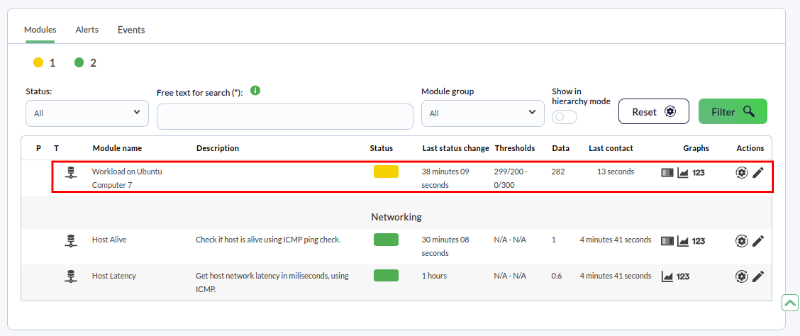
Por último estableceremos los umbrales de advertencia y criticidad. Como la carga de trabajo que puede llevar a cabo un ordenador depende intrínsecamente del hardware utilizado, con propósitos didácticos colocaremos arbitrariamente de 200 a 299 para advertir y más de 300 para declarar en estado crítico al dispositivo monitorizado.

<p class="callout success">Guardamos el módulo y a los pocos minutos se tendrá información similar a la siguiente:</p>

[![pfms-first-steps-remote-monitoring-image-080.png](https://pandorafms.com/guides/public/uploads/images/gallery/2026-03/scaled-1680-/pfms-first-steps-remote-monitoring-image-080.png)](https://pandorafms.com/guides/public/uploads/images/gallery/2026-03/pfms-first-steps-remote-monitoring-image-080.png)

¿No se están logrando los resultados explicados en el capítulo? Acceda a la sección de [ayuda](https://pandorafms.com/guides/public/books/primeros-pasos-con-pandora-fms/page/21-donde-mirar-en-caso-de-problemas) o [soporte](https://pandorafms.com/guides/public/books/primeros-pasos-con-pandora-fms/page/22-soporte)