# 5. Detección y monitorización de equipos de red y windows con Discovery

<span style="font-size: 11pt; font-family: Arial; background-color: transparent; font-weight: 400; font-style: normal; font-variant: normal; text-decoration: none; vertical-align: baseline; white-space: pre-wrap;">Veamos ahora una tarea de descubrimiento más compleja [que la anterior](https://pandorafms.com/guides/public/books/primeros-pasos-con-pandora-fms/page/4-detectando-y-monitorizando-nuevos-sistemas-con-discovery "4. Detectando y monitorizando nuevos sistemas con Discovery"), configurando esta vez a **SNMP** y **WMI**, dos protocolos que se utilizan para monitorizar remotamente dispositivos, tanto de red (SNMP) como MS Windows® (WMI).</span>

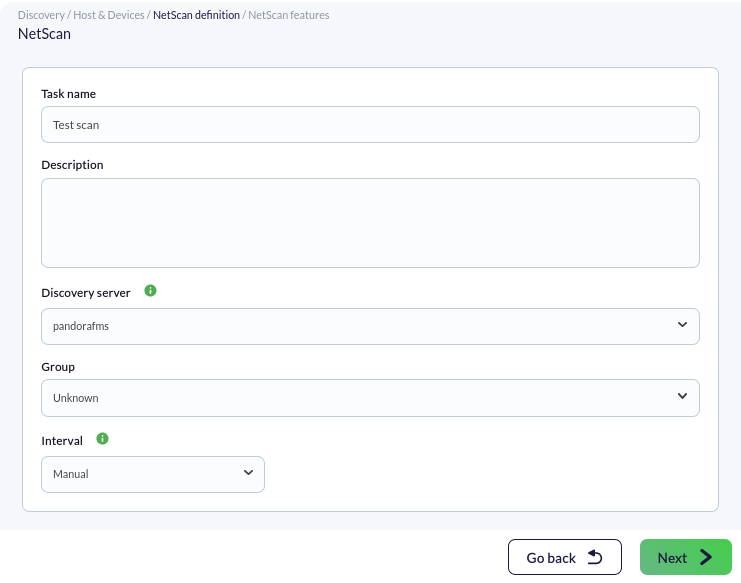
<p class="callout info"><span style="font-size: 11pt; font-family: Arial; background-color: transparent; font-weight: 400; font-style: normal; font-variant: normal; text-decoration: none; vertical-align: baseline; white-space: pre-wrap;">Menú **Management** </span>**→ Discovery<span style="font-size: 11pt; font-family: Arial; background-color: transparent; font-style: normal; font-variant: normal; text-decoration: none; vertical-align: baseline; white-space: pre-wrap;"> </span>→Host &amp; Devices<span style="font-size: 11pt; font-family: Arial; background-color: transparent; font-style: normal; font-variant: normal; text-decoration: none; vertical-align: baseline; white-space: pre-wrap;"> </span>→Network scan**.</p>

[![pfms-discovery-network_scan-image_010.png](https://pandorafms.com/guides/public/uploads/images/gallery/2026-01/scaled-1680-/pfms-discovery-network-scan-image-010.png)](https://pandorafms.com/guides/public/uploads/images/gallery/2026-01/pfms-discovery-network-scan-image-010.png)

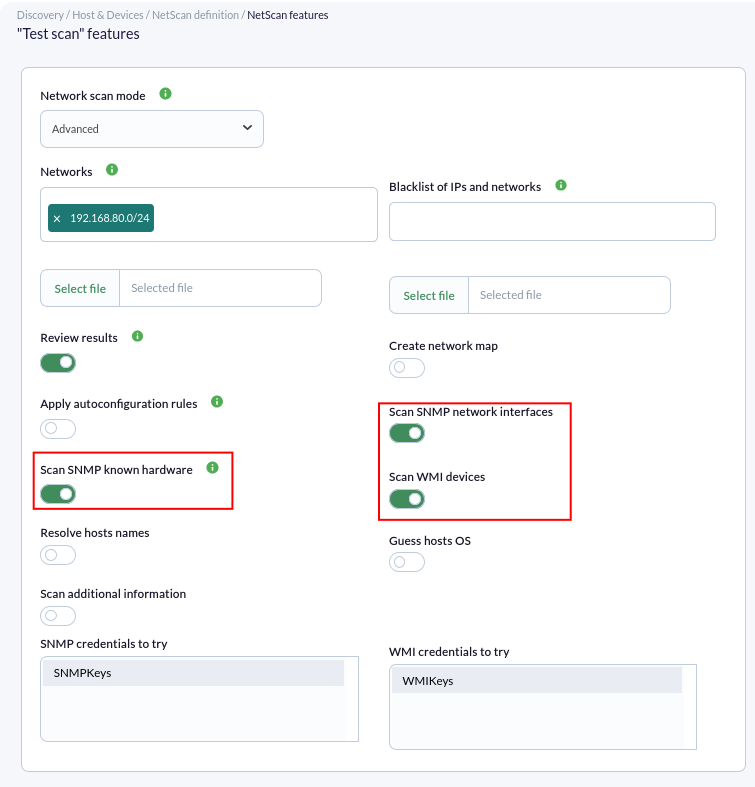
<span style="font-size: 11pt; font-family: Arial; background-color: transparent; font-weight: 400; font-style: normal; font-variant: normal; text-decoration: none; vertical-align: baseline; white-space: pre-wrap;">El proceso de configuración es similar al anterior, esta vez seleccionando el modo avanzado y accederemos a las opciones de configuración de la tarea de descubrimiento en la parte inferior:</span>

<span style="font-weight: normal;">[![pfms-discovery-network_scan-image_020.png](https://pandorafms.com/guides/public/uploads/images/gallery/2026-01/scaled-1680-/pfms-discovery-network-scan-image-020.png)](https://pandorafms.com/guides/public/uploads/images/gallery/2026-01/pfms-discovery-network-scan-image-020.png) </span>

<span style="font-size: 11pt; font-family: Arial; background-color: transparent; font-weight: 400; font-style: normal; font-variant: normal; text-decoration: none; vertical-align: baseline; white-space: pre-wrap;">Para habilitar la monitorización con SNMP y WMI deberemos activar el *token* correspondiente y facilitar los datos requeridos por cada protocolo. </span>

- <span style="font-size: 11pt; font-family: Arial; background-color: transparent; font-weight: 400; font-style: normal; font-variant: normal; text-decoration: none; vertical-align: baseline; white-space: pre-wrap;">**SNMP** dispone de "comunidades" que son como *contraseñas* de acceso. Si no conoce su **SNMP community** pruebe `public`. Puede introducir tantos como quiera, de forma que se probará con todos ellos.</span>
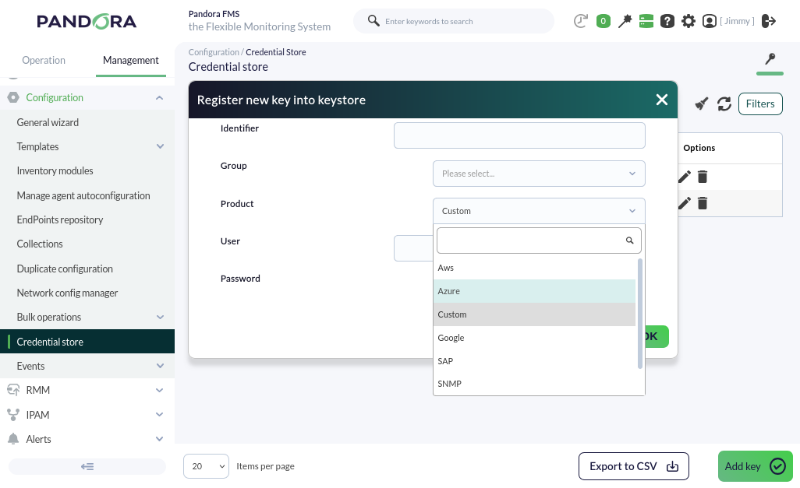
- <span style="font-size: 11pt; font-family: Arial; background-color: transparent; font-weight: 400; font-style: normal; font-variant: normal; text-decoration: none; vertical-align: baseline; white-space: pre-wrap;">Las credenciales para el servicio **WMI** (y otros) se pueden definir en </span>**<span style="font-size: 11pt; font-family: Arial; background-color: transparent; font-style: normal; font-variant: normal; text-decoration: none; vertical-align: baseline; white-space: pre-wrap;">Management</span>**<span style="font-style: normal; font-variant: normal; background-color: transparent; font-size: 11pt; font-family: Arial; white-space-collapse: preserve;"> **→ Configuration**<span style="font-style: normal; font-variant: normal; background-color: transparent; font-size: 11pt; font-family: Arial; white-space-collapse: preserve;"> **→ Credential store**.</span></span>

<p class="callout info">**Las *credential store*** son almacenes seguros de usuario/contraseña que se utilizan posteriormente en chequeos remotos, configuraciones de equipos, acceso remoto, etcétera. De forma que se puedan reutilizar en diferentes puntos de Pandora FMS:</p>

[![pfms-discovery-network_scan-image_030.png](https://pandorafms.com/guides/public/uploads/images/gallery/2026-01/scaled-1680-/pfms-discovery-network-scan-image-030.png)](https://pandorafms.com/guides/public/uploads/images/gallery/2026-01/pfms-discovery-network-scan-image-030.png)

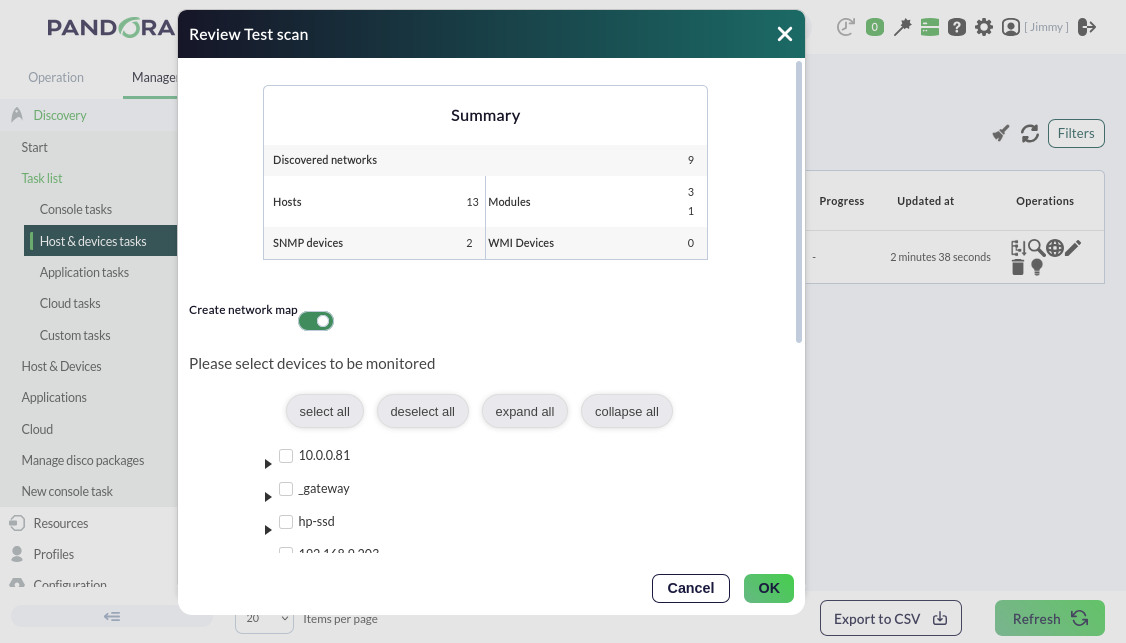
<span style="font-size: 11pt; font-family: Arial; background-color: transparent; font-weight: 400; font-style: normal; font-variant: normal; text-decoration: none; vertical-align: baseline; white-space: pre-wrap;">Habilitaremos también el token **Review results**, que nos permitirá ver los componentes encontrados por Pandora FMS en la tarea de descubrimiento una vez que termine, mostrando lo que ha encontrado y permitiendo añadirlo a la monitorización remota del agente con un solo clic.</span>

[![pfms-management-discovery-host-and-devices-netscan-11.png](https://pandorafms.com/guides/public/uploads/images/gallery/2026-01/scaled-1680-/pfms-management-discovery-host-and-devices-netscan-11.png)](https://pandorafms.com/guides/public/uploads/images/gallery/2026-01/pfms-management-discovery-host-and-devices-netscan-11.png)

Si no necesitas más monitorización ni configuración, pasemos al alerta de métricas [aquí ](https://pandorafms.com/guides/public/books/primeros-pasos-con-pandora-fms/page/13-alertas-por-mail)

<p class="callout info">¿No se están logrando los resultados explicados en el capítulo? Acceda a la sección de [ayuda](https://pandorafms.com/guides/public/books/primeros-pasos-con-pandora-fms/page/21-donde-mirar-en-caso-de-problemas) o [soporte](https://pandorafms.com/guides/public/books/primeros-pasos-con-pandora-fms/page/22-soporte)</p>