# 9. Supervision serveur à distance

<p class="callout info"><span style="font-size: 11pt; font-family: Arial; background-color: transparent; font-weight: 400; font-style: normal; font-variant: normal; text-decoration: none; vertical-align: baseline; white-space: pre-wrap;">Pandora FMS nous offre également la possibilité de surveiller à distance des ordinateurs utilisant le système d'exploitation Linux® ou MS Windows® sans avoir besoin d'installer un EndPoint.</span></p>

<span style="font-size: 11pt; font-family: Arial; background-color: transparent; font-weight: 400; font-style: normal; font-variant: normal; text-decoration: none; vertical-align: baseline; white-space: pre-wrap;">Pour y parvenir, nous devrons créer des **modules d'exécution à distance** qui nous permettent d'interroger l'appareil depuis notre installation Pandora FMS en exécutant une commande à distance et en obtenant le résultat souhaité. Pour des raisons de sécurité, des identifiants d'utilisateur autorisés sont requis sur chaque système d'exploitation ; nous utiliserons donc d'abord la fonctionnalité **Magasin d'Identifiants** (Credential Store) dans PFMS, puis nous créerons un module d'exécution à distance pour chaque système d'exploitation mentionné.</span>

### Magasin d'Identifiants

<p class="callout info"><span style="font-size: 11pt; font-family: Arial; background-color: transparent; font-weight: 400; font-style: normal; font-variant: normal; text-decoration: none; vertical-align: baseline; white-space: pre-wrap;">Le magasin d'identifiants stocke des ensembles *utilisateur/mot de passe* de manière à ce qu'ils puissent être réutilisés dans différentes vérifications sans que les données ne soient affichées dans la configuration de la vérification.</span></p>

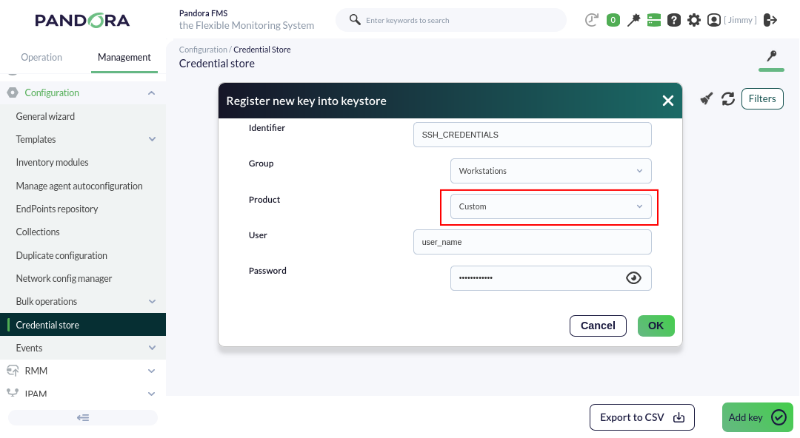
On accède à cette fonctionnalité via le menu **Management → Configuration → Credential Store** et il faut cliquer sur le bouton **Add key.**

Nous allons d'abord créer un identifiant pour nous connecter à un ordinateur GNU/Debian® (Ubuntu®) via SSH :

[![pfms-first-steps-remote-monitoring-image-010.png](https://pandorafms.com/guides/public/uploads/images/gallery/2026-03/scaled-1680-/pfms-first-steps-remote-monitoring-image-010.png)](https://pandorafms.com/guides/public/uploads/images/gallery/2026-03/pfms-first-steps-remote-monitoring-image-010.png)
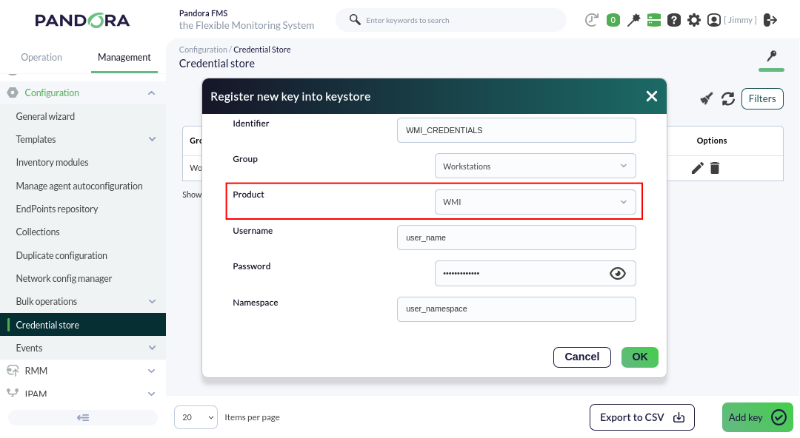
Puis nous ajoutons un identifiant pour un ordinateur MS Windows® via WMI :

[![pfms-first-steps-remote-monitoring-image-020.png](https://pandorafms.com/guides/public/uploads/images/gallery/2026-03/scaled-1680-/pfms-first-steps-remote-monitoring-image-020.png)](https://pandorafms.com/guides/public/uploads/images/gallery/2026-03/pfms-first-steps-remote-monitoring-image-020.png)
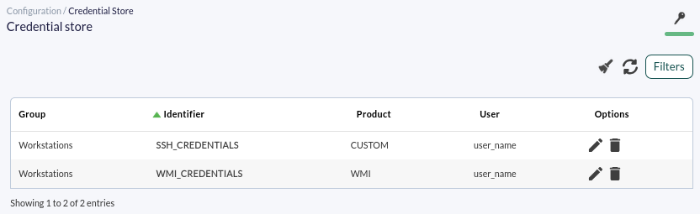
Nos identifiants devraient ressembler à ceci :

[![pfms-first-steps-remote-monitoring-image-030.png](https://pandorafms.com/guides/public/uploads/images/gallery/2026-03/scaled-1680-/pfms-first-steps-remote-monitoring-image-030.png)](https://pandorafms.com/guides/public/uploads/images/gallery/2026-03/pfms-first-steps-remote-monitoring-image-030.png)
### Modules d'exécution à distance

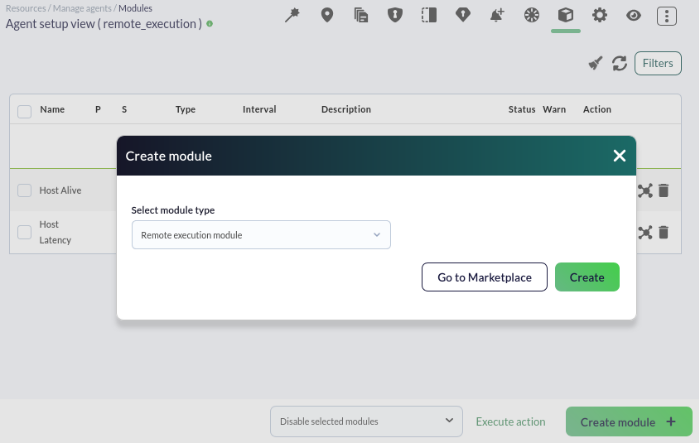
<span style="font-size: 11pt; font-family: Arial; background-color: transparent; font-weight: 400; font-style: normal; font-variant: normal; text-decoration: none; vertical-align: baseline; white-space: pre-wrap;">Créez un module d'exécution à distance sur l'agent souhaité : </span>

<span style="font-size: 11pt; font-family: Arial; background-color: transparent; font-weight: 400; font-style: normal; font-variant: normal; text-decoration: none; vertical-align: baseline; white-space: pre-wrap;">[![pfms-first-steps-remote-monitoring-image-050.png](https://pandorafms.com/guides/public/uploads/images/gallery/2026-03/scaled-1680-/pfms-first-steps-remote-monitoring-image-050.png)](https://pandorafms.com/guides/public/uploads/images/gallery/2026-03/pfms-first-steps-remote-monitoring-image-050.png)</span>

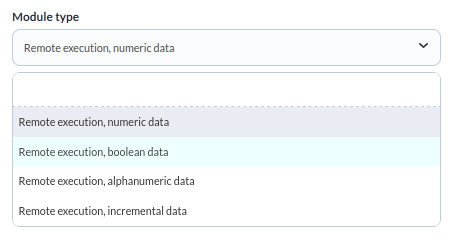
<span style="font-size: 11pt; font-family: Arial; background-color: transparent; font-weight: 400; font-style: normal; font-variant: normal; text-decoration: none; vertical-align: baseline; white-space: pre-wrap;">Dans le type de module, pour ce cas, nous choisirons celui correspondant aux données numériques, **Remote execution, numeric data** :</span>

<span style="font-size: 11pt; font-family: Arial; background-color: transparent; font-weight: 400; font-style: normal; font-variant: normal; text-decoration: none; vertical-align: baseline; white-space: pre-wrap;">[![pfms-first-steps-remote-monitoring-image-060.png](https://pandorafms.com/guides/public/uploads/images/gallery/2026-03/scaled-1680-/pfms-first-steps-remote-monitoring-image-060.png)](https://pandorafms.com/guides/public/uploads/images/gallery/2026-03/pfms-first-steps-remote-monitoring-image-060.png)</span>

<p class="callout info"><span style="font-size: 11pt; font-family: Arial; background-color: transparent; font-weight: 400; font-style: normal; font-variant: normal; text-decoration: none; vertical-align: baseline; white-space: pre-wrap;">Si vous souhaitez surveiller quelque chose qui renvoie un état vrai ou faux, comme par exemple l'état d'un processus, il vous suffit de vous assurer que votre commande renvoie la valeur 0 pour une erreur et une valeur différente de zéro pour un résultat correct. Vous devrez utiliser un type de données **Remote execution, boolean data** pour que Pandora FMS l'interprète comme tel et ignore l'utilisation de tout seuil.</span></p>

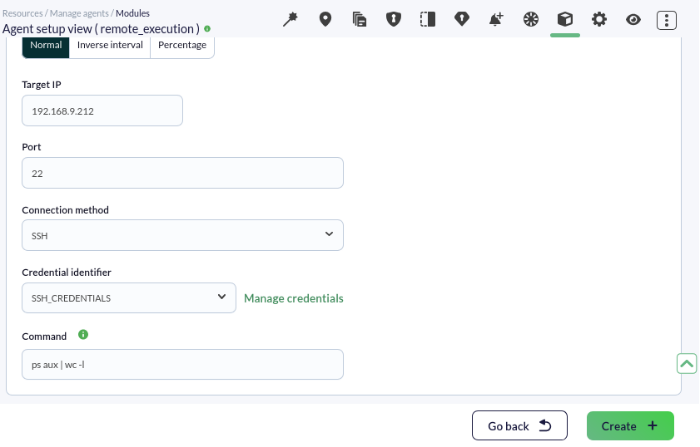
<span style="font-size: 11pt; font-family: Arial; background-color: transparent; font-weight: 400; font-style: normal; font-variant: normal; text-decoration: none; vertical-align: baseline; white-space: pre-wrap;">Nous allons maintenant configurer la vérification elle-même et ajouter les commandes à exécuter pour connaître le nombre de processus ou de tâches que cet ordinateur distant exécute. Cette valeur est l'un des indicateurs de la charge de travail effectuée par la machine en question :</span>

<span style="font-size: 11pt; font-family: Arial; background-color: transparent; font-weight: 400; font-style: normal; font-variant: normal; text-decoration: none; vertical-align: baseline; white-space: pre-wrap;">[![pfms-first-steps-remote-monitoring-image-070.png](https://pandorafms.com/guides/public/uploads/images/gallery/2026-03/scaled-1680-/pfms-first-steps-remote-monitoring-image-070.png)](https://pandorafms.com/guides/public/uploads/images/gallery/2026-03/pfms-first-steps-remote-monitoring-image-070.png)</span>

<span style="font-size: 11pt; font-family: Arial; background-color: transparent; font-weight: 400; font-style: normal; font-variant: normal; text-decoration: none; vertical-align: baseline; white-space: pre-wrap;">Notez que :</span>

- <span style="font-size: 11pt; font-family: Arial; background-color: transparent; font-weight: 400; font-style: normal; font-variant: normal; text-decoration: none; vertical-align: baseline; white-space: pre-wrap;">Il faut indiquer l'adresse IP ou l'URL de l'ordinateur à vérifier. *Ceci est indépendant de l'adresse IP qui aurait été ajoutée, le cas échéant, à l'agent contenant le module en question.*</span>
- <span style="font-size: 11pt; font-family: Arial; background-color: transparent; font-weight: 400; font-style: normal; font-variant: normal; text-decoration: none; vertical-align: baseline; white-space: pre-wrap;">Sélectionnez l'identifiant approprié dans **Credential identifier**.</span>

<span style="font-size: 11pt; font-family: Arial; background-color: transparent; font-weight: 400; font-style: normal; font-variant: normal; text-decoration: none; vertical-align: baseline; white-space: pre-wrap;">Les commandes à utiliser sont :</span>

<span style="font-size: 11pt; font-family: Arial; background-color: transparent; font-weight: 400; font-style: normal; font-variant: normal; text-decoration: none; vertical-align: baseline; white-space: pre-wrap;">Pour Linux® :</span>

```bash
ps aux | wc -l
```

Pour MS Windows® :

```bash
tasklist | find /C /V ""
```

Enfin, nous établirons les seuils d'avertissement et de criticité. Comme la charge de travail qu'un ordinateur peut supporter dépend intrinsèquement du matériel utilisé, nous placerons arbitrairement, à des fins pédagogiques, de 200 à 299 pour l'avertissement et plus de 300 pour déclarer l'appareil surveillé en état critique.

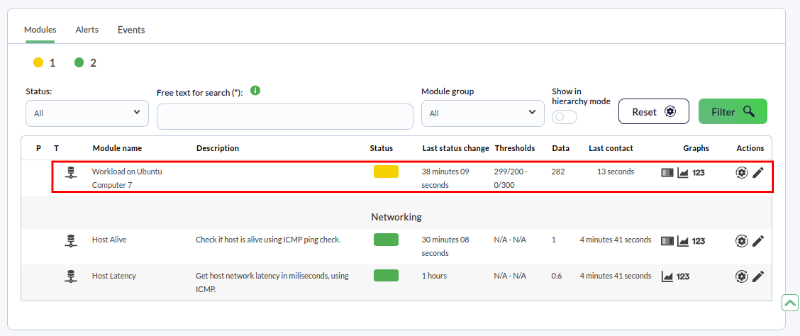
<p class="callout success">Enregistrez le module et, après quelques minutes, vous obtiendrez des informations similaires aux suivantes :</p>

[![pfms-first-steps-remote-monitoring-image-080.png](https://pandorafms.com/guides/public/uploads/images/gallery/2026-03/scaled-1680-/pfms-first-steps-remote-monitoring-image-080.png)](https://pandorafms.com/guides/public/uploads/images/gallery/2026-03/pfms-first-steps-remote-monitoring-image-080.png)

Vous n'obtenez pas les résultats expliqués dans ce chapitre ? Accédez à la section d'[aide](https://pandorafms.com/guides/public/books/premiers-pas-avec-pandora-fms/page/21-ou-chercher-en-cas-de-probleme) ou de [support](https://pandorafms.com/guides/public/books/premiers-pas-avec-pandora-fms/page/22-assistance).