Les alertes dans Pandora FMS sont composées de trois éléments :
1. **Commande** (envoyer un e-mail). 2. **Action** (envoyer un message à un utilisateur spécifique, en utilisant la commande précédente). 3. **Modèle** (exécuter une action déterminée lorsqu'une condition est remplie). Dans ce cas précis, nous utiliserons une commande prédéfinie (envoi d'e-mails), nous modifierons une action existante (**Mail to Admin**) pour l'envoyer via une boîte mail spécifique et nous utiliserons un modèle déjà existant, le modèle **Critical condition**, qui déclenchera l'alerte lorsque le module en question passera en état critique. Avec les alertes, nous pouvons faire bien d'autres choses, comme créer une escalade, créer nos propres commandes (pour réaliser des intégrations ou des notifications plus complexes), envoyer des avis de récupération et affecter des alertes en masse, mais nous verrons tout cela plus tard. *C'est un guide rapide, n'est-ce pas ?* #### Configuration de l'alerte d'envoi par e-mail Pandora FMS inclut déjà un serveur d'envoi d'e-mails par défaut dont l'expéditeur est `yourmail@domain.es`. Généralement, ces envois sont classés comme SPAM par les destinataires. Pour changer l'adresse e-mail chargée d'envoyer les notifications et le serveur qui les traite, nous devons accéder à la section **Management** → **Settings** → **System Settings** → **General Setup**. Dans l'un des onglets de configuration, vous trouverez la section **Alerts configuration** : [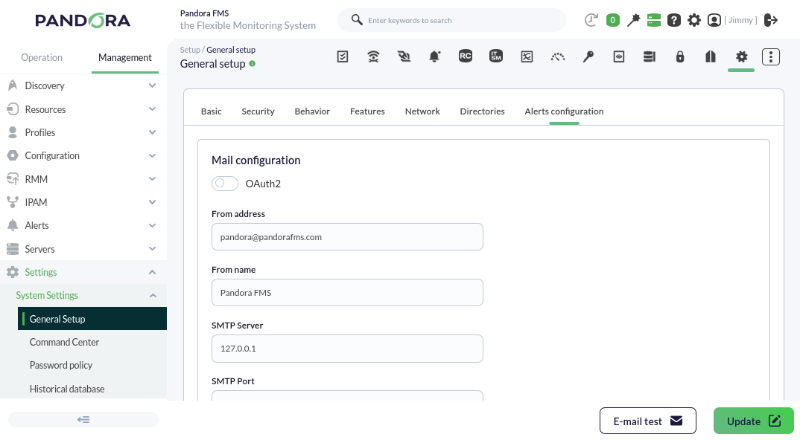](https://pandorafms.com/guides/public/uploads/images/gallery/2026-03/pfms-first-steps-alerts-by-email-image-010.png) Si vous utilisez le serveur local (`127.0.0.1`), vous ne pourrez pas envoyer les messages correctement, car cela dépendra de la configuration de votre environnement. Pour plus d'informations, vous pouvez consulter [ce lien](https://pandorafms.com/manual/fr/documentation/pandorafms/management_and_operation/12_console_setup#ks1_1_7).Pour éviter que les e-mails ne soient identifiés comme *spam*, nous vous recommandons d'utiliser une messagerie professionnelle (Gmail®, Proton®, etc.).
Pour pouvoir configurer le destinataire d'une alerte, il suffit de modifier l'action. L'action est **Mail to Admin** dans **Management** → **Actions** : [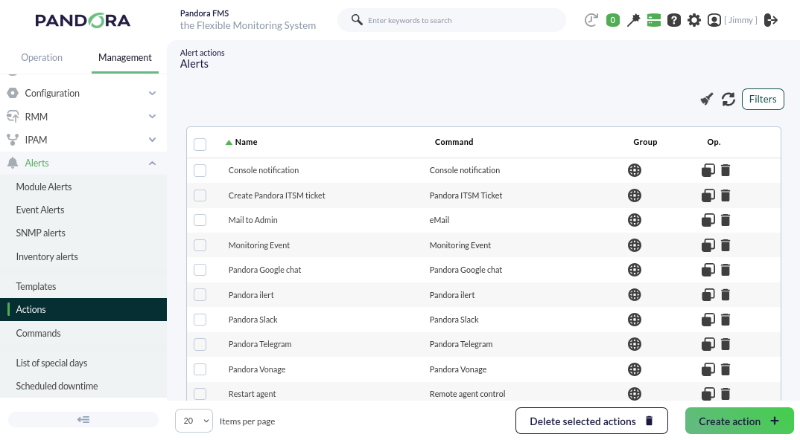](https://pandorafms.com/guides/public/uploads/images/gallery/2026-03/pfms-first-steps-alerts-by-email-image-020.png) Modifiez l'action **Mail to Admin** (en cliquant sur son nom) et utilisez cet exemple comme référence : [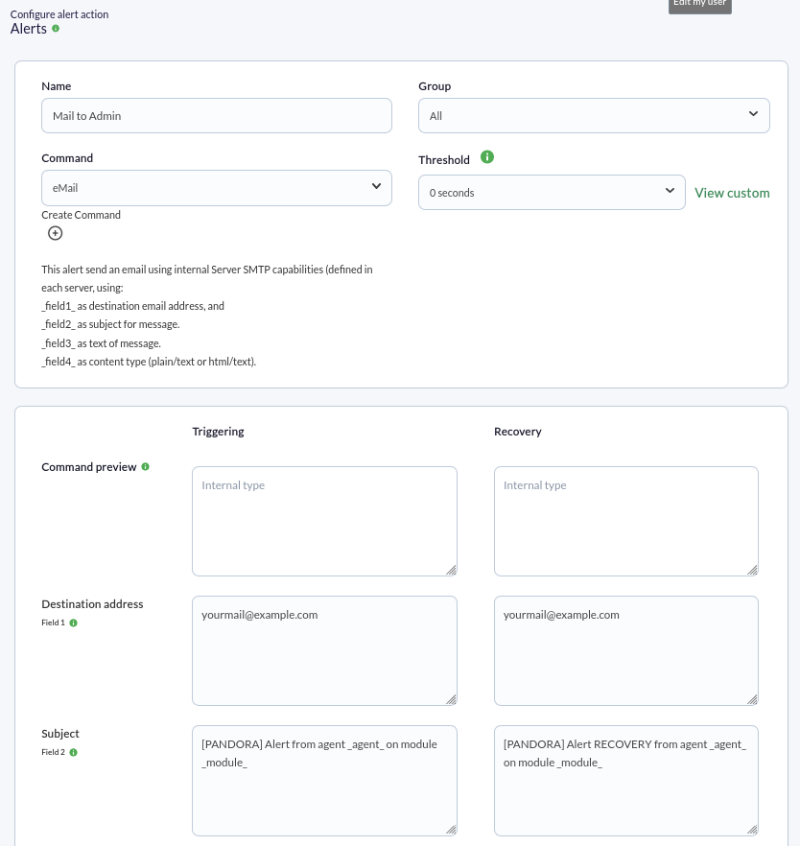](https://pandorafms.com/guides/public/uploads/images/gallery/2026-03/pfms-first-steps-alerts-by-email-image-030.png) On modifiera le champ 1 (**Destination address**) pour y mettre l'adresse e-mail de destination. Dans le champ 2, on laissera le texte présent sur la capture. Ici, on utilise deux macros (`_agent_` et `_module_`) qui seront remplacées au moment de l'exécution par le nom de l'agent et du module ayant généré l'alerte.Il existe près de quarante macros que vous pouvez utiliser pour obtenir des valeurs lors de l'exécution des alertes. [Consultez la documentation](https://pandorafms.com/manual/fr/documentation/pandorafms/management_and_operation/01_alerts#ks15).
Le Champ 3 pourra être utilisé pour rédiger le corps de l'e-mail, en HTML ou en texte brut : [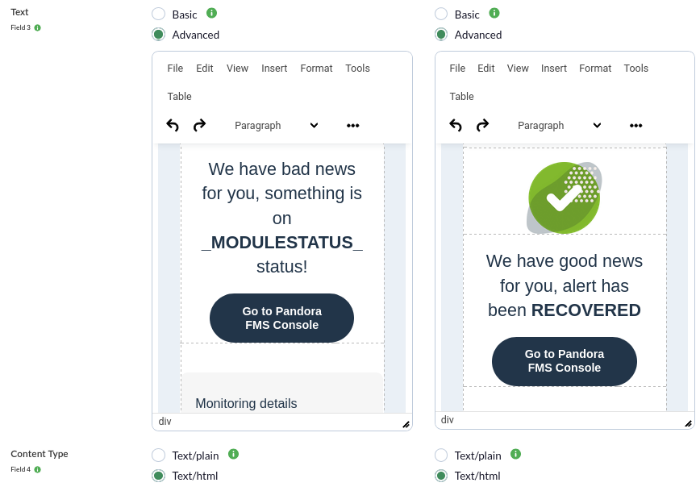](https://pandorafms.com/guides/public/uploads/images/gallery/2026-03/pfms-first-steps-alerts-by-email-image-040.png) Bien que Pandora inclue un visualiseur HTML, nous vous recommandons, si vous rédigez des e-mails en HTML, de copier et coller le code ici. [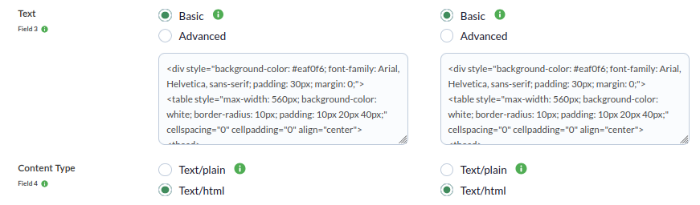](https://pandorafms.com/guides/public/uploads/images/gallery/2026-03/pfms-first-steps-alerts-by-email-image-042.png) Si vous n'avez pas modifié l'action par défaut, le modèle HTML de l'e-mail ressemblera à ceci. Vous pourrez le modifier plus tard, voyons maintenant comment les alertes sont affectées. #### Affectation de l'alerte à un module Nous naviguons vers la vue d'édition d'un agent où nous souhaitons affecter une alerte à un module déjà défini, et nous cliquons sur l'onglet des alertes : [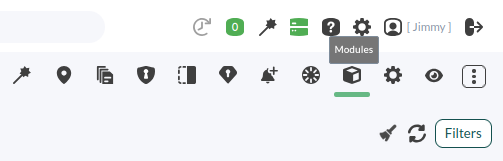](https://pandorafms.com/guides/public/uploads/images/gallery/2026-03/pfms-first-steps-alerts-by-email-image-050.png) Maintenant, nous ajoutons le module (par exemple, Host Alive), le modèle (Critical Condition) et l'action que nous avons configurée à l'étape précédente (Mail to XXX). Nous ajoutons l'alerte : [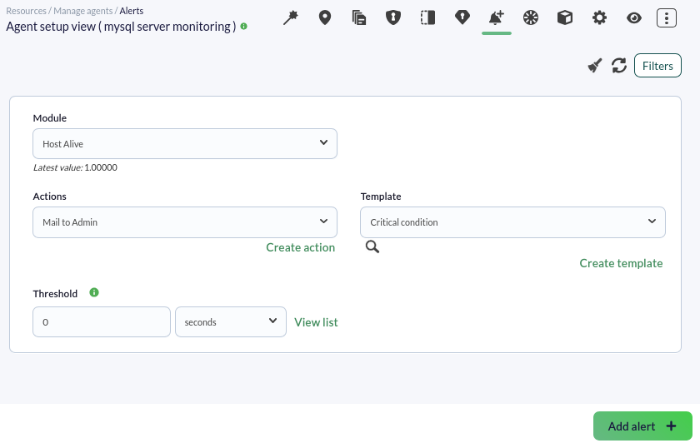](https://pandorafms.com/guides/public/uploads/images/gallery/2026-03/pfms-first-steps-alerts-by-email-image-060.png) Une fois ajoutée, nous pourrons l'observer dans la vue de l'agent en vérifiant si elle s'exécute ou non, en regardant la couleur de son état : [](https://pandorafms.com/guides/public/uploads/images/gallery/2026-03/pfms-first-steps-alerts-by-email-image-070.png) Nous pouvons attendre (ou forcer) l'arrêt de l'*hôte* pour voir si l'alerte fonctionne. Une méthode consiste à insérer directement une valeur zéro dans le module, qui est de type vrai/faux : [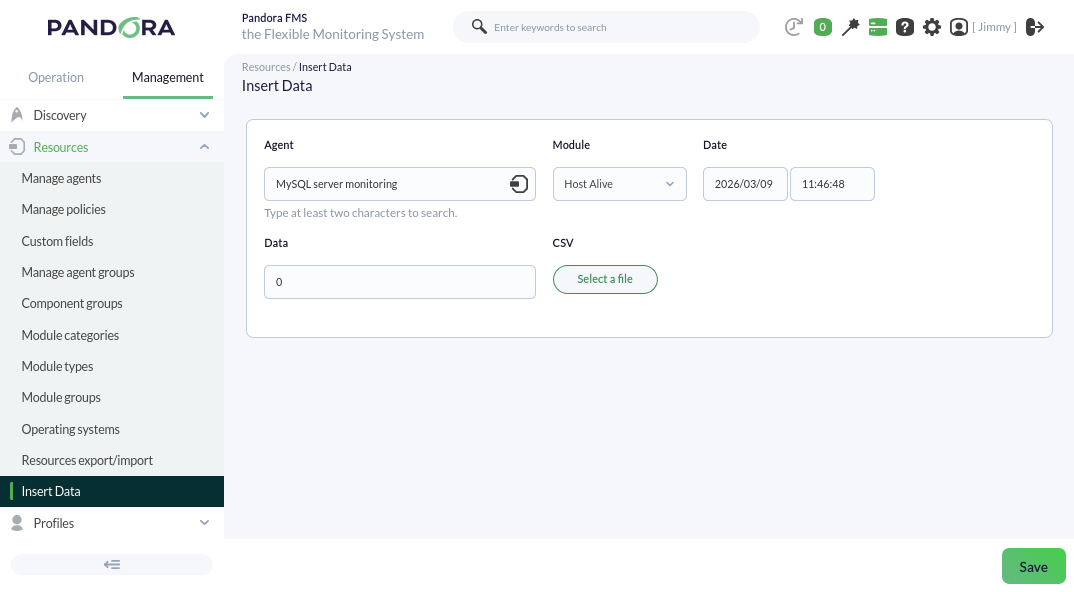](https://pandorafms.com/guides/public/uploads/images/gallery/2026-03/pfms-first-steps-alerts-by-email-image-090.png) Un e-mail contenant l'alerte devrait arriver dans la boîte mail : [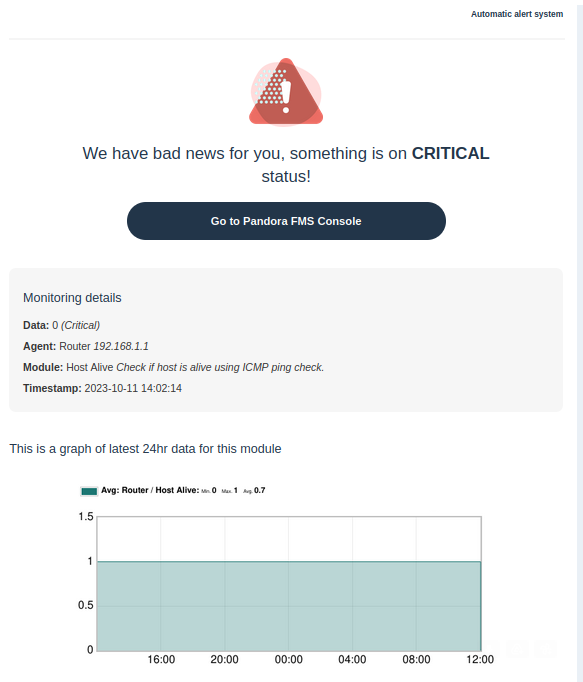](https://pandorafms.com/guides/public/uploads/images/gallery/2026-03/pfms-first-steps-alerts-by-email-image-110.png)Vous n'obtenez pas les résultats expliqués dans ce chapitre ? Accédez à la section d'[aide](https://pandorafms.com/guides/public/books/premiers-pas-avec-pandora-fms/page/21-ou-chercher-en-cas-de-probleme) ou de [support](https://pandorafms.com/guides/public/books/premiers-pas-avec-pandora-fms/page/22-assistance).