# Configuración SKUDONET

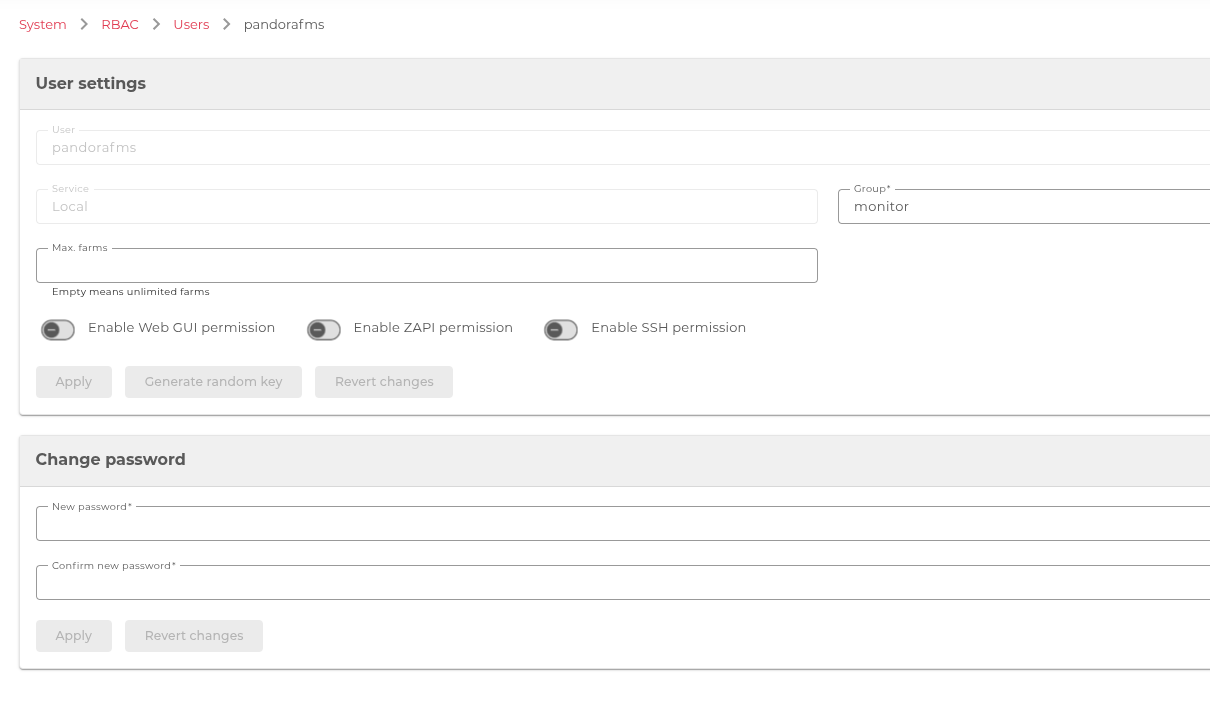
Desde el balanceador es necesario crear un nuevo usuario y crear una **SKUDONET API Key,** para esto desde la GUI del Balanceador

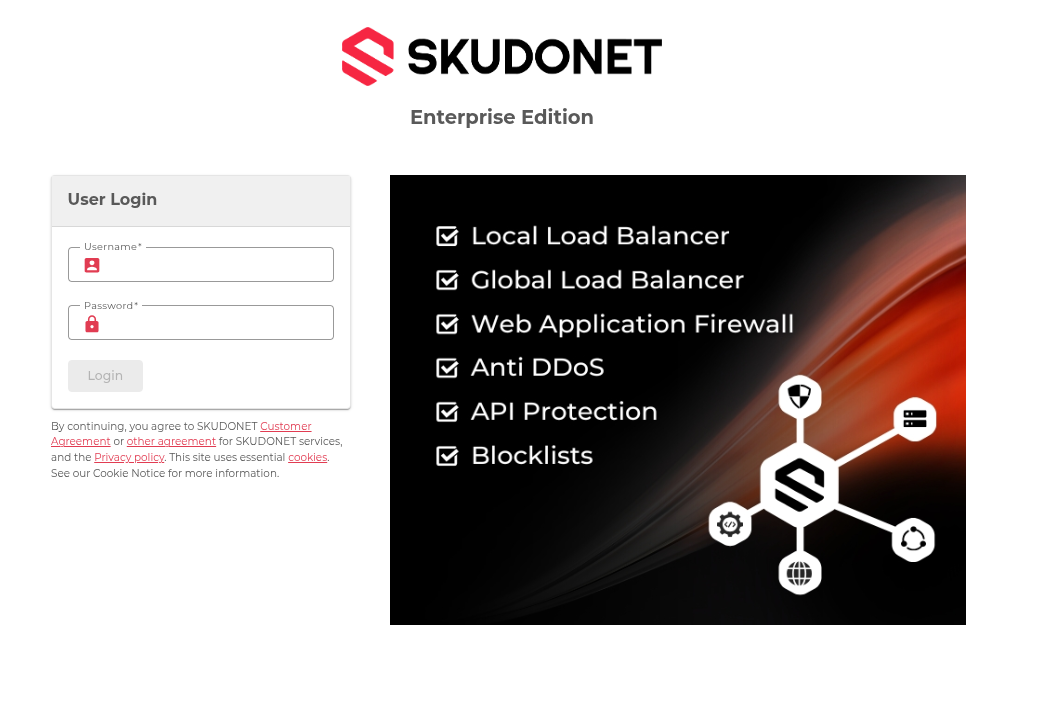
**Para entrar en el balanceador desde nuestro navegador entramos a la gestión del equipo utilizando [https://ip-zevenet:444](https://ip-zevenet:444/)**

Validamos nuestro usuario en este ejemplo es **root**

[<span id="bkmrk--1" style="font-weight: normal;"></span>](https://pandorafms.com/guides/public/uploads/images/gallery/2021-07/image-1625601035141.png)[<span style="font-size: 11pt; font-family: Arial, sans-serif; color: rgb(17, 85, 204); background-color: transparent; font-weight: 400; font-style: normal; font-variant: normal; text-decoration-skip-ink: none; white-space-collapse: preserve;"><span style="border-width: initial; border-style: none; display: inline-block; overflow: hidden; width: 602px; height: 405px;">![](https://pandorafms.com/guides/public/uploads/images/gallery/2025-11/embedded-image-v1t7rcpq.png)</span></span>](https://drive.google.com/file/d/1Knuch6Qdfy_QIGUJ0EcA8UkCMR5-jcYV/view?usp=sharing)
Buscamos **Sistema -&gt; RBAC -&gt; Usuarios**

[<span id="bkmrk--2" style="font-weight: normal;"></span>](https://pandorafms.com/guides/public/uploads/images/gallery/2021-07/image-1625601519993.png)[<span style="font-size: 10.5pt; font-family: Roboto, sans-serif; color: rgb(17, 85, 204); background-color: transparent; font-weight: bold; font-style: normal; font-variant: normal; text-decoration-skip-ink: none; white-space-collapse: preserve;"><span style="border-width: initial; border-style: none; display: inline-block; overflow: hidden; width: 602px; height: 203px;">![](https://pandorafms.com/guides/public/uploads/images/gallery/2025-11/embedded-image-qkqewjfv.png)</span></span>](https://drive.google.com/file/d/1rryKMw0SQWGaIXaSpMk1EbNskKeyuK1m/view?usp=sharing)
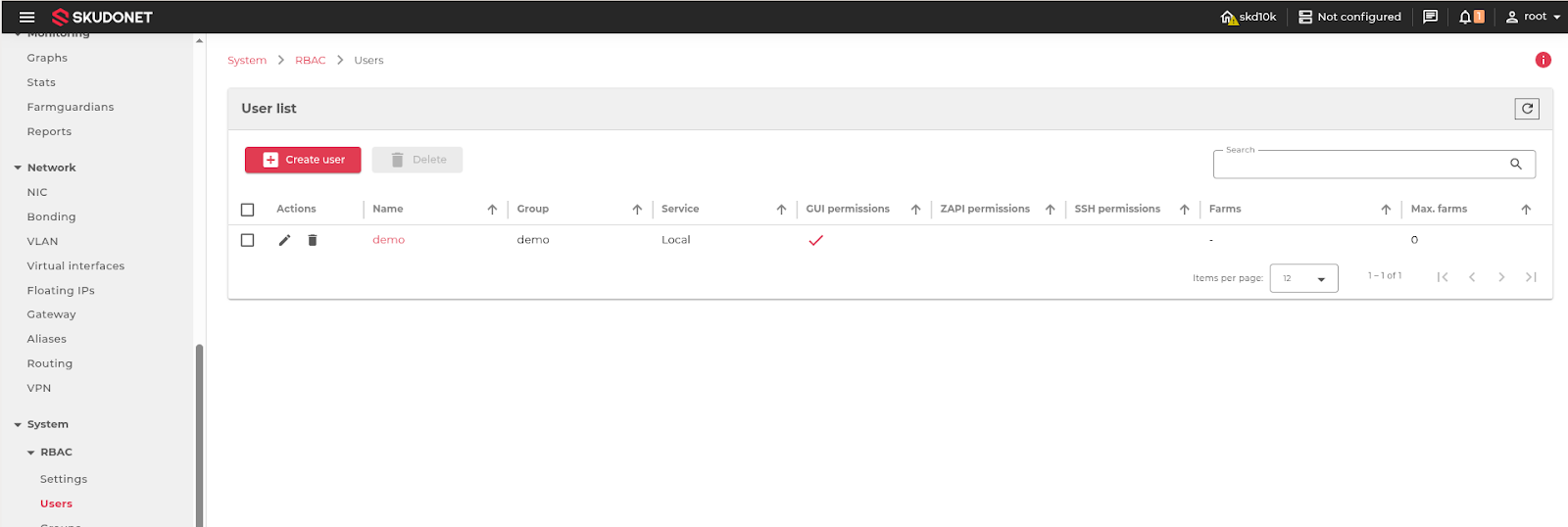
Hacemos click en **CREATE USER**

Completamos los datos como se ve en la siguiente pantalla:  
Nombre: **Nombre de usuario**  
Perfil: **Local (Validación local)** Contraseña: **clave de acceso al usuario**

[<span id="bkmrk--5" style="font-weight: normal;"></span>](https://pandorafms.com/guides/public/uploads/images/gallery/2021-07/image-1625601711402.png)[<span style="font-size: 10.5pt; font-family: Roboto, sans-serif; color: rgb(17, 85, 204); background-color: rgb(255, 255, 255); font-weight: bold; font-style: normal; font-variant: normal; text-decoration-skip-ink: none; white-space-collapse: preserve;"><span style="border-width: initial; border-style: none; display: inline-block; overflow: hidden; width: 478px; height: 146px;">![](https://pandorafms.com/guides/public/uploads/images/gallery/2025-11/embedded-image-ymcwq9tn.png)</span></span>](https://drive.google.com/file/d/1SEszI7MEjd_yf4RfrVyD1G21Nteg9iRK/view?usp=sharing)
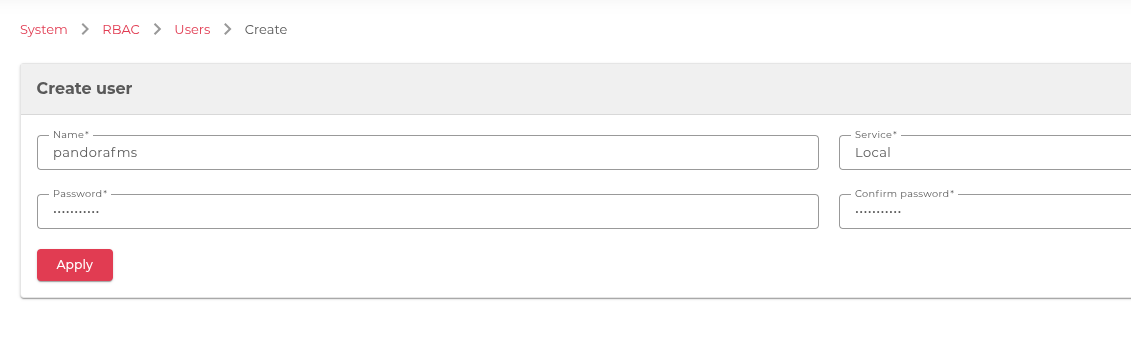
En unos segundos el usuario se creó correctamente  
<span id="bkmrk--6" style="font-weight: normal;">[<span style="font-size: 10.5pt; font-family: Roboto, sans-serif; color: rgb(17, 85, 204); font-weight: 400; font-style: normal; font-variant: normal; text-decoration-line: underline; text-decoration-skip-ink: none; white-space-collapse: preserve;"><span style="border-width: initial; border-style: none; display: inline-block; overflow: hidden; width: 498px; height: 294px;">![](https://pandorafms.com/guides/public/uploads/images/gallery/2025-11/embedded-image-2a4vwzuw.png)</span></span>](https://drive.google.com/file/d/1MlfxGhfdhNioFYKqCnTbQl_6ardNkTz1/view?usp=sharing)</span>  
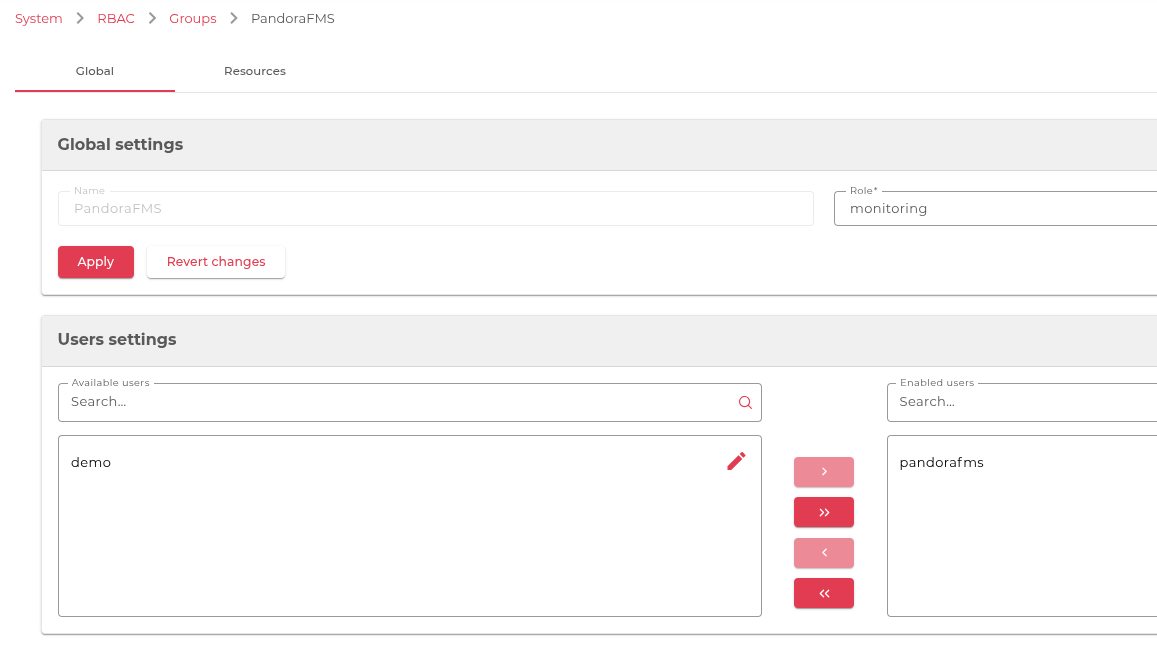
Para la utilizar el plugin en PandoraFMS es necesario tener permisos de consulta a la SKUDONET API de SKUDONET. Vamos a ajustar los permisos para tener un perfil de solo lectura que nos permita leer la información del balanceador y lo hacemos con los siguientes ajustes: vamos a crear un nuevo grupo **PandoraFMS** y le vamos a otorgar permisos de **monitoring** un rol existente en el balanceador

[<span id="bkmrk--8" style="font-weight: normal;"></span>](https://pandorafms.com/guides/public/uploads/images/gallery/2021-07/image-1625602383698.png)[<span style="font-size: 10.5pt; font-family: Roboto, sans-serif; color: rgb(17, 85, 204); background-color: rgb(255, 255, 255); font-weight: 400; font-style: normal; font-variant: normal; text-decoration-skip-ink: none; white-space-collapse: preserve;"><span style="border-width: initial; border-style: none; display: inline-block; overflow: hidden; width: 227px; height: 170px;">![](https://pandorafms.com/guides/public/uploads/images/gallery/2025-11/embedded-image-owqzcnpq.png)</span></span>](https://drive.google.com/file/d/1932p5x5M5E6UPsquTdHwGee-fpTVXfjt/view?usp=sharing)
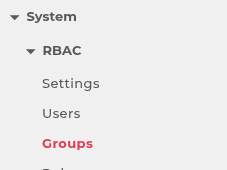
Seleccionamos **CREAR GRUPO**

[<span id="bkmrk--10" style="font-weight: normal;"></span>](https://pandorafms.com/guides/public/uploads/images/gallery/2021-07/image-1625602436644.png)[<span style="font-size: 10.5pt; font-family: Roboto, sans-serif; color: rgb(17, 85, 204); background-color: rgb(255, 255, 255); font-weight: bold; font-style: normal; font-variant: normal; text-decoration-skip-ink: none; white-space-collapse: preserve;"><span style="border-width: initial; border-style: none; display: inline-block; overflow: hidden; width: 179px; height: 59px;">![](https://pandorafms.com/guides/public/uploads/images/gallery/2025-11/embedded-image-xx444mio.png)</span></span>](https://drive.google.com/file/d/18ZsUsAp4nv9CinqYLMMcj0UgB8_-PIL0/view?usp=sharing)
Le damos un nombre al grupo **PandoraFMS** y seleccionamos **APLICAR**

[<span id="bkmrk--12" style="font-weight: normal;"></span>](https://pandorafms.com/guides/public/uploads/images/gallery/2021-07/image-1625602539256.png)[<span style="font-size: 10.5pt; font-family: Roboto, sans-serif; color: rgb(17, 85, 204); background-color: rgb(255, 255, 255); font-weight: bold; font-style: normal; font-variant: normal; text-decoration-skip-ink: none; white-space-collapse: preserve;"><span style="border-width: initial; border-style: none; display: inline-block; overflow: hidden; width: 521px; height: 281px;">![](https://pandorafms.com/guides/public/uploads/images/gallery/2025-11/embedded-image-fwwjjry6.png)</span></span>](https://drive.google.com/file/d/1uP9xNNnvDGCVQ5a4ONx6Ap6g0gh9XPxt/view?usp=sharing)
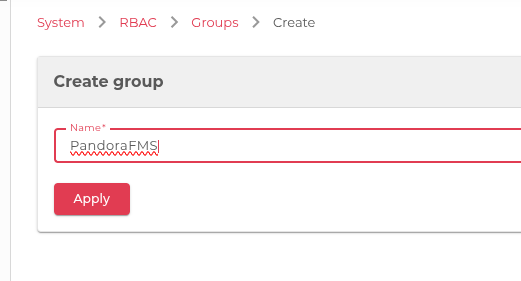
Después de crear el grupo sumamos al usuario **pandorafms** y el rol **monitoring** le seleccionamos **APLICAR**

<span id="bkmrk--14" style="font-weight: normal;">[<span style="font-size: 10.5pt; font-family: Roboto, sans-serif; color: rgb(17, 85, 204); font-weight: bold; font-style: normal; font-variant: normal; text-decoration-line: underline; text-decoration-skip-ink: none; white-space-collapse: preserve;"><span style="border-width: initial; border-style: none; display: inline-block; overflow: hidden; width: 602px; height: 343px;">![](https://pandorafms.com/guides/public/uploads/images/gallery/2025-11/embedded-image-fsbhht8m.png)</span></span>](https://drive.google.com/file/d/1SZA8u5szUCcijCPssuGOTWyfTfh1_gKk/view?usp=sharing)</span>

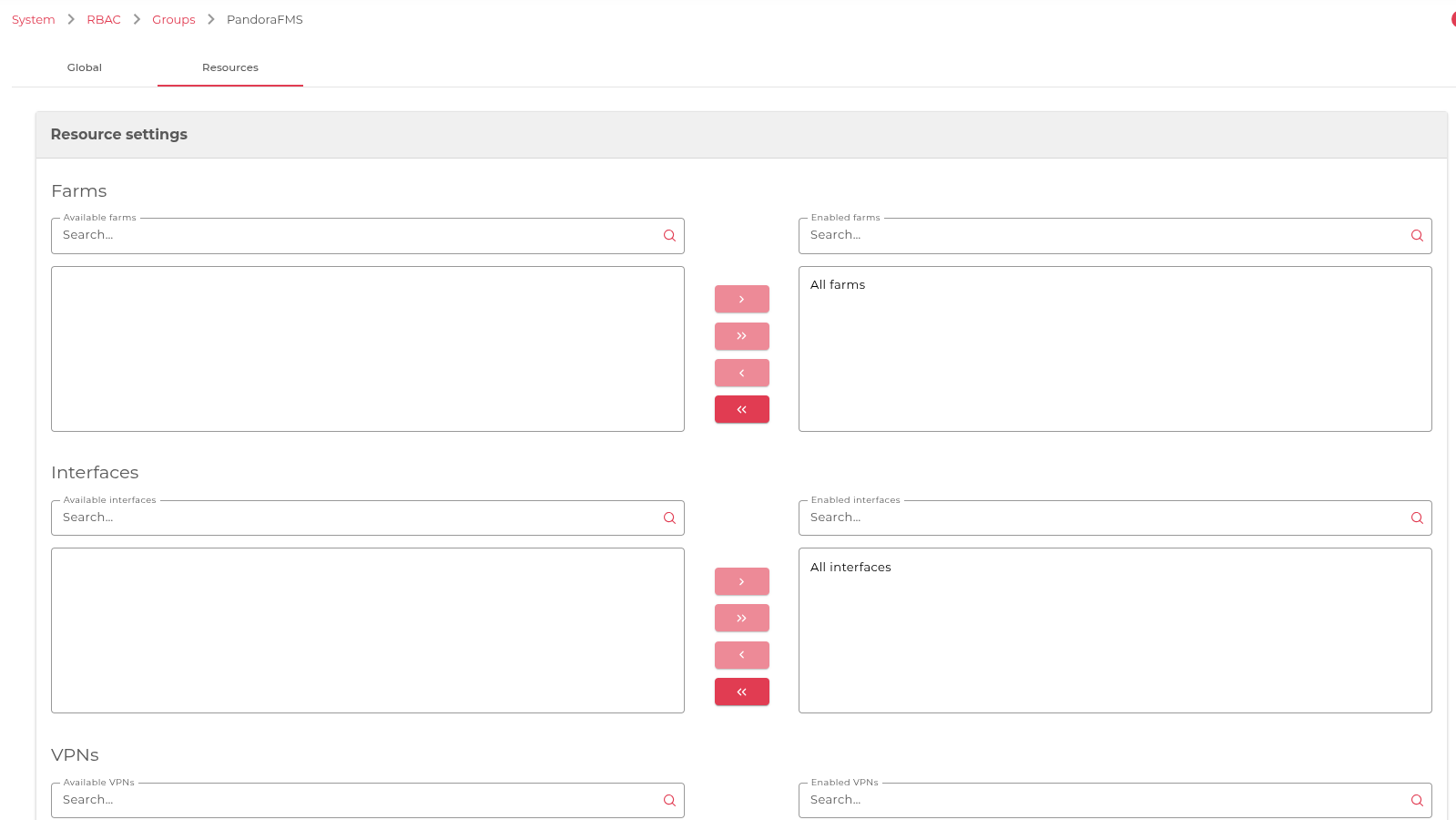
Vamos a Recursos para definir qué acceso le vamos a dar al usuario.

**Si queremos que el usuario tenga acceso a todas las granjas y las interfaces seleccionamos todas las granjas y todas las interfaces.**

[<span id="bkmrk--18" style="font-weight: normal;"></span>](https://pandorafms.com/guides/public/uploads/images/gallery/2021-07/image-1625611868028.png)[<span style="font-size: 10.5pt; font-family: Roboto, sans-serif; color: rgb(17, 85, 204); background-color: rgb(255, 255, 255); font-weight: 400; font-style: normal; font-variant: normal; text-decoration-skip-ink: none; white-space-collapse: preserve;"><span style="border-width: initial; border-style: none; display: inline-block; overflow: hidden; width: 602px; height: 339px;">![](https://pandorafms.com/guides/public/uploads/images/gallery/2025-11/embedded-image-wssqj4fj.png)</span></span>](https://drive.google.com/file/d/1lVptgbmGdRL084dIcwJuYryd2LLcnaRX/view?usp=sharing)
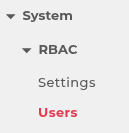
Nuevamente vamos a **Sistema -&gt; RBAC -&gt; Usuarios**

[<span id="bkmrk--21" style="font-weight: normal;"></span>](https://pandorafms.com/guides/public/uploads/images/gallery/2021-07/image-1625602999004.png)[<span style="font-size: 10.5pt; font-family: Roboto, sans-serif; color: rgb(17, 85, 204); background-color: rgb(255, 255, 255); font-weight: 400; font-style: normal; font-variant: normal; text-decoration-skip-ink: none; white-space-collapse: preserve;"><span style="border-width: initial; border-style: none; display: inline-block; overflow: hidden; width: 129px; height: 133px;">![](https://pandorafms.com/guides/public/uploads/images/gallery/2025-11/embedded-image-d8gjxcy8.png)</span></span>](https://drive.google.com/file/d/1xuE8Vw2QQOAbREQJOCWf1Waam374dwv6/view?usp=sharing)
Hacemos click en el nombre de usuario que creamos en los pasos anteriores

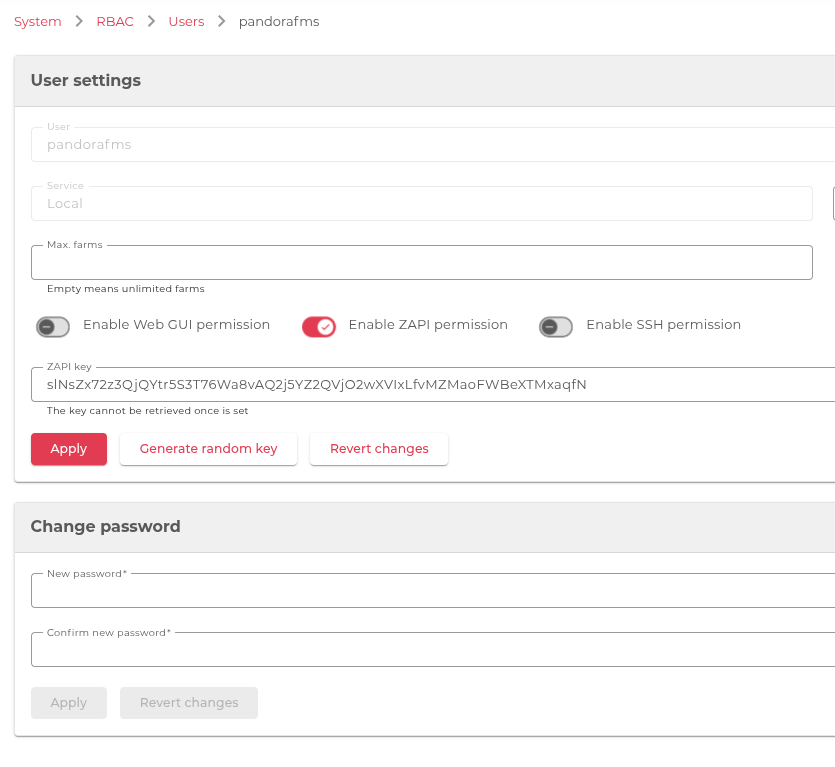
Seleccionamos **Permisos de SKUDONET API -&gt; GENERAR CLAVE ALEATORIA**, copiamos los datos en Clave para SKUDONET API es el valor necesario para el Plug-in de servidor lo copiamos y guardamos para poder copiar y pegar y luego le damos **APLICAR**

<span id="bkmrk--24" style="font-weight: normal;">[<span style="font-size: 10.5pt; font-family: Roboto, sans-serif; color: rgb(17, 85, 204); font-weight: 400; font-style: normal; font-variant: normal; text-decoration-line: underline; text-decoration-skip-ink: none; white-space-collapse: preserve;"><span style="border-width: initial; border-style: none; display: inline-block; overflow: hidden; width: 602px; height: 553px;">![](https://pandorafms.com/guides/public/uploads/images/gallery/2025-11/embedded-image-vl6zi02r.png)</span></span>](https://drive.google.com/file/d/1JdJoOShrGBbAnD9ELmDlYMFltBETHDS1/view?usp=sharing)</span>

**Nota: es importante copiar la clave ahora ya que luego no será visible para copiar y pegar y se deberá generar una nueva**

[&lt; ANTERIOR](https://pandorafms.com/guides/public/books/plugin-zevenet/page/pre-requisitos) [SIGUIENTE&gt;](https://pandorafms.com/guides/public/books/plugin-zevenet/page/configuracion-pandorafms)