# Plugin Zevenet is Now SKUDONET

# Introducción

Version: **1.0 ESP Build (01062021)**

Tipo: **Plug-in de servidor**

Con el plug-in se obtendrán métricas sobre el estado del balanceador y las granjas utilizando la SKUDONET API Key disponible en el equipo.

[<span id="bkmrk--1" style="font-weight: normal;"></span>](https://pandorafms.com/guides/public/uploads/images/gallery/2021-06/image-1624920672126.png)[<span style="font-size: 10.5pt; font-family: Roboto, sans-serif; color: rgb(17, 85, 204); background-color: transparent; font-weight: 400; font-style: normal; font-variant: normal; text-decoration-skip-ink: none; white-space-collapse: preserve;"><span style="border-width: initial; border-style: none; display: inline-block; overflow: hidden; width: 512px; height: 418px;">![](https://pandorafms.com/guides/public/uploads/images/gallery/2025-11/embedded-image-1fldxbil.png)</span></span>](https://drive.google.com/file/d/1y_zMtu4__Y71P3nHfd7ZnHb3HB8G3g6p/view?usp=sharing)

Este plug-in ha sido desarrollado en conjunto con SKUDONET. com, antes llamado [Zevenet.com](https://zevenet.com)

[SIGUIENTE &gt;](https://pandorafms.com/guides/public/books/plugin-zevenet/page/matriz-de-compatibilidad)

# Matriz de compatibilidad

<table border="1" id="bkmrk-sistemas-donde-se-ha" style="border-collapse: collapse; width: 100%; height: 84px;"><tbody><tr style="height: 28px;"><td style="width: 50%; height: 28px;">**Sistemas donde se ha probado**</td><td style="width: 50%; height: 28px;">CentOS 7

</td></tr><tr style="height: 28px;"><td style="width: 50%; height: 28px;">**Sistemas donde debería funcionar**</td><td style="width: 50%; height: 28px;">Cualquier servidor de PandoraFMS Version 7.0NG

</td></tr><tr><td style="width: 50%;">**Balanceador**</td><td style="width: 50%;">SKUDONET Enterprise Edition con acceso a SKUDONET API Key

</td></tr></tbody></table>

[&lt; ANTERIOR](https://pandorafms.com/guides/public/books/plugin-zevenet/page/introduccion) [SIGUIENTE&gt;](https://pandorafms.com/guides/public/books/plugin-zevenet/page/pre-requisitos)

# Pre requisitos

Se requiere :

- Balanceador **SKUDONET Enterprise Edition v10**
- Generar **SKUDONET API Key** desde el balanceador **API V4.0**
- Tener el **Data Server** de Pandora FMS habilitado
- Tener el **Plugin Server** de Pandora FMS habilitado

[&lt; ANTERIOR](https://pandorafms.com/guides/public/books/plugin-zevenet/page/matriz-de-compatibilidad) [SIGUIENTE&gt;](https://pandorafms.com/guides/public/books/plugin-zevenet/page/configuracion-zevenet)

# Configuración SKUDONET

Desde el balanceador es necesario crear un nuevo usuario y crear una **SKUDONET API Key,** para esto desde la GUI del Balanceador

**Para entrar en el balanceador desde nuestro navegador entramos a la gestión del equipo utilizando [https://ip-zevenet:444](https://ip-zevenet:444/)**

Validamos nuestro usuario en este ejemplo es **root**

[<span id="bkmrk--1" style="font-weight: normal;"></span>](https://pandorafms.com/guides/public/uploads/images/gallery/2021-07/image-1625601035141.png)[<span style="font-size: 11pt; font-family: Arial, sans-serif; color: rgb(17, 85, 204); background-color: transparent; font-weight: 400; font-style: normal; font-variant: normal; text-decoration-skip-ink: none; white-space-collapse: preserve;"><span style="border-width: initial; border-style: none; display: inline-block; overflow: hidden; width: 602px; height: 405px;">![](https://pandorafms.com/guides/public/uploads/images/gallery/2025-11/embedded-image-v1t7rcpq.png)</span></span>](https://drive.google.com/file/d/1Knuch6Qdfy_QIGUJ0EcA8UkCMR5-jcYV/view?usp=sharing)
Buscamos **Sistema -&gt; RBAC -&gt; Usuarios**

[<span id="bkmrk--2" style="font-weight: normal;"></span>](https://pandorafms.com/guides/public/uploads/images/gallery/2021-07/image-1625601519993.png)[<span style="font-size: 10.5pt; font-family: Roboto, sans-serif; color: rgb(17, 85, 204); background-color: transparent; font-weight: bold; font-style: normal; font-variant: normal; text-decoration-skip-ink: none; white-space-collapse: preserve;"><span style="border-width: initial; border-style: none; display: inline-block; overflow: hidden; width: 602px; height: 203px;">![](https://pandorafms.com/guides/public/uploads/images/gallery/2025-11/embedded-image-qkqewjfv.png)</span></span>](https://drive.google.com/file/d/1rryKMw0SQWGaIXaSpMk1EbNskKeyuK1m/view?usp=sharing)
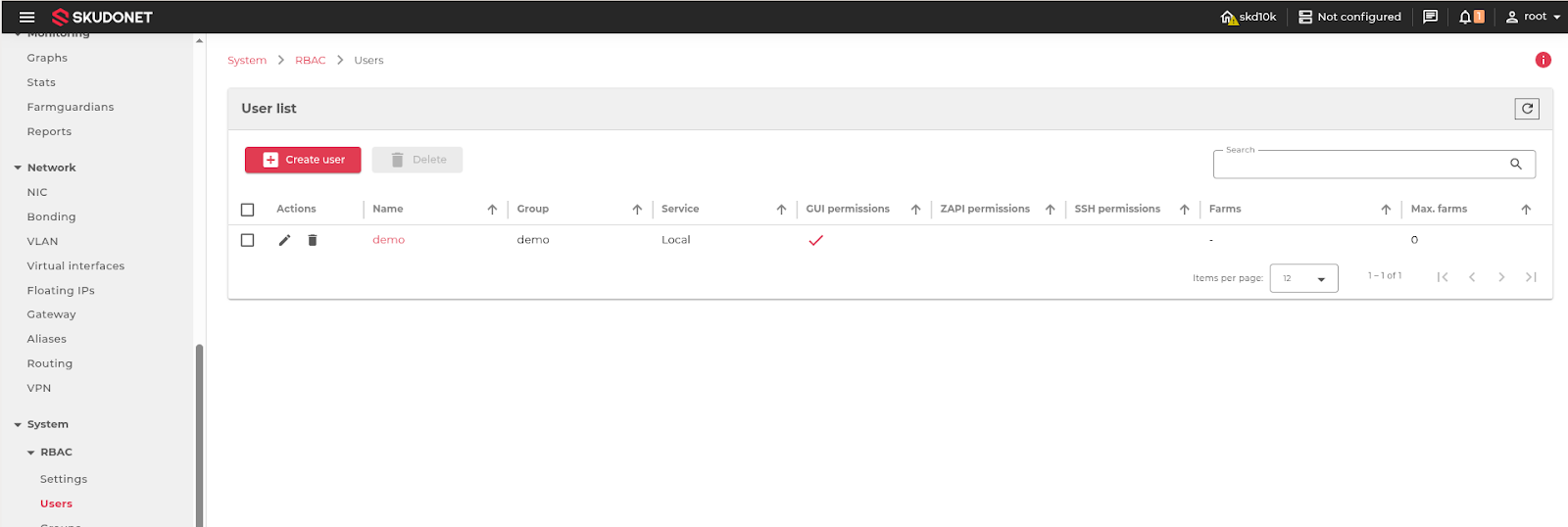
Hacemos click en **CREATE USER**

Completamos los datos como se ve en la siguiente pantalla:  
Nombre: **Nombre de usuario**  
Perfil: **Local (Validación local)** Contraseña: **clave de acceso al usuario**

[<span id="bkmrk--5" style="font-weight: normal;"></span>](https://pandorafms.com/guides/public/uploads/images/gallery/2021-07/image-1625601711402.png)[<span style="font-size: 10.5pt; font-family: Roboto, sans-serif; color: rgb(17, 85, 204); background-color: rgb(255, 255, 255); font-weight: bold; font-style: normal; font-variant: normal; text-decoration-skip-ink: none; white-space-collapse: preserve;"><span style="border-width: initial; border-style: none; display: inline-block; overflow: hidden; width: 478px; height: 146px;">![](https://pandorafms.com/guides/public/uploads/images/gallery/2025-11/embedded-image-ymcwq9tn.png)</span></span>](https://drive.google.com/file/d/1SEszI7MEjd_yf4RfrVyD1G21Nteg9iRK/view?usp=sharing)
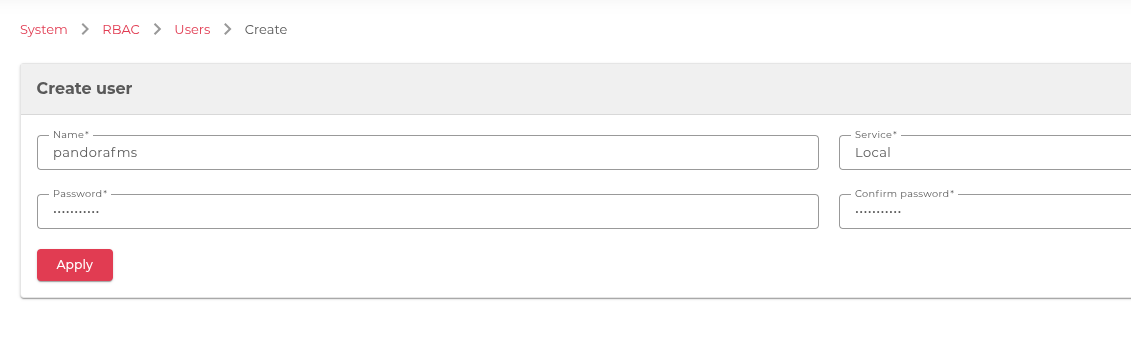
En unos segundos el usuario se creó correctamente  
<span id="bkmrk--6" style="font-weight: normal;">[<span style="font-size: 10.5pt; font-family: Roboto, sans-serif; color: rgb(17, 85, 204); font-weight: 400; font-style: normal; font-variant: normal; text-decoration-line: underline; text-decoration-skip-ink: none; white-space-collapse: preserve;"><span style="border-width: initial; border-style: none; display: inline-block; overflow: hidden; width: 498px; height: 294px;">![](https://pandorafms.com/guides/public/uploads/images/gallery/2025-11/embedded-image-2a4vwzuw.png)</span></span>](https://drive.google.com/file/d/1MlfxGhfdhNioFYKqCnTbQl_6ardNkTz1/view?usp=sharing)</span>  
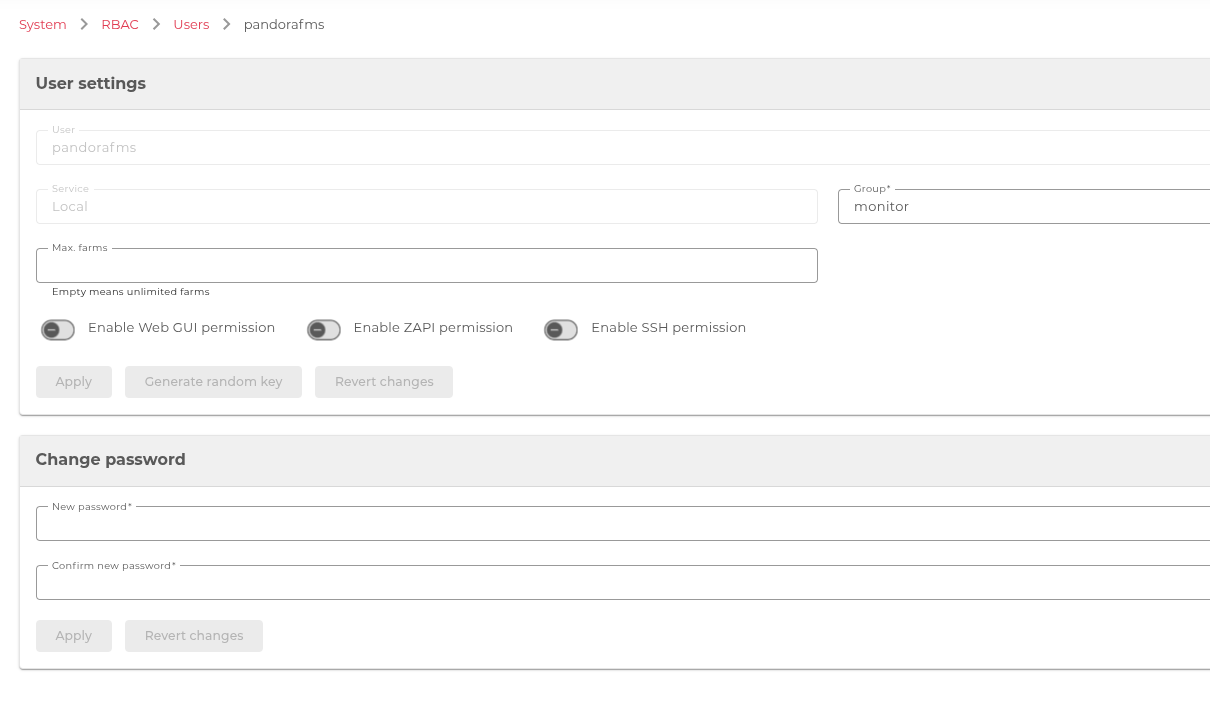
Para la utilizar el plugin en PandoraFMS es necesario tener permisos de consulta a la SKUDONET API de SKUDONET. Vamos a ajustar los permisos para tener un perfil de solo lectura que nos permita leer la información del balanceador y lo hacemos con los siguientes ajustes: vamos a crear un nuevo grupo **PandoraFMS** y le vamos a otorgar permisos de **monitoring** un rol existente en el balanceador

[<span id="bkmrk--8" style="font-weight: normal;"></span>](https://pandorafms.com/guides/public/uploads/images/gallery/2021-07/image-1625602383698.png)[<span style="font-size: 10.5pt; font-family: Roboto, sans-serif; color: rgb(17, 85, 204); background-color: rgb(255, 255, 255); font-weight: 400; font-style: normal; font-variant: normal; text-decoration-skip-ink: none; white-space-collapse: preserve;"><span style="border-width: initial; border-style: none; display: inline-block; overflow: hidden; width: 227px; height: 170px;">![](https://pandorafms.com/guides/public/uploads/images/gallery/2025-11/embedded-image-owqzcnpq.png)</span></span>](https://drive.google.com/file/d/1932p5x5M5E6UPsquTdHwGee-fpTVXfjt/view?usp=sharing)
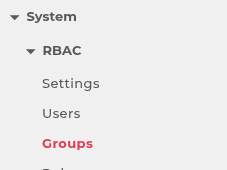
Seleccionamos **CREAR GRUPO**

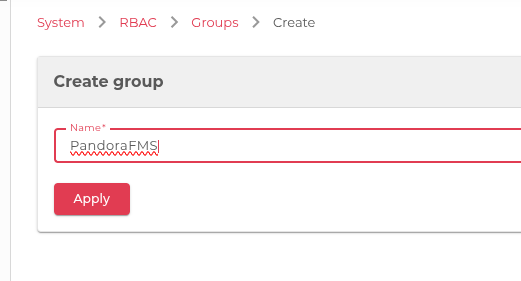
[<span id="bkmrk--10" style="font-weight: normal;"></span>](https://pandorafms.com/guides/public/uploads/images/gallery/2021-07/image-1625602436644.png)[<span style="font-size: 10.5pt; font-family: Roboto, sans-serif; color: rgb(17, 85, 204); background-color: rgb(255, 255, 255); font-weight: bold; font-style: normal; font-variant: normal; text-decoration-skip-ink: none; white-space-collapse: preserve;"><span style="border-width: initial; border-style: none; display: inline-block; overflow: hidden; width: 179px; height: 59px;">![](https://pandorafms.com/guides/public/uploads/images/gallery/2025-11/embedded-image-xx444mio.png)</span></span>](https://drive.google.com/file/d/18ZsUsAp4nv9CinqYLMMcj0UgB8_-PIL0/view?usp=sharing)

Le damos un nombre al grupo **PandoraFMS** y seleccionamos **APLICAR**

[<span id="bkmrk--12" style="font-weight: normal;"></span>](https://pandorafms.com/guides/public/uploads/images/gallery/2021-07/image-1625602539256.png)[<span style="font-size: 10.5pt; font-family: Roboto, sans-serif; color: rgb(17, 85, 204); background-color: rgb(255, 255, 255); font-weight: bold; font-style: normal; font-variant: normal; text-decoration-skip-ink: none; white-space-collapse: preserve;"><span style="border-width: initial; border-style: none; display: inline-block; overflow: hidden; width: 521px; height: 281px;">![](https://pandorafms.com/guides/public/uploads/images/gallery/2025-11/embedded-image-fwwjjry6.png)</span></span>](https://drive.google.com/file/d/1uP9xNNnvDGCVQ5a4ONx6Ap6g0gh9XPxt/view?usp=sharing)
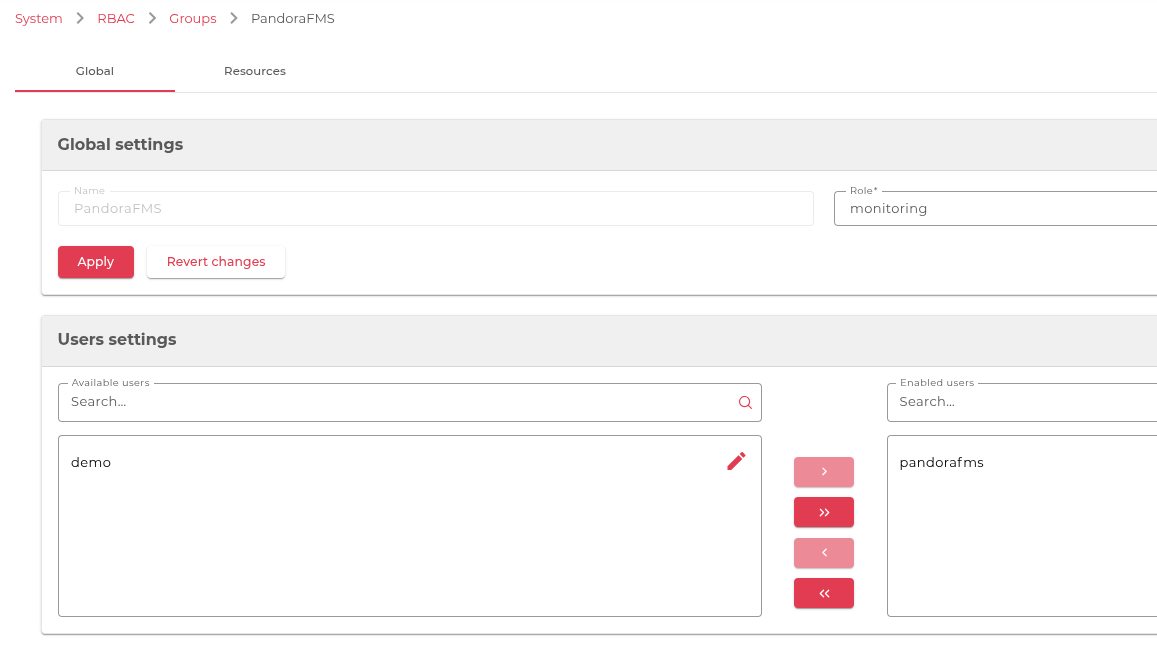
Después de crear el grupo sumamos al usuario **pandorafms** y el rol **monitoring** le seleccionamos **APLICAR**

<span id="bkmrk--14" style="font-weight: normal;">[<span style="font-size: 10.5pt; font-family: Roboto, sans-serif; color: rgb(17, 85, 204); font-weight: bold; font-style: normal; font-variant: normal; text-decoration-line: underline; text-decoration-skip-ink: none; white-space-collapse: preserve;"><span style="border-width: initial; border-style: none; display: inline-block; overflow: hidden; width: 602px; height: 343px;">![](https://pandorafms.com/guides/public/uploads/images/gallery/2025-11/embedded-image-fsbhht8m.png)</span></span>](https://drive.google.com/file/d/1SZA8u5szUCcijCPssuGOTWyfTfh1_gKk/view?usp=sharing)</span>

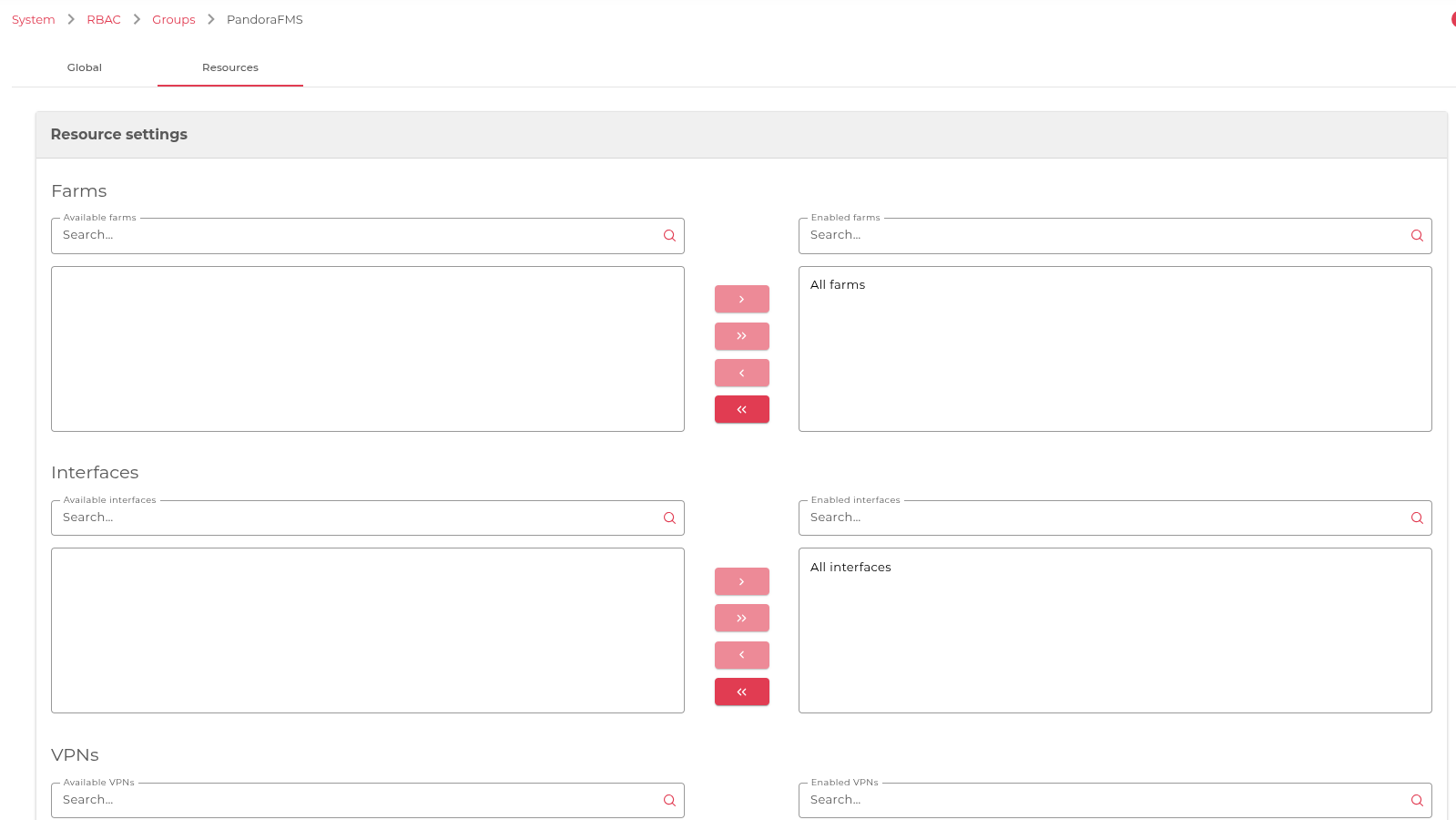
Vamos a Recursos para definir qué acceso le vamos a dar al usuario.

**Si queremos que el usuario tenga acceso a todas las granjas y las interfaces seleccionamos todas las granjas y todas las interfaces.**

[<span id="bkmrk--18" style="font-weight: normal;"></span>](https://pandorafms.com/guides/public/uploads/images/gallery/2021-07/image-1625611868028.png)[<span style="font-size: 10.5pt; font-family: Roboto, sans-serif; color: rgb(17, 85, 204); background-color: rgb(255, 255, 255); font-weight: 400; font-style: normal; font-variant: normal; text-decoration-skip-ink: none; white-space-collapse: preserve;"><span style="border-width: initial; border-style: none; display: inline-block; overflow: hidden; width: 602px; height: 339px;">![](https://pandorafms.com/guides/public/uploads/images/gallery/2025-11/embedded-image-wssqj4fj.png)</span></span>](https://drive.google.com/file/d/1lVptgbmGdRL084dIcwJuYryd2LLcnaRX/view?usp=sharing)
Nuevamente vamos a **Sistema -&gt; RBAC -&gt; Usuarios**

[<span id="bkmrk--21" style="font-weight: normal;"></span>](https://pandorafms.com/guides/public/uploads/images/gallery/2021-07/image-1625602999004.png)[<span style="font-size: 10.5pt; font-family: Roboto, sans-serif; color: rgb(17, 85, 204); background-color: rgb(255, 255, 255); font-weight: 400; font-style: normal; font-variant: normal; text-decoration-skip-ink: none; white-space-collapse: preserve;"><span style="border-width: initial; border-style: none; display: inline-block; overflow: hidden; width: 129px; height: 133px;">![](https://pandorafms.com/guides/public/uploads/images/gallery/2025-11/embedded-image-d8gjxcy8.png)</span></span>](https://drive.google.com/file/d/1xuE8Vw2QQOAbREQJOCWf1Waam374dwv6/view?usp=sharing)
Hacemos click en el nombre de usuario que creamos en los pasos anteriores

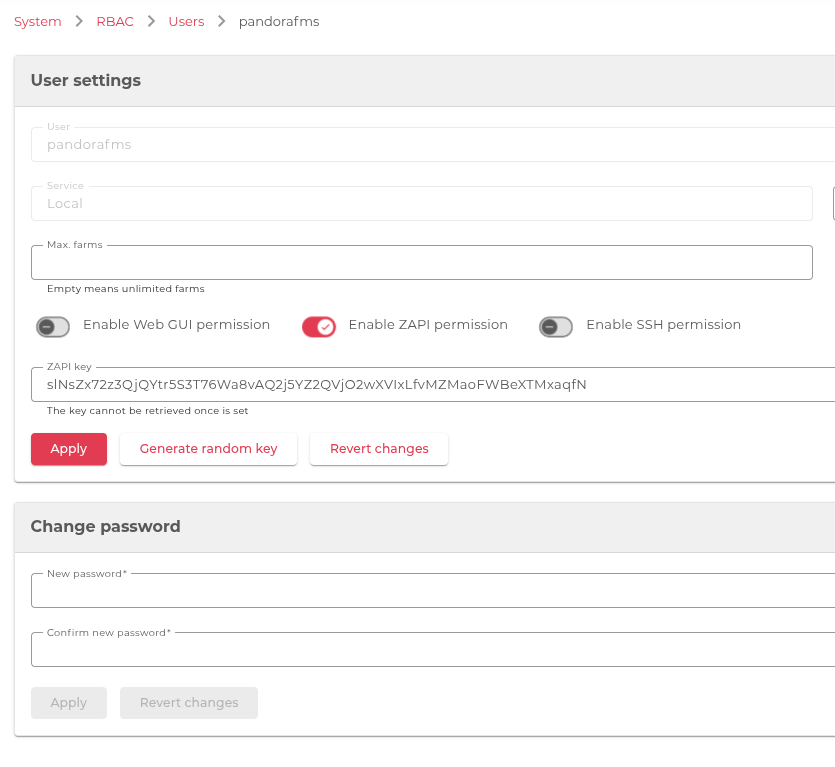
Seleccionamos **Permisos de SKUDONET API -&gt; GENERAR CLAVE ALEATORIA**, copiamos los datos en Clave para SKUDONET API es el valor necesario para el Plug-in de servidor lo copiamos y guardamos para poder copiar y pegar y luego le damos **APLICAR**

<span id="bkmrk--24" style="font-weight: normal;">[<span style="font-size: 10.5pt; font-family: Roboto, sans-serif; color: rgb(17, 85, 204); font-weight: 400; font-style: normal; font-variant: normal; text-decoration-line: underline; text-decoration-skip-ink: none; white-space-collapse: preserve;"><span style="border-width: initial; border-style: none; display: inline-block; overflow: hidden; width: 602px; height: 553px;">![](https://pandorafms.com/guides/public/uploads/images/gallery/2025-11/embedded-image-vl6zi02r.png)</span></span>](https://drive.google.com/file/d/1JdJoOShrGBbAnD9ELmDlYMFltBETHDS1/view?usp=sharing)</span>

**Nota: es importante copiar la clave ahora ya que luego no será visible para copiar y pegar y se deberá generar una nueva**

[&lt; ANTERIOR](https://pandorafms.com/guides/public/books/plugin-zevenet/page/pre-requisitos) [SIGUIENTE&gt;](https://pandorafms.com/guides/public/books/plugin-zevenet/page/configuracion-pandorafms)

# Configuracion PandoraFMS

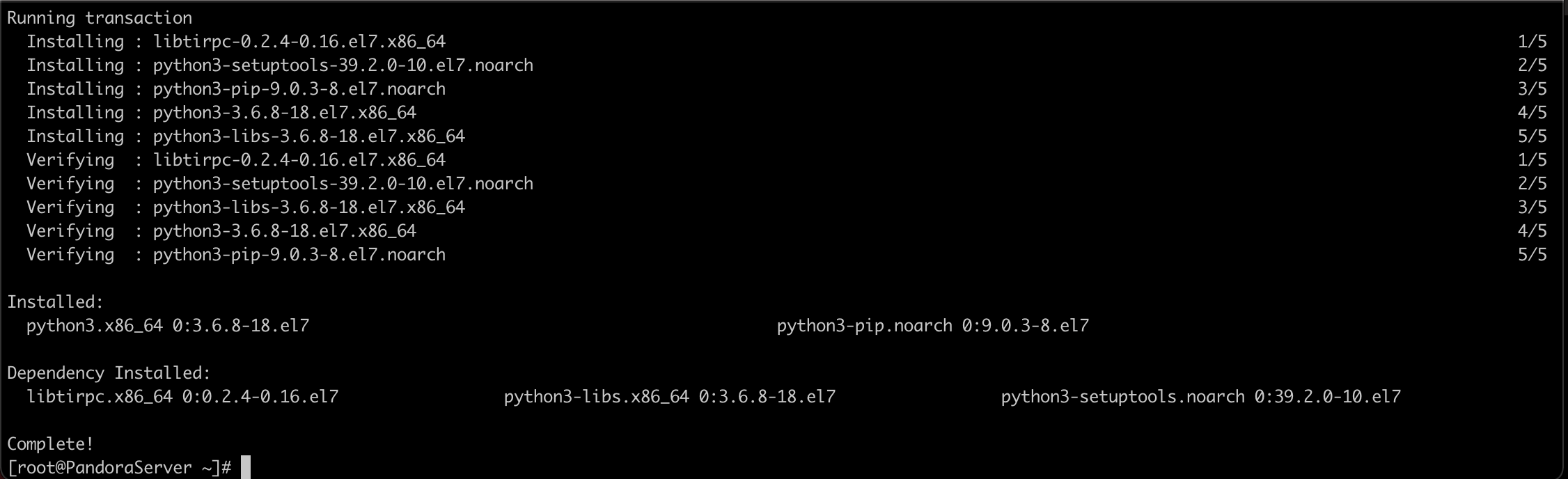
Para poder utilizar este plug-in es indispensable contar con Python3 conectados por ssh ejecutamos los siguientes comandos

```shell
yum -y install python3 python3-pip
```

[![image-1625606150631.png](https://pandorafms.com/guides/public/uploads/images/gallery/2021-07/scaled-1680-/image-1625606150631.png)](https://pandorafms.com/guides/public/uploads/images/gallery/2021-07/image-1625606150631.png)
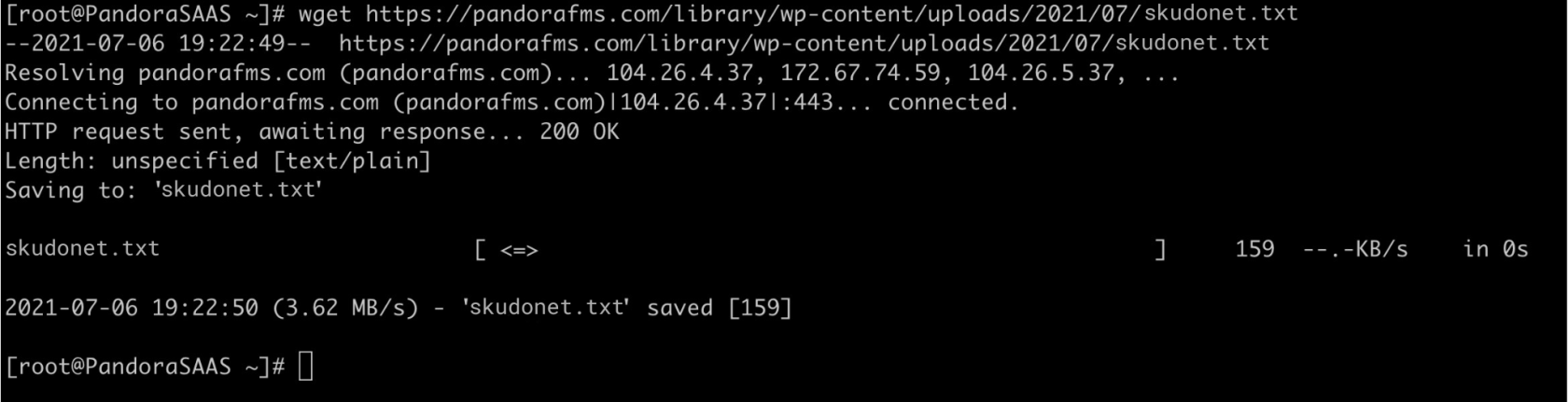
Descagarmos el archivo para la instalación de los requerimientos con el siguiente comando

```shell
wget https://pandorafms.com/library/wp-content/uploads/2021/07/skudonet.txt
```

[![5º Configuración pandoraFMS-2.png](https://pandorafms.com/guides/public/uploads/images/gallery/2025-11/scaled-1680-/5o-configuracion-pandorafms-2.png)](https://pandorafms.com/guides/public/uploads/images/gallery/2025-11/5o-configuracion-pandorafms-2.png)
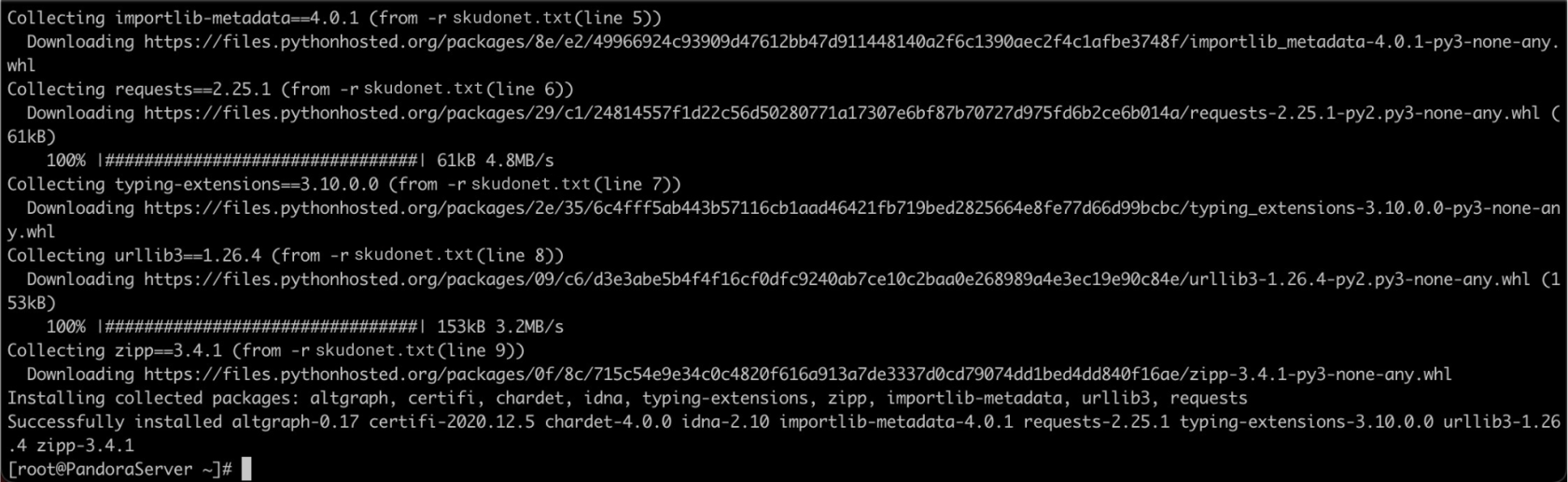
Importamos el módulo request con con comando

```shell
pip3 install -r skudonet.txt
```

[![5º Configuración-PandoraFMS-3.png](https://pandorafms.com/guides/public/uploads/images/gallery/2025-11/scaled-1680-/5o-configuracion-pandorafms-3.png)](https://pandorafms.com/guides/public/uploads/images/gallery/2025-11/5o-configuracion-pandorafms-3.png)
Descargamos el plugin en nuestro equipo desde este [enlace](http://pandorafms.com/library/wp-content/uploads/2021/06/zevenet_plugin.pspz2)

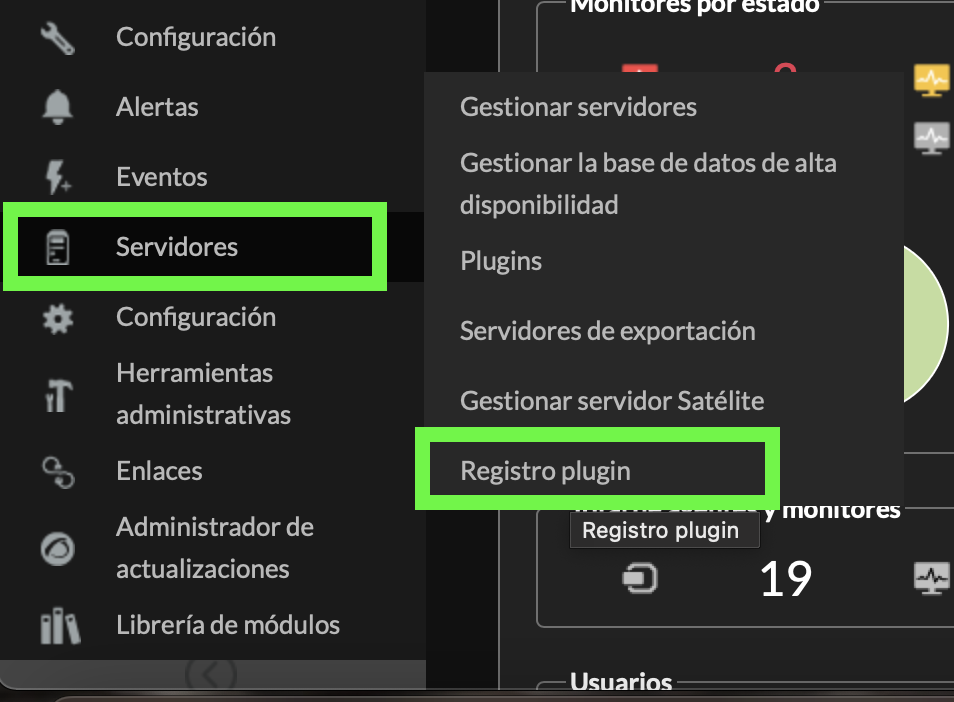
Importamos el módulo en nuestro servidor de pandora desde el menú **Servidores -&gt; Registro plugin**

[![image-1624921763841.png](https://pandorafms.com/guides/public/uploads/images/gallery/2021-06/scaled-1680-/image-1624921763841.png)](https://pandorafms.com/guides/public/uploads/images/gallery/2021-06/image-1624921763841.png)

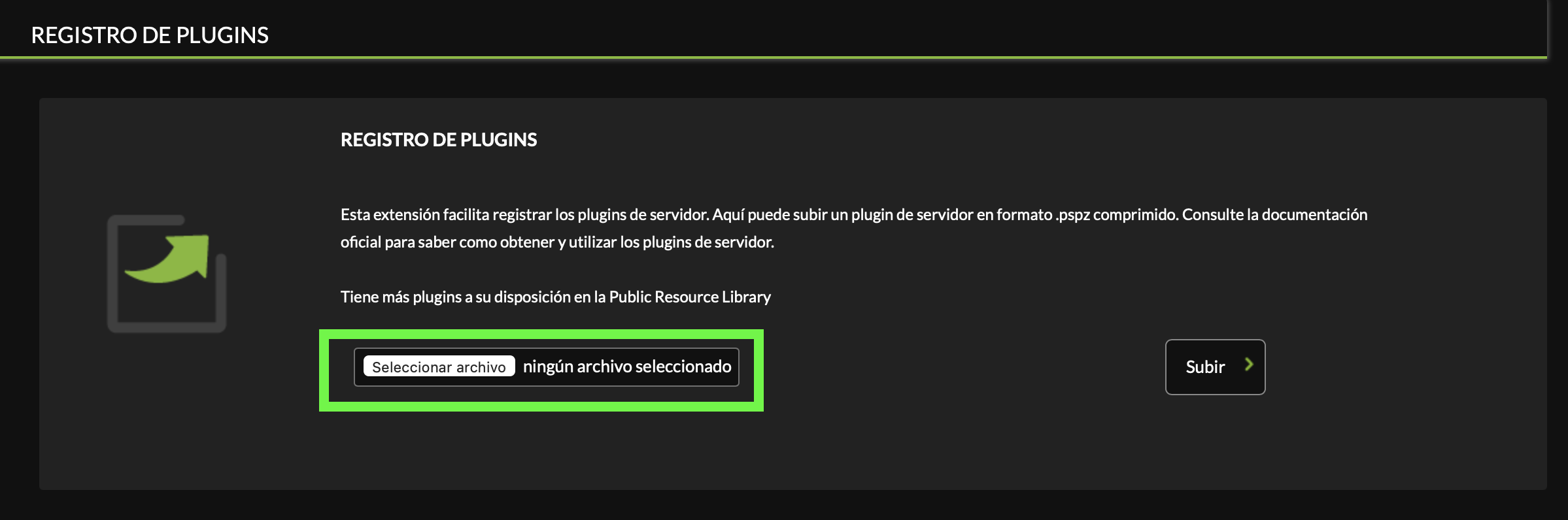
Hacemos click sobre el botón **Selecionar archivo**

[![image-1624922043434.png](https://pandorafms.com/guides/public/uploads/images/gallery/2021-06/scaled-1680-/image-1624922043434.png)](https://pandorafms.com/guides/public/uploads/images/gallery/2021-06/image-1624922043434.png)
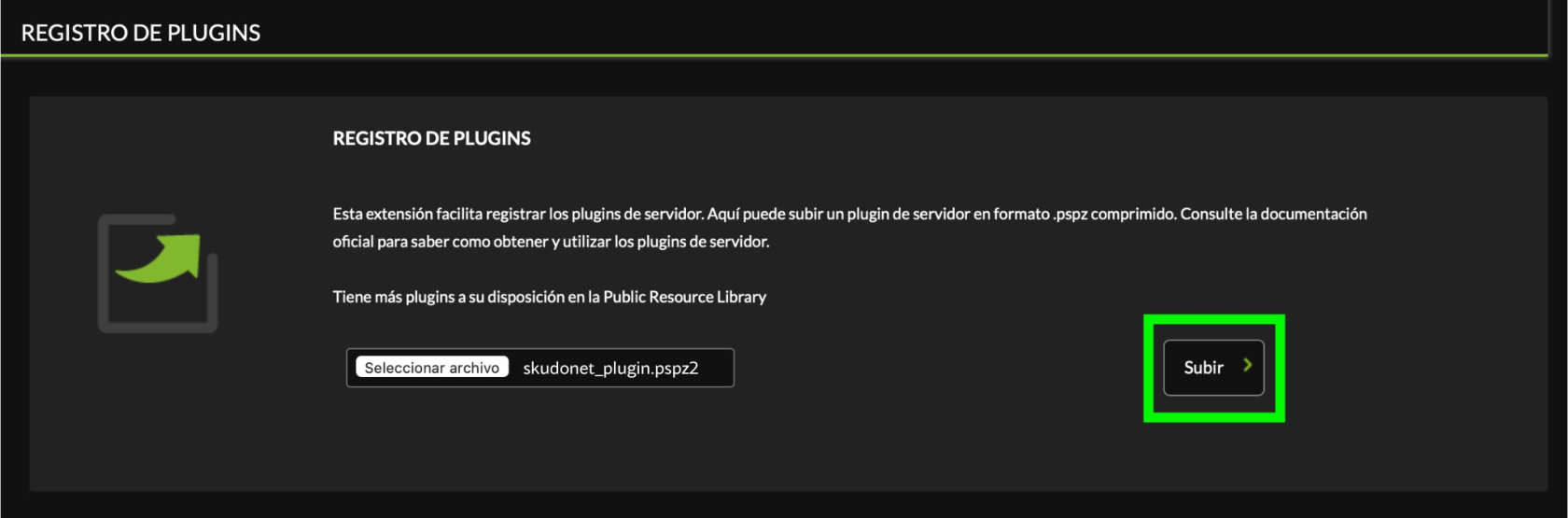
Buscamos el archivo **skudonet\_plugin.pspz2** que descargamos en el paso anterior, si aún no lo ha descargado lo puede hacer presionando el nombre y hacemos click sobre el botón **subir**

[![5º Configuración-PandoraFMS-6.png](https://pandorafms.com/guides/public/uploads/images/gallery/2025-11/scaled-1680-/5o-configuracion-pandorafms-6.png)](https://pandorafms.com/guides/public/uploads/images/gallery/2025-11/5o-configuracion-pandorafms-6.png)
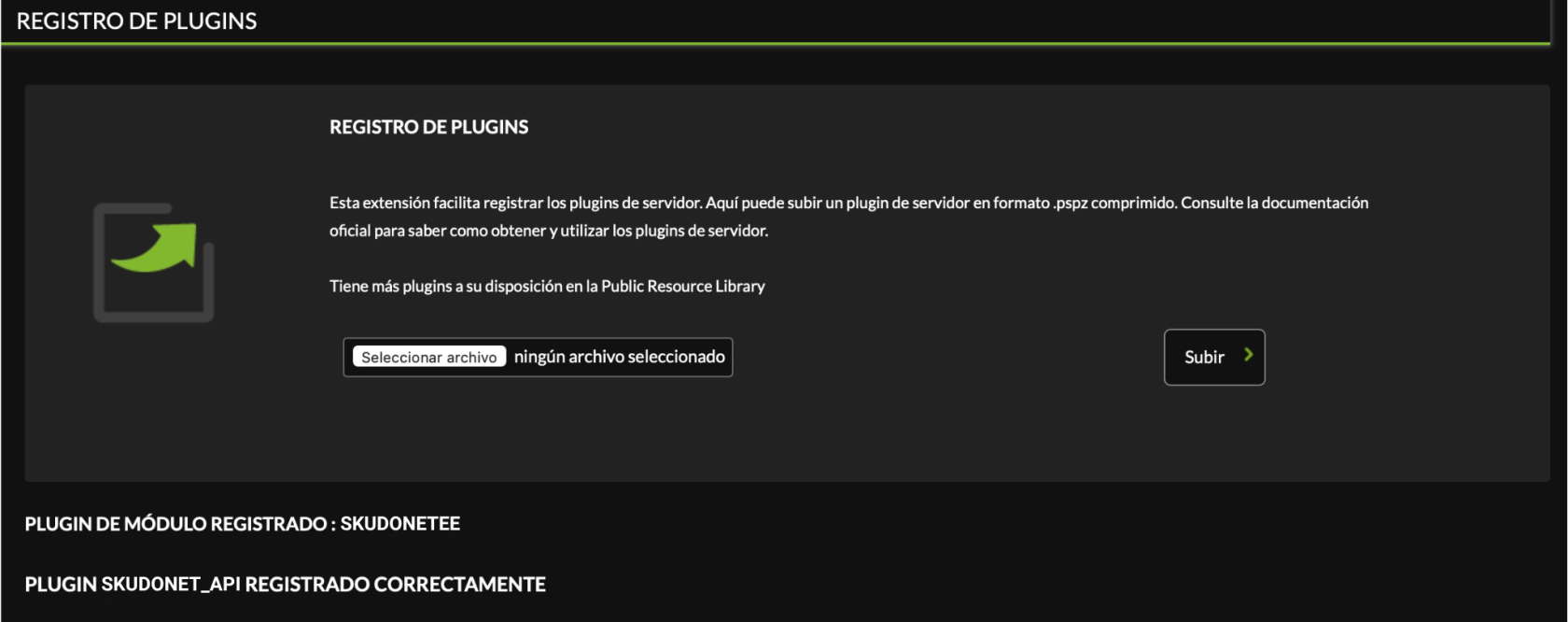
Validamos que el proceso funciono en forma correcta

[![5º Configuración-PandoraFMS-7.png](https://pandorafms.com/guides/public/uploads/images/gallery/2025-11/scaled-1680-/5o-configuracion-pandorafms-7.png)](https://pandorafms.com/guides/public/uploads/images/gallery/2025-11/5o-configuracion-pandorafms-7.png)
[&lt;ANTERIOR](https://pandorafms.com/guides/public/books/plugin-zevenet/page/configuracion-zevenet) [SIGUIENTE&gt;](https://pandorafms.com/guides/public/books/plugin-zevenet/page/primera-ejecucion-manual)

# Primera Ejecución Manual

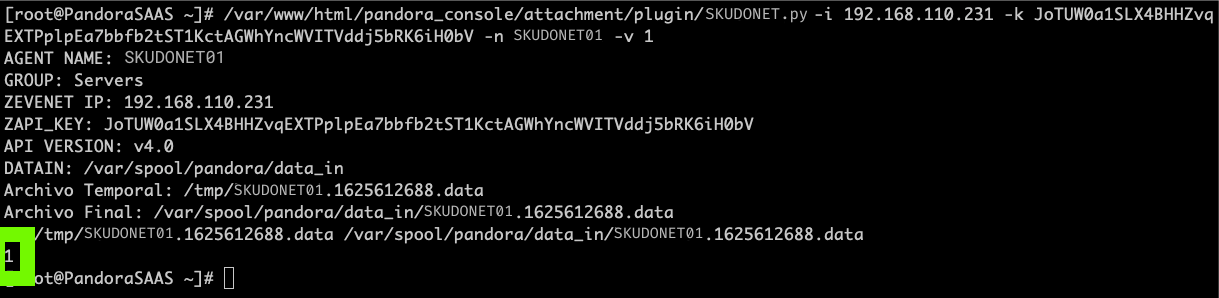
Para poder utilizar el plug-in la primera vez vamos a ejecutarlo en forma manual para crear el agente y luego automatizar la ejecución periódica para teniendo la SKUDONET API Key generada en el paso anterior nos conectamos a nuestro servidor de PandroaFMS via ssh y ejecutamos el siguiente comando

Ajustar los parámetros a su entorno   
-i IP DNS del balanceador  
-k SKUDONET API Key  
-n Agente en PandoraFMS   
-v 1 (ejecutar en modo diagnostico)

```shell
/var/www/html/pandora_console/attachment/plugin/skudonet.py -i 192.168.110.231 -k JoTUW0a1SLX4BHHZvqEXTPplpEa7bbfb2tST1KctAGWhYncWVITVddj5bRK6iH0bV -n SKUDONET01 -v 1
```

[![6º Primera-ejecución-manual.png](https://pandorafms.com/guides/public/uploads/images/gallery/2025-11/scaled-1680-/6o-primera-ejecucion-manual.png)](https://pandorafms.com/guides/public/uploads/images/gallery/2025-11/6o-primera-ejecucion-manual.png)
**[&lt; ANTERIOR](https://pandorafms.com/guides/public/books/plugin-zevenet/page/configuracion-pandorafms) [SIGUIENTE&gt;](https://pandorafms.com/guides/public/books/plugin-zevenet/page/agregar-monitor-para-ejecucion-plug-in)**

# Agregar Monitor para Ejecución Plug-in

Buscamos el agente creado en el paso anterior lo encontraremos en el grupo **Servers,** vamos a Monitorización -&gt; Vista -&gt; Vista de Grupo

[![image-1625613137486.png](https://pandorafms.com/guides/public/uploads/images/gallery/2021-07/scaled-1680-/image-1625613137486.png)](https://pandorafms.com/guides/public/uploads/images/gallery/2021-07/image-1625613137486.png)

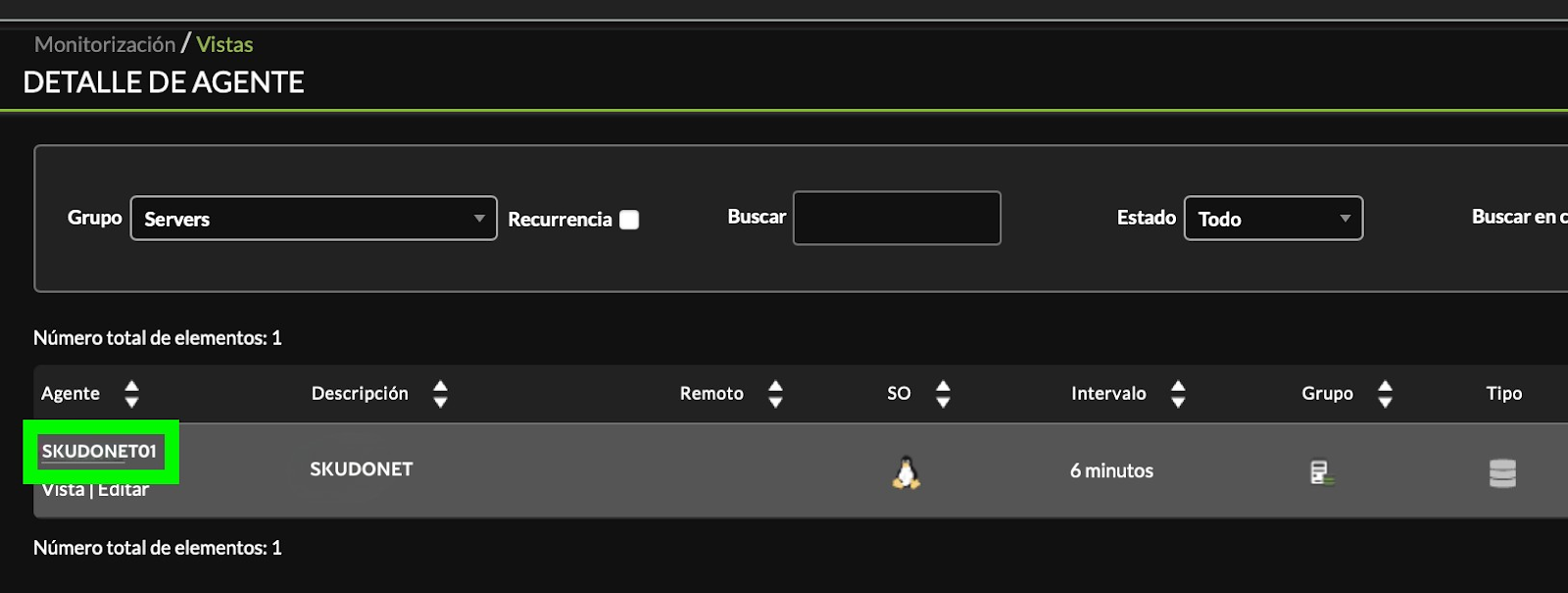
Buscamos el agente **SKUDONET01** creado en nuestra ejecución Manual, hacemos click en el nombre para editarlo

<span id="bkmrk--2" style="font-weight: normal;">[<span style="font-size: 10.5pt; font-family: Roboto, sans-serif; color: rgb(17, 85, 204); font-weight: 400; font-style: normal; font-variant: normal; text-decoration-line: underline; text-decoration-skip-ink: none; white-space-collapse: preserve;"><span style="border-width: initial; border-style: none; display: inline-block; overflow: hidden; width: 602px; height: 228px;">![](https://pandorafms.com/guides/public/uploads/images/gallery/2025-11/embedded-image-zxzopfib.png)</span></span>](https://drive.google.com/file/d/1Uqbkmbcf9mFm9dXu2CqBC7GCAquAmN18/view?usp=sharing)</span>

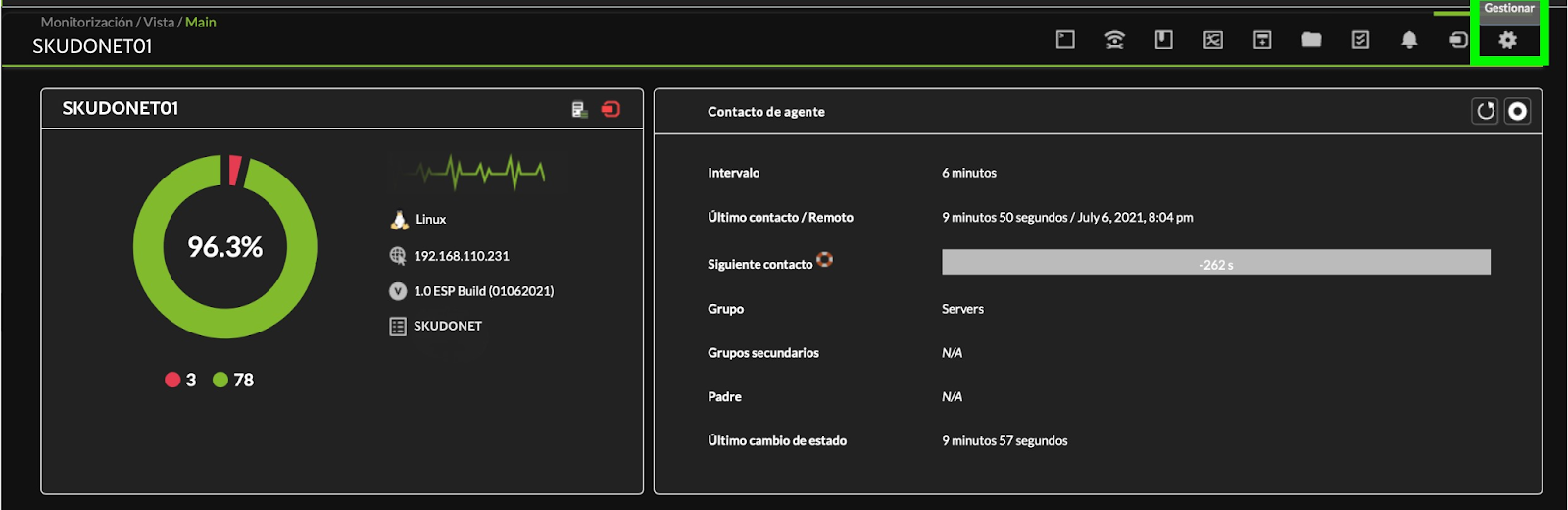
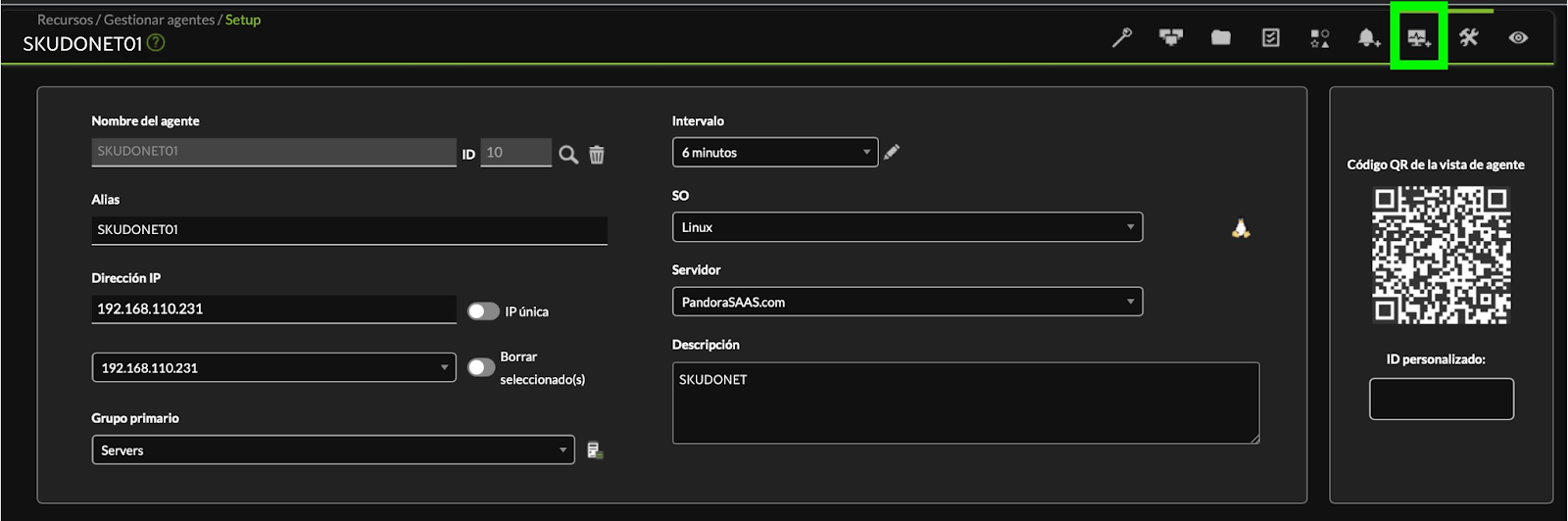
Desde el icono del engranaje -&gt; **Gestionar**

<span id="bkmrk--4" style="font-weight: normal;">[<span style="font-size: 10.5pt; font-family: Roboto, sans-serif; color: rgb(17, 85, 204); font-weight: bold; font-style: normal; font-variant: normal; text-decoration-line: underline; text-decoration-skip-ink: none; white-space-collapse: preserve;"><span style="border-width: initial; border-style: none; display: inline-block; overflow: hidden; width: 602px; height: 200px;">![](https://pandorafms.com/guides/public/uploads/images/gallery/2025-11/embedded-image-kv1ensp5.png)</span></span>](https://drive.google.com/file/d/1Jm5t61PSBawxkfiKjaIkzwk3e8hfEo7M/view?usp=sharing)</span>

Seleccionamos -&gt; **Módulos**

[<span id="bkmrk--6" style="font-weight: normal;"></span>](https://pandorafms.com/guides/public/uploads/images/gallery/2021-07/image-1625613553798.png)[<span style="font-size: 10.5pt; font-family: Roboto, sans-serif; color: rgb(17, 85, 204); background-color: rgb(255, 255, 255); font-weight: bold; font-style: normal; font-variant: normal; text-decoration-skip-ink: none; white-space-collapse: preserve;"><span style="border-width: initial; border-style: none; display: inline-block; overflow: hidden; width: 602px; height: 204px;">![](https://pandorafms.com/guides/public/uploads/images/gallery/2025-11/embedded-image-m7v8qpwr.png)</span></span>](https://drive.google.com/file/d/1Kya6uocNgBzh9UcuBG7TpXEFSRwAkcB6/view?usp=sharing)
Seleccionamos **Crear un nuevo módulo del servidor de complementos** y luego **Crear**

[<span id="bkmrk--8" style="font-weight: normal;"></span>](https://pandorafms.com/guides/public/uploads/images/gallery/2021-07/image-1625611074679.png)[<span style="font-size: 10.5pt; font-family: Roboto, sans-serif; color: rgb(17, 85, 204); background-color: rgb(255, 255, 255); font-weight: bold; font-style: normal; font-variant: normal; text-decoration-skip-ink: none; white-space-collapse: preserve;"><span style="border-width: initial; border-style: none; display: inline-block; overflow: hidden; width: 602px; height: 187px;">![](https://pandorafms.com/guides/public/uploads/images/gallery/2025-11/embedded-image-xijbpknp.png)</span></span>](https://drive.google.com/file/d/1sHVzvwczZGATFA_NgQ1vwxkur3t8npH9/view?usp=sharing)
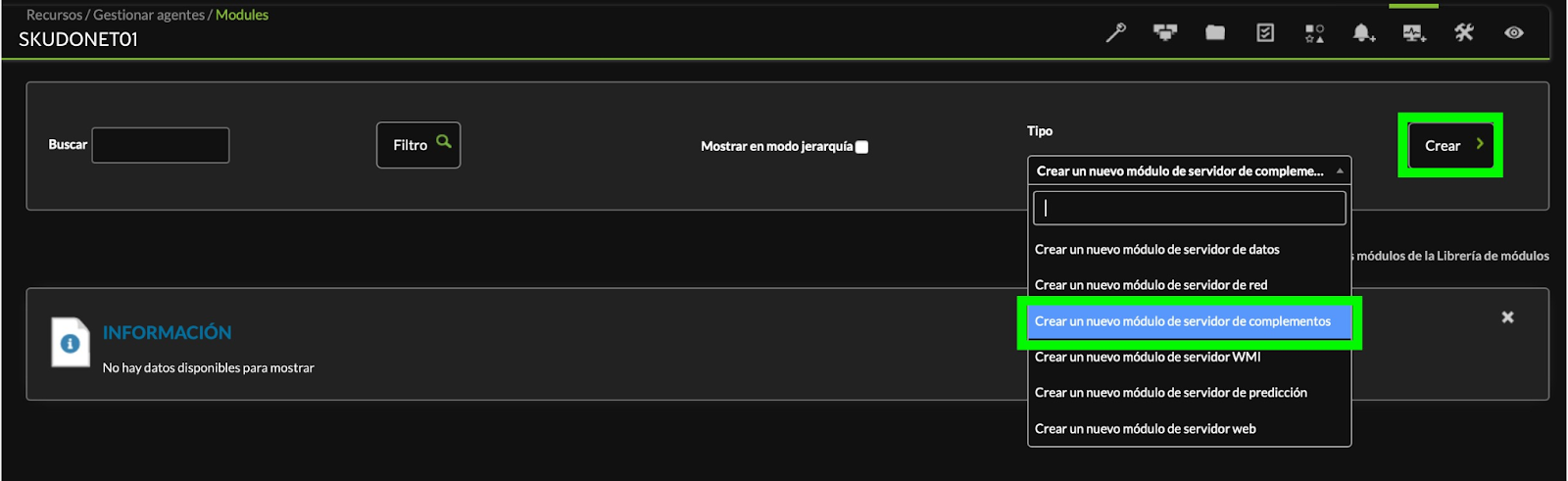
Nota: si no disponemos de esta opción es necesario activar el módulo de complementos en PandoraFMS

Nombre: **SKUDONET01**  
Tipo: **Generic boolean** Plugin: **SKUDONET\_API**[<span style="font-size: 10.5pt; font-family: Roboto, sans-serif; color: rgb(17, 85, 204); font-weight: bold; font-style: normal; font-variant: normal; text-decoration-line: underline line-through; text-decoration-skip-ink: none; white-space-collapse: preserve;"><span style="border-width: initial; border-style: none; display: inline-block; overflow: hidden; width: 602px; height: 268px;">![](https://pandorafms.com/guides/public/uploads/images/gallery/2025-11/embedded-image-jpzr8sx7.png)</span></span>](https://drive.google.com/file/d/1UYeCzuGLdniAkniHWBMkHdv28gR0EDgc/view?usp=sharing)
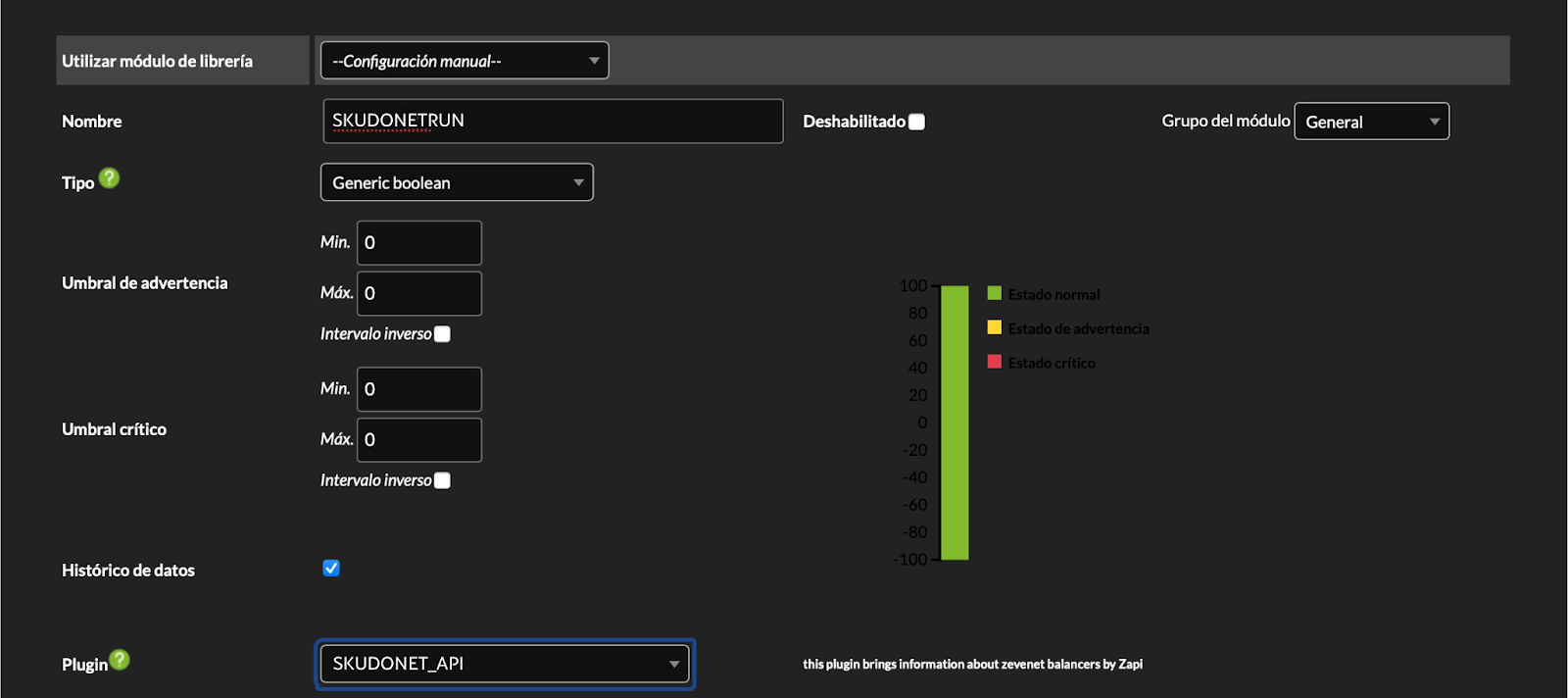
Luego de Seleccionar el plugin vamos a tener disponibles las opciones de configuración del plug-in

IP: **Dirección IP o nombre DNS del Balanceador**  
SKUDONET API Key: **Clave de acceso a API Rest generada en el Balanceador**  
Agent Name: **Nombre del Agente en nuestro Servidor de PandoraFMS, el mismo que creamos en el paso anterior**  
Cluster Data: **Si tiene un balanceador con HA configurado poner el valor en 1**

[<span id="bkmrk--10" style="font-weight: normal;"></span>](https://pandorafms.com/guides/public/uploads/images/gallery/2021-07/image-1625613696210.png)[<span style="font-size: 10.5pt; font-family: Roboto, sans-serif; color: rgb(17, 85, 204); background-color: rgb(255, 255, 255); font-weight: 400; font-style: normal; font-variant: normal; text-decoration-skip-ink: none; white-space-collapse: preserve;"><span style="border-width: initial; border-style: none; display: inline-block; overflow: hidden; width: 602px; height: 159px;">![](https://pandorafms.com/guides/public/uploads/images/gallery/2025-11/embedded-image-0jocrjig.png)</span></span>](https://drive.google.com/file/d/1KkLB37UfjgRGtQKZIJki2rvmOKZZWM7O/view?usp=sharing)
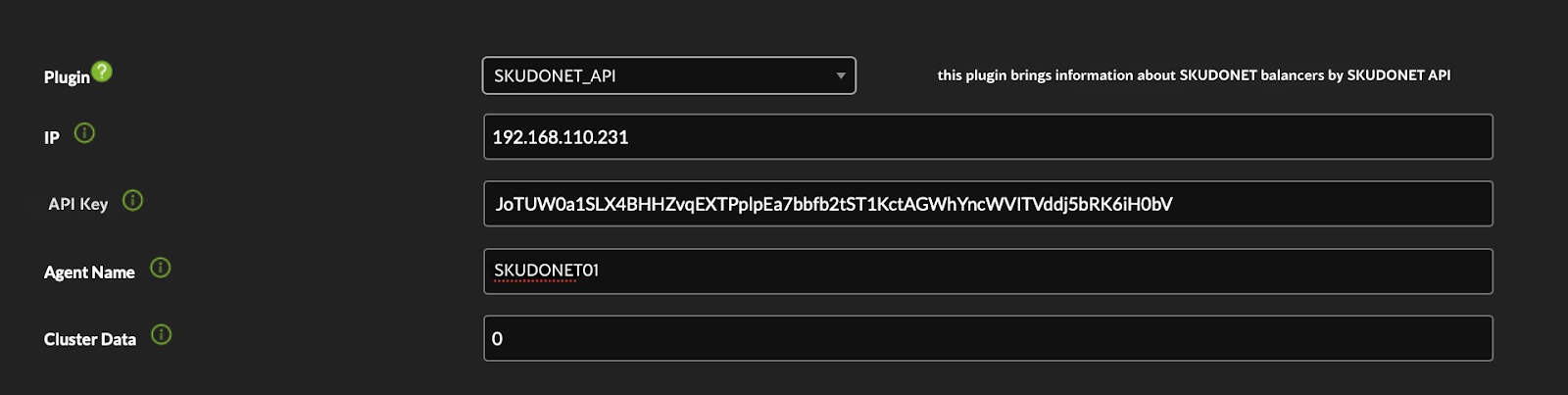
Completando los datos correspondientes a su entorno seleccionar el botón Crear

[![image-1624924173066.png](https://pandorafms.com/guides/public/uploads/images/gallery/2021-06/scaled-1680-/image-1624924173066.png)](https://pandorafms.com/guides/public/uploads/images/gallery/2021-06/image-1624924173066.png)

<span id="bkmrk--13" style="font-weight: normal;"><span style="font-size: 10.5pt; font-family: Roboto, sans-serif; color: rgb(0, 0, 0); font-weight: bold; font-style: normal; font-variant: normal; text-decoration-line: line-through; text-decoration-skip-ink: none; white-space-collapse: preserve;"><span style="border-width: initial; border-style: none; display: inline-block; overflow: hidden; width: 602px; height: 67px;">![](https://pandorafms.com/guides/public/uploads/images/gallery/2025-11/embedded-image-mmbsuhum.png)</span></span></span>

Con este módulo se ejecuta el plug-in de servidor cada 6 minutos

<span id="bkmrk--15" style="font-weight: normal;">[<span style="font-size: 10.5pt; font-family: Roboto, sans-serif; color: rgb(17, 85, 204); font-weight: 400; font-style: normal; font-variant: normal; text-decoration-line: underline; text-decoration-skip-ink: none; white-space-collapse: preserve;"><span style="border-width: initial; border-style: none; display: inline-block; overflow: hidden; width: 602px; height: 77px;">![](https://pandorafms.com/guides/public/uploads/images/gallery/2025-11/embedded-image-ua1cv4od.png)</span></span>](https://drive.google.com/file/d/1GNl761dldbscLowdHrThfWCmbEsBQXZC/view?usp=sharing)</span>

Finalizada la creación si todo es correcto en veremos que se generó un nuevo monitor con el nombre SKUDONETRUN que devuelve un 1 si la ejecución es correcta, en el siguiente ejemplo vemos el resultado de tomar datos de 3 Balanceadores 2 en HA y uno independiente

<span id="bkmrk--17" style="font-weight: normal;">[<span style="font-size: 10.5pt; font-family: Roboto, sans-serif; color: rgb(17, 85, 204); font-weight: 400; font-style: normal; font-variant: normal; text-decoration-line: underline; text-decoration-skip-ink: none; white-space-collapse: preserve;"><span style="border-width: initial; border-style: none; display: inline-block; overflow: hidden; width: 602px; height: 69px;">![](https://pandorafms.com/guides/public/uploads/images/gallery/2025-11/embedded-image-98ujhvjy.png)</span></span>](https://drive.google.com/file/d/1Q8PHPnySkZygRsIzkTCmLFYP83rlQK81/view?usp=sharing)</span>

[&lt; ANTERIOR](https://pandorafms.com/guides/public/books/plugin-zevenet/page/primera-ejecucion-manual) [SIGUIENTE&gt;](https://pandorafms.com/guides/public/books/plugin-zevenet/page/modulos-generados-por-el-plug-in)

# Módulos Generados por el Plug-in

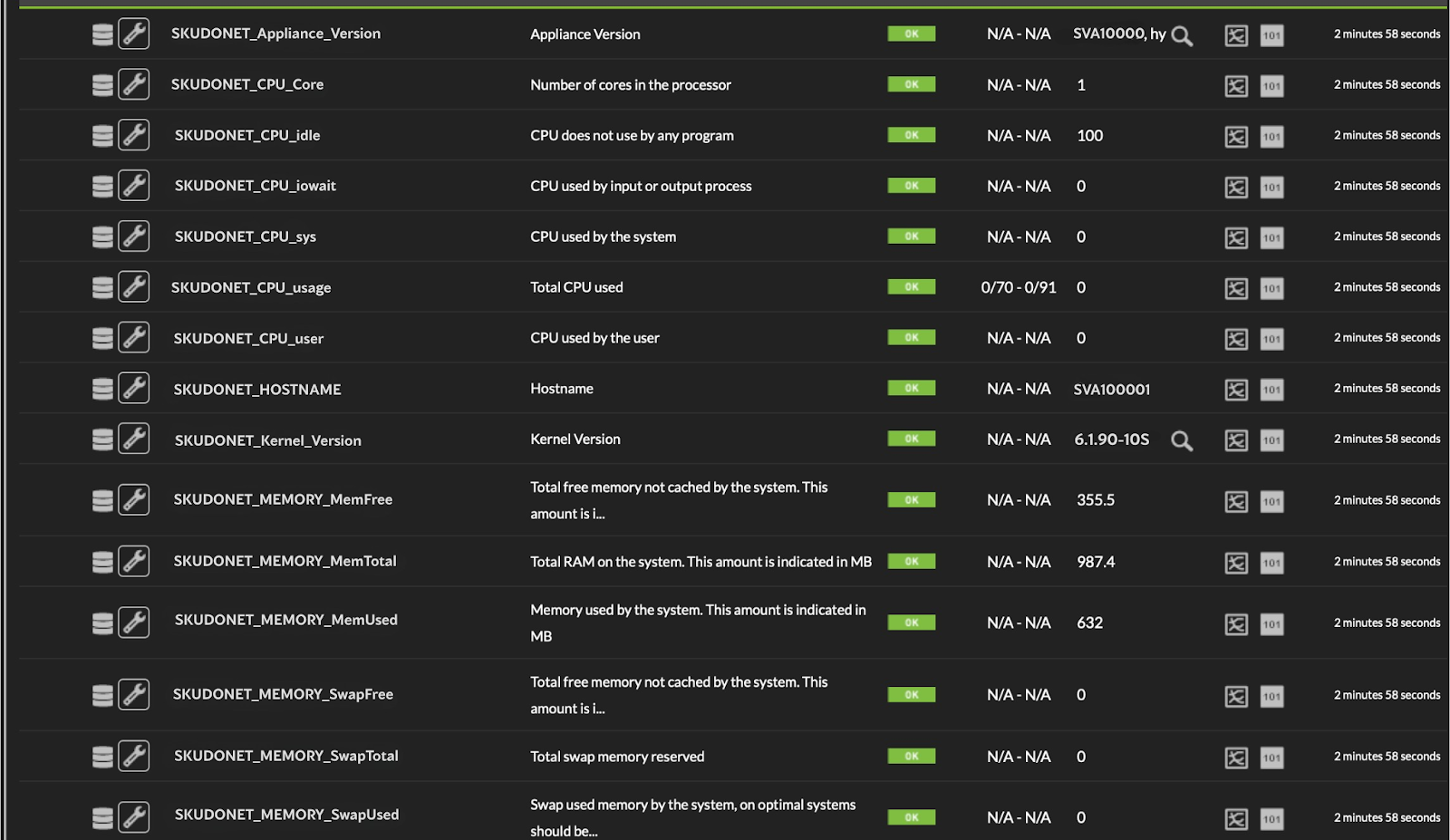
Se toman los datos de aplicación del balanceador, los mismos que podemos ver en la GUI del producto

[<span style="font-size: 10.5pt; font-family: Roboto, sans-serif; color: rgb(17, 85, 204); font-weight: 400; font-style: normal; font-variant: normal; text-decoration-line: underline; text-decoration-skip-ink: none; white-space-collapse: preserve;"><span style="border-width: initial; border-style: none; display: inline-block; overflow: hidden; width: 602px; height: 93px;">![](https://pandorafms.com/guides/public/uploads/images/gallery/2025-11/embedded-image-flo3l67a.png)**SKUDONET GUI**</span></span>](https://drive.google.com/file/d/1b-rXJ1eGrx8fQum97pw6dn2g0ouw7mKs/view?usp=sharing)

**SKUDONET GUI**

<span id="bkmrk--2" style="font-weight: normal;">[<span style="font-size: 10.5pt; font-family: Roboto, sans-serif; color: rgb(17, 85, 204); font-weight: 400; font-style: normal; font-variant: normal; text-decoration-line: underline line-through; text-decoration-skip-ink: none; white-space-collapse: preserve;"><span style="border-width: initial; border-style: none; display: inline-block; overflow: hidden; width: 562px; height: 332px;">![](https://pandorafms.com/guides/public/uploads/images/gallery/2025-11/embedded-image-4zppnrd8.png)</span></span>](https://drive.google.com/file/d/1QFiit_MvFQQ5w70qV3qtPWVuhQGQJd3y/view?usp=sharing)</span>

**PandoraFMS**

Se muestran los datos de las granjas (farms) de todas las que tenga configurada el equipo

[<span id="bkmrk--3" style="font-weight: normal;"></span>](https://pandorafms.com/guides/public/uploads/images/gallery/2021-06/image-1624924809040.png)[<span style="font-size: 10.5pt; font-family: Roboto, sans-serif; color: rgb(17, 85, 204); background-color: rgb(255, 255, 255); font-weight: 400; font-style: normal; font-variant: normal; text-decoration-skip-ink: none; white-space-collapse: preserve;"><span style="border-width: initial; border-style: none; display: inline-block; overflow: hidden; width: 593px; height: 151px;">![](https://pandorafms.com/guides/public/uploads/images/gallery/2025-11/embedded-image-ktizgnoe.png)</span></span>](https://drive.google.com/file/d/1HlGBcg1wJ--bH1dyVq-vylkL2S6ittVm/view?usp=sharing)
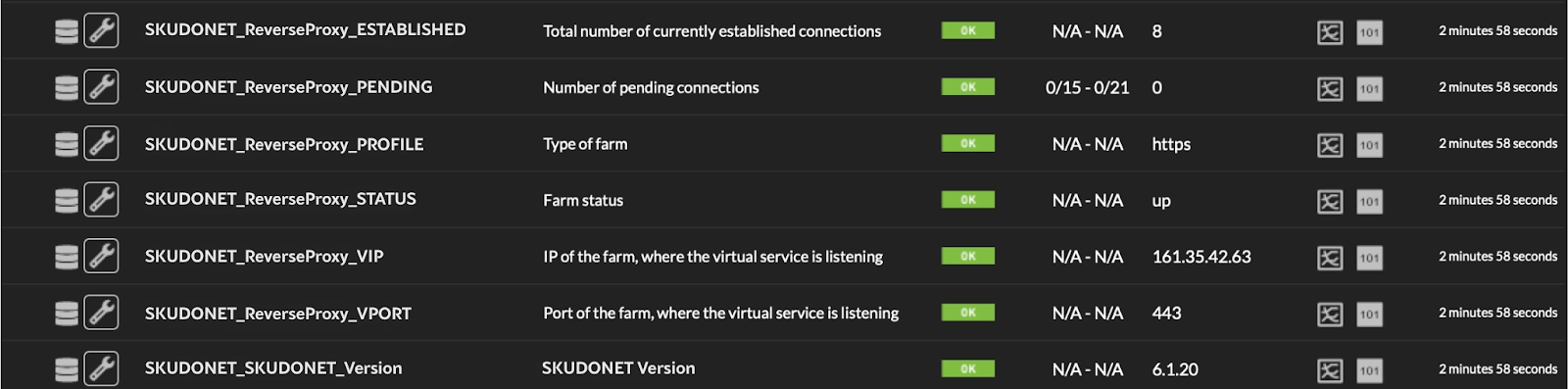
**Ejemplo granja ReverseProxy**

También se ven todas las placas de red y los datos de tráfico de las mismas

[<span id="bkmrk--5" style="font-weight: normal;"></span>](https://pandorafms.com/guides/public/uploads/images/gallery/2021-06/image-1624924891654.png)[<span style="font-size: 10.5pt; font-family: Roboto, sans-serif; color: rgb(17, 85, 204); background-color: rgb(255, 255, 255); font-weight: 400; font-style: normal; font-variant: normal; text-decoration-skip-ink: none; white-space-collapse: preserve;"><span style="border-width: initial; border-style: none; display: inline-block; overflow: hidden; width: 602px; height: 144px;">![](https://pandorafms.com/guides/public/uploads/images/gallery/2025-11/embedded-image-nh2pazwx.png)</span></span>](https://drive.google.com/file/d/15iD9eeXHxdgOrK1h41Gd1OQXpeo0FrMz/view?usp=sharing)
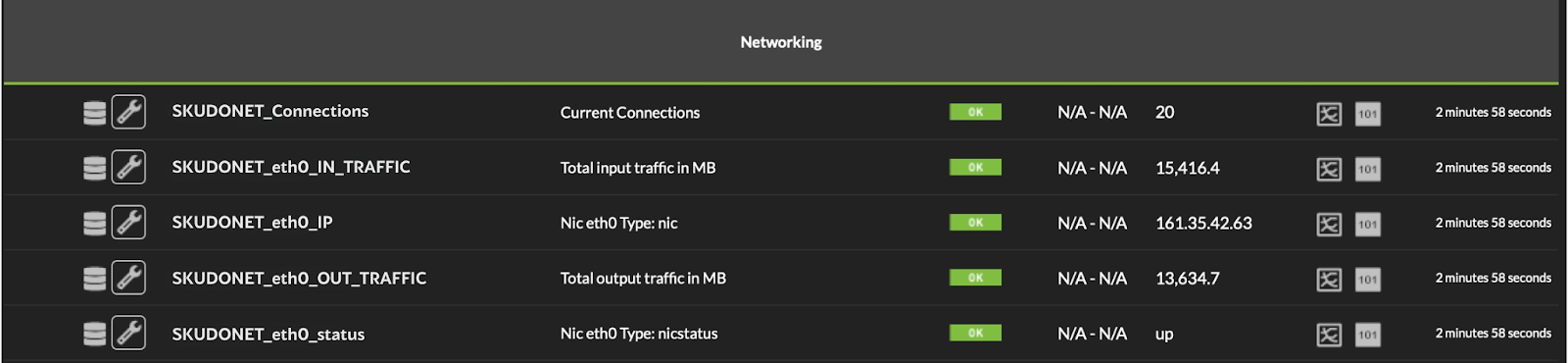
**Ejemplo con una placa de red eth0**

Si se activa el valor Cluster Data en 1 se obtienen estas métricas adicionales

<span id="bkmrk--7" style="font-weight: normal;">[<span style="font-size: 10.5pt; font-family: Roboto, sans-serif; color: rgb(17, 85, 204); font-weight: 400; font-style: normal; font-variant: normal; text-decoration-line: underline; text-decoration-skip-ink: none; white-space-collapse: preserve;"><span style="border-width: initial; border-style: none; display: inline-block; overflow: hidden; width: 602px; height: 99px;">![](https://pandorafms.com/guides/public/uploads/images/gallery/2025-11/embedded-image-dorcxkz1.png)</span></span>](https://drive.google.com/file/d/131Y1vCq0VZQhtLTTDQ6k2RK13ik1ZewQ/view?usp=sharing)</span>

**Ejemplo de un Cluster en modo master**

Todos los datos generados son dinámicos y se ven reflejados si se realiza cualquier cambio en el balanceador cómo crear una nueva granja (Farm), agregar una nueva placa de red, etc.

[&lt; ANTERIOR ](https://pandorafms.com/guides/public/books/plugin-zevenet/page/agregar-monitor-para-ejecucion-plug-in)