# Configuration in pandora
**Installation from the console**
To register the plugin, from the console, go to the "register plugin" section.
[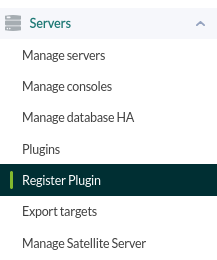](https://pandorafms.com/guides/public/uploads/images/gallery/2025-07/imagen.png)
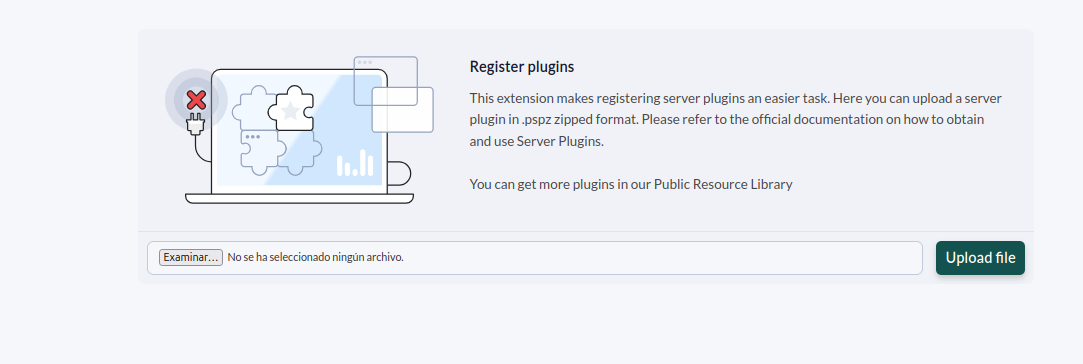
Click on select file.
[](https://pandorafms.com/guides/public/uploads/images/gallery/2025-07/Rnvimagen.png)
Select the pspz2 file containing the plugin.
[](https://pandorafms.com/guides/public/uploads/images/gallery/2022-04/register1-weblogic.png)
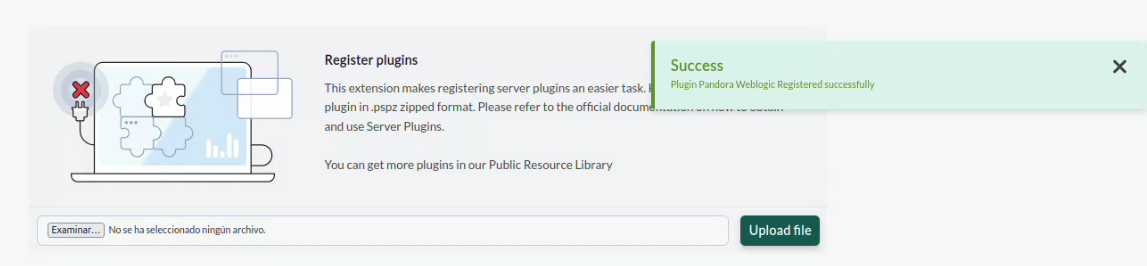
A message that it has been successfully installed will be displayed.
[](https://pandorafms.com/guides/public/uploads/images/gallery/2025-07/captura-desde-2025-07-21-17-34-48.png)
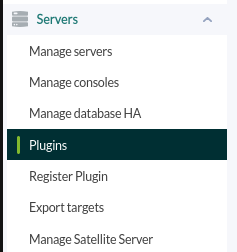
Once the plugin is registered, we will see it in the plugins section.
[](https://pandorafms.com/guides/public/uploads/images/gallery/2025-07/IAxservers-plugins.png)
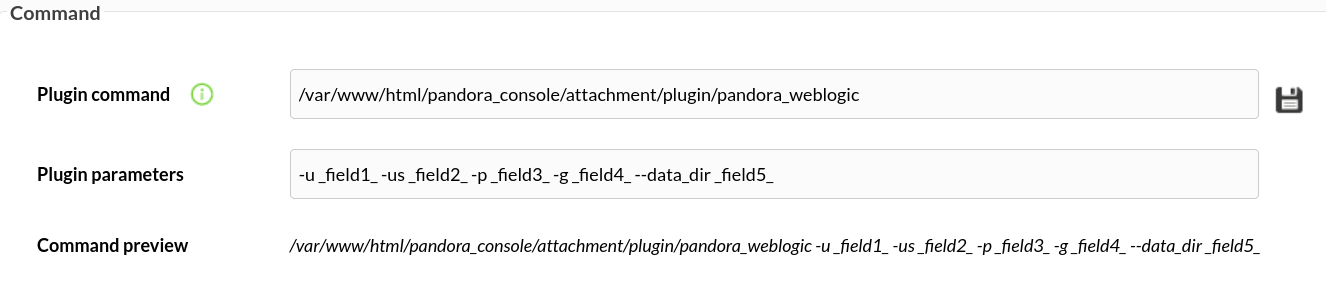
In the parameters section, all the parameters contained in the plugin will appear and can be configured, remember that not all of them are mandatory, only those that are specified.
[](https://pandorafms.com/guides/public/uploads/images/gallery/2022-04/register3-weblogic.png)
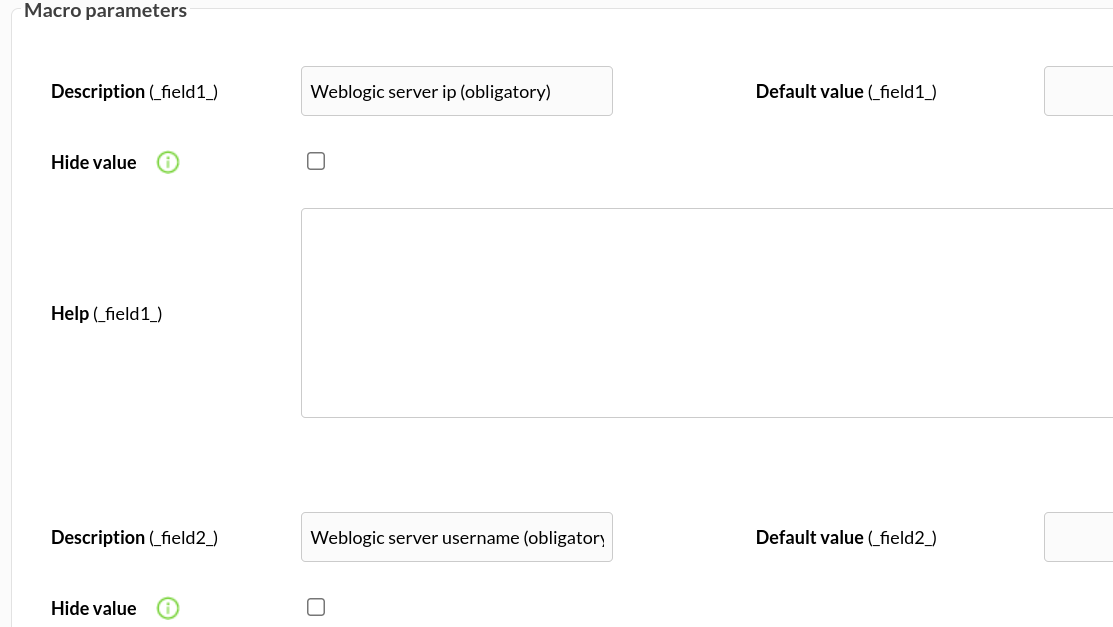
Below you can assign a value to each macro.
[](https://pandorafms.com/guides/public/uploads/images/gallery/2022-04/register4-weblogic.png)
**Manual installation**
The best way to manage server plugins in Pandora is from "/usr/share/pandora\_server/util/plugin" so we will send it to that path.
Then we will move to the folder where we have put it ("/usr/share/pandora\_server/util/plugin" is the recommended one").
**Remember: You have to install the dependencies that the Requests module needs in your system, this is explained in the configuration section.**
We move from home with :
```
cd /usr/share/pandora_server/util/plugin/
```
We run the plugin to see that it works:
```
python pandora_weblogic.py -u -us -p
```
**As a server plugin**
Go to servers > plugins:
[](https://pandorafms.com/guides/public/uploads/images/gallery/2025-07/IAxservers-plugins.png)
Click in add plugin:
[](https://pandorafms.com/guides/public/uploads/images/gallery/2025-07/eVCadd-plugin.png)
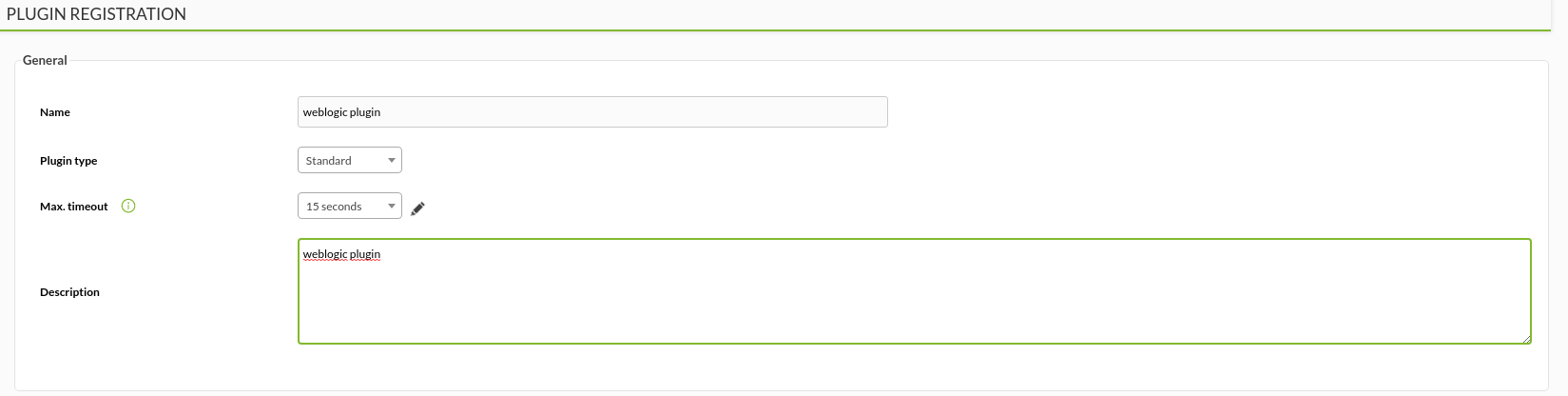
We put in the name and description of your choice:
[](https://pandorafms.com/guides/public/uploads/images/gallery/2021-09/weblogic1.png)
We enter as command the path to the plugin, and as parameters the ones we have entered by executing the plugin, the "\_field\_" fields are macros defined below.
[](https://pandorafms.com/guides/public/uploads/images/gallery/2021-09/weblogic2.png)
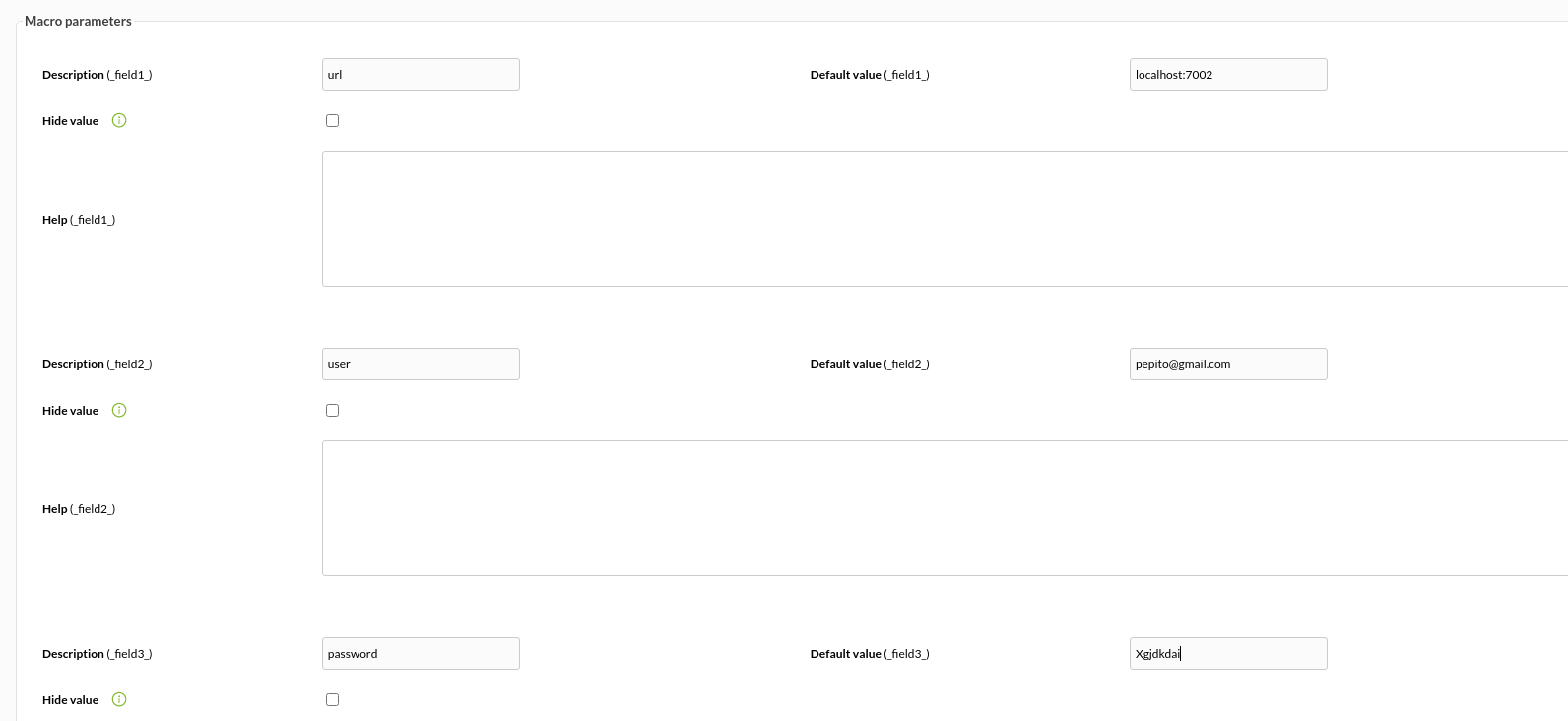
We put for each macro the description that you prefer and as value the data of your url, user and pass.
[](https://pandorafms.com/guides/public/uploads/images/gallery/2021-09/weblogic3.png)
Once this is done, if we execute the plugin from the terminal, the agent with the modules will have been created.