El file was downloaded in the previous step.
Right click **Run as administrator** **ENTER.** [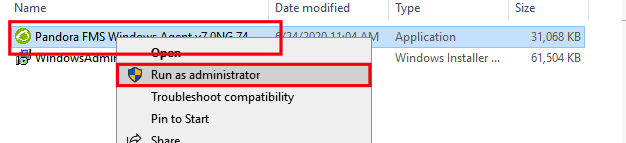](https://pandorafms.com/guides/public/uploads/images/gallery/2020-10/image-1603235311875.png) **Click More info.** [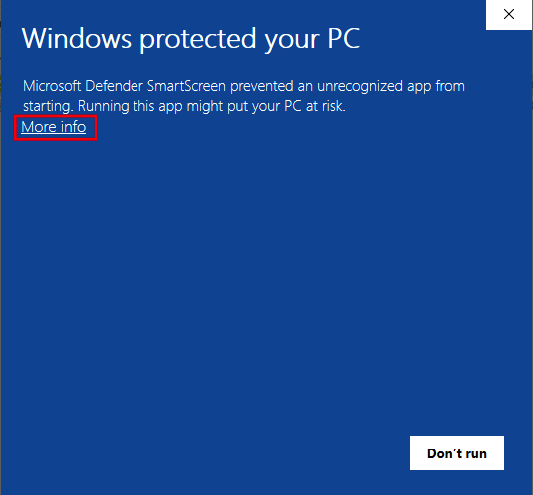](https://pandorafms.com/guides/public/uploads/images/gallery/2020-10/image-1603235349862.png) Select **Run anyway.** [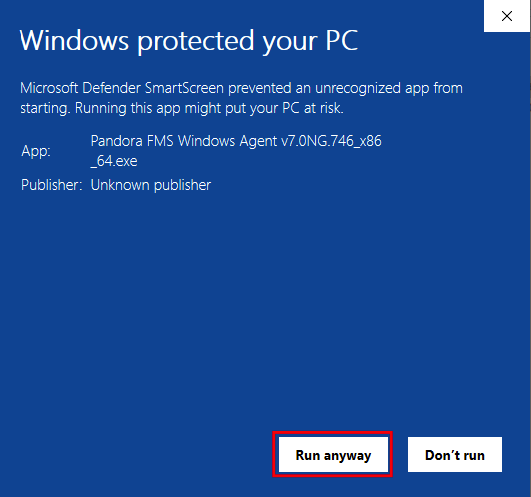](https://pandorafms.com/guides/public/uploads/images/gallery/2020-10/image-1603235374326.png) Select the language of your choosing, in this case **English** **OK.** [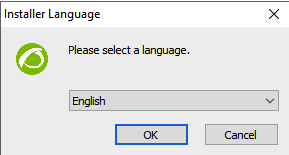 ](https://pandorafms.com/guides/public/uploads/images/gallery/2020-10/image-1603235432964.png) Click **Next.** [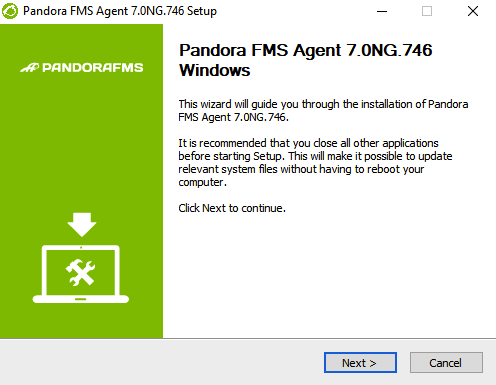](https://pandorafms.com/guides/public/uploads/images/gallery/2020-10/image-1603235483407.png) Select **I Agree.** [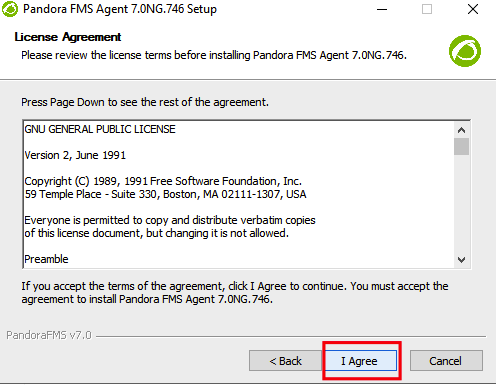](https://pandorafms.com/guides/public/uploads/images/gallery/2020-10/image-1603235501286.png) Select **Install.** [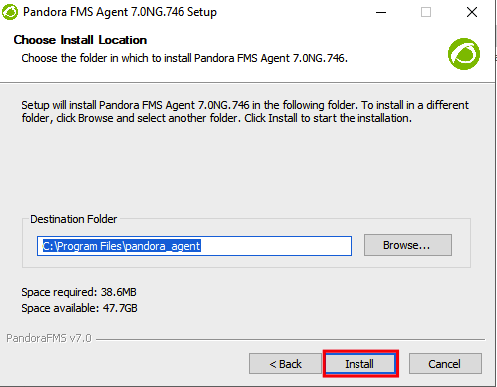](https://pandorafms.com/guides/public/uploads/images/gallery/2020-10/image-1603235533131.png) Wait for the installation to be completed. [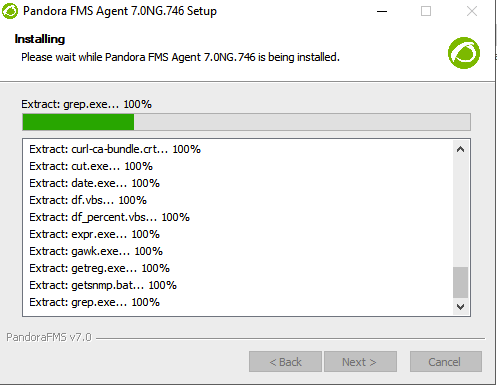](https://pandorafms.com/guides/public/uploads/images/gallery/2020-10/image-1603235554912.png) Add the IP of your Pandora FMS server, in this example **172.15.75.20** and click **Next.** [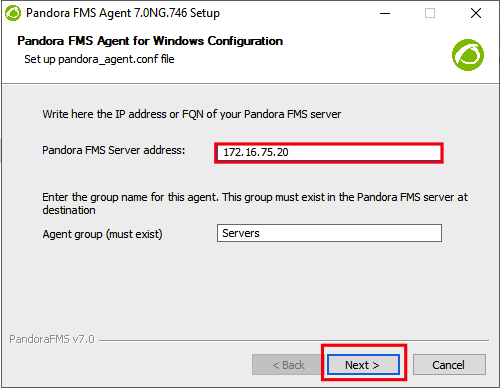](https://pandorafms.com/guides/public/uploads/images/gallery/2020-10/image-1603235576160.png) Click **Next.** If you have an Enterprise server and want to enable **remote config** select this configuration. [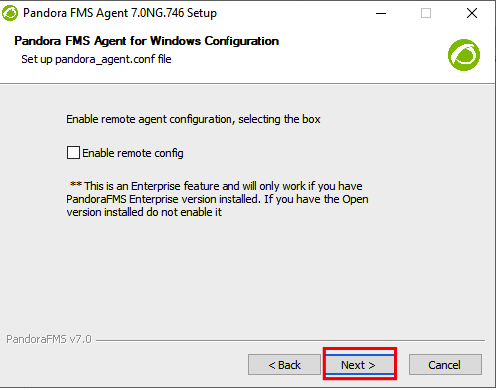](https://pandorafms.com/guides/public/uploads/images/gallery/2020-10/image-1603235594700.png) Uncheck **Show Readme** and click **Finish.** [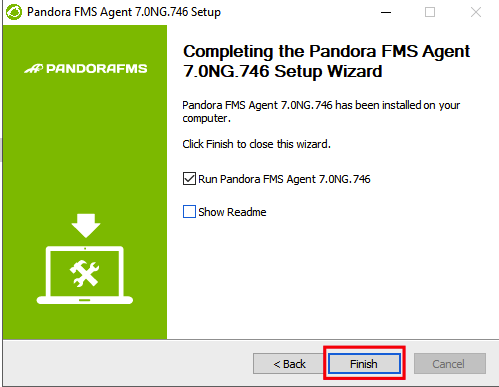](https://pandorafms.com/guides/public/uploads/images/gallery/2020-10/image-1603235668995.png) You will see the agent service is started. [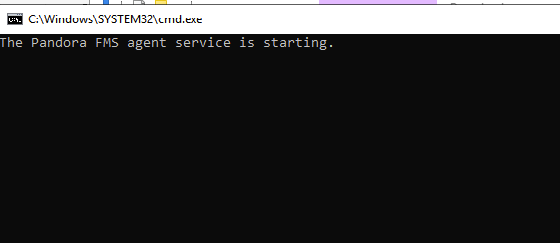](https://pandorafms.com/guides/public/uploads/images/gallery/2020-10/image-1603235929467.png) **[< PREVIOUS](https://pandorafms.com/guides/public/books/pandora-fms-agent-installation-in-windows-server-2019/page/download-pandora-fms-agent) [NEXT >](https://pandorafms.com/guides/public/books/pandora-fms-agent-installation-in-windows-server-2019/page/see-agent-in-web-console)**