The procedure is the same for Windows Server 2008, 2012 in 64 Bit editions. For previous editions, it is only necessary to use the 32 Bit agent available in the download page.
**Pandora FMS** installed in this example (172.16.75.20) **Windows Server 2019** installation (172.16.75.161) must have Internet access to download the EndPoint. **Microsoft EDGE browser** used to follow exactly the same steps of this guide.
Download the EndPoint from the download page [https://pandorafms.com/en/downloads/](https://pandorafms.com/en/downloads/ "Downloads"), choose **64 Bits** as shown in the following image [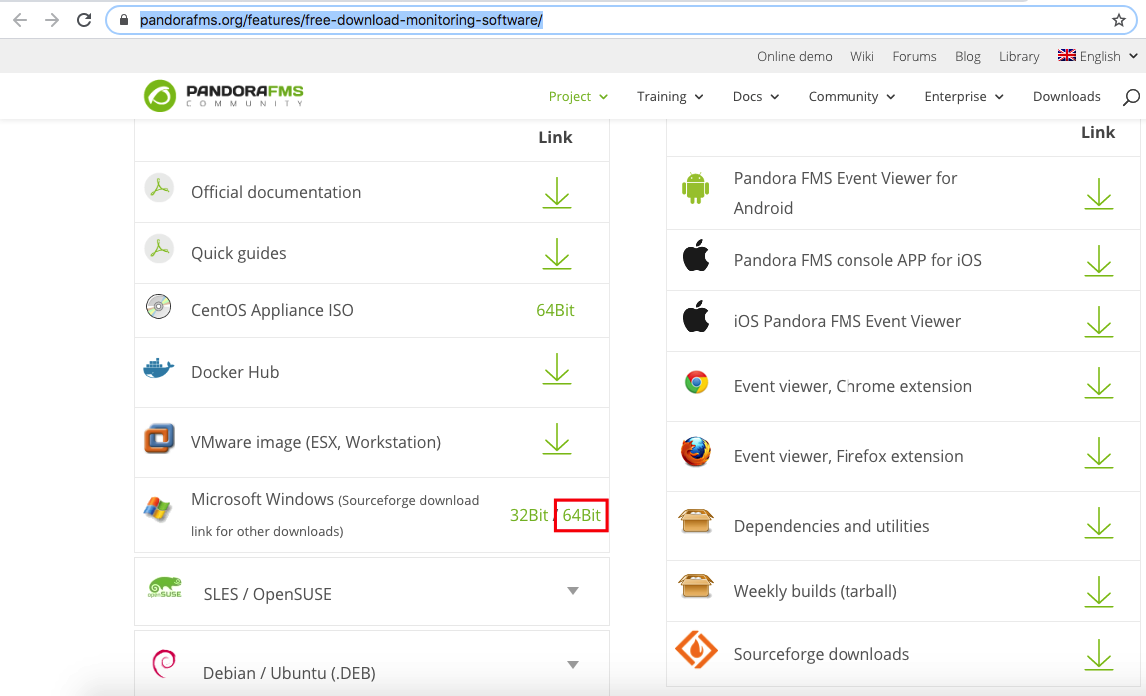](https://pandorafms.com/guides/public/uploads/images/gallery/2020-10/image-1603235101370.png) Wait for the download to finish. [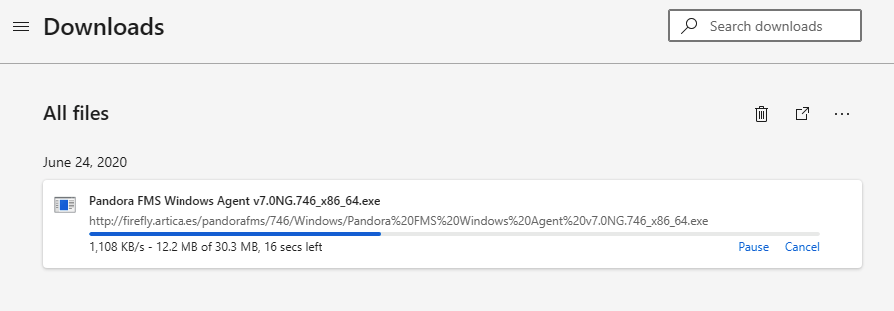](https://pandorafms.com/guides/public/uploads/images/gallery/2020-10/image-1603235189268.png) If you get an error from the package, confirm keep as we know it is safe **keep ENTER.** [](https://pandorafms.com/guides/public/uploads/images/gallery/2020-10/image-1603235211796.png) Select **Show more.** [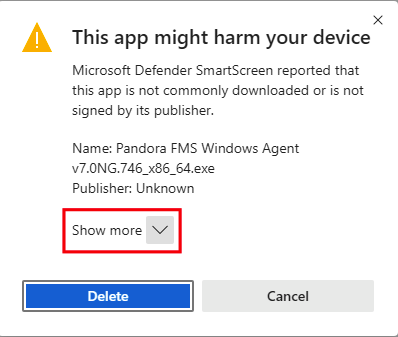](https://pandorafms.com/guides/public/uploads/images/gallery/2020-10/image-1603235229409.png) Select **Keep anyway.** [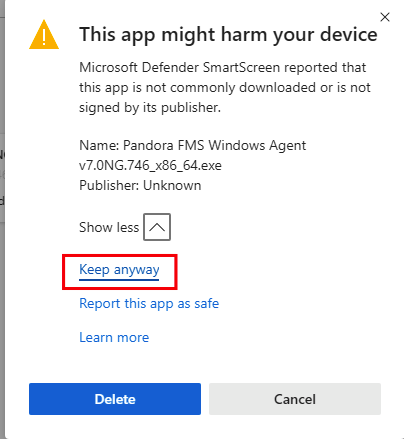](https://pandorafms.com/guides/public/uploads/images/gallery/2020-10/image-1603235246445.png) Select **Show in folder.** [](https://pandorafms.com/guides/public/uploads/images/gallery/2020-10/image-1603235290484.png) **[NEXT >](https://pandorafms.com/guides/public/books/pandora-fms-agent-installation-in-windows-server-2019/page/install-pandora-fms-agent)** # Install Pandora FMS agentEl file was downloaded in the previous step.
Right click **Run as administrator** **ENTER.** [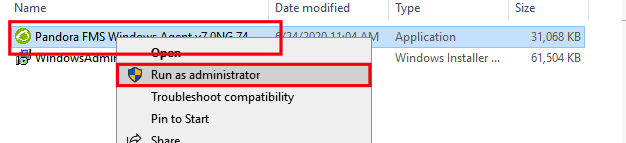](https://pandorafms.com/guides/public/uploads/images/gallery/2020-10/image-1603235311875.png) **Click More info.** [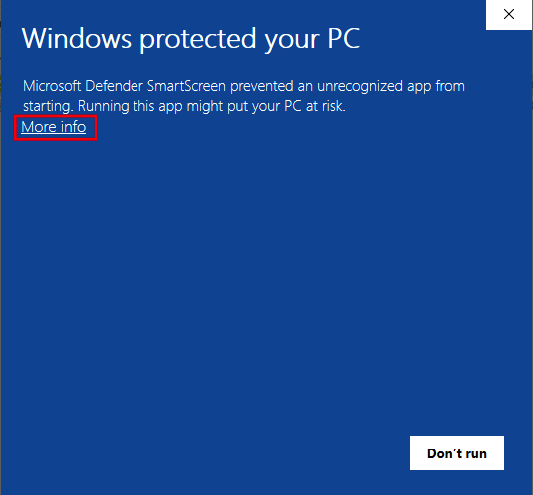](https://pandorafms.com/guides/public/uploads/images/gallery/2020-10/image-1603235349862.png) Select **Run anyway.** [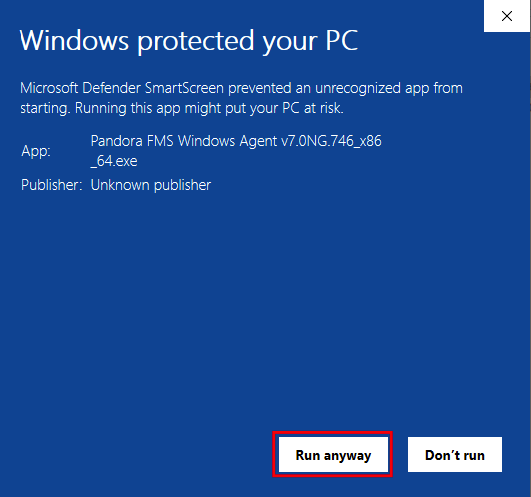](https://pandorafms.com/guides/public/uploads/images/gallery/2020-10/image-1603235374326.png) Select the language of your choosing, in this case **English** **OK.** [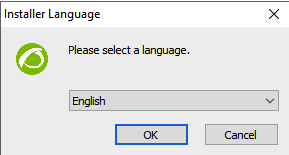 ](https://pandorafms.com/guides/public/uploads/images/gallery/2020-10/image-1603235432964.png) Click **Next.** [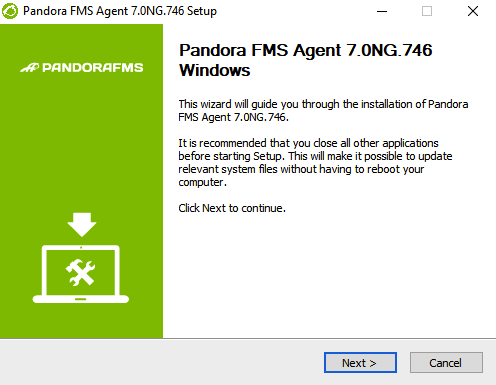](https://pandorafms.com/guides/public/uploads/images/gallery/2020-10/image-1603235483407.png) Select **I Agree.** [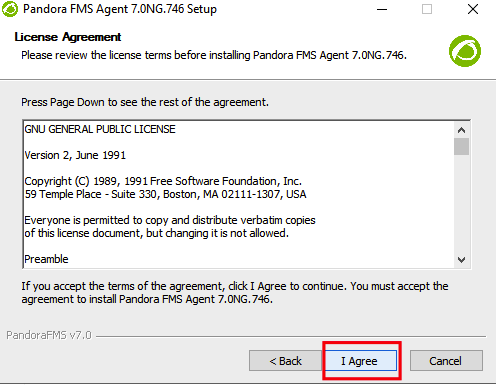](https://pandorafms.com/guides/public/uploads/images/gallery/2020-10/image-1603235501286.png) Select **Install.** [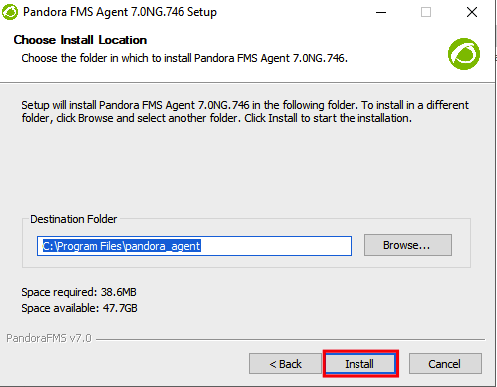](https://pandorafms.com/guides/public/uploads/images/gallery/2020-10/image-1603235533131.png) Wait for the installation to be completed. [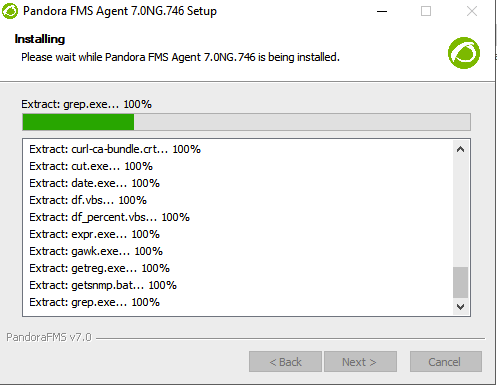](https://pandorafms.com/guides/public/uploads/images/gallery/2020-10/image-1603235554912.png) Add the IP of your Pandora FMS server, in this example **172.15.75.20** and click **Next.** [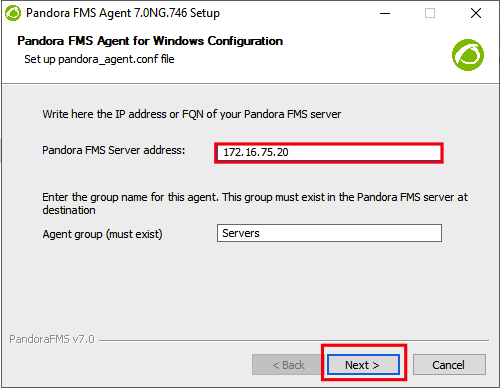](https://pandorafms.com/guides/public/uploads/images/gallery/2020-10/image-1603235576160.png) Click **Next.** If you have an Enterprise server and want to enable **remote config** select this configuration. [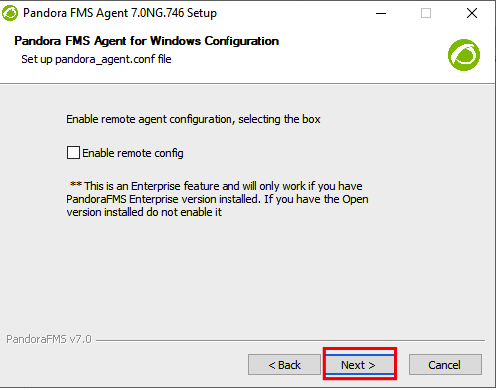](https://pandorafms.com/guides/public/uploads/images/gallery/2020-10/image-1603235594700.png) Uncheck **Show Readme** and click **Finish.** [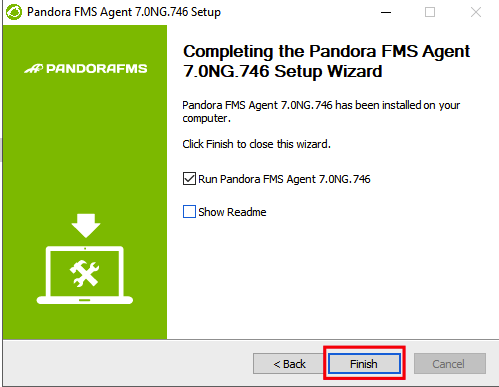](https://pandorafms.com/guides/public/uploads/images/gallery/2020-10/image-1603235668995.png) You will see the agent service is started. [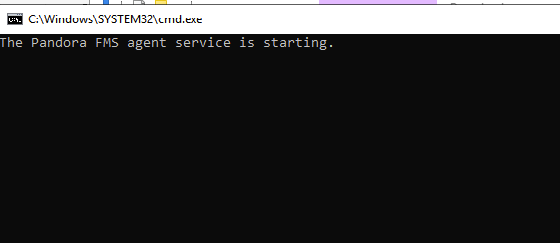](https://pandorafms.com/guides/public/uploads/images/gallery/2020-10/image-1603235929467.png) **[< PREVIOUS](https://pandorafms.com/guides/public/books/pandora-fms-agent-installation-in-windows-server-2019/page/download-pandora-fms-agent) [NEXT >](https://pandorafms.com/guides/public/books/pandora-fms-agent-installation-in-windows-server-2019/page/see-agent-in-web-console)** # See agent in web console To validate the appropriate installation, go to console and look for the agent **Monitoring -> Views -> Group view.** [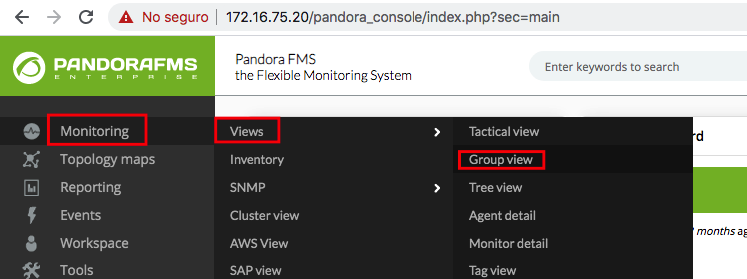](https://pandorafms.com/guides/public/uploads/images/gallery/2020-10/image-1603235971784.png) In the **Unknown** agent group.**In my console, I have set that new agents stay in group Unknown, these settings can be edited easily.**
[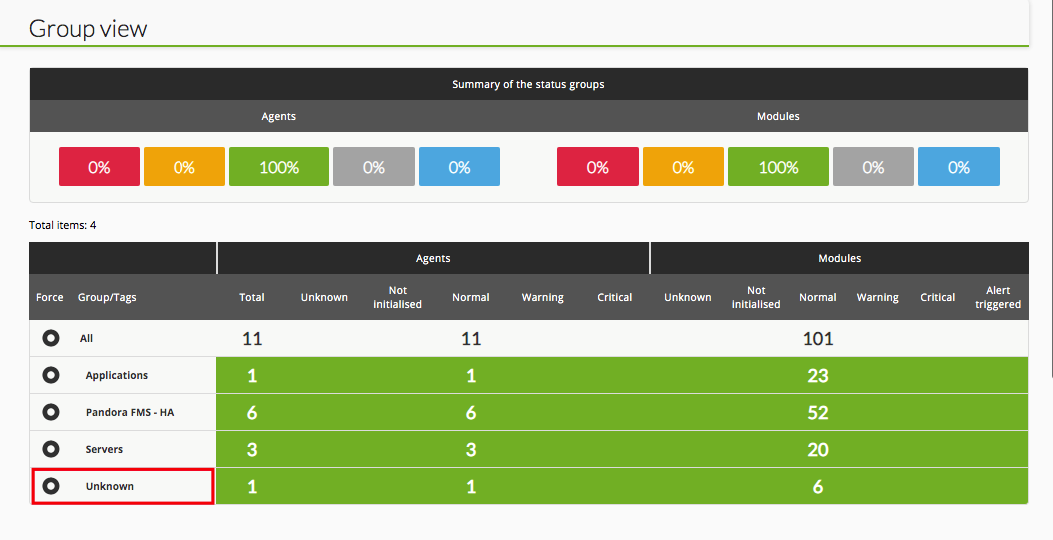](https://pandorafms.com/guides/public/uploads/images/gallery/2020-10/image-1603236096417.png) Verify that your agent is properly installed. [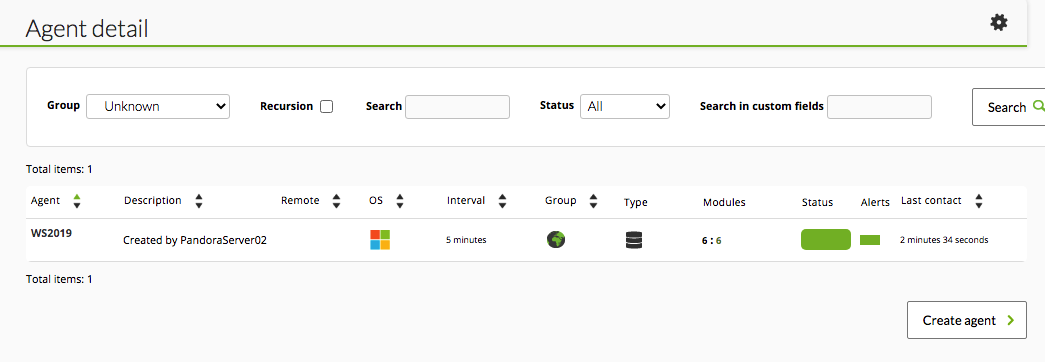](https://pandorafms.com/guides/public/uploads/images/gallery/2020-10/image-1603236118273.png) [< PREVIOUS](https://pandorafms.com/guides/public/books/pandora-fms-agent-installation-in-windows-server-2019/page/install-pandora-fms-agent)