Opsgenie
Opsgenie plugin user manual
- Introduction
- Compatibility matrix
- Pre requisites
- Parameters and configuration
- Manual execution
- Configuration in PandoraFMS
Introduction
This script is an internal Pandora FMS plugin designed to integrate events and alerts with Opsgenie, allowing the status of monitoring modules to be automatically synchronized with the incident management system.
The plugin receives information generated by Pandora FMS (agent, module, severity, data value, etc.) and uses it to create, update, and close alerts in Opsgenie, applying advanced control logic, automatic retries, and validation of the actual status of the alert.
In addition, it adds informational notes, direct links to the agent in Pandora FMS, and manages special statuses such as recovered alerts or modules related to the system license. The script also incorporates robustness mechanisms against transient API errors, URL validation, and configurable options to adjust priority, retry behavior, and logging level.
In short, this plugin acts as a reliable and automated connector between Pandora FMS and Opsgenie, ensuring that monitoring events generate consistent, up-to-date, and properly managed alerts on the incident platform.
Compatibility matrix
| Systems where it has been tested |
Rocky, ubuntu |
| Systems where it should work |
Any Linux system |
Pre requisites
- The plugin is a binary that contains the packaged dependencies, so no dependencies need to be installed in order to use it.
Parameters and configuration
| Parameter | Description |
| --agent | Agent alias in Pandora FMS. It can be obtained using the _agentalias_ server macro. |
| --agentid | Numeric ID of the agent in Pandora FMS. It can be obtained using the _id_agent_ macro |
| --module | Name of the Pandora FMS module that is generating the event or data. It can be obtained with the _module_ macro. |
| --data | Valor numérico o texto correspondiente a los datos del módulo. Se obtiene con la macro _data_. |
| --address | IP address or hostname of the monitored agent. It can be obtained with the _address_ macro. |
| --apikey | Opsgenie API Key required to authenticate requests against its API. |
| --pandoraurl | Full URL of the Pandora FMS console, including /pandora_console/. Default value: https://symity.pandorafms.com/pandora_console/ |
| --license |
License mode. “0” → disabled (default) “1” → enabled |
| --user | User who will appear as the author of the action in Opsgenie. Default value: “Pandora” |
| --source | Source or identifier of the origin in Opsgenie, useful for categorizing alerts. Default value: “pandora” |
| --status | Textual status of the Pandora FMS module. It can be obtained with the modulestatus macro. The value “MAX” can also be used to assign priority 1 in Opsgenie. |
| --verbose |
Enable verbose mode to display additional information in the logs. “0” → disabled (default) “1” → enabled “2” → enabled, higher level of detail |
| --logfile |
If a file is specified, logs will be written to that file instead of being shown on the output.
|
| --max-retry | Maximum number of retries allowed when the Opsgenie API returns an error. Default value: 3 |
| --wait-time | Wait time (in seconds) between each retry of calls to Opsgenie. Default value: 2 |
| -h, --help | Displays the program help and terminates execution. |
Manual execution
The plugin execution format is as follows:
./pandora_opsgenie \
    --agent <agent alias> \
    --agentid <agent ID> \
    --module <module name> \
    --data <data value> \
    --address <agent address> \
    --apikey <Opsgenie API key> \
    [--status <module status or MAX>] \
    [--pandoraurl <Pandora FMS URL>] \
    [--license <0 or 1>] \
    [--user <Opsgenie user>] \
    [--source <Opsgenie source>] \
    [--verbose <0, 1 or 2>] \
    [--logfile <log file path>]
    [--max-retry <maximum number of retries>] \
    [--wait-time <seconds between retries>]
For example:
./pandora_opsgenie \
    --agent "Servidor_Madrid" \
    --agentid "5012" \
    --module "CPU Load" \
    --data "_data_" \
    --address "192.168.10.55" \
    --apikey "1a2b3c4d-55ef-47d2-9f81-3b8c2d4e7f92" \
    --status "CRITICAL" \
    --pandoraurl "https://172.10.0.2.pandorafms.com/pandora_console/" \
    --user "Pandora" \
    --source "pandora" \
    --verbose "1"
Configuration in PandoraFMS
To configure the plugin in PandoraFMS, follow these steps:
1. Upload the plugin to PandoraFMS, for example in the following path:
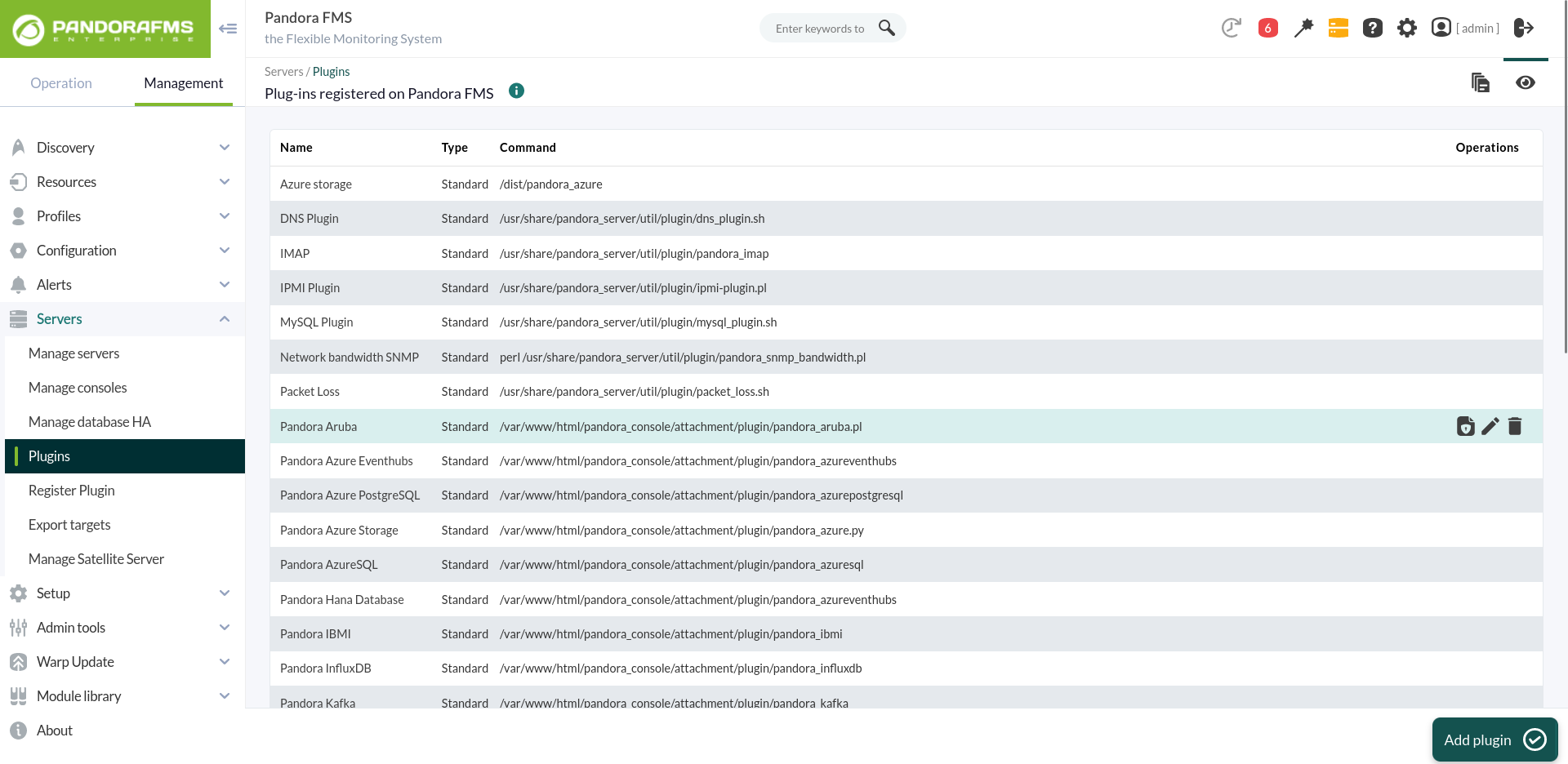
/usr/share/pandora_server/util/plugin2. Go to the plugins section and create a new one:
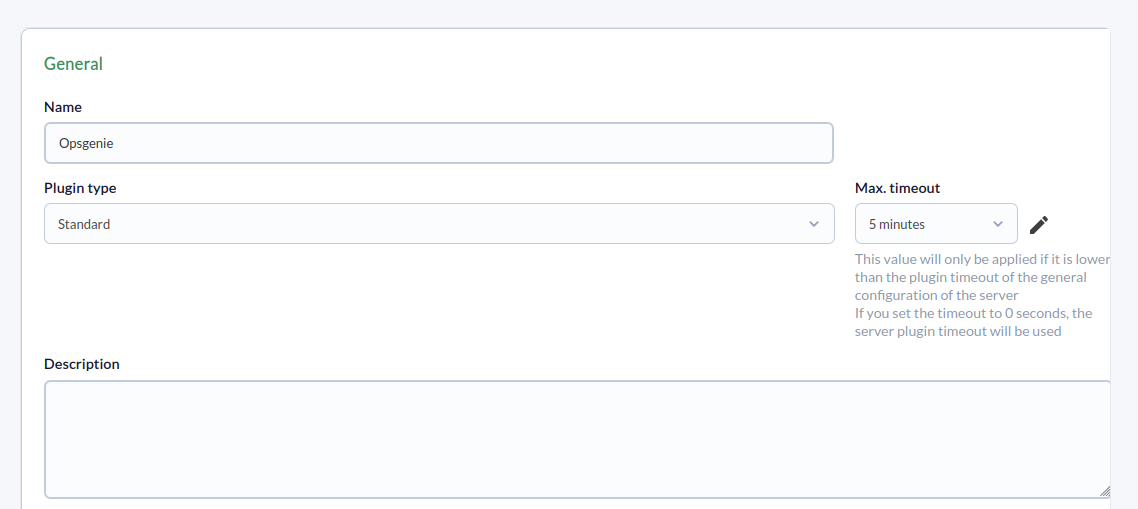
3. Name, description, and timeout are added:
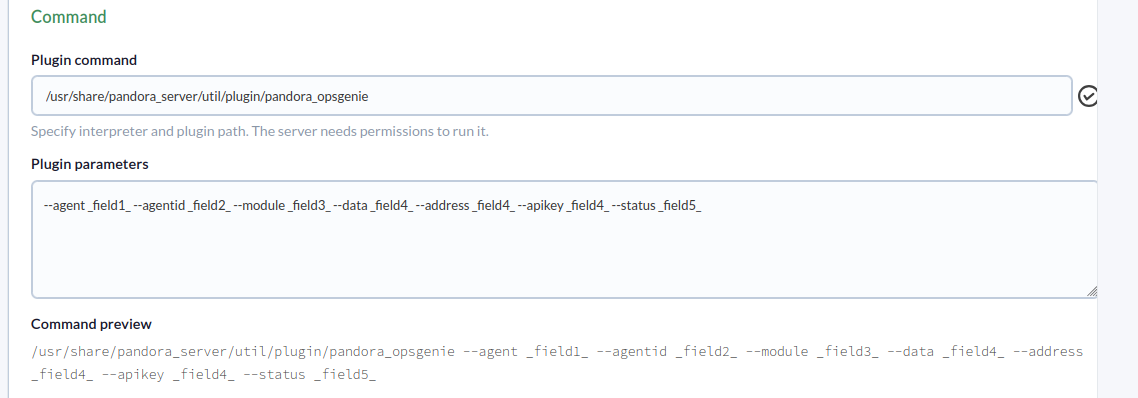
4. Add the plugin path to the command and the parameters necessary for its execution.
A macro must be configured for each parameter, with the following syntax: _fieldx_, where x is the positional number of the parameter.
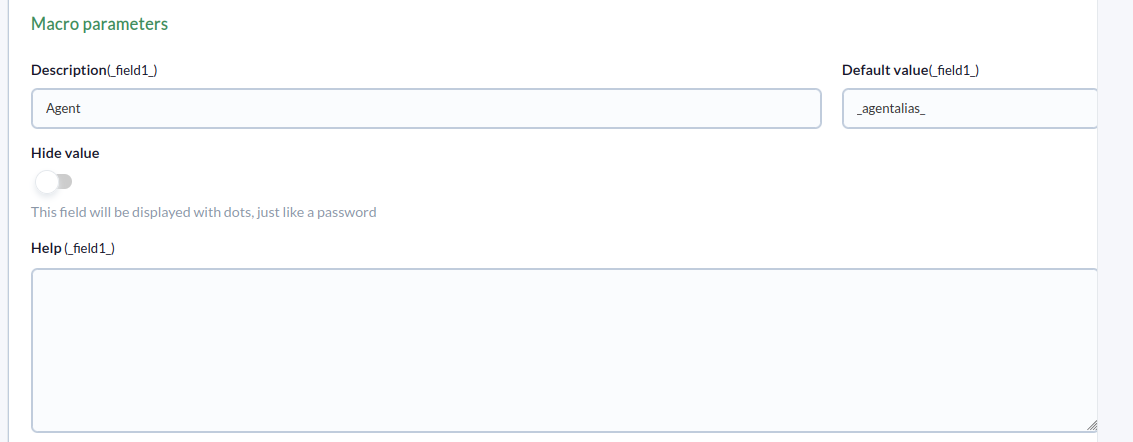
5. The above macros are configured by adding the parameter value to each one:
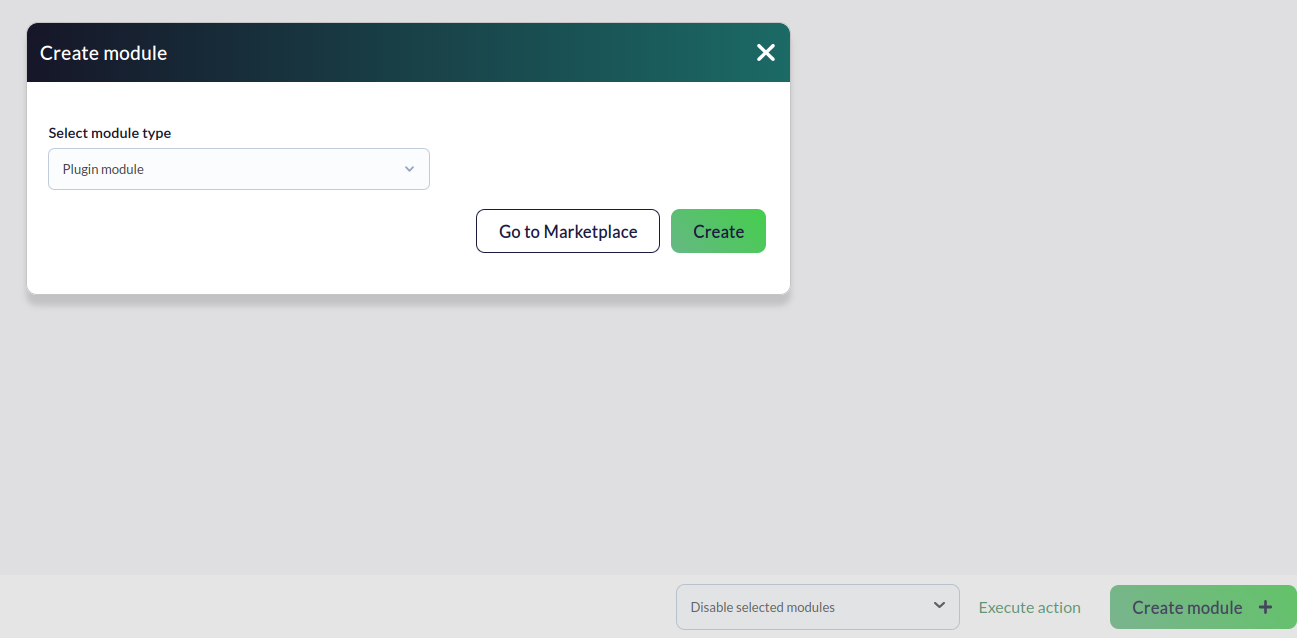
6. Once configured, a module must be created in an agent that executes the plugin. In the agent's module menu, we create a new plugin-type module:
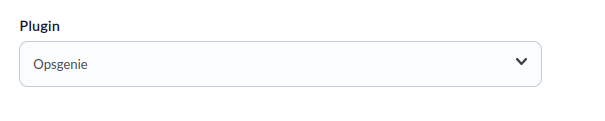
7. In the module configuration menu, give it a name, select the previously configured plugin, and click “create.”
8. The plugin will eventually run according to the configuration settings, generating alerts as it processes the data.