# Office 365 discovery

# Introduction

This plugin is intended to monitor the status of Microsoft 365 services and licenses, including active incidents, system messages and subscription details.

The plugin connects to the Microsoft Graph API to obtain information about the health of services, maintenance messages and licensing data, generating monitoring modules compatible with Pandora FMS.

# Pre rrequisites

- - The plugin is a compilation that contains all the dependencies necessary for its use, so it only requires having an application in Microsoft Entra ID configured with the necessary permissions to be able to authenticate through a clientID, tenandID, and a secret. The process of creating and granting permissions is explained below:  
          
        **Registering an application in Microsoft Sign-in ID**
        
        Office 365 management APIs require authentication using Microsoft Entra ID, which ensures secure access to tenant data. To use these APIs, you must first register the application within Microsoft Entra ID and define the permissions that the application will need to interact with Office 365 resources.
        
        <p class="callout info">Before you begin, ensure you have an Office 365 subscription and an Azure subscription linked together within the same tenant.</p>
        
        Registering the application in the Azure portal
        
        Once you have configured the environment, you can proceed to register the application from the Azure portal by following these steps:
        
        1\. Access the Azure portal (https://portal.azure.com) by signing in with a Microsoft tenant account that has the Office 365 subscription you are going to use. You can also open the portal from the Microsoft 365 Admin Center, where there is usually a shortcut to the Azure dashboard.
        
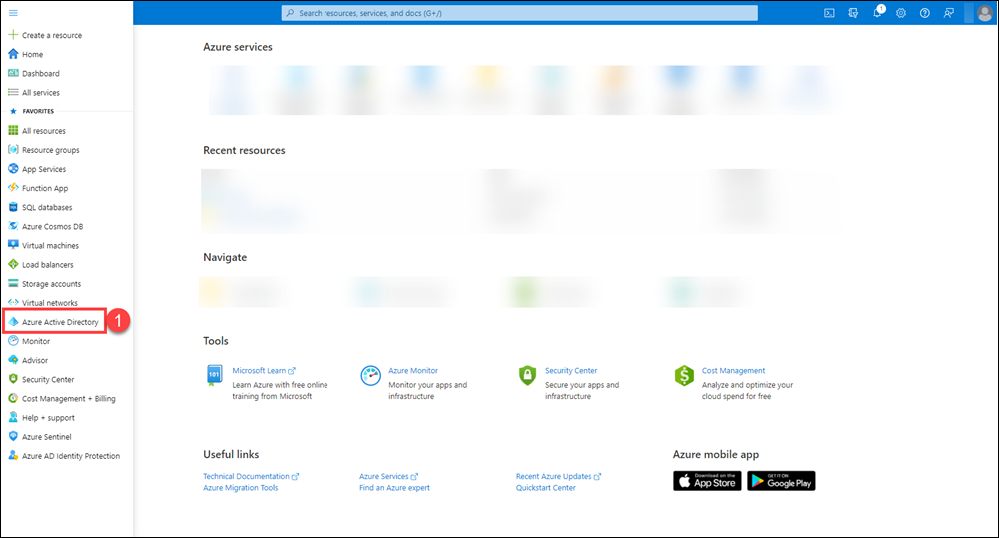
        2\. In the left side menu of the portal, select Microsoft Sign-in ID.
        
        [![image.png](https://pandorafms.com/guides/public/uploads/images/gallery/2025-10/scaled-1680-/4R2image.png)](https://pandorafms.com/guides/public/uploads/images/gallery/2025-10/4R2image.png)
        
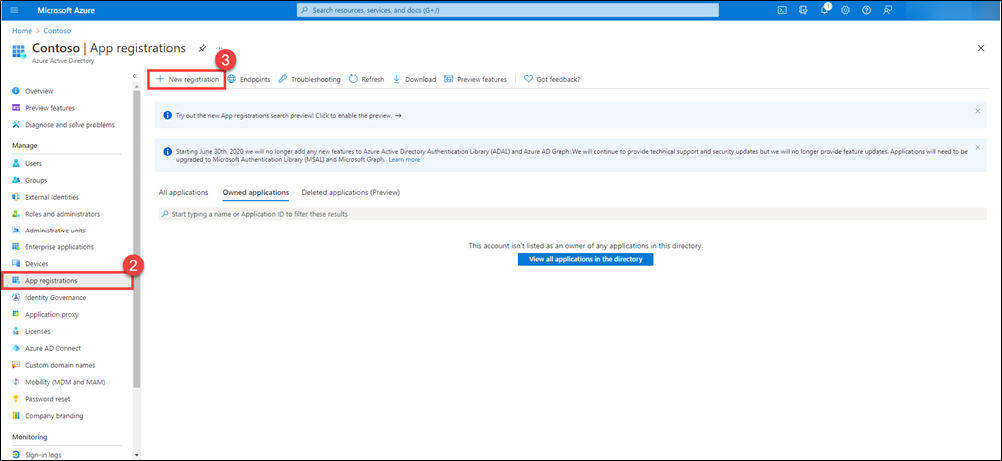
        3\. On the Microsoft Entra ID page, go to the Application registrations section and click New registration.
        
        [![image.png](https://pandorafms.com/guides/public/uploads/images/gallery/2025-10/scaled-1680-/Vi7image.png)](https://pandorafms.com/guides/public/uploads/images/gallery/2025-10/Vi7image.png)
        
        4\. The wizard for creating a new application record will open. Complete the following fields:
        
        [![image.png](https://pandorafms.com/guides/public/uploads/images/gallery/2025-10/scaled-1680-/M5dimage.png)](https://pandorafms.com/guides/public/uploads/images/gallery/2025-10/M5dimage.png)
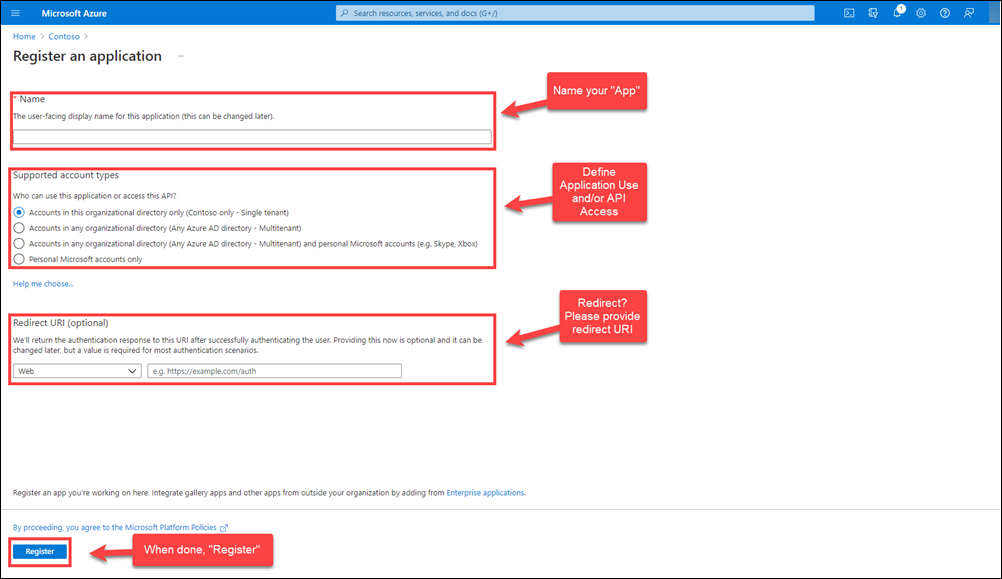
        
          
        \- Name: assign a descriptive name to your application.   
        \- Access type: indicate who will be able to use the application (only accounts in your organization or also other tenants).   
        \- Redirect URI: specify a URL to which the user will be redirected once authentication is complete (optional depending on the type of application).
        
        5\. Finally, click Register to complete the process.
        
        **Configure application properties in Microsoft Entra ID**
        
        Once the application is registered, you need to define some key properties that determine how it will behave within Microsoft Entra ID and how tenant administrators will be able to grant the necessary permissions for the application to access data through the Office 365 management APIs.
        
        Key properties to review:
        
        \- Client ID: This value is automatically generated in Microsoft Entra ID. The application will use it when requesting consent from tenant administrators and when requesting “application-only” access tokens.
        
        \- Multitenant application: This option must be set to “Yes” to allow administrators from other tenants to grant access to your application through the Office 365 administration APIs. If left set to “No,” the application will only be able to work with data from the tenant in which it was registered.
        
        \- Reply URL: This is the address to which a tenant administrator will be redirected after granting consent. You can define multiple reply URLs if needed. By default, Azure uses the same sign-in URL that was specified when creating the application, although this value can be changed at any time.
        
        Remember to save your changes once you have adjusted any of these properties
        
        **Generate a new key for the application**
        
        Follow these steps to create a new client secret:
        
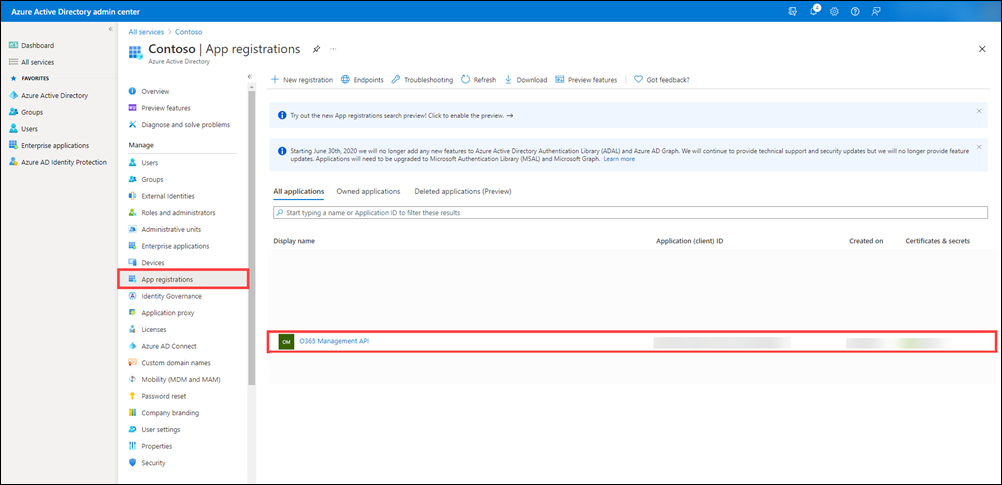
        1\. In the Azure portal, go to the Microsoft Sign-in ID section. Within it, select Application registrations and then choose the application you previously registered.
        
          
        [![image.png](https://pandorafms.com/guides/public/uploads/images/gallery/2025-10/scaled-1680-/D5Dimage.png)](https://pandorafms.com/guides/public/uploads/images/gallery/2025-10/D5Dimage.png)
        
        2\. Once on the application page, click Certificates and Secrets in the left side menu. From there, you can upload certificates or create new client secrets.
        
        [![image.png](https://pandorafms.com/guides/public/uploads/images/gallery/2025-10/scaled-1680-/u9Mimage.png)](https://pandorafms.com/guides/public/uploads/images/gallery/2025-10/u9Mimage.png)
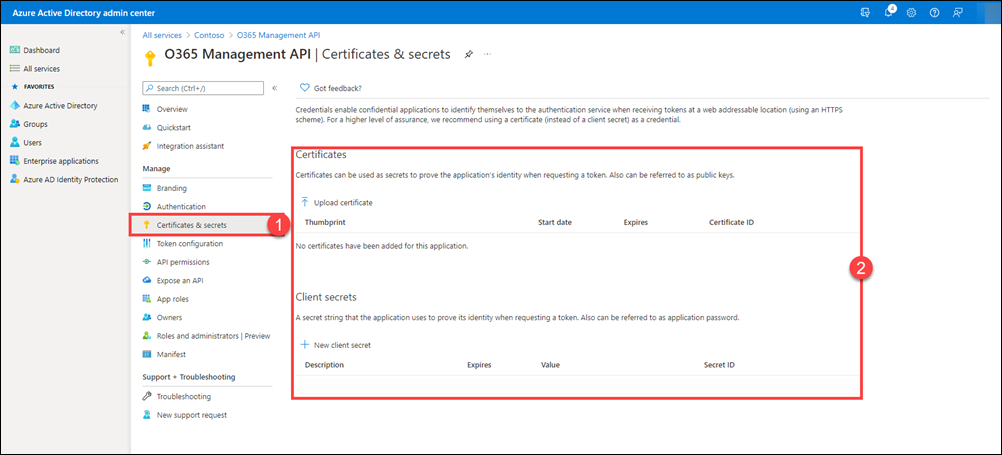
        
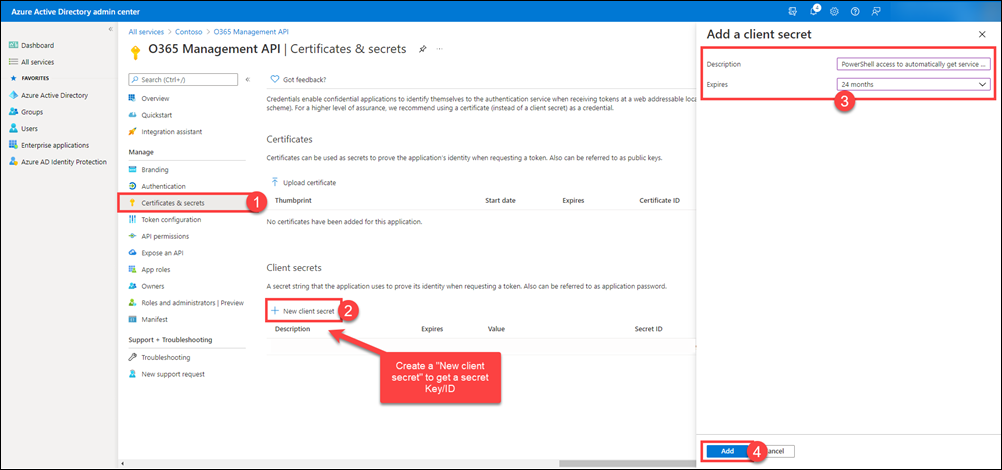
        3\. On the Certificates and Secrets tab, select the New Client Secret option. Enter a description to easily identify it, define its validity period, and then click Add.
        
        [![image.png](https://pandorafms.com/guides/public/uploads/images/gallery/2025-10/scaled-1680-/NGdimage.png)](https://pandorafms.com/guides/public/uploads/images/gallery/2025-10/NGdimage.png)
        
        4\. Once the secret has been created, its value will appear in the Client Secrets section. Copy this value using the clipboard icon and store it in a safe place.
        
        [![image.png](https://pandorafms.com/guides/public/uploads/images/gallery/2025-10/scaled-1680-/x7Vimage.png)](https://pandorafms.com/guides/public/uploads/images/gallery/2025-10/x7Vimage.png)
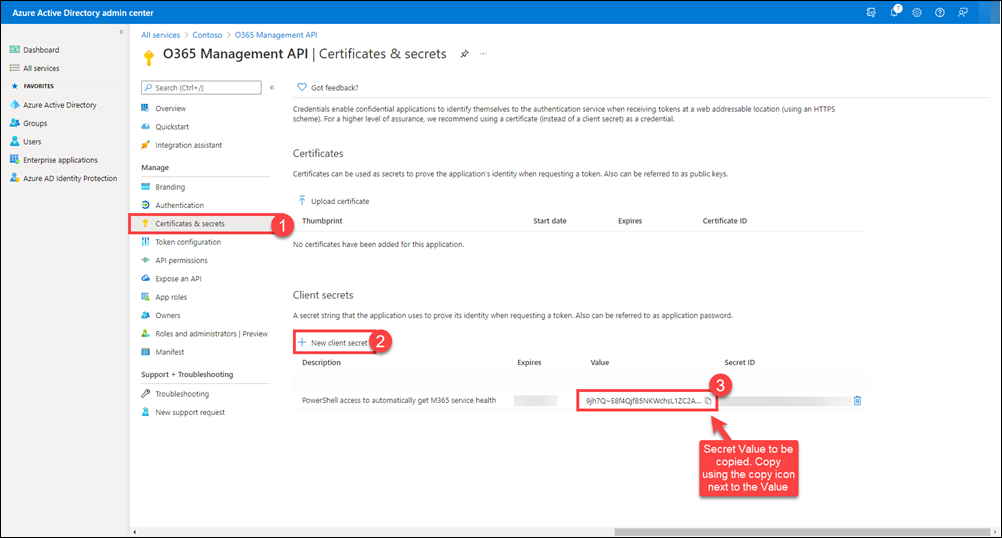
        
        <p class="callout warning">Azure only displays the client secret value when you initially generate it. You cannot return to this page and retrieve the client secret value later. Be sure to copy it and save it in a secure location so you can use it later.</p>
    
      
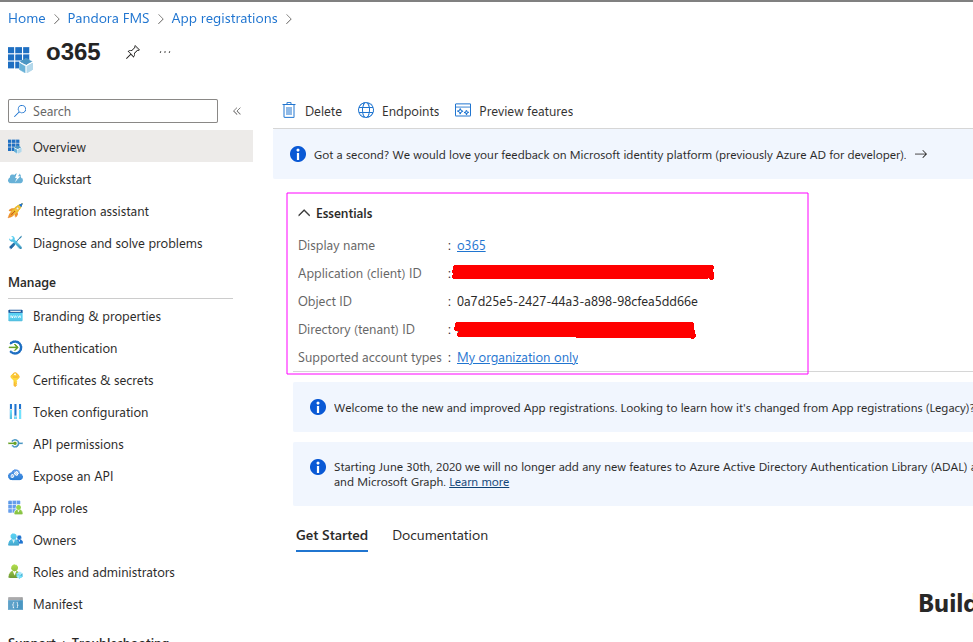
    Apart from the secret, we will need the tenant ID and client ID for authentication. These can be obtained from the application's general menu:
    
    [![Captura desde 2025-10-13 16-39-34.png](https://pandorafms.com/guides/public/uploads/images/gallery/2025-10/scaled-1680-/captura-desde-2025-10-13-16-39-34.png)](https://pandorafms.com/guides/public/uploads/images/gallery/2025-10/captura-desde-2025-10-13-16-39-34.png)
    
     **Define the permissions your application needs to access the Office 365 administration APIs.**
    
    The last step is to specify exactly what permissions your application will require to use the Office 365 administration APIs. To do this, you must add access to these APIs and then set the necessary permissions.
    
    1\. In the Azure portal, go to Microsoft Sign-in &gt; Application registrations &gt; All applications.   
     Select the relevant application and, in the left side menu, click API permissions.   
     Then click Add a permission to open the window where permissions are configured
    
    [![image.png](https://pandorafms.com/guides/public/uploads/images/gallery/2025-10/scaled-1680-/rWWimage.png)](https://pandorafms.com/guides/public/uploads/images/gallery/2025-10/rWWimage.png)
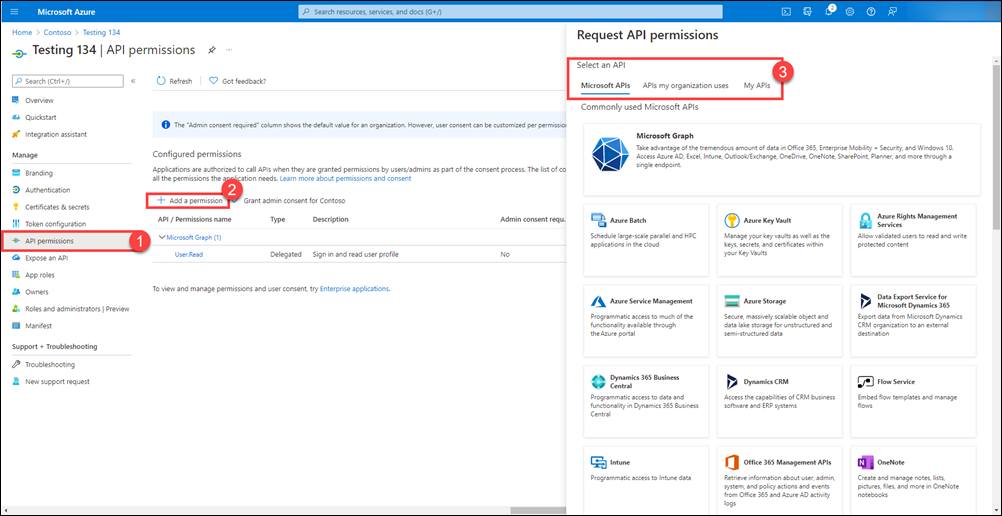
    
    2\. On the Microsoft API tab, select the Office 365 Admin API option.
    
    [![image.png](https://pandorafms.com/guides/public/uploads/images/gallery/2025-10/scaled-1680-/JgCimage.png)](https://pandorafms.com/guides/public/uploads/images/gallery/2025-10/JgCimage.png)
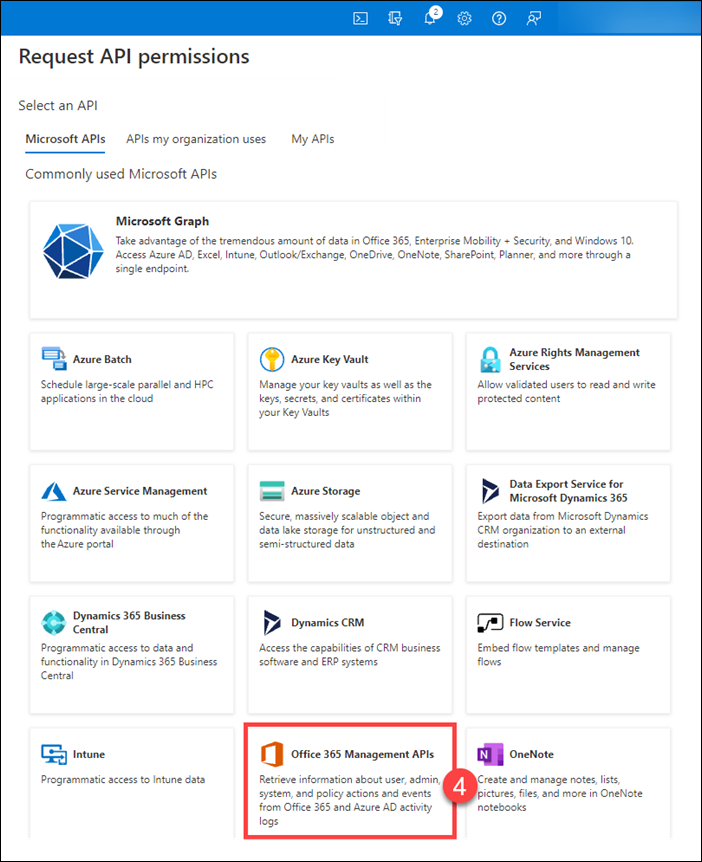
    
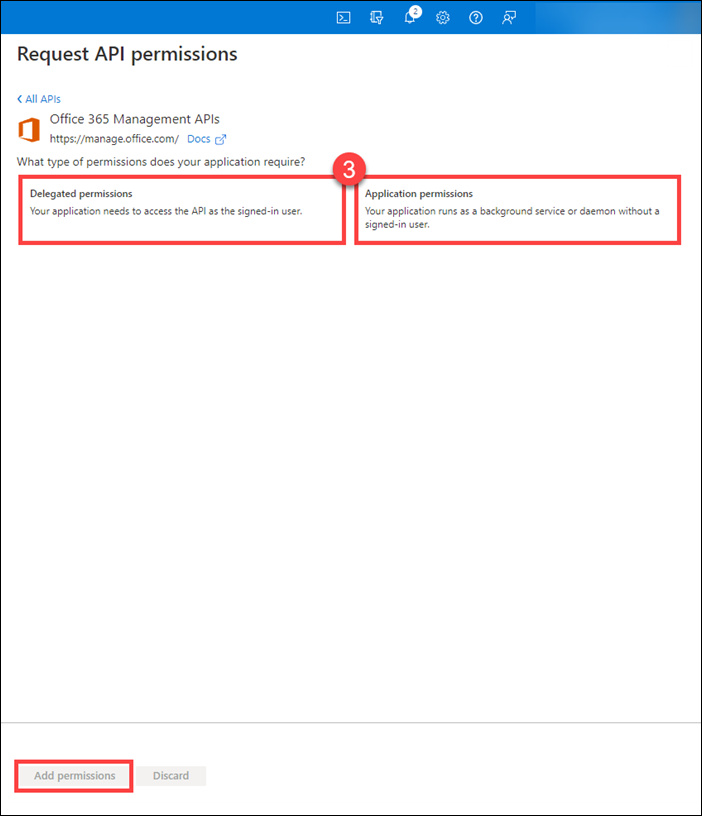
    3\. A side panel will appear where you can choose the types of permissions your app needs.   
     Once selected, click Add Permissions to confirm them.
    
    [![image.png](https://pandorafms.com/guides/public/uploads/images/gallery/2025-10/scaled-1680-/V3yimage.png)](https://pandorafms.com/guides/public/uploads/images/gallery/2025-10/V3yimage.png)
    
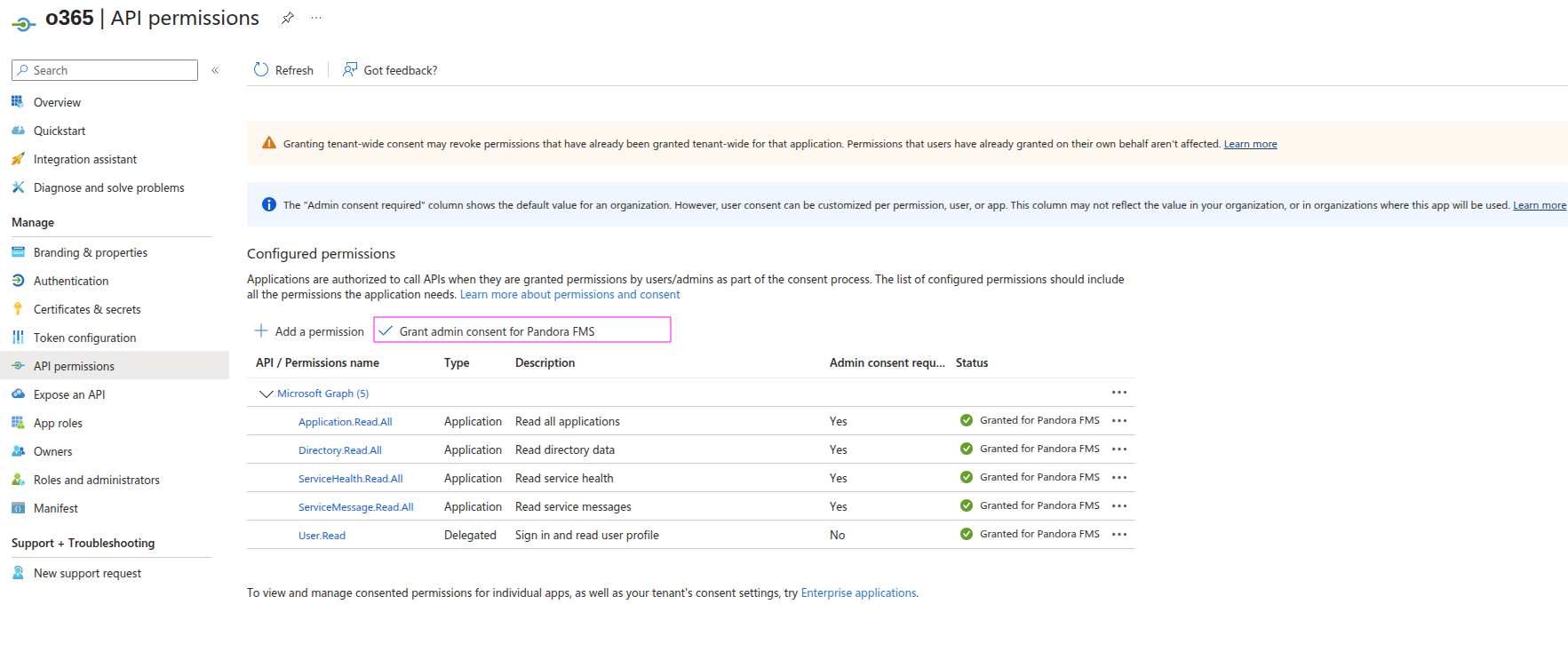
    The permissions required by the plugin are as follows:
    
    [![image.png](https://pandorafms.com/guides/public/uploads/images/gallery/2025-10/scaled-1680-/AQCimage.png)](https://pandorafms.com/guides/public/uploads/images/gallery/2025-10/AQCimage.png)
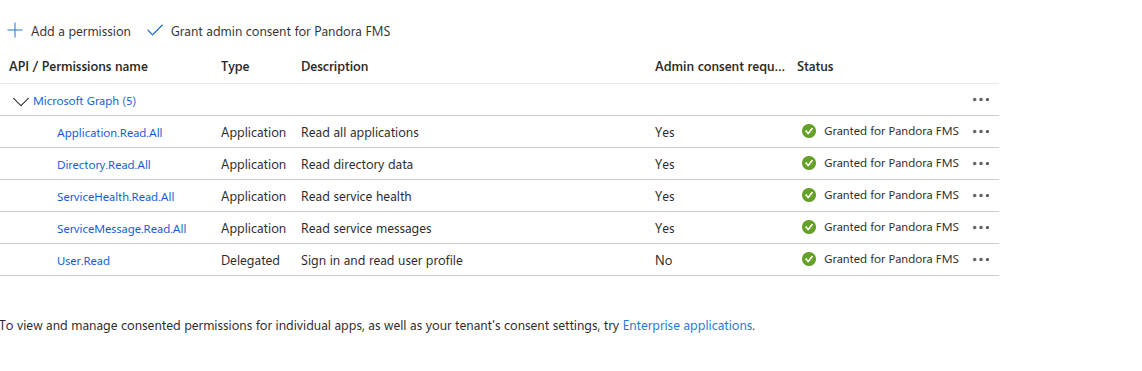
    
    Finally, select “Grant administrator consent for &lt;tenant name&gt;” to approve the permissions you have assigned to the application.
    
    [![image.png](https://pandorafms.com/guides/public/uploads/images/gallery/2025-10/scaled-1680-/ywmimage.png)](https://pandorafms.com/guides/public/uploads/images/gallery/2025-10/ywmimage.png)
# Parameters

<div id="bkmrk-par%C3%A1metros---conf-ru"><div class="cm-editor ͼ1 ͼ2 ͼ4 ͼ1q"><div class="cm-scroller" tabindex="-1"><div aria-multiline="true" aria-readonly="true" autocapitalize="off" autocorrect="off" class="cm-content" contenteditable="true" role="textbox" spellcheck="false" translate="no">**Parameters**<table border="1" id="bkmrk---conf-ruta-al-archi"><tbody><tr><td>--conf</td><td>Path to configuration file</td></tr></tbody></table>

**Configuration file (--conf)**</div></div></div></div>```
agents_group_name= Group for created agents
interval= Agent creation interval
transfer_mode= transfer mode (local or tentacle)
client_id= Client ID of office account
tenant_id= Tenant ID of office account 
secret= Secret of office account
tentacle_ip= Tentacle address
tentacle_port= Tentacle port
logs = Activate with 1 for log module creation
utf8= Activate with 1, to encode the value of the module issues
no_data= If set to 1, only log modules will be created
prefix_licensing= Prefix for the license agent and its modules.
prefix = Prefix for the general agent and its modules
agent_name= Name for the general agent
agent_name_licensing= Name for the licensing agent
licensing= Activate with 1 to enable the creation of an agent for licensing and its modules.
```

<div id="bkmrk-ejemplo"><div class="cm-editor ͼ1 ͼ2 ͼ4 ͼ1q"><div class="cm-scroller" tabindex="-1"><div aria-multiline="true" aria-readonly="true" autocapitalize="off" autocorrect="off" class="cm-content" contenteditable="true" role="textbox" spellcheck="false" translate="no"> **Example** </div></div></div></div>```
agents_group_name = applications
interval = 300
transfer_mode = tentacle
secret = kxT8Q~wM87V2E~S3FAHF4FF4FovBMQzSAFA4Uqc.I
client_id = 4355g5g5fb-7cac-450a-8ba9-ef3edhadna3  
tenant_id = 540v7f7sv8s-345d-43ec-b511-d1cfdbdvbf43e4
tentacle_ip = 172.42.42.101
tentacle_port = 41121
logs = 1
utf8 = 1 
no_data = 1
prefix_licensing = REQ
prefix = REQ
agent_name = Office_status
agent_name_licensing = Office_licensing
licensing = 1
```

# Manual execution

The format of the plugin execution is as follows:

```
./pandora_o365 --conf < path to the configuration file >
```

Por ejemplo:

```
./pandora_o365 --conf /usr/share/pandora_server/util/plugin/office365.conf
```

The execution will return an output in JSON format with information about the execution, and will generate an XML file for each monitored agent that will be sent to the Pandora FMS server by the transfer method indicated in the configuration.

# Discovery

This plugin can be integrated with Pandora FMS Discovery.

To do so, you must load the “.disco” package that you can download from the Pandora FMS library:

[https://marketplace.pandorafms.com/](https://marketplace.pandorafms.com/)

Once loaded, Office 365 accounts can be monitored by creating Discovery tasks from the Management &gt; Discovery &gt; App section.

[![image.png](https://pandorafms.com/guides/public/uploads/images/gallery/2025-06/scaled-1680-/5rCimage.png)](https://pandorafms.com/guides/public/uploads/images/gallery/2025-06/5rCimage.png)

The following minimum data will be requested for each task:

- **Client ID**: Client id of the office 365 account
- **Tenant ID:** Tenant id of the office 365 account
- **Secret:** Secret of the office 365 account
- **Tentacle IP:** Tentacle address
- **Tentacle port:** Tentacle port

On the next page we will be asked for the following :

[![image.png](https://pandorafms.com/guides/public/uploads/images/gallery/2025-06/scaled-1680-/OS1image.png)](https://pandorafms.com/guides/public/uploads/images/gallery/2025-06/OS1image.png)

- **Max Threads:** Number of threads
- **Agent Name:** Name for the main agent
- **Prefix:** Prefix for the main agent and its modules
- **Logs:** Activate to enable the creation of log modules
- **Utf8:** Activate to enable the codification of Issue modules
- **Not data:** Activate to disable the monitoring of the general agent modules (except log modules)
- **Activate licensing monitoring:** Activate to enable the monitoring of the licensing modules
- **Licensing agent name:** Name of the licensing agent
- **Prefix for licensing data:** Prefix for the licensing agent and its modules

Successfully completed tasks will have an execution summary with the following information:

- **Total agents** : Total number of agents generated by the task
- **Total modules:** Total number of modules generated by the task

[![image.png](https://pandorafms.com/guides/public/uploads/images/gallery/2025-06/scaled-1680-/D1bimage.png)](https://pandorafms.com/guides/public/uploads/images/gallery/2025-06/D1bimage.png)

# Agents and modules generated by the plugin

The plugin will create an agent with the name that we configure with the name that we use with the parameter “agent\_name”, it will have a status module and another one of active issues for each service. By default: “Pandora\_O365\_” .

Example:

<table border="1" id="bkmrk-o365_bookings_active" style="border-collapse: collapse; width: 100%;"><tbody><tr><td style="width: 100%;">O365\_Bookings\_active\_issues</td></tr><tr><td style="width: 100%;">O365\_Bookings\_status</td></tr></tbody></table>

<table border="1" id="bkmrk-o365_cloudappsecurit" style="border-collapse: collapse; width: 100%;"><tbody><tr><td style="width: 100%;">O365\_cloudappsecurity\_active\_issues</td></tr><tr class="datos" id="bkmrk-o365_cloudappsecurit-0"><td class="datos " id="bkmrk-o365_cloudappsecurit-1" style="width: 100%;">O365\_cloudappsecurity\_status</td></tr></tbody></table>

<table border="1" id="bkmrk-o365_dynamicsax_acti" style="border-collapse: collapse; width: 100%;"><tbody><tr><td style="width: 100%;">O365\_DynamicsAX\_active\_issues</td></tr><tr><td style="width: 100%;">O365\_DynamicsAX\_status</td></tr></tbody></table>

<table border="1" id="bkmrk-o365_dynamicscrm_act" style="border-collapse: collapse; width: 100%;"><tbody><tr class="datos2" id="bkmrk-o365_dynamicscrm_act-0"><td class="datos2 " id="bkmrk-o365_dynamicscrm_act-1" style="width: 99.8765%;">O365\_DynamicsCRM\_active\_issues</td></tr><tr><td style="width: 99.8765%;">O365\_DynamicsCRM\_status</td></tr></tbody></table>

<table border="1" id="bkmrk-o365_exchange_active" style="border-collapse: collapse; width: 100%;"><tbody><tr><td style="width: 100%;">O365\_Exchange\_active\_issues</td></tr><tr><td style="width: 100%;">O365\_Exchange\_status</td></tr></tbody></table>

<table border="1" id="bkmrk-o365_forms_active_is" style="border-collapse: collapse; width: 100%;"><tbody><tr><td style="width: 100%;">O365\_Forms\_active\_issues</td></tr><tr><td style="width: 100%;">O365\_Forms\_status</td></tr></tbody></table>

<table border="1" id="bkmrk-o365_intune_active_i" style="border-collapse: collapse; width: 100%;"><tbody><tr><td style="width: 100%;">O365\_Intune\_active\_issues</td></tr><tr><td style="width: 100%;">O365\_Intune\_status</td></tr></tbody></table>

<table border="1" id="bkmrk-o365_kaizalamessagin" style="border-collapse: collapse; width: 100%;"><tbody><tr><td style="width: 100%;">O365\_kaizalamessagingservices\_active\_issues</td></tr><tr><td style="width: 100%;">O365\_kaizalamessagingservices\_status</td></tr></tbody></table>

<table border="1" id="bkmrk-o365_lync_active_iss" style="border-collapse: collapse; width: 100%;"><tbody><tr class="datos2" id="bkmrk-o365_lync_active_iss-0"><td class="datos2 " id="bkmrk-o365_lync_active_iss-1" style="width: 99.8765%;">O365\_Lync\_active\_issues</td></tr><tr class="datos" id="bkmrk-o365_lync_status"><td class="datos " id="bkmrk-o365_lync_status-0" style="width: 99.8765%;">O365\_Lync\_status</td></tr></tbody></table>

<table border="1" id="bkmrk-o365_microsoftflowm3" style="border-collapse: collapse; width: 100%;"><tbody><tr><td style="width: 100%;">O365\_MicrosoftFlowM365\_active\_issues</td></tr><tr><td style="width: 100%;">O365\_MicrosoftFlowM365\_status</td></tr></tbody></table>

<table border="1" id="bkmrk-o365_microsoftflow_a" style="border-collapse: collapse; width: 100%;"><tbody><tr class="datos2" id="bkmrk-o365_microsoftflow_a-0"><td class="datos2 " id="bkmrk-o365_microsoftflow_a-1" style="width: 99.8765%;">O365\_MicrosoftFlow\_active\_issues</td></tr><tr><td style="width: 99.8765%;">O365\_MicrosoftFlow\_status</td></tr></tbody></table>

<table border="1" id="bkmrk-o365_microsoftteams_" style="border-collapse: collapse; width: 100%;"><tbody><tr class="datos2" id="bkmrk-o365_microsoftteams_-0"><td class="datos2 " id="bkmrk-o365_microsoftteams_-1" style="width: 99.8765%;">O365\_microsoftteams\_active\_issues</td></tr><tr class="datos" id="bkmrk-o365_microsoftteams_-2"><td class="datos " id="bkmrk-o365_microsoftteams_-3" style="width: 99.8765%;">O365\_microsoftteams\_status</td></tr></tbody></table>

<table border="1" id="bkmrk-o365_mobiledeviceman" style="border-collapse: collapse; width: 100%;"><tbody><tr><td style="width: 100%;">O365\_MobileDeviceManagement\_active\_issues</td></tr><tr class="datos" id="bkmrk-o365_mobiledeviceman-0"><td class="datos " id="bkmrk-o365_mobiledeviceman-1" style="width: 100%;">O365\_MobileDeviceManagement\_status</td></tr></tbody></table>

<table border="1" id="bkmrk-o365_o365client_acti" style="border-collapse: collapse; width: 100%;"><tbody><tr><td style="width: 100%;">O365\_O365Client\_active\_issues</td></tr><tr><td style="width: 100%;">O365\_O365Client\_status</td></tr></tbody></table>

<table border="1" id="bkmrk-o365_officeonline_ac" style="border-collapse: collapse; width: 100%; height: 58px;"><tbody><tr class="datos2" id="bkmrk-o365_officeonline_ac-0"><td class="datos2 " id="bkmrk-o365_officeonline_ac-1" style="width: 99.8765%;">O365\_officeonline\_active\_issues</td></tr><tr style="height: 29px;"><td style="width: 99.8765%; height: 29px;">O365\_officeonline\_status</td></tr></tbody></table>

<table border="1" id="bkmrk-o365_onedriveforbusi" style="border-collapse: collapse; width: 100%;"><tbody><tr><td style="width: 100%;">O365\_OneDriveForBusiness\_active\_issues</td></tr><tr><td style="width: 100%;">O365\_OneDriveForBusiness\_status</td></tr></tbody></table>

<table border="1" id="bkmrk-o365_orgliveid_activ" style="border-collapse: collapse; width: 100%;"><tbody><tr><td style="width: 100%;">O365\_OrgLiveID\_active\_issues</td></tr><tr><td style="width: 100%;">O365\_OrgLiveID\_status</td></tr></tbody></table>

<table border="1" id="bkmrk-o365_osdpplatform_ac" style="border-collapse: collapse; width: 100%;"><tbody><tr class="datos2" id="bkmrk-o365_osdpplatform_ac-0"><td class="datos2 " id="bkmrk-o365_osdpplatform_ac-1" style="width: 99.8765%;">O365\_OSDPPlatform\_active\_issues</td></tr><tr><td style="width: 99.8765%;">O365\_OSDPPlatform\_status</td></tr></tbody></table>

<table border="1" id="bkmrk-o365_planner_active_" style="border-collapse: collapse; width: 100%; height: 58px;"><tbody><tr style="height: 29px;"><td style="width: 100%; height: 29px;">O365\_Planner\_active\_issues</td></tr><tr style="height: 29px;"><td style="width: 100%; height: 29px;">O365\_Planner\_status</td></tr></tbody></table>

<table border="1" id="bkmrk-o365_powerappsm365_a" style="border-collapse: collapse; width: 100%;"><tbody><tr class="datos2" id="bkmrk-o365_powerappsm365_a-0"><td class="datos2 " id="bkmrk-o365_powerappsm365_a-1" style="width: 99.8765%;">O365\_PowerAppsM365\_active\_issues</td></tr><tr><td style="width: 99.8765%;">O365\_PowerAppsM365\_status</td></tr></tbody></table>

<table border="1" id="bkmrk-o365_powerapps_activ" style="border-collapse: collapse; width: 100%;"><tbody><tr><td style="width: 100%;">O365\_PowerApps\_active\_issues</td></tr><tr class="datos" id="bkmrk-o365_powerapps_statu"><td class="datos " id="bkmrk-o365_powerapps_statu-0" style="width: 100%;">O365\_PowerApps\_status</td></tr></tbody></table>

<table border="1" id="bkmrk-o365_projectforthewe" style="border-collapse: collapse; width: 100%;"><tbody><tr><td style="width: 100%;">O365\_ProjectForTheWeb\_active\_issues</td></tr><tr><td style="width: 100%;">O365\_ProjectForTheWeb\_status</td></tr></tbody></table>

<table border="1" id="bkmrk-o365_projectonline_a" style="border-collapse: collapse; width: 100%;"><tbody><tr class="datos2" id="bkmrk-o365_projectonline_a-0"><td class="datos2 " id="bkmrk-o365_projectonline_a-1" style="width: 99.8765%;">O365\_ProjectOnline\_active\_issues</td></tr><tr><td style="width: 99.8765%;">O365\_ProjectOnline\_status</td></tr></tbody></table>

<table border="1" id="bkmrk-o365_rms_active_issu" style="border-collapse: collapse; width: 100%;"><tbody><tr><td style="width: 100%;">O365\_RMS\_active\_issues</td></tr><tr><td style="width: 100%;">O365\_RMS\_status</td></tr></tbody></table>

<table border="1" id="bkmrk-o365_sharepoint_acti" style="border-collapse: collapse; width: 100%; height: 58px;"><tbody><tr style="height: 29px;"><td style="width: 100%; height: 29px;">O365\_SharePoint\_active\_issues</td></tr><tr style="height: 29px;"><td style="width: 100%; height: 29px;">O365\_SharePoint\_status</td></tr></tbody></table>

<table border="1" id="bkmrk-o365_staffhub_active" style="border-collapse: collapse; width: 100%;"><tbody><tr><td style="width: 100%;">O365\_StaffHub\_active\_issues</td></tr><tr><td style="width: 100%;">O365\_StaffHub\_status</td></tr></tbody></table>

<table border="1" id="bkmrk-o365_stream_active_i" style="border-collapse: collapse; width: 100%;"><tbody><tr><td style="width: 100%;">O365\_Stream\_active\_issues</td></tr><tr><td style="width: 100%;">O365\_Stream\_status</td></tr></tbody></table>

<table border="1" id="bkmrk-o365_swayenterprise_" style="border-collapse: collapse; width: 100%;"><tbody><tr><td style="width: 100%;">O365\_SwayEnterprise\_active\_issues</td></tr><tr><td style="width: 100%;">O365\_SwayEnterprise\_status</td></tr></tbody></table>

<table border="1" id="bkmrk-o365_viva_active_iss" style="border-collapse: collapse; width: 100%;"><tbody><tr class="datos2" id="bkmrk-o365_viva_active_iss-0"><td class="datos2 " id="bkmrk-o365_viva_active_iss-1" style="width: 99.8765%;">O365\_Viva\_active\_issues</td></tr><tr class="datos" id="bkmrk-o365_viva_status"><td class="datos " id="bkmrk-o365_viva_status-0" style="width: 99.8765%;">O365\_Viva\_status</td></tr></tbody></table>

<table border="1" id="bkmrk-o365_yammer_active_i" style="border-collapse: collapse; width: 100%;"><tbody><tr><td style="width: 100%;">O365\_yammer\_active\_issues</td></tr><tr><td style="width: 100%;">O365\_yammer\_status</td></tr></tbody></table>

The plugin will create an agent with the name that we configure with the name that we use with the parameter “agent\_name\_licensing”. By default : “Pandora\_O365\_licensing” . It will have the following modules:

<table border="1" id="bkmrk-%3Cskupartnumber%3E%C2%A0-%3Csk" style="border-collapse: collapse; width: 100%; height: 238.375px;"><colgroup><col style="width: 99.8765%;"></col></colgroup><tbody><tr style="height: 29.7969px;"><td style="height: 29.7969px;">&lt;skuPartNumber&gt; </td></tr><tr style="height: 29.7969px;"><td style="height: 29.7969px;">&lt;skuPartNumber&gt; consumedUnits</td></tr><tr style="height: 29.7969px;"><td style="height: 29.7969px;">&lt;skuPartNumber&gt; Units enabled</td></tr><tr style="height: 29.7969px;"><td style="height: 29.7969px;">&lt;skuPartNumber&gt; Units lockedOut</td></tr><tr style="height: 29.7969px;"><td style="height: 29.7969px;">&lt;skuPartNumber&gt; Units suspended</td></tr><tr style="height: 29.7969px;"><td style="height: 29.7969px;">&lt;skuPartNumber&gt; Units warning</td></tr><tr style="height: 29.7969px;"><td style="height: 29.7969px;">&lt;skuPartNumber&gt; Consumed Units %</td></tr><tr style="height: 29.7969px;"><td style="height: 29.7969px;">&lt;skuPartNumber&gt; Units Available</td></tr></tbody></table>