**REMARQUE: Ce guide est en cours de construction**
[](https://pandorafms.com/guides/public/uploads/images/gallery/2020-12/telegramlogo.png) # Introduction Connecteur CLI du robot Telegram à utiliser dans les alertes Pandora # Matrice de compatibilité - Python3 pour le code source - Linux x64 pour compilé # Exigences Les exigences sont les suivantes: - Un compte Telegram pour créer le bot - Ajouter le bot au groupe de notification - Obtenir l'identifiant du groupe - (uniquement pour le code source) Avoir python3 installé sur le serveur Pandora avec le module : request. # Configuration ## Création du BOT dans Telegram Depuis un compte Telegram, vous devez écrire* /start* à l'utilisateur **BotFather** ([https://telegram.me/botfather](https://telegram.me/botfather)) pour créer un bot. Cela nous rendra une série de paramètres et d'instructions que nous pouvons créer pour la création et la manipulation de robots. [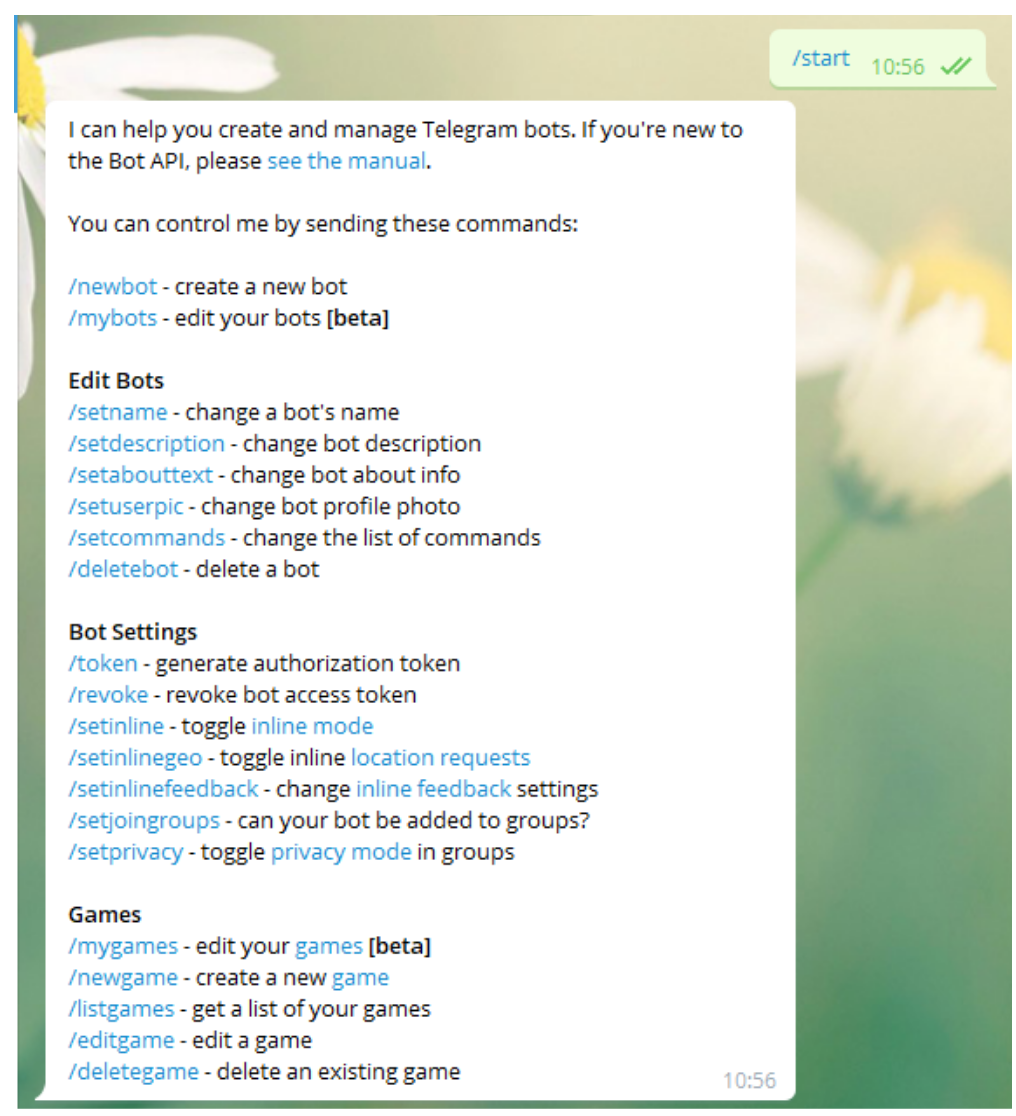](https://pandorafms.com/guides/public/uploads/images/gallery/2020-12/image-1608158507569.png) Nous utiliserons l'option ***/newbot*** avec lequel nous allons créer un nouveau bot.[ ](https://pandorafms.com/guides/public/uploads/images/gallery/2020-12/image-1608158507569.png)Il nous demandera le nom que nous voulons donner à notre bot, dans mon cas j'ai sélectionné ***Pandora\_FMS\_Test\_bot*** vous pouvez mettre celui que vous préférez. Maintenant, il nous demandera un identifiant utilisateur pour le bot, cela doit se terminer par \_bot, dans ce cas j'utiliserai la même chose. ***Pandora\_FMS\_Test\_bot*** Maintenant, cela nous rendra Les informations sur notre bot et quelques instructions pour son administration, nous copierons et enregistrerons le jeton API avec lequel nous nous authentifierons en tant que bot [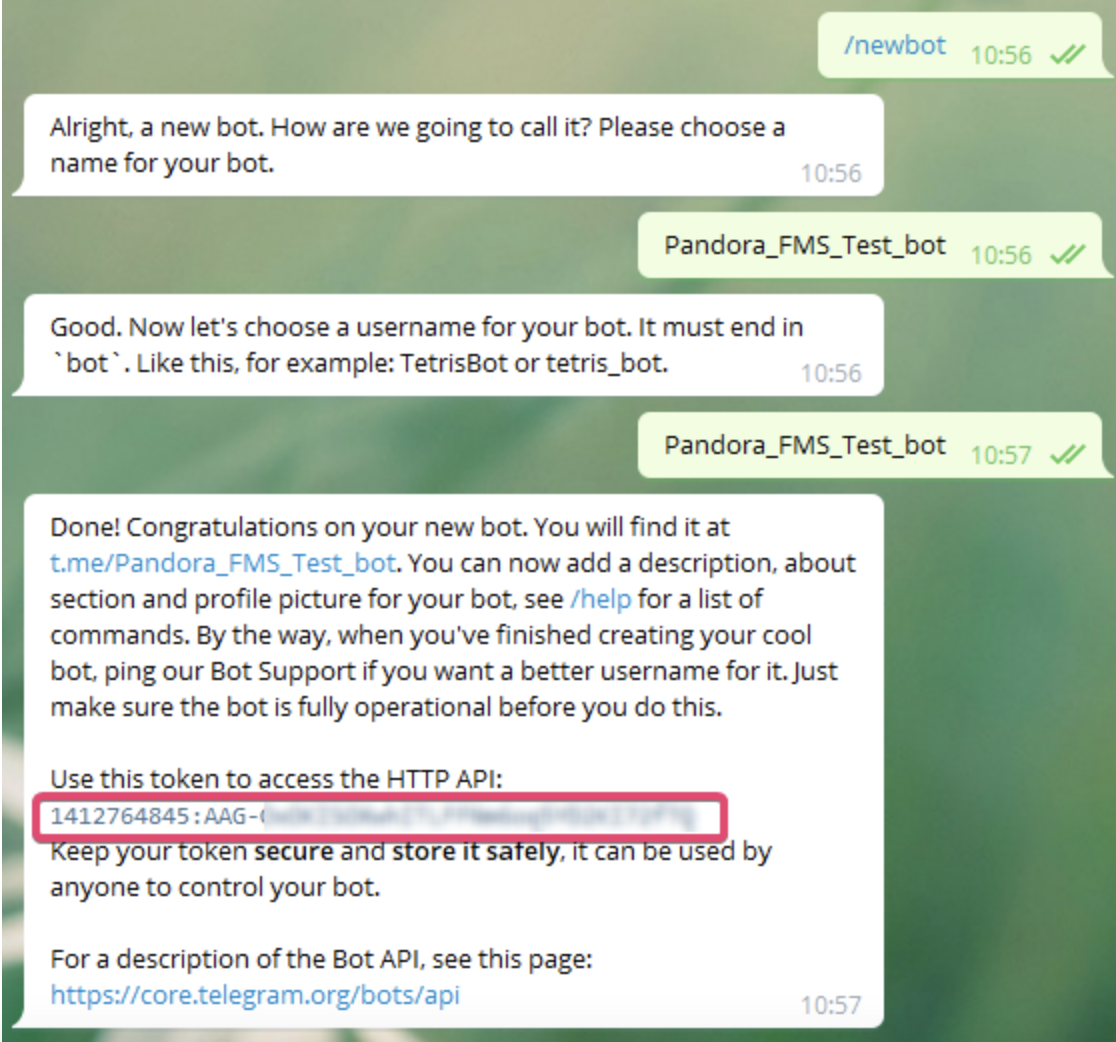](https://pandorafms.com/guides/public/uploads/images/gallery/2021-01/pandorafms-ntelegram01.png) # Créer un groupe et ajouter le bot Pour créer un groupe depuis Telegram, nous devons simplement cliquer sur créer un groupe et sélectionner les utilisateurs qui le feront. être inclus. Dans ce groupe, il est important que l'un de ces utilisateurs soit notre bot pour pouvoir envoyer des messages à ce groupe spécifique. Nous pouvons également simplement ajouter le bot à un groupe existant. [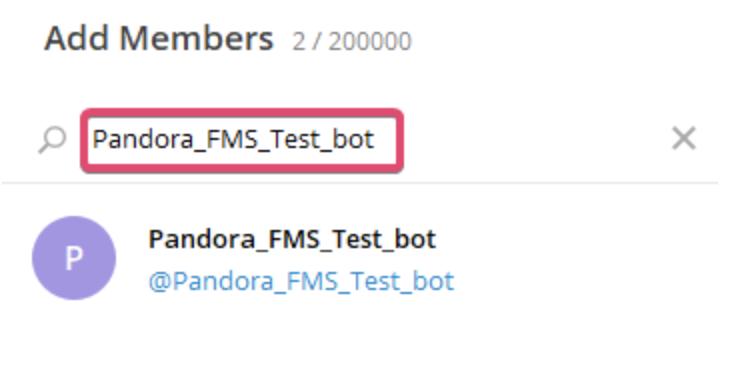](https://pandorafms.com/guides/public/uploads/images/gallery/2021-01/pandorantelegram02.png) # Obtenir l'identifiant du groupe pour envoyer des messages à partir de la CLI Maintenant, nous devons obtenir l'identifiant du groupe dans lequel nous avons ajouté notre bot, il existe différentes manières de le faire, mais la plus simple est d'ajouter un autre bot qui extrait ces informations très facilement **GetIDs Bot** ([https://t.me/getidsbot](https://pandorafms.com/guides/public/https:%20/t.me/%20getidsbot)). Nous l'ajoutons au groupe dont nous voulons connaître l'identifiant et il nous donnera une série d'instructions pour son utilisation. Mais le simple fait de l'ajouter nous donnera plus. L'information dont nous avons besoin est l'identifiant du groupe. [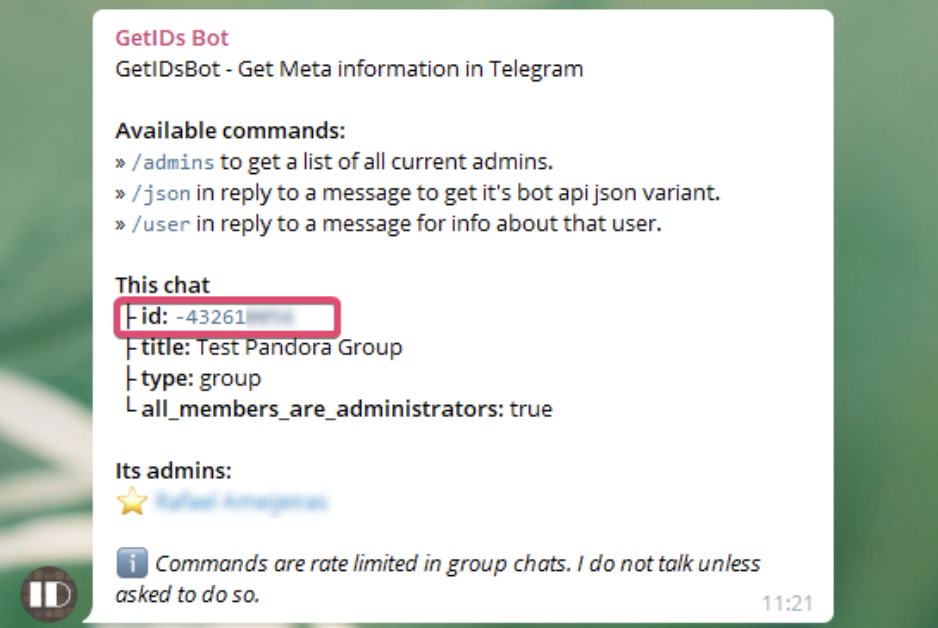](https://pandorafms.com/guides/public/uploads/images/gallery/2021-01/pandorafms-ntelegram03.png) Une fois que nous avons l'identifiant du groupe, nous le copions et le sauvegardons, nous pouvons éliminer ce bot du groupe si nous le voulons, il a déjà rempli l'objectif de nous donner l'identifiant.