**NOTA: Esta guia se encuentra en construcción**
[](https://pandorafms.com/guides/public/uploads/images/gallery/2020-12/telegramlogo.png) # Introducción Conector CLI de bots de Telegram para usar en alertas de pandora # Matriz de compatibilidad - Python3 para source code - Linux x64 para compilado # Requerimientos Los requisitos son los siguientes: - Una cuenta de Telegram para crear el bot - Añadir el bot al grupo de notificación - Obtener la id del grupo - (solo para código fuente) Tener instalado python3 en el servidor de Pandora con el módulo: request. [SIGUIENTE >](https://pandorafms.com/guides/public/books/notificaciones-en-pandorafms-19c/page/configuracion) # Configuración ## Creación del BOT en Telegram Desde una cuenta de Telegram se debe escribir* /start* al usuario **BotFather** ([https://telegram.me/botfather](https://telegram.me/botfather)) para crear un bot. Nos devolverá una serie de parámetros e instrucciones que podemos hacer para la creación y manipulación de bots. [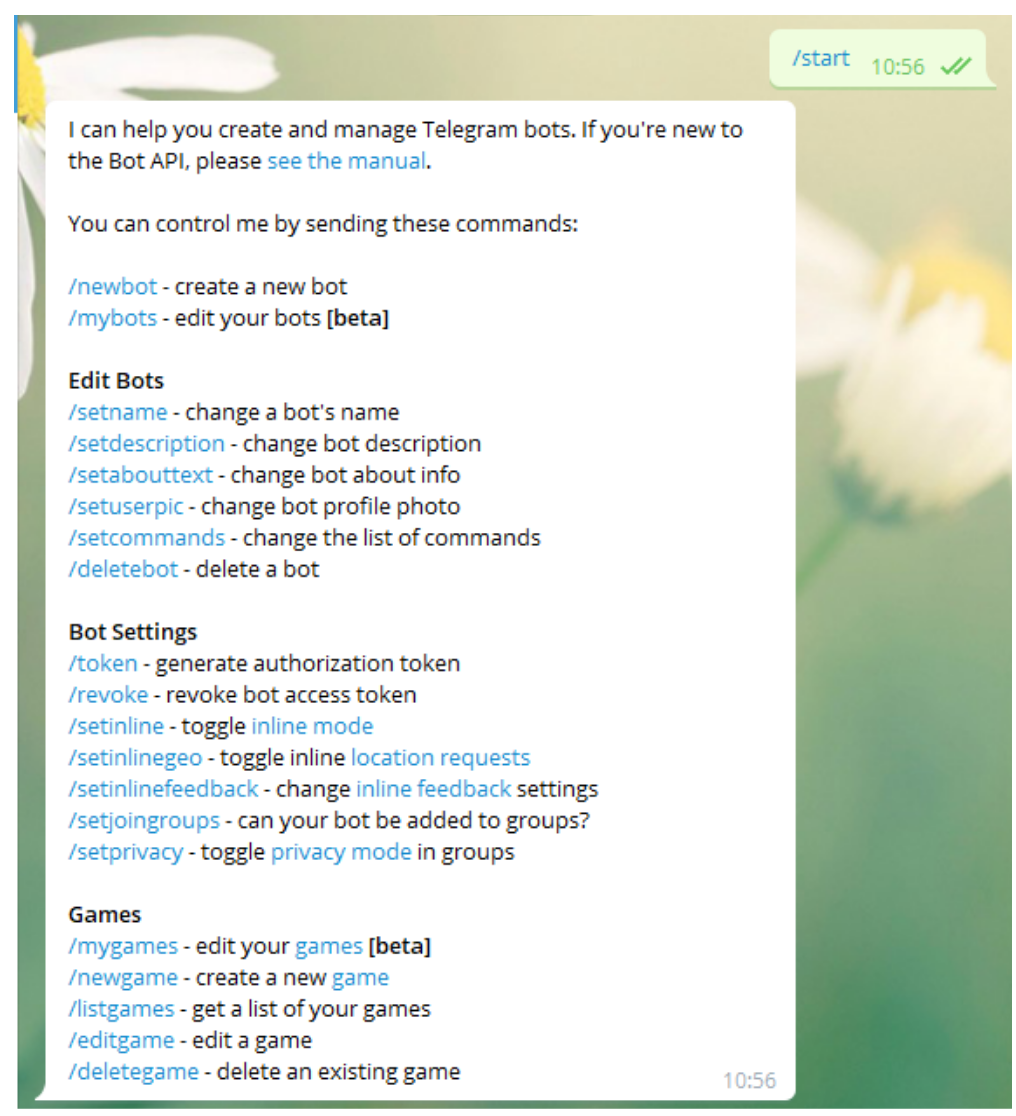](https://pandorafms.com/guides/public/uploads/images/gallery/2020-12/image-1608158507569.png) Nosotros utilizaremos la opción ***/newbot*** con la que crearemos un nuevo bot.[ ](https://pandorafms.com/guides/public/uploads/images/gallery/2020-12/image-1608158507569.png)Nos preguntará el nombre que queramos poner a nuestro bot, en mi caso he seleccionado ***Pandora\_FMS\_Test\_bot*** tu puedes poner el que prefieras. Ahora nos pedira un id de usuario para el bot este tiene que terminar en \_bot en este caso utilizaré el mismo. ***Pandora\_FMS\_Test\_bot*** Ahora nos devolverá la información de nuestro bot y algunas instrucciones para su administración, nosotros copiaremos y guardaremos el API token que es con el que nos autenticaremos como ese bot [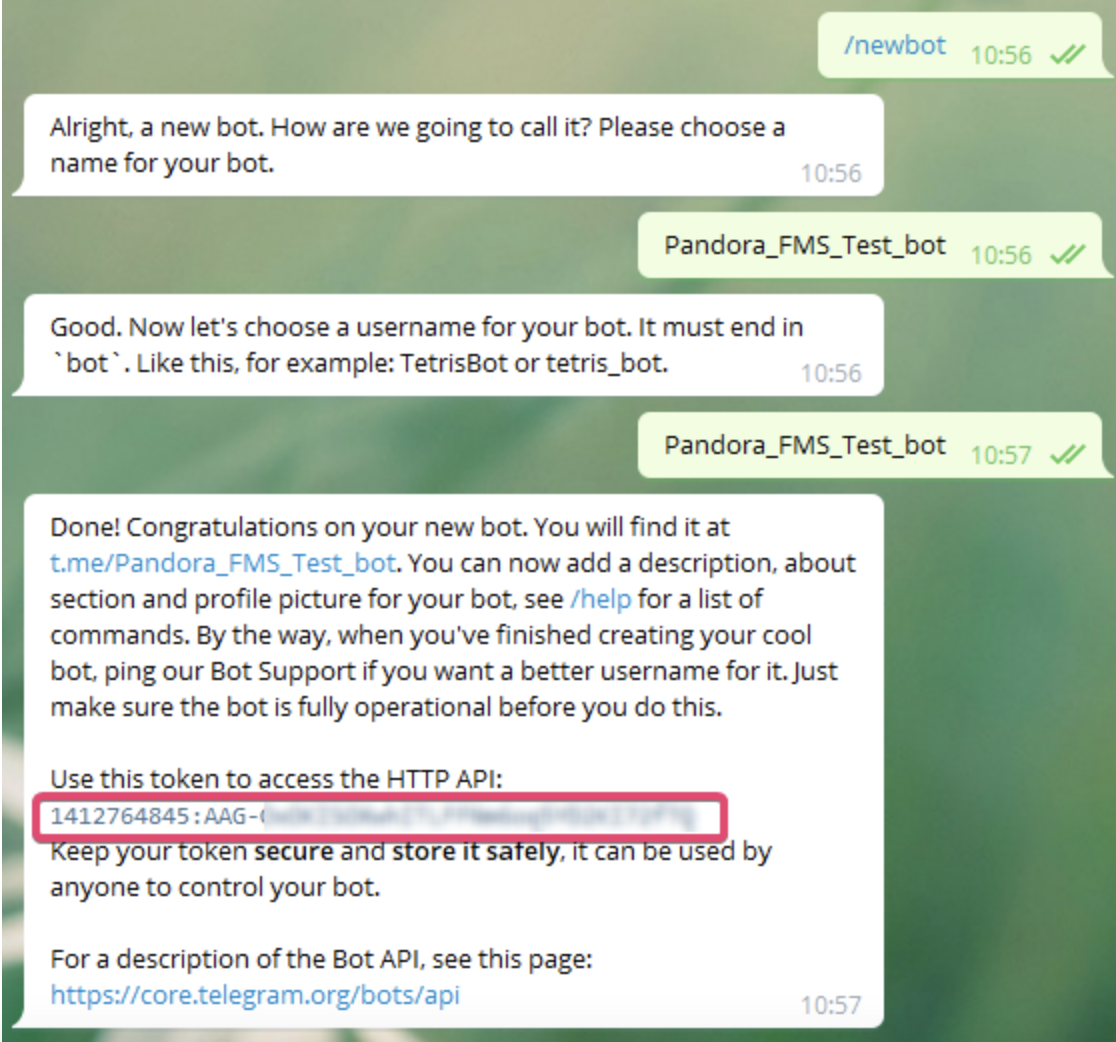](https://pandorafms.com/guides/public/uploads/images/gallery/2021-01/pandorafms-ntelegram01.png) [< ANTERIOR](https://pandorafms.com/guides/public/books/notificaciones-en-pandorafms-19c/page/telegram) [SIGUIENTE >](https://pandorafms.com/guides/public/books/notificaciones-en-pandorafms-19c/page/crear-un-grupo-y-anadir-el-bot) # Crear un grupo y añadir el bot Para crear un grupo desde Telegram simplemente debemos hacer clic en crear grupo y seleccionar los usuarios que estarán en ese grupo es importante que uno de esos usuarios sea nuestro bot para poder enviar mensajes a ese grupo específico también podemos simplemente añadir el bot a un grupo existente. [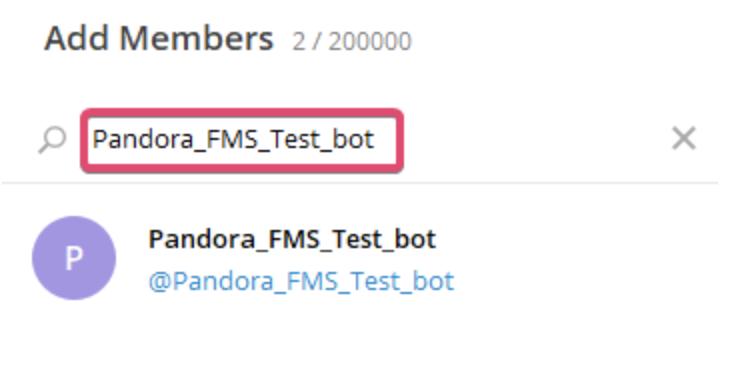](https://pandorafms.com/guides/public/uploads/images/gallery/2021-01/pandorantelegram02.png) [< ANTERIOR](https://pandorafms.com/guides/public/books/notificaciones-en-pandorafms-19c/page/configuracion) [SIGUIENTE >](https://pandorafms.com/guides/public/books/notificaciones-en-pandorafms-19c/page/obtener-la-id-del-grupo-para-enviar-mensajes-desde-el-cli) # Obtener la id del grupo para enviar mensajes desde el CLI Ahora necesitamos obtener la id del grupo en el que hemos añadido nuestro bot, hay diferentes formas de hacerlo, pero de las más sencillas es añadir otro bot que extrae esa información muy fácilmente **GetIDs Bot** ([https://t.me/getidsbot](https://t.me/getidsbot)). Lo añadimos al grupo que queremos conocer el id y nos dará una serie de instrucciones para su uso. Pero solo con añadirlo ya nos dará la información que necesitamos que es la id del grupo. [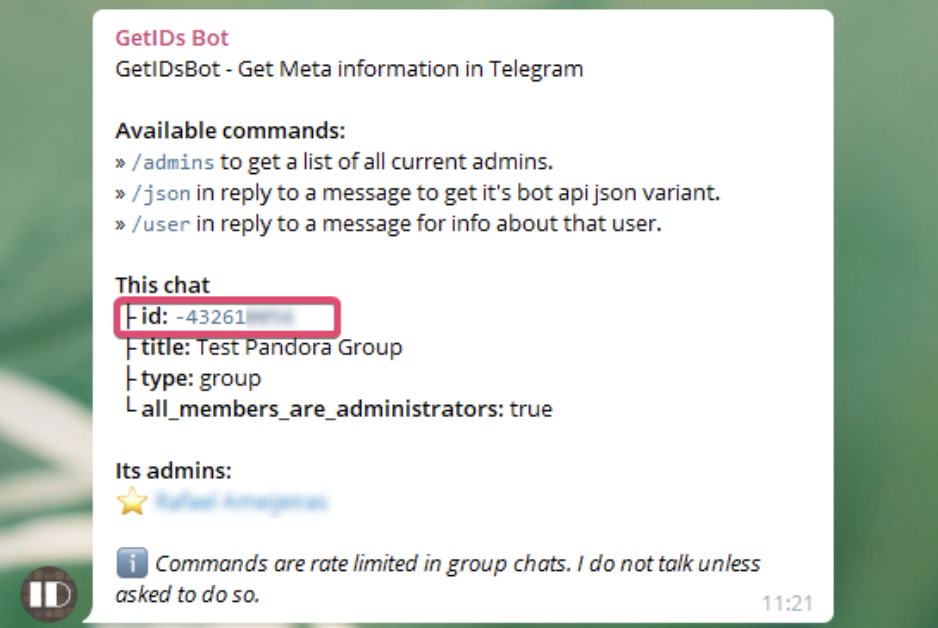](https://pandorafms.com/guides/public/uploads/images/gallery/2021-01/pandorafms-ntelegram03.png) Una vez tengamos la id del grupo lo copiamos y guardamos, podemos eliminar este bot del grupo si queremos, ya ha cumplido el objetivo de darnos el id. [< ANTERIOR](https://pandorafms.com/guides/public/books/notificaciones-en-pandorafms-19c/page/crear-un-grupo-y-anadir-el-bot) SIGUIENTE >