Microsoft Teams integration (Workflows)
Microsoft Teams® is an instant messaging platform that offers compatibility with multiple products from the software giant. Pandora FMS can send alert messages to be integrated as one more cog in the machine of your groups and/or companies.
- MS Teams Configuration: Creating a Channel
- MS Teams Configuration: Creating an Authorization URL
- Plugin parameters and manual execution
- Pandora FMS Configuration: Creating an Alert Action
MS Teams Configuration: Creating a Channel
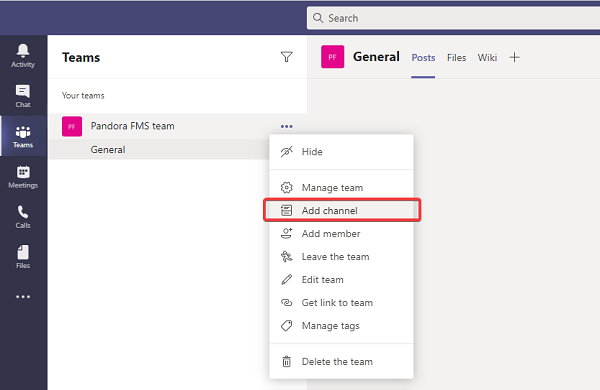
To integrate MS Teams with Pandora FMS, first go to the group where the alert messages will be sent. Once there, select the Add channel option:
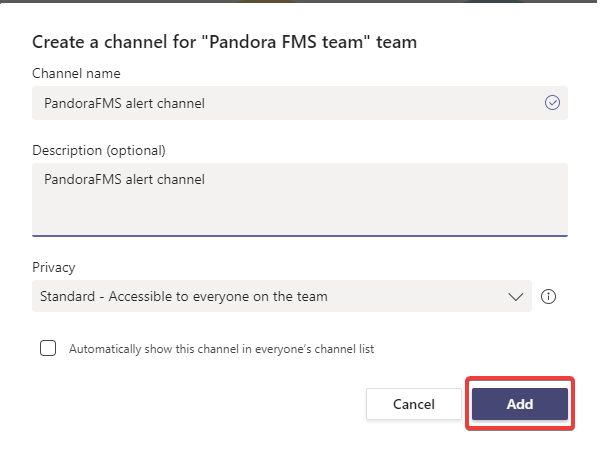
Enter a name, an optional description, and the permissions so that each team member has access to the new channel, then click the Add button.
MS Teams Configuration: Creating an Authorization URL
Microsoft Teams has replaced the classic "Incoming Webhooks" with Workflows (based on Power Automate). Follow these steps to get your URL directly from a channel:
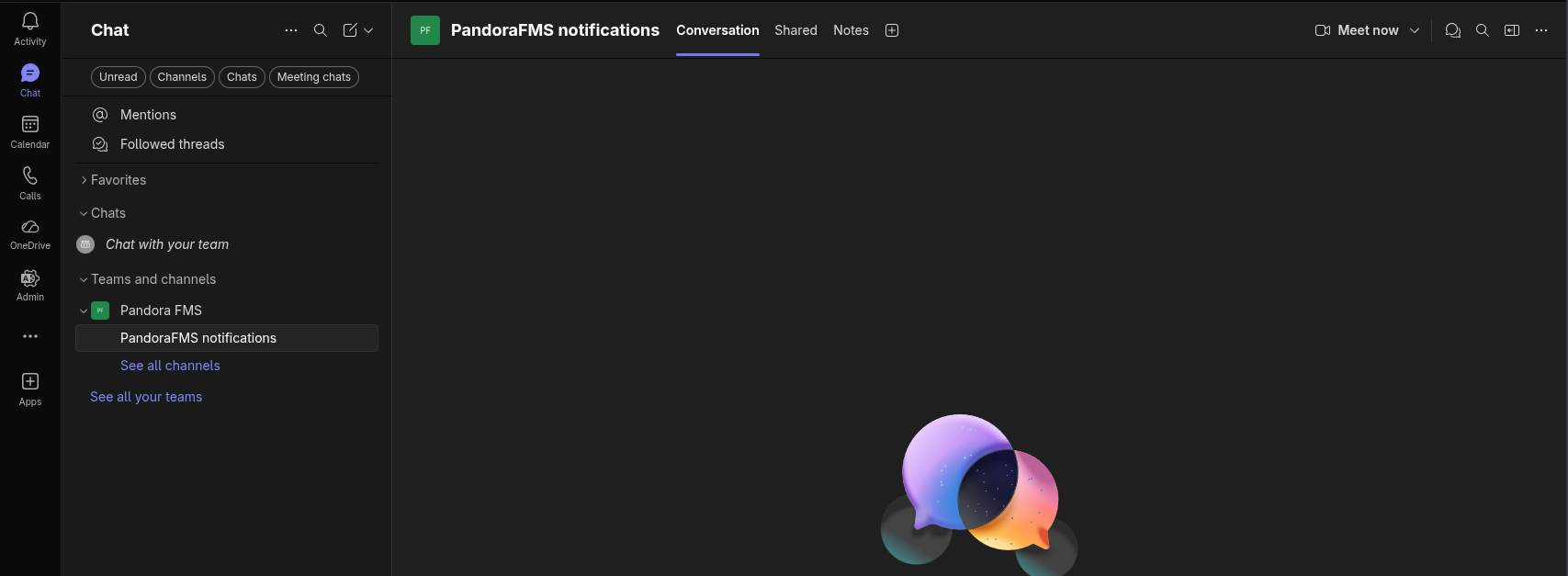
- Select the Channel: Go to the specific team and channel where you want to receive Pandora FMS notifications.

- Access Workflows:
- Haz clic en los tres puntos (
...) junto al nombre del canal. - Selecciona la opción Workflows
- Haz clic en los tres puntos (
- Create a New Workflow:
-
Click the + New workflow or Create button.
-
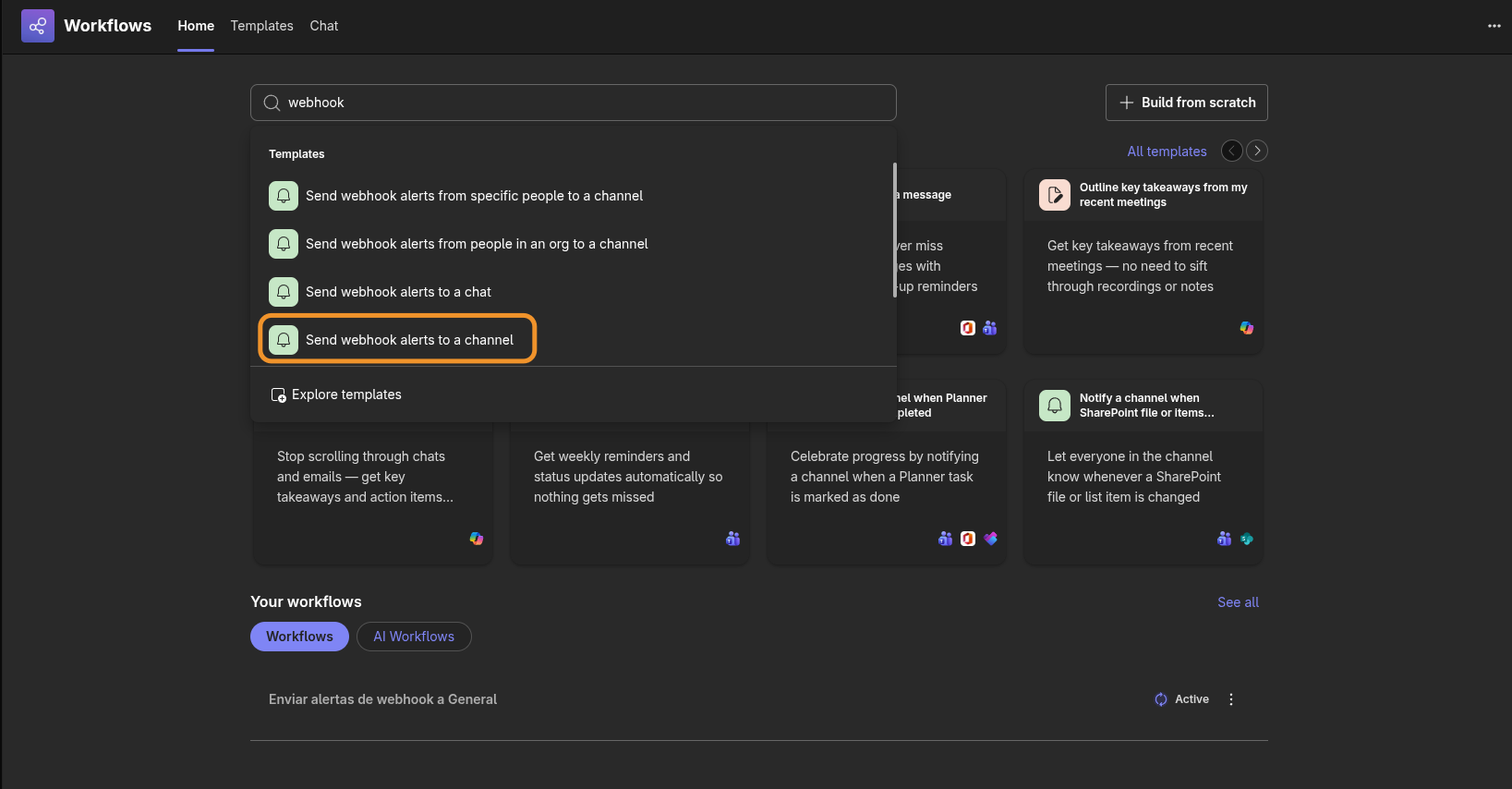
In the template search box, type:
"Send webhook alerts to channel" -
Select the template with that exact name.

-
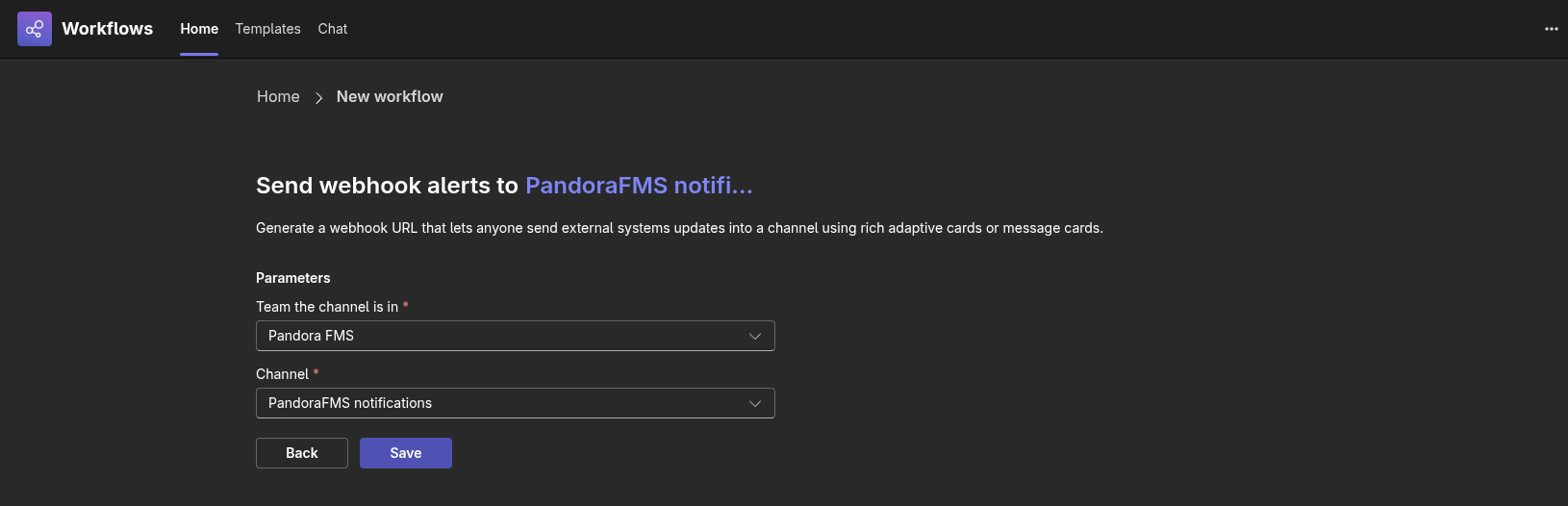
- Configure the Flow:
- Select a group and channel to send the message to.

- Click Save.
- Select a group and channel to send the message to.
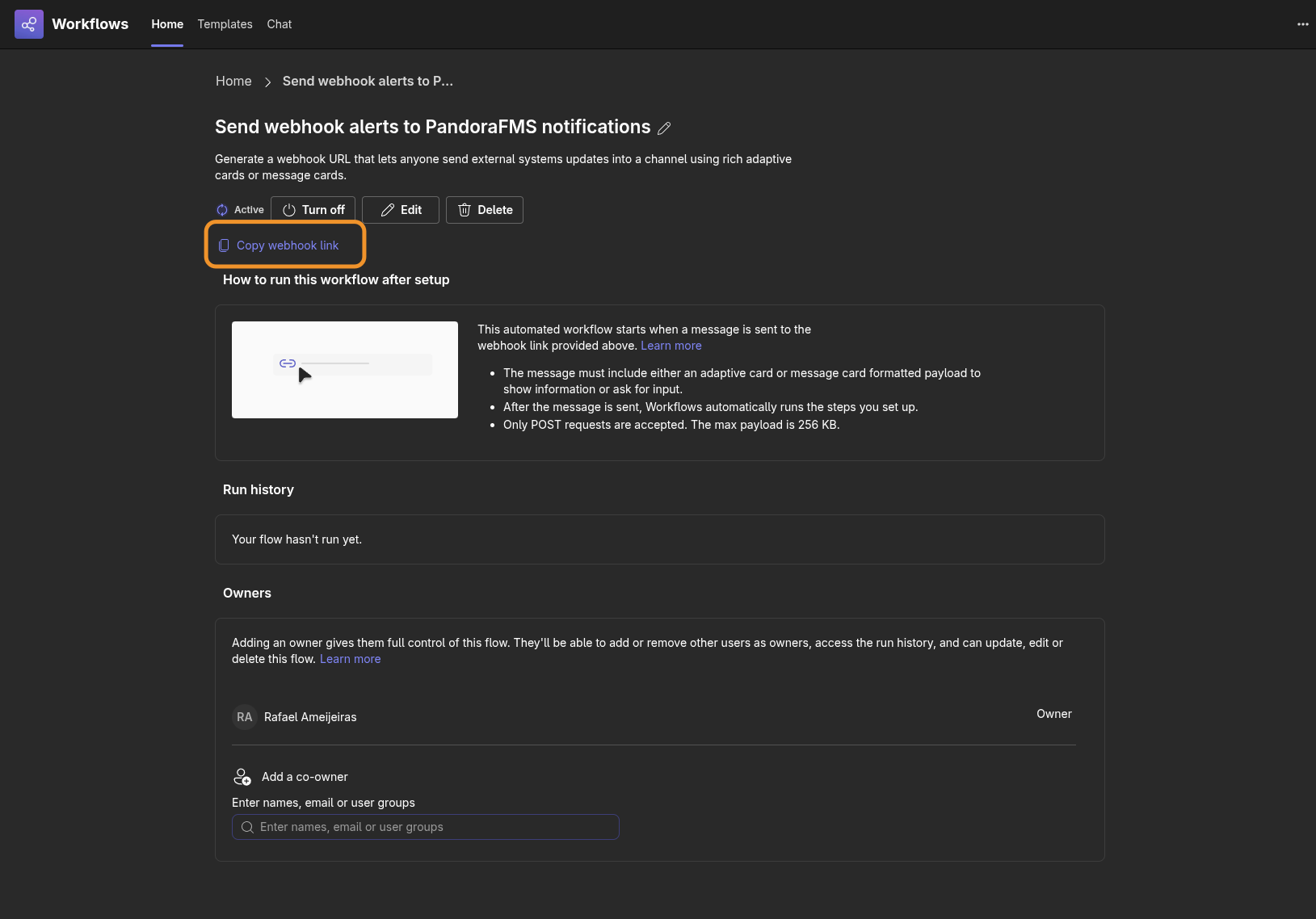
- Get the URL:
- Once created, a confirmation screen will appear.

- Copy the URL that appears by clicking the Copy webhook link button. This is the URL you should use in the
-uor--urlparameter of the script.
- Once created, a confirmation screen will appear.
- Finish: Everything is now configured; you can return to the chat window.
Note: If you need to retrieve the URL later, you can go to the Workflows app in the Teams sidebar, enter Manage workflows, and edit the corresponding flow.
Plugin parameters and manual execution
Download the CLI from the Pandora FMS marketplace and unzip it on the Pandora FMS server (the recommended location is /usr/share/pandora_server/util/pandora-msteams-workflow or any other where the Pandora FMS server has read and execute permissions).
It is recommended to perform a test in the command terminal with the following format:
Script Parameters
| Parameter (Short) | Parameter (Long) | Description | Required | Default Value |
|---|---|---|---|---|
| `-u` | `--url` | **Teams Webhook URL**. Generated by the Power Automate flow. | **Yes** | - |
| `-d` | `--data` | **Alert data** in `key=value` format separated by commas. | **Yes** | - |
| `-t` | `--alert_tittle` | Main title that will appear on the card. | No | `PandoraFMS alert fired` |
| `-D` | `--alert_desc` | Description or additional alert text. | No | `Alert Fired` |
| - | `--image` | URL of the image to be displayed on the card. | No | Pandora FMS Logo |
| - | `--image_size` | Image size (`Small`, `Medium`, `Large`, `Stretch`). | No | `Medium` |
| - | `--button` | URL to which the action button will redirect. | No | `https://pandorafms.com` |
| - | `--button_desc` | Text that will be displayed inside the button. | No | `Open web console` |
Usage Examples
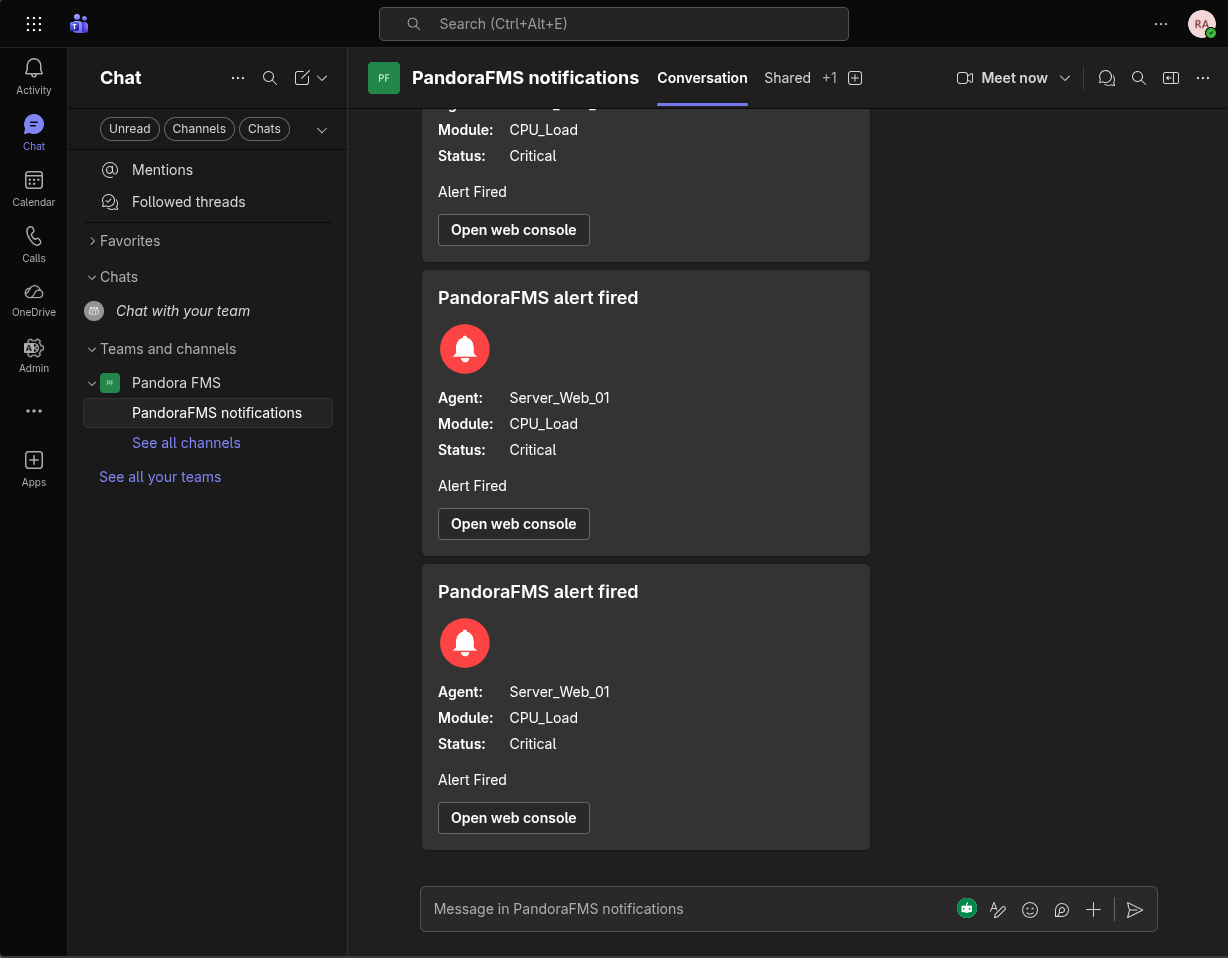
1. Basic Example
Sending a simple alert with the minimum required data:
./pandora-msteams-workflow \
--url "https://your-webhook-url" \
--data "Agent=Server_Web_01,Module=CPU_Load,Status=Critical"
2. Full Example with Customization
Customizing the title, description, button, and image size:
./pandora-msteams-workflow \
--url "https://your-webhook-url" \
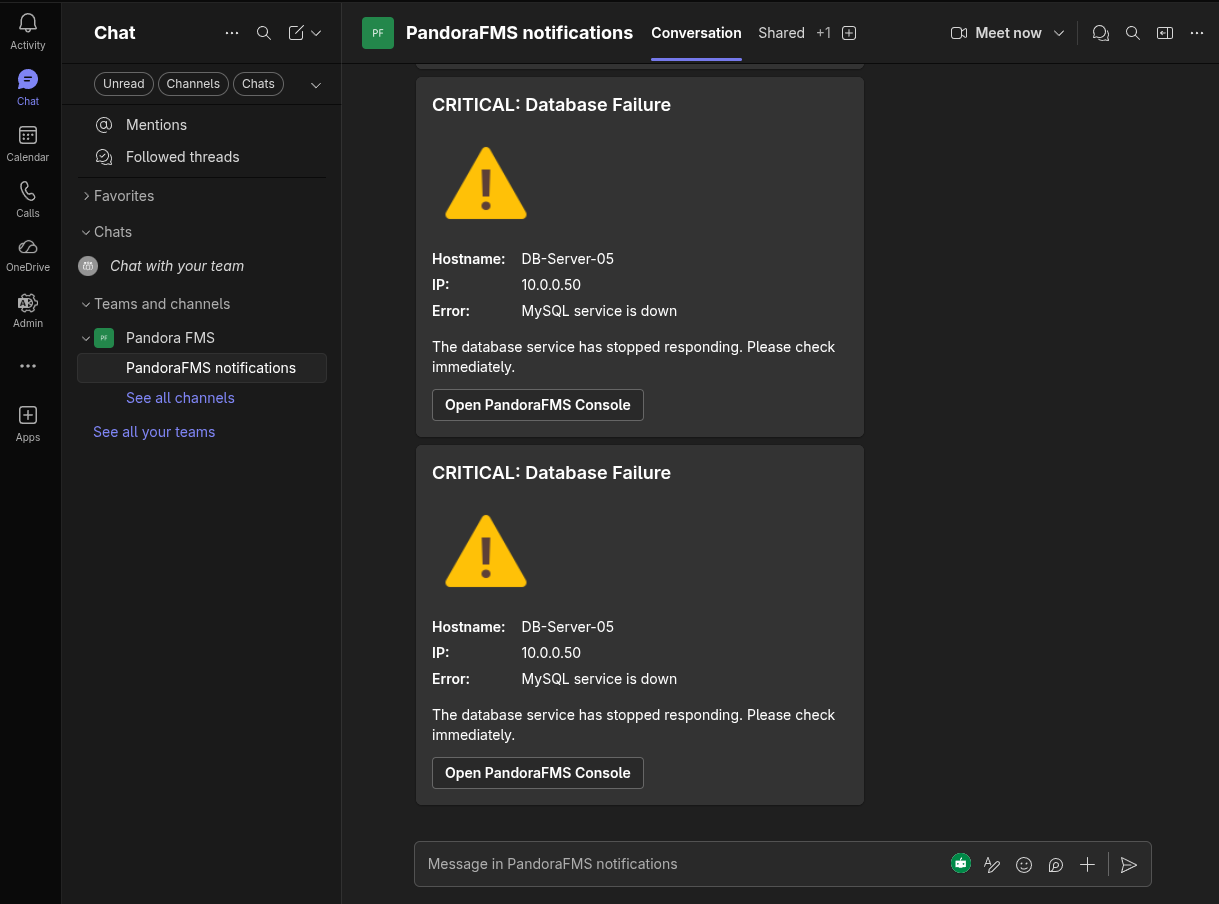
--data "Hostname=DB-Server-05,IP=10.0.0.50,Error=MySQL service is down" \
--alert_tittle "CRITICAL: Database Failure" \
--alert_desc "The database service has stopped responding. Please check immediately." \
--image "https://img.icons8.com/color/96/error.png" \
--image_size "Large" \
--button "https://your-pandora-console.com/index.php?sec=estado&sec2=lista_agentes" \
--button_desc "Open PandoraFMS Console"
Internal Operation of the --data Parameter
The --data parameter processes a text string and converts it into a list of "Facts" within the Teams Adaptive Card.
- Correct format:
Name=Value,OtherName=OtherValue - Note: Avoid using commas (
,) or equals signs (=) within values, as the script uses them as delimiters.
Pandora FMS Configuration: Creating an Alert Action
The zip package where the binary comes also contains a file called test-exec.txt which contains information about additional parameters that will enrich the sent message (subtitle, color, web link button, etc.).
To create an alert command, go to the Pandora FMS Web Console and click on Alerts -> Commands -> Create.
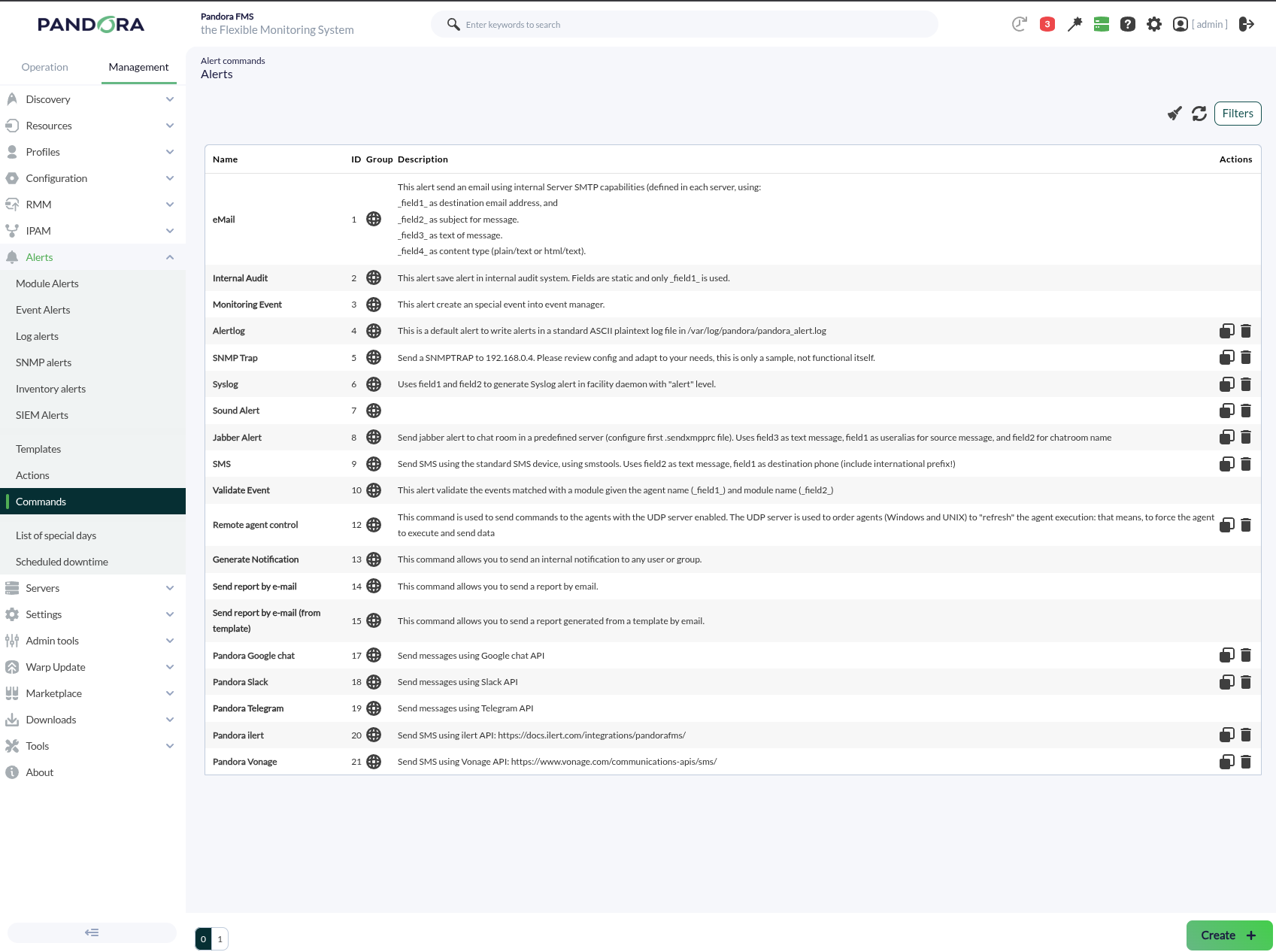
Next, define the eight necessary fields plus the last two parameters which are constants. Make sure that field number two has the Hide box checked and enter the authorization link obtained on the previous page there.
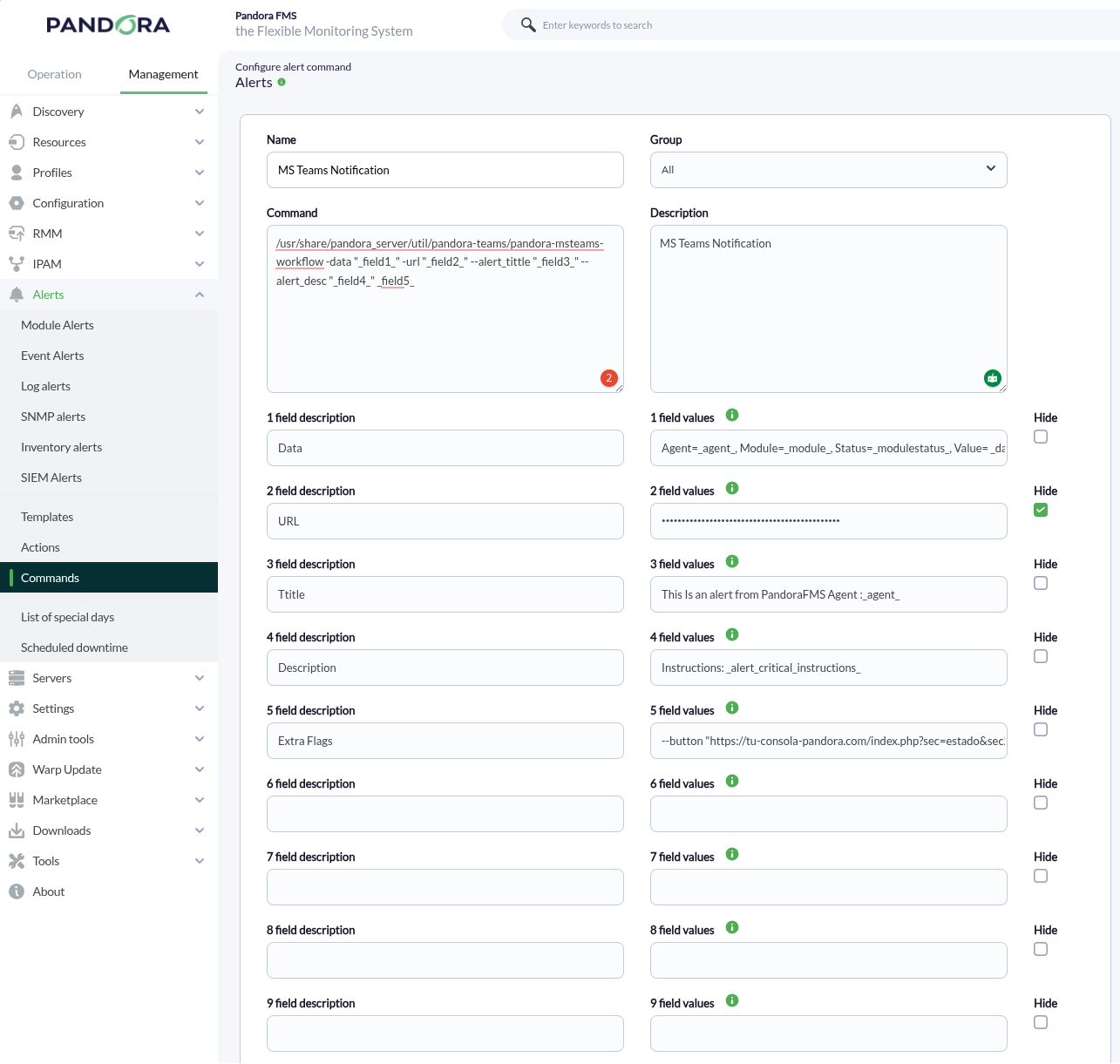
The test-exec file that accompanies the Slack connector CLI contains information that you can use to fill in these fields. Click the Create button to save the alert command.
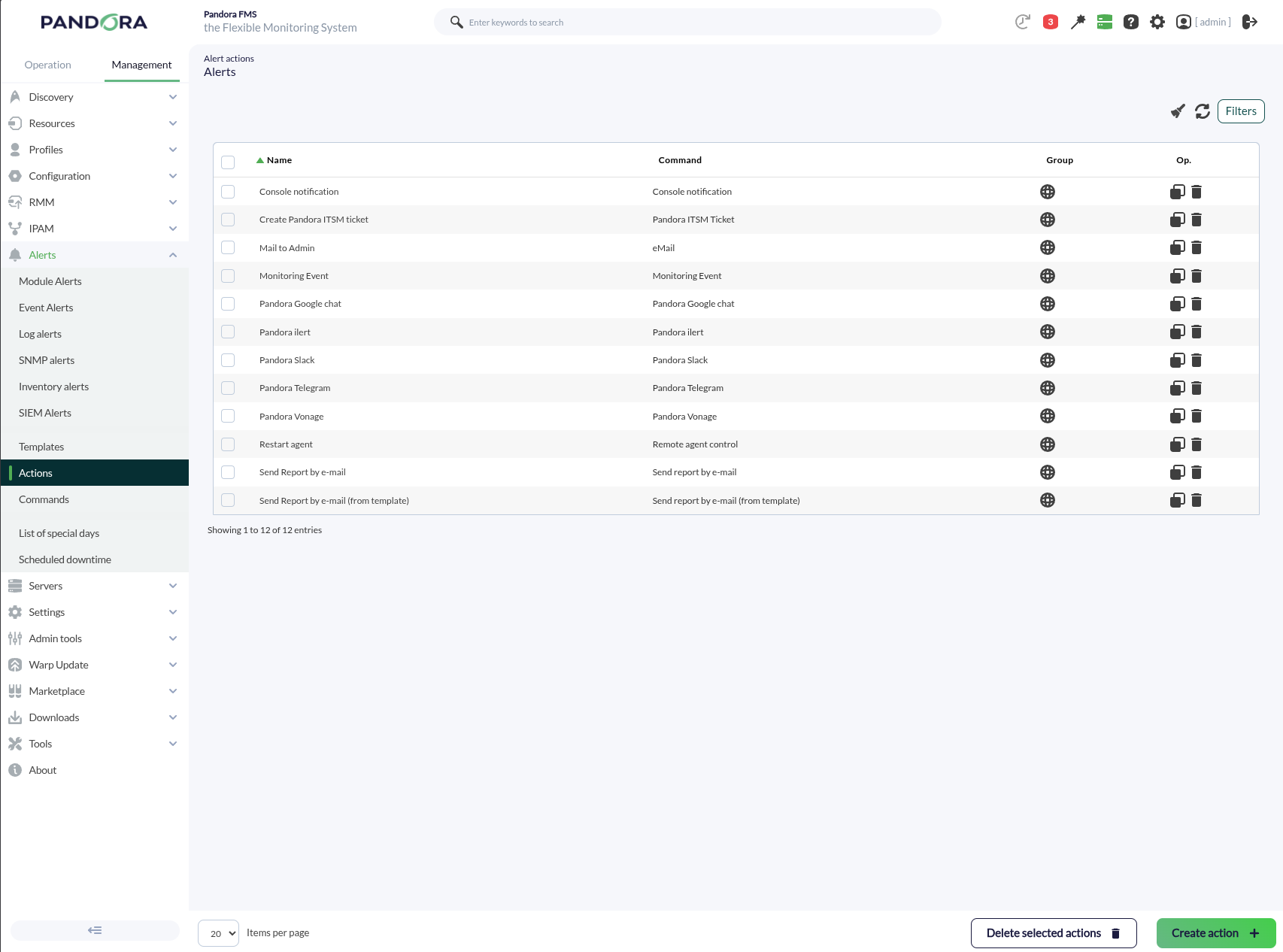
Alert actions allow you to define how to launch the command. Go to the Alerts -> Actions -> Create menu.
Select the alert command created on the previous page in Command; the fields will be filled automatically. However, you can always customize the icons or messages for Triggering and Recovery events, for example.
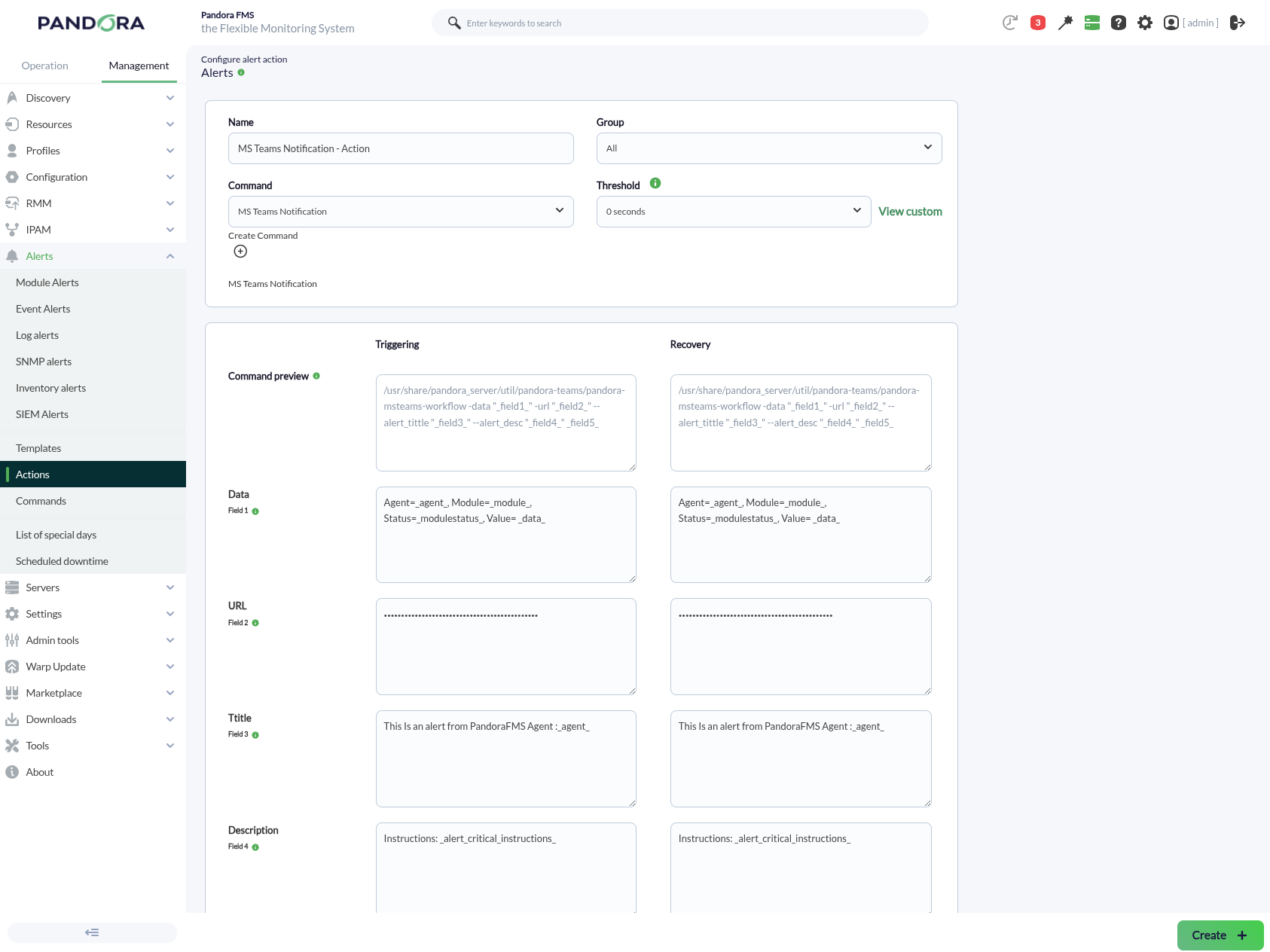
To save, click Create. To apply this action, whether to a Module or Policy, set an alert template for that purpose.