9. Remote Server Monitoring
Pandora FMS also offers us the possibility to monitor computers using Linux® or MS Windows® operating systems remotely without the need to install an EndPoint.
To achieve this, we will need to create remote execution modules that allow us to query the device from our Pandora FMS installation by executing a command remotely and obtaining the desired result. For security reasons, authorized user credentials are required for each operating system, so we will first use the Credential Store functionality in PFMS and then create a remote execution module for each mentioned operating system.
Credential Store
The credential store saves sets of user/password so they can be reused in different checks, and whose data is not shown in the check configuration.
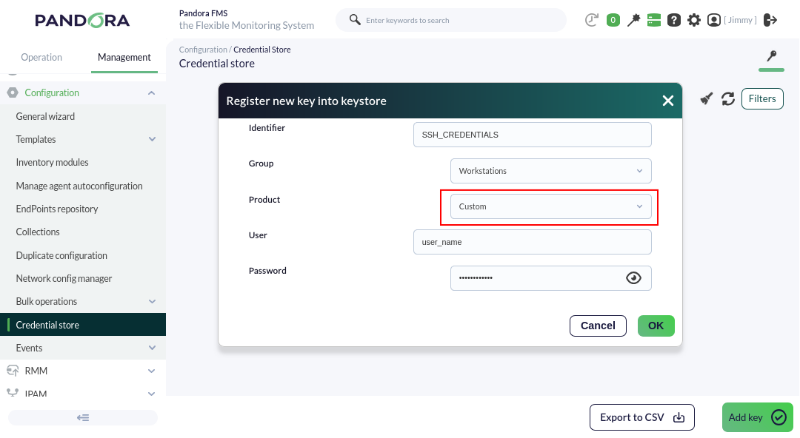
Through the Management→Configuration→Credential Store menu, you can access this functionality and must click the Add key button.
First, we will create a credential to connect to a GNU/Debian® (Ubuntu®) computer via SSH:
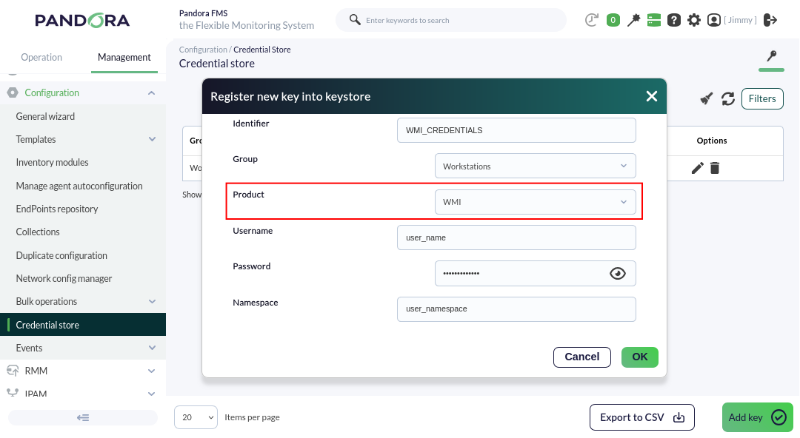
And then we add a credential for an MS Windows® computer via WMI:
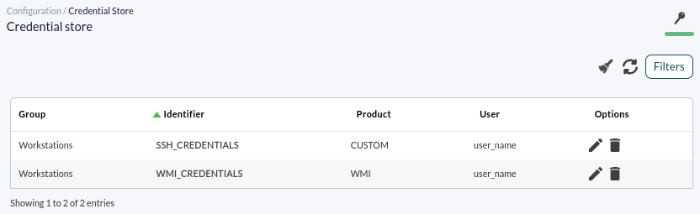
Our credentials should look similar to this:
Remote execution modules
Create a remote execution module on the desired agent:
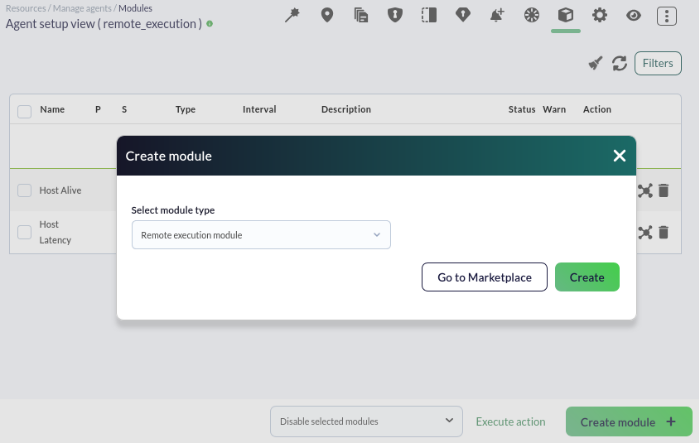
For the module type, in this case, we will choose the one corresponding to numerical data, Remote execution, numeric data:
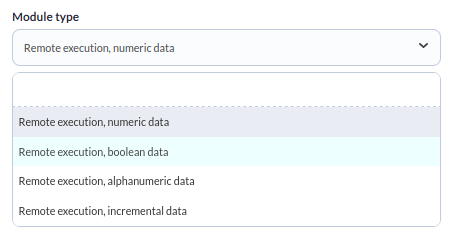
If you want to monitor something that returns a true or false state, such as a process status, you just need to ensure that your command returns 0 for a failed value and a non-zero value for a correct one. You must use a Remote execution, boolean data data type so that Pandora FMS interprets it as such and omits the use of any thresholds.
Now we are going to configure the check itself and add the commands to be executed to find out the number of processes or tasks that remote computer is running. This value is one of the indications of the workload being performed by the machine in question:
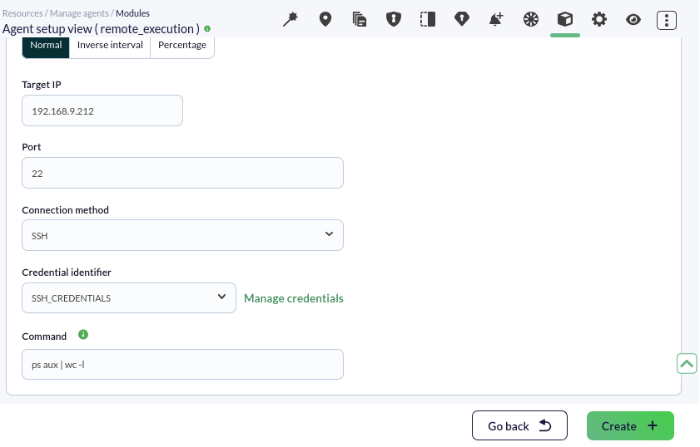
Note that:
- The IP address or URL of the computer to be checked must be entered. This is independent of the IP address that may have been added, if applicable, to the agent containing the module in question.
- Select the appropriate credential in Credential identifier.
The commands to use are:
For Linux®:
ps aux | wc -lFor MS Windows®:
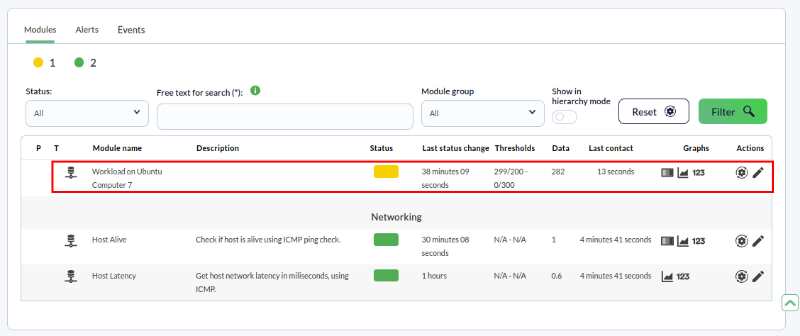
tasklist | find /C /V ""Lastly, we will establish the warning and critical thresholds. Since the workload a computer can handle depends intrinsically on the hardware used, for instructional purposes we will arbitrarily set 200 to 299 for warning and over 300 to declare the monitored device in a critical state.
We save the module and in a few minutes you will have information similar to the following:
Are you not achieving the results explained in this chapter? Access the help or support section.