# 8. Web Monitoring

<span style="background-color: transparent; font-family: Arial; font-size: 11pt; font-style: normal; font-variant-ligatures: normal; font-variant-caps: normal; font-weight: 400; white-space: pre-wrap;">For this final example, we will use the Pandora FMS web server component, which is used for basic HTTP and HTTPS monitoring. This element allows us to perform simple or slightly more complex web checks (in various cases) using low-level calls. It is useful for ensuring our pages remain online, verifying that we can perform a series of steps (for example, filling out certain forms), and/or checking that they contain a specific word. In addition to **verifying that they work**, we can **measure the total time** they take.</span>

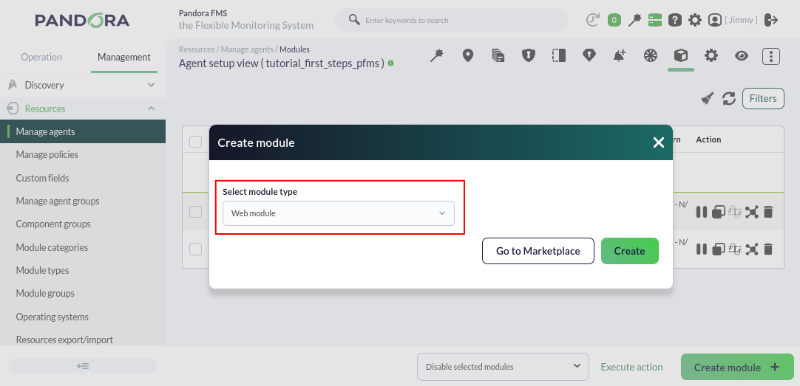
<span style="font-size: 11pt; font-family: Arial; background-color: transparent; font-weight: 400; font-style: normal; font-variant: normal; text-decoration: none; vertical-align: baseline; white-space: pre-wrap;">To create this type of module, we must choose the **Web module** type during the module creation process: </span>

[![pfms-first_steps-web_monitoring-image_010.png](https://pandorafms.com/guides/public/uploads/images/gallery/2026-02/scaled-1680-/pfms-first-steps-web-monitoring-image-010.png)](https://pandorafms.com/guides/public/uploads/images/gallery/2026-02/pfms-first-steps-web-monitoring-image-010.png)

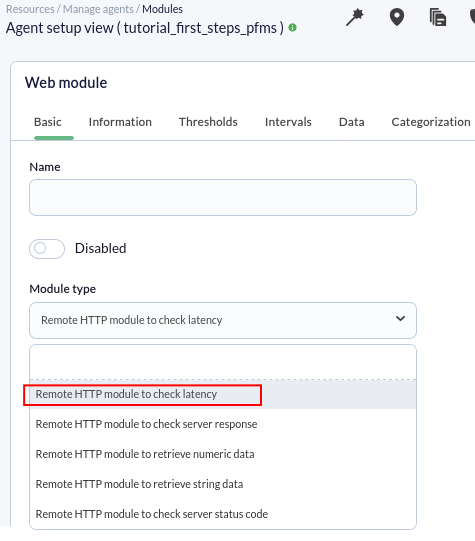
<span style="font-size: 11pt; font-family: Arial; background-color: transparent; font-weight: 400; font-style: normal; font-variant: normal; text-decoration: none; vertical-align: baseline; white-space: pre-wrap;">Once we click the </span><span style="font-size: 11pt; font-family: Arial; background-color: transparent; font-weight: bold; font-style: normal; font-variant: normal; text-decoration: none; vertical-align: baseline; white-space: pre-wrap;">Create</span><span style="font-size: 11pt; font-family: Arial; background-color: transparent; font-weight: 400; font-style: normal; font-variant: normal; text-decoration: none; vertical-align: baseline; white-space: pre-wrap;"> button, we will see a form where we must fill in the necessary fields to monitor a website. The most important thing will be choosing the type of check. We are going to create a module that allows us to check a website's loading time and ensure it contains the phrase "**View license comparison".**</span>

<span style="font-size: 11pt; font-family: Arial; background-color: transparent; font-weight: 400; font-style: normal; font-variant: normal; text-decoration: none; vertical-align: baseline; white-space: pre-wrap;">To do this, we will select the module type </span><span style="font-size: 11pt; font-family: Arial; background-color: transparent; font-weight: bold; font-style: normal; font-variant: normal; text-decoration: none; vertical-align: baseline; white-space: pre-wrap;">Remote HTTP module to check latency</span><span style="font-size: 11pt; font-family: Arial; background-color: transparent; font-weight: 400; font-style: normal; font-variant: normal; text-decoration: none; vertical-align: baseline; white-space: pre-wrap;">, which will allow us to see the number of seconds the server takes to respond. </span>

[![pfms-first_steps-web_monitoring-image_020.png](https://pandorafms.com/guides/public/uploads/images/gallery/2026-02/scaled-1680-/pfms-first-steps-web-monitoring-image-020.png)](https://pandorafms.com/guides/public/uploads/images/gallery/2026-02/pfms-first-steps-web-monitoring-image-020.png)

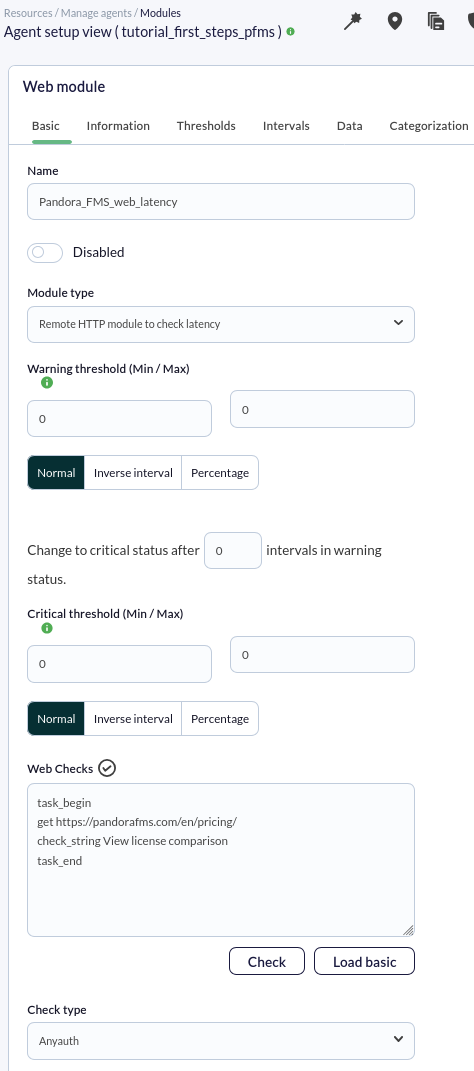
<span style="font-size: 11pt; font-family: Arial; background-color: transparent; font-weight: 400; font-style: normal; font-variant: normal; text-decoration: none; vertical-align: baseline; white-space: pre-wrap;">In this case, we will make only one request and verify that the response returns a specific phrase; to do this, we will add the following code to the **Web checks** box:</span>

```
task_begin
get https://pandorafms.com/en/pricing/
check_string View license comparison
task_end 
```

**The check will appear as follows:**

[![pfms-first_steps-web_monitoring-image_030.png](https://pandorafms.com/guides/public/uploads/images/gallery/2026-02/scaled-1680-/pfms-first-steps-web-monitoring-image-030.png)](https://pandorafms.com/guides/public/uploads/images/gallery/2026-02/pfms-first-steps-web-monitoring-image-030.png)
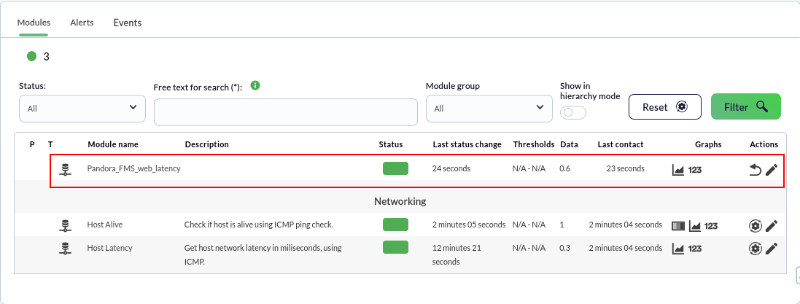
As always, after a few seconds, we will have received some data from this module—in this case, the number of seconds it takes for the request to complete:

[![pfms-first_steps-web_monitoring-image_040.png](https://pandorafms.com/guides/public/uploads/images/gallery/2026-02/scaled-1680-/pfms-first-steps-web-monitoring-image-040.png)](https://pandorafms.com/guides/public/uploads/images/gallery/2026-02/pfms-first-steps-web-monitoring-image-040.png)
<p class="callout info"><span style="font-weight: normal;"><span style="font-size: 11pt; font-family: Arial; background-color: transparent; font-weight: 400; font-style: normal; font-variant: normal; white-space: pre-wrap;">Pandora FMS also offers the possibility of monitoring complex web transactions thanks to the </span>[Web User Experience](https://pandorafms.com/manual/en/documentation/pandorafms/monitoring/13_user_monitorization "WUX"), which<span style="font-size: 11pt; font-family: Arial; background-color: transparent; font-weight: 400; font-style: normal; font-variant: normal; text-decoration-skip-ink: none; white-space: pre-wrap;"> is a more advanced functionality.</span></span></p>

Are you not achieving the results explained in this chapter? Access the [help](https://pandorafms.com/guides/public/books/first-steps-with-pandora-fms/page/21-where-to-look-if-problems-arise) or [support](https://pandorafms.com/guides/public/books/first-steps-with-pandora-fms/page/22-support) section.