7. Network device remote monitoring
Monitoring through network modules. TCP Service
In this case, monitoring will be added to verify that an SMTP (email) service is active on a machine. Although this can be a very complex check (simulating the sending of user credentials and passwords, sending an email, etc.), it will be simplified here by only verifying that the port is open and responding.
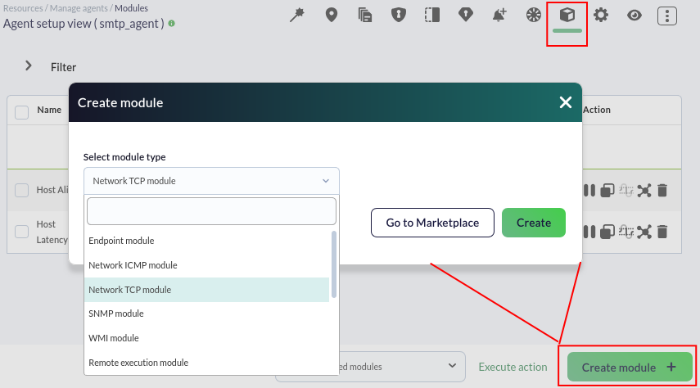
To do this, some steps from the previous chapter will be repeated: first creating an agent and then creating a network module (Network TCP module):
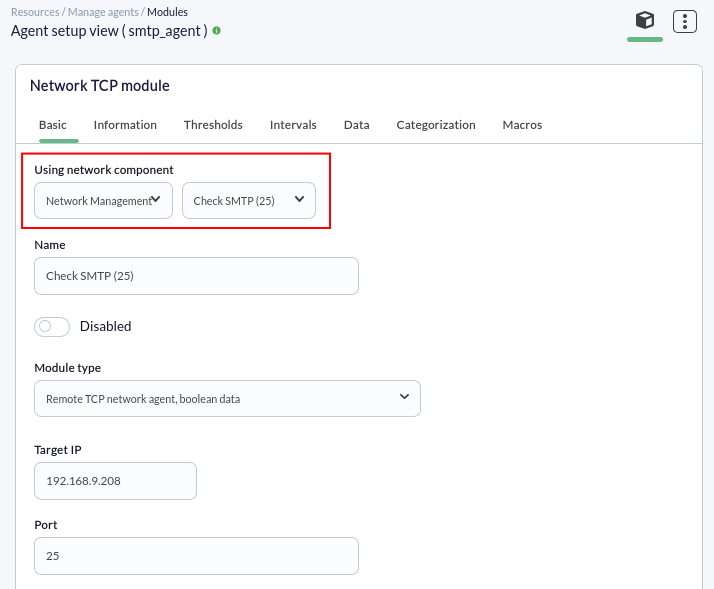
Next, use the drop-down controls until the desired check is found, Check SMTP (25), and click to create the module (only necessary fields are shown; ensure it brings the agent's IP address):
Finally, the steps will be repeated (go to the operation view and refresh until the monitor appears). Until a module has data, it will be BLUE, indicating that it has not yet been initialized:
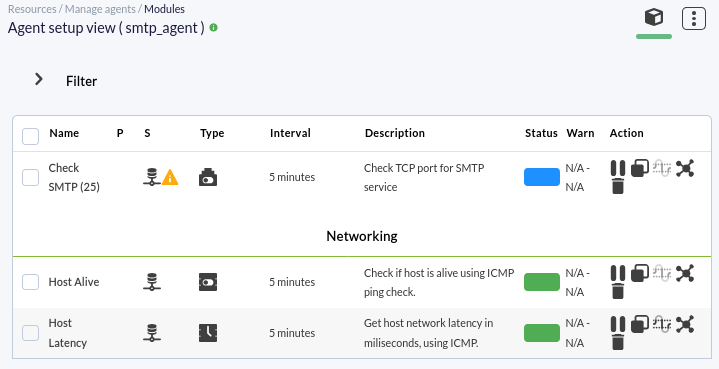
After a few seconds, it should start and take a value: GREEN if the SMTP server responds, or RED if it does not:

Monitoring through server plugins. Network packet loss
We are going to monitor network packet loss using a remote check that comes preconfigured in Pandora FMS. To do this, go to the agent administration view, as we will measure packet loss from Pandora FMS to the IP address of any agent.
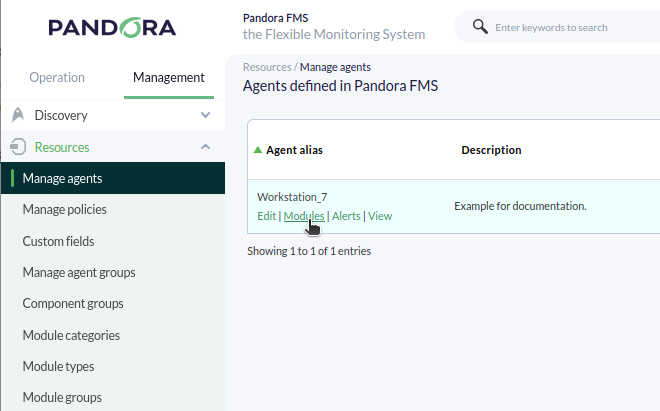
And we will create a module of the Plugin type:
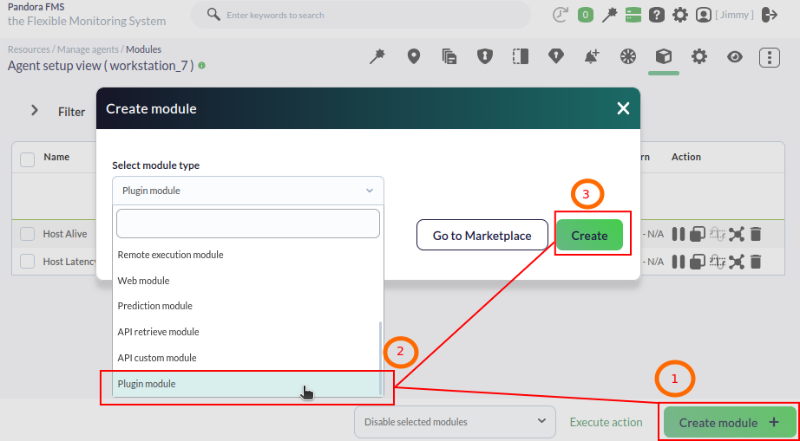
Select the Network management component group and search for Packet loss:
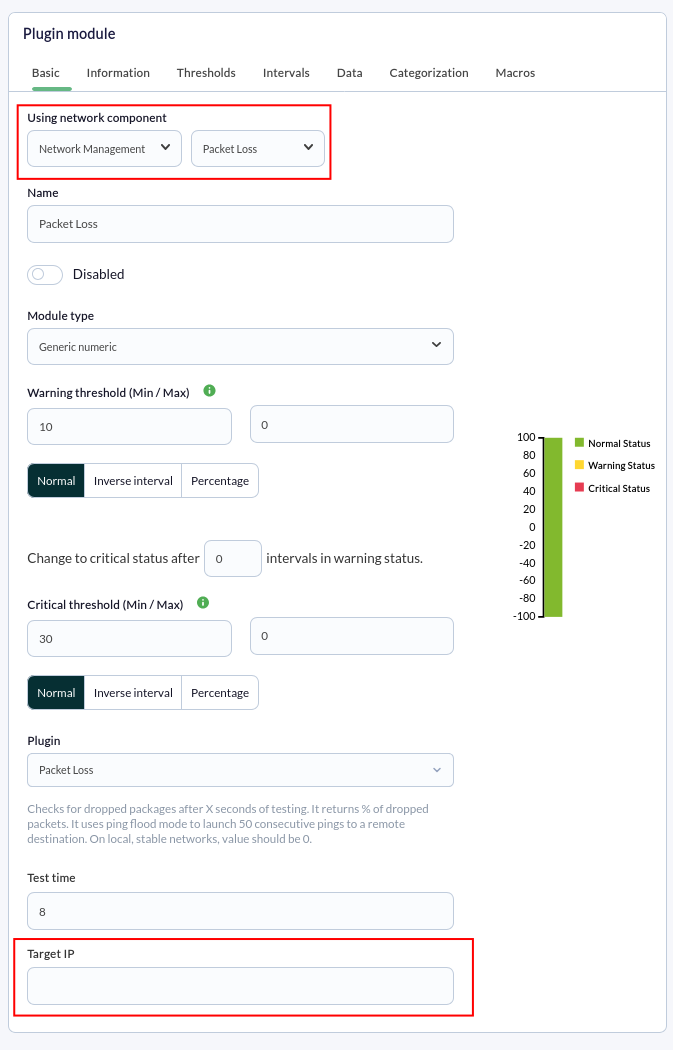
You must enter the IP address of the device to be monitored in the Target IP field before saving the new module.
Go to the main agent view; initially, the module will be displayed as uninitialized in blue:
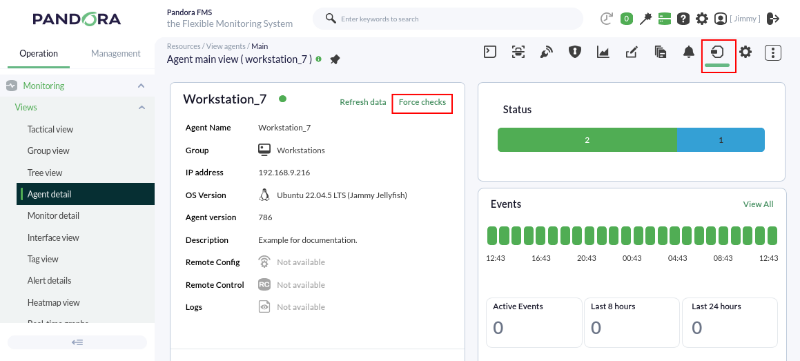
To speed up the process, you can force all checks (Force checks button) for the agent in question.
The round icon is to force only the check of the new module:
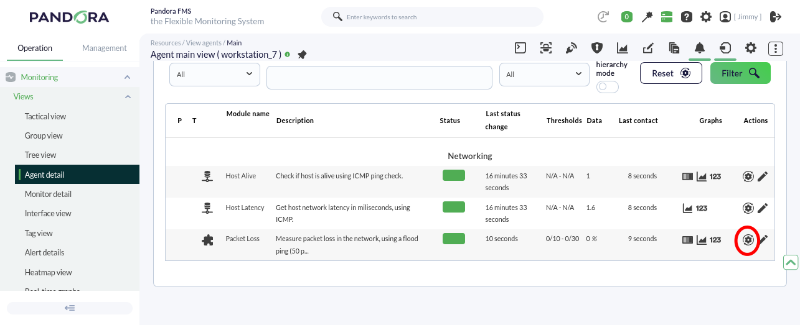
Just to the left of the force module check button, we have the graph and data table icons respectively. These are used to display an interactive graph or a table with the data collected by that module. All modules with active history have the option to view graphs or data:
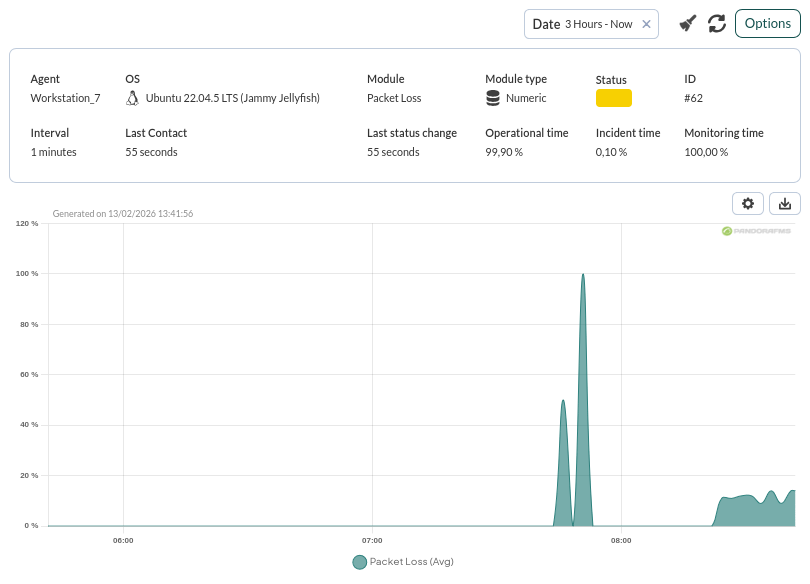
This is a very interesting plugin; when used in conjunction with basic connectivity (ping) and latency time, it serves to determine the quality of your network, as it indicates the percentage of packet loss.
Are you not achieving the results explained in this chapter? Access the help or support section.