# 5. Detecting and monitoring network and Windows devices with Discovery

<span style="font-size: 11pt; font-family: Arial; background-color: transparent; font-weight: 400; font-style: normal; font-variant: normal; text-decoration: none; vertical-align: baseline; white-space: pre-wrap;">Let's now look at a discovery task that is more complex [than the previous one](https://pandorafms.com/guides/public/books/first-steps-with-pandora-fms/page/4-detecting-and-monitoring-new-systems-with-discovery/ "4. Detecting and monitoring new systems with Discovery"), this time configuring **SNMP** and **WMI**, two protocols used to remotely monitor both network devices (SNMP) and MS Windows® (WMI).</span>

<p class="callout info"><span style="font-size: 11pt; font-family: Arial; background-color: transparent; font-weight: 400; font-style: normal; font-variant: normal; text-decoration: none; vertical-align: baseline; white-space: pre-wrap;">Menu **Management** </span>**→ Discovery<span style="font-size: 11pt; font-family: Arial; background-color: transparent; font-style: normal; font-variant: normal; text-decoration: none; vertical-align: baseline; white-space: pre-wrap;"> </span>→ Host &amp; Devices<span style="font-size: 11pt; font-family: Arial; background-color: transparent; font-style: normal; font-variant: normal; text-decoration: none; vertical-align: baseline; white-space: pre-wrap;"> </span>→ Network scan**.</p>

[![pfms-discovery-network_scan-image_010.png](https://pandorafms.com/guides/public/uploads/images/gallery/2026-01/scaled-1680-/pfms-discovery-network-scan-image-010.png)](https://pandorafms.com/guides/public/uploads/images/gallery/2026-01/pfms-discovery-network-scan-image-010.png)

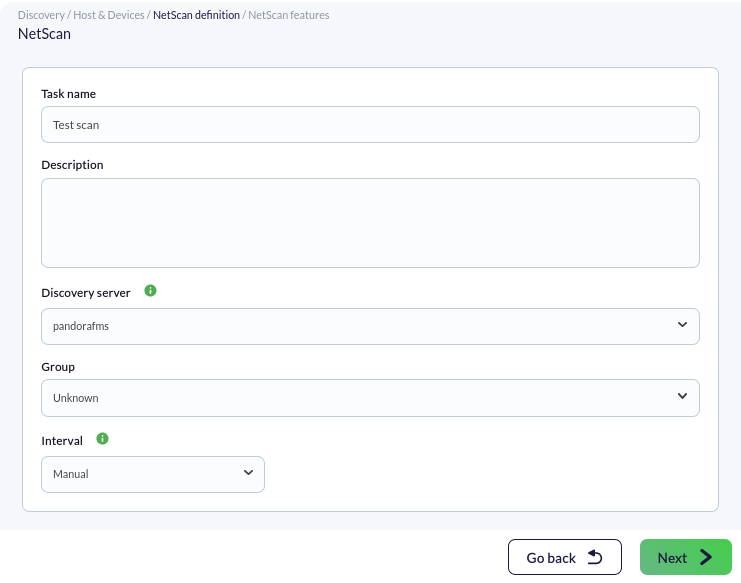
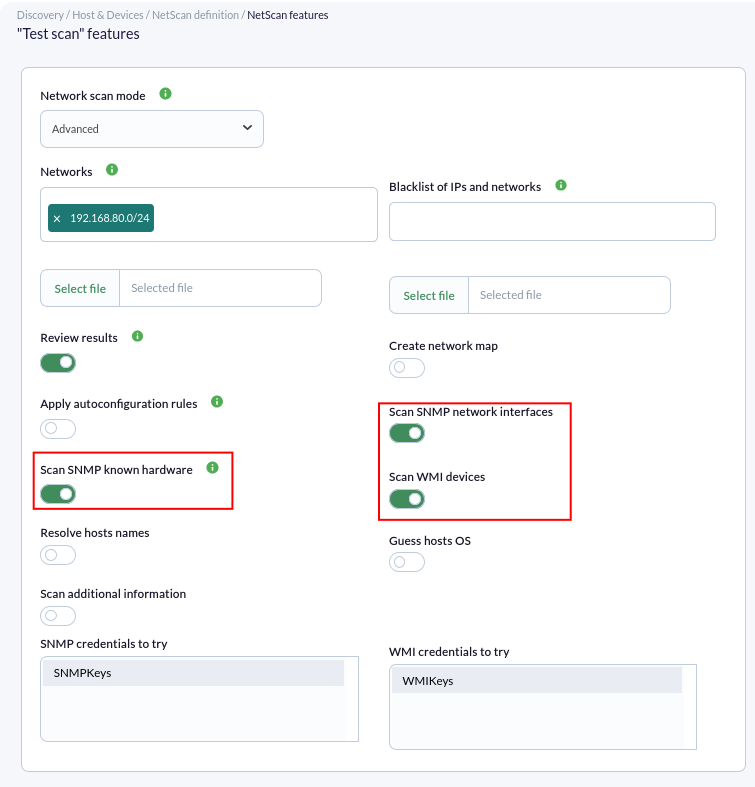
<span style="font-size: 11pt; font-family: Arial; background-color: transparent; font-weight: 400; font-style: normal; font-variant: normal; text-decoration: none; vertical-align: baseline; white-space: pre-wrap;">The configuration process is similar to the previous one, this time selecting the advanced mode, and we will access the discovery task configuration options at the bottom:</span>

<span style="font-weight: normal;">[![pfms-discovery-network_scan-image_020.png](https://pandorafms.com/guides/public/uploads/images/gallery/2026-01/scaled-1680-/pfms-discovery-network-scan-image-020.png)](https://pandorafms.com/guides/public/uploads/images/gallery/2026-01/pfms-discovery-network-scan-image-020.png) </span>

<span style="font-size: 11pt; font-family: Arial; background-color: transparent; font-weight: 400; font-style: normal; font-variant: normal; text-decoration: none; vertical-align: baseline; white-space: pre-wrap;">To enable monitoring with SNMP and WMI, we must activate the corresponding *token* and provide the data required by each protocol. </span>

- <span style="font-size: 11pt; font-family: Arial; background-color: transparent; font-weight: 400; font-style: normal; font-variant: normal; text-decoration: none; vertical-align: baseline; white-space: pre-wrap;">**SNMP** uses "communities," which are like access *passwords*. If you do not know your **SNMP community**, try `public`. You can enter as many as you like, and they will all be tested.</span>
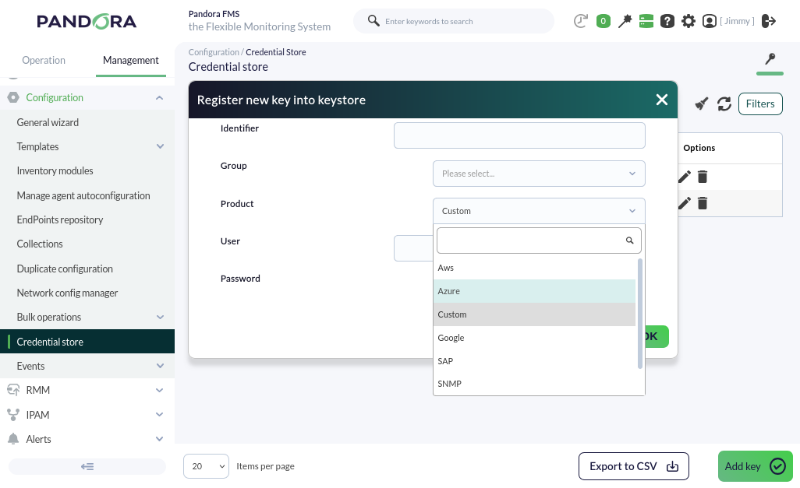
- <span style="font-size: 11pt; font-family: Arial; background-color: transparent; font-weight: 400; font-style: normal; font-variant: normal; text-decoration: none; vertical-align: baseline; white-space: pre-wrap;">Credentials for the **WMI** service (and others) can be defined in </span>**<span style="font-size: 11pt; font-family: Arial; background-color: transparent; font-style: normal; font-variant: normal; text-decoration: none; vertical-align: baseline; white-space: pre-wrap;">Management</span>**<span style="font-style: normal; font-variant: normal; background-color: transparent; font-size: 11pt; font-family: Arial; white-space-collapse: preserve;"> **→ Configuration**<span style="font-style: normal; font-variant: normal; background-color: transparent; font-size: 11pt; font-family: Arial; white-space-collapse: preserve;"> **→ Credential store**.</span></span>

<p class="callout info">**The *credential store*** is a secure vault for username/password pairs that are later used in remote checks, equipment configurations, remote access, etc. This allows them to be reused at different points within Pandora FMS:</p>

[![pfms-discovery-network_scan-image_030.png](https://pandorafms.com/guides/public/uploads/images/gallery/2026-01/scaled-1680-/pfms-discovery-network-scan-image-030.png)](https://pandorafms.com/guides/public/uploads/images/gallery/2026-01/pfms-discovery-network-scan-image-030.png)

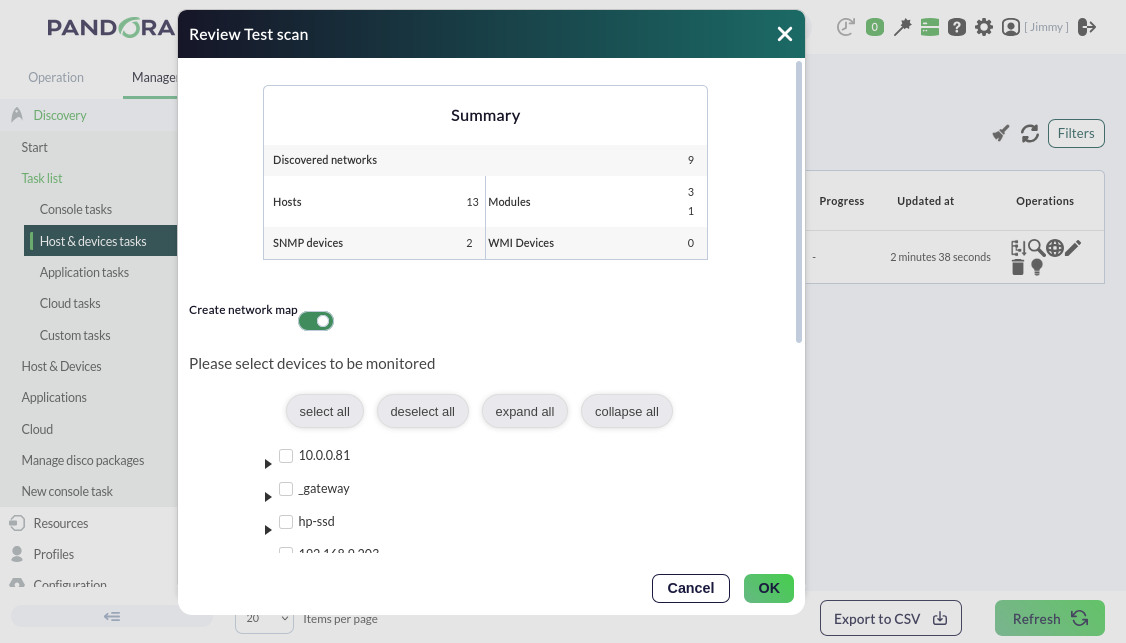
<span style="font-size: 11pt; font-family: Arial; background-color: transparent; font-weight: 400; font-style: normal; font-variant: normal; text-decoration: none; vertical-align: baseline; white-space: pre-wrap;">We will also enable the **Review results** token, which will allow us to see the components found by Pandora FMS in the discovery task once it finishes, displaying what has been found and allowing it to be added to the agent's remote monitoring with a single click.</span>

[![pfms-management-discovery-host-and-devices-netscan-11.png](https://pandorafms.com/guides/public/uploads/images/gallery/2026-01/scaled-1680-/pfms-management-discovery-host-and-devices-netscan-11.png)](https://pandorafms.com/guides/public/uploads/images/gallery/2026-01/pfms-management-discovery-host-and-devices-netscan-11.png)

If you do not need further monitoring or configuration, let's move on to metric alerts [here](https://pandorafms.com/guides/public/books/first-steps-with-pandora-fms/page/13-email-alert).

<p class="callout info">Are you not achieving the results explained in this chapter? Access the [help](https://pandorafms.com/guides/public/books/first-steps-with-pandora-fms/page/21-where-to-look-if-problems-arise) or [support](https://pandorafms.com/guides/public/books/first-steps-with-pandora-fms/page/22-support) section.</p>