We can create our own Remote and Local inventory modules, but this quick guide does not go into detail on that.
#### Remote inventory To assign this type of inventory to a remote agent, access the agent's edition and go to the **Inventory** tab. [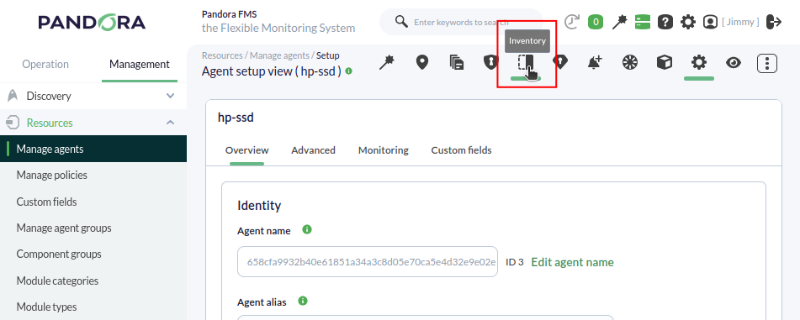](https://pandorafms.com/guides/public/uploads/images/gallery/2026-03/pfms-first-steps-inventory-image-010.png) Fill in the fields with the following information: - The type of inventory we want to obtain, in this example the **CPU** model. - The **Target IP**, which in this case is 192.168.9.212. - The **username** and **password** of an existing user on the remote computer. Optionally we can set a custom interval for the module execution and make use of **Custom fields**. Click on the **Add** button. [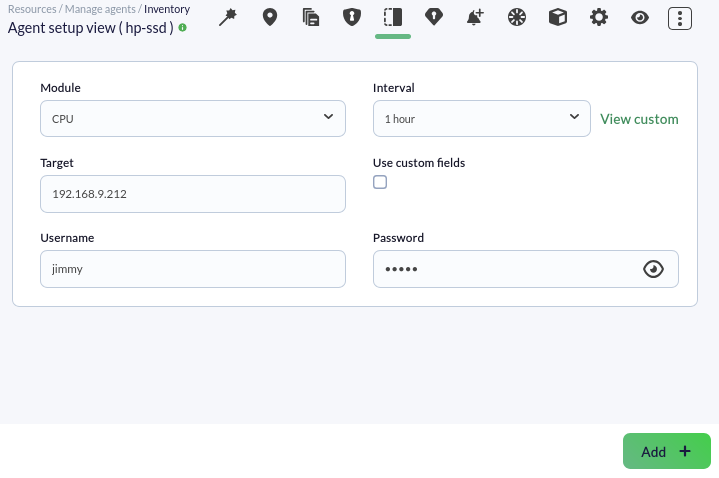](https://pandorafms.com/guides/public/uploads/images/gallery/2026-03/pfms-first-steps-inventory-image-020.png) The inventory module will have been applied and we will be able to perform actions such as deleting, editing, and forcing the execution of the module by clicking on their respective icons. [](https://pandorafms.com/guides/public/uploads/images/gallery/2026-03/pfms-first-steps-inventory-image-030.png) We can see the data collected by the remote inventory module from **Operation → Monitoring → Inventory.** [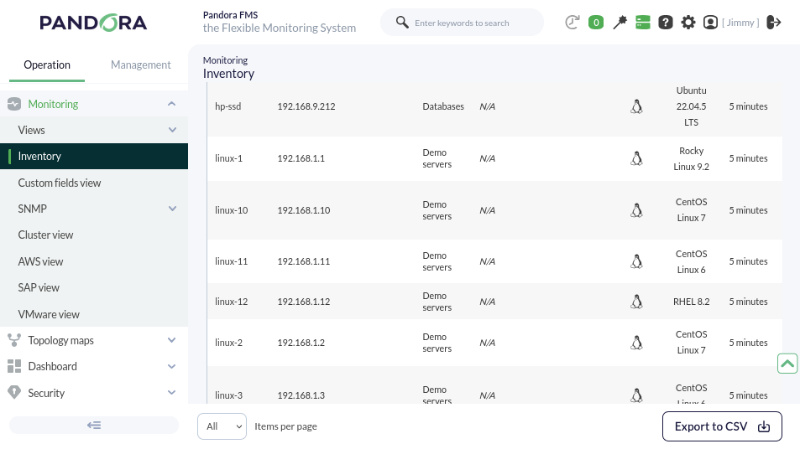](https://pandorafms.com/guides/public/uploads/images/gallery/2026-03/pfms-first-steps-inventory-image-040.png) #### Local inventory These inventory data are obtained through an EndPoint; the configuration is a bit different depending on whether it is an EndPoint for MS Windows® or Linux®. ##### MS Windows® By default, there are inventory templates in the EndPoint configuration file `pandora_agent.conf`; to enable local inventory modules we *uncomment* the corresponding code block, in this case inventory from the available storage disks will be collected: We define the execution interval via cron. [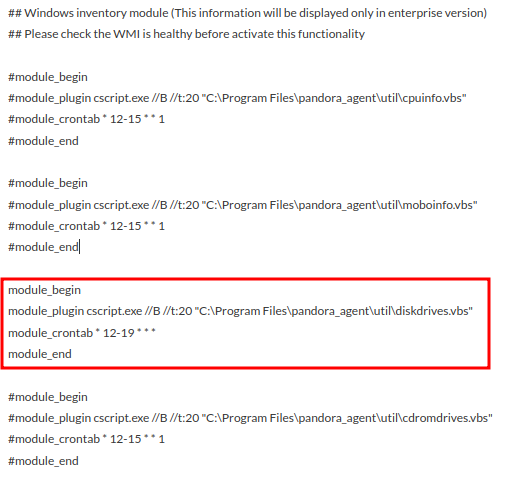](https://pandorafms.com/guides/public/uploads/images/gallery/2023-10/inventory4.png) ##### Linux® In Linux® inventory modules are also defined in the `pandora_agent.conf` file, but unlike MS Windows®, here it is established by *uncommenting* a single line, specifying the inventory we wish to obtain. The line means that an inventory plugin will be used, the 1 means that inventory data will be collected every 1 day (we set it to 0 if we want it to be collected at each agent execution), and the objects from which we want to collect inventory data: [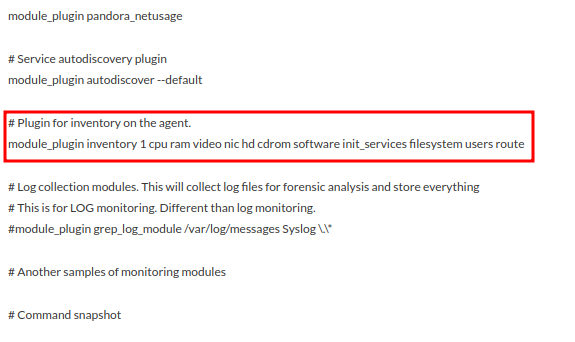](https://pandorafms.com/guides/public/uploads/images/gallery/2023-10/inventory7-2.png)Are you not achieving the results explained in this chapter? Access the [help](https://pandorafms.com/guides/public/books/first-steps-with-pandora-fms/page/21-where-to-look-if-problems-arise) or [support](https://pandorafms.com/guides/public/books/first-steps-with-pandora-fms/page/22-support) section.