# 16. Dashboard creation

<span style="font-size: 11pt; font-family: Arial; background-color: transparent; font-weight: 400; font-style: normal; font-variant: normal; text-decoration: none; vertical-align: baseline; white-space: pre-wrap;">A **Dashboard** is a Pandora FMS feature that allows each user to build their own monitoring page. More than one page can be added, and on it, you can include monitoring maps, graphs and status summaries, brief event lists (with filters), and many other *widgets*.</span>

[![pfms-first_steps-dashboards-image_010.png](https://pandorafms.com/guides/public/uploads/images/gallery/2026-03/scaled-1680-/pfms-first-steps-dashboards-image-010.png)](https://pandorafms.com/guides/public/uploads/images/gallery/2026-03/pfms-first-steps-dashboards-image-010.png)

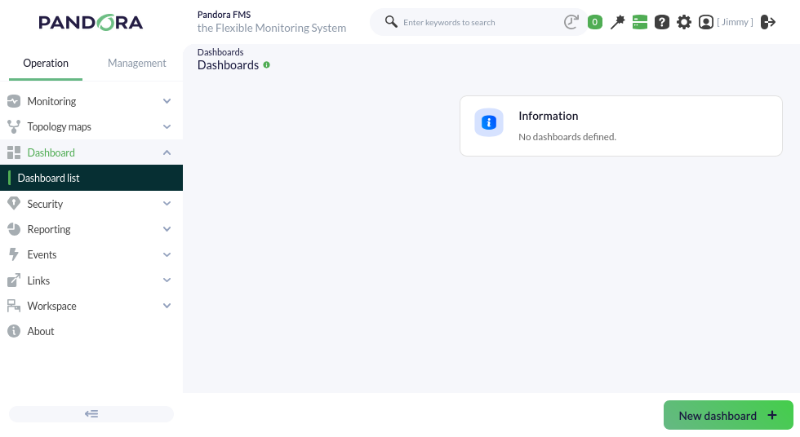
<span style="font-size: 11pt; font-family: Arial; background-color: transparent; font-weight: 400; font-style: normal; font-variant: normal; text-decoration: none; vertical-align: baseline; white-space: pre-wrap;">To create our own dashboards, it will be necessary to access **Operation -&gt; Reporting -&gt; Dashboards**, where we can select the **New dashboard** button to create the ones we need.</span>

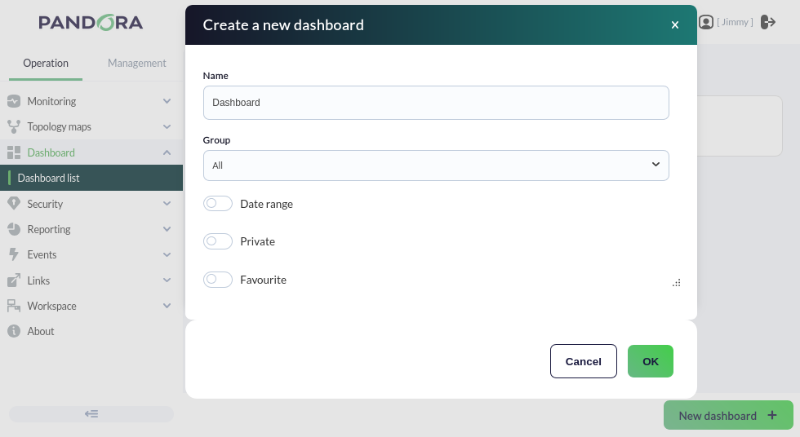
<span style="font-size: 11pt; font-family: Arial; background-color: transparent; font-weight: 400; font-style: normal; font-variant: normal; text-decoration: none; vertical-align: baseline; white-space: pre-wrap;">Pandora FMS will show us a new window in which we can name our new Dashboard and define if it will be a private Dashboard, the monitoring group it belongs to, or if we want to set it as a favorite, thus allowing it to appear in the side drop-down menu in the dashboards section. </span>

**[![pfms-first_steps-dashboards-image_020.png](https://pandorafms.com/guides/public/uploads/images/gallery/2026-03/scaled-1680-/pfms-first-steps-dashboards-image-020.png)](https://pandorafms.com/guides/public/uploads/images/gallery/2026-03/pfms-first-steps-dashboards-image-020.png)**

 <span style="font-size: 11pt; font-family: Arial; background-color: transparent; font-weight: 400; font-style: normal; font-variant: normal; text-decoration: none; vertical-align: baseline; white-space: pre-wrap;">Once these steps are defined, we can directly configure our first widget. </span>

<span style="font-size: 11pt; font-family: Arial; background-color: transparent; font-weight: 400; font-style: normal; font-variant: normal; text-decoration: none; vertical-align: baseline; white-space: pre-wrap;">[![pfms-first_steps-dashboards-image_030.png](https://pandorafms.com/guides/public/uploads/images/gallery/2026-03/scaled-1680-/pfms-first-steps-dashboards-image-030.png)](https://pandorafms.com/guides/public/uploads/images/gallery/2026-03/pfms-first-steps-dashboards-image-030.png)</span>

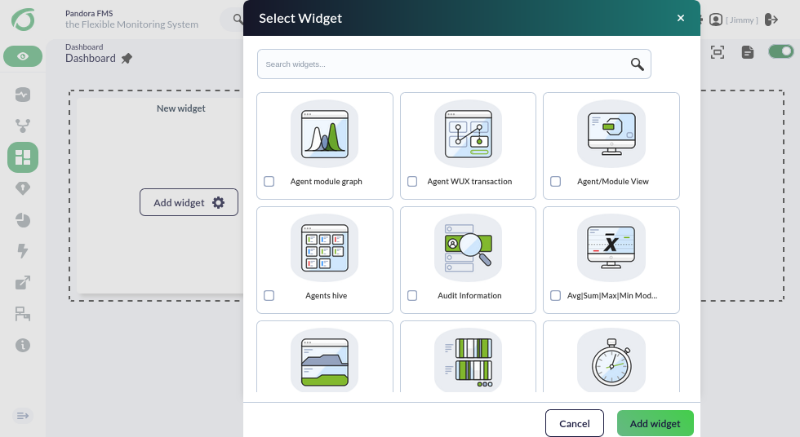
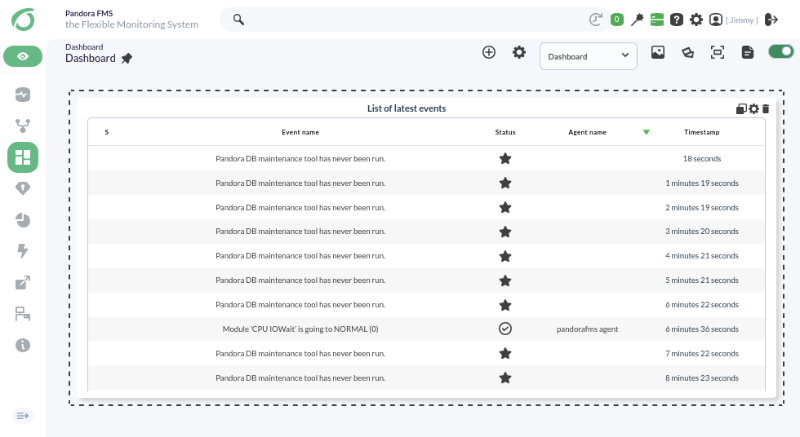
<span style="font-size: 11pt; font-family: Arial; background-color: transparent; font-weight: 400; font-style: normal; font-variant: normal; text-decoration: none; vertical-align: baseline; white-space: pre-wrap;">We will be allowed to choose between different monitoring aspects of our environment to display them on screen. We can choose, for example, the list of the latest generated events. </span>

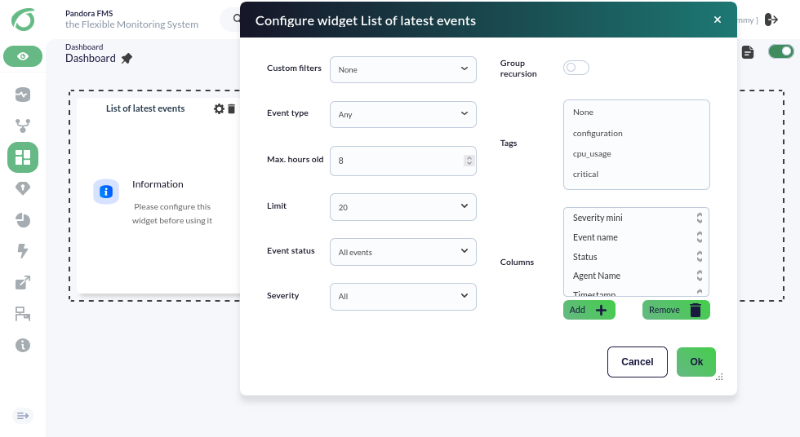
<span style="font-size: 11pt; font-family: Arial; background-color: transparent; font-weight: 400; font-style: normal; font-variant: normal; text-decoration: none; vertical-align: baseline; white-space: pre-wrap;">This will prepare our widget, which we will have to configure to define the desired parameters, such as the type of events we want to show, the size of the list, the severity, or the group they belong to. </span>

[![pfms-first_steps-dashboards-image_040.png](https://pandorafms.com/guides/public/uploads/images/gallery/2026-03/scaled-1680-/pfms-first-steps-dashboards-image-040.png)](https://pandorafms.com/guides/public/uploads/images/gallery/2026-03/pfms-first-steps-dashboards-image-040.png)

<span style="font-size: 11pt; font-family: Arial; background-color: transparent; font-weight: 400; font-style: normal; font-variant: normal; text-decoration: none; vertical-align: baseline; white-space: pre-wrap;">Once selected, our widget will start showing the data and we can begin adding as many as we want by pressing the “**Add cell (+)**” button in the edit view.</span>

[![pfms-first_steps-dashboards-image_050.png](https://pandorafms.com/guides/public/uploads/images/gallery/2026-03/scaled-1680-/pfms-first-steps-dashboards-image-050.png)](https://pandorafms.com/guides/public/uploads/images/gallery/2026-03/pfms-first-steps-dashboards-image-050.png)

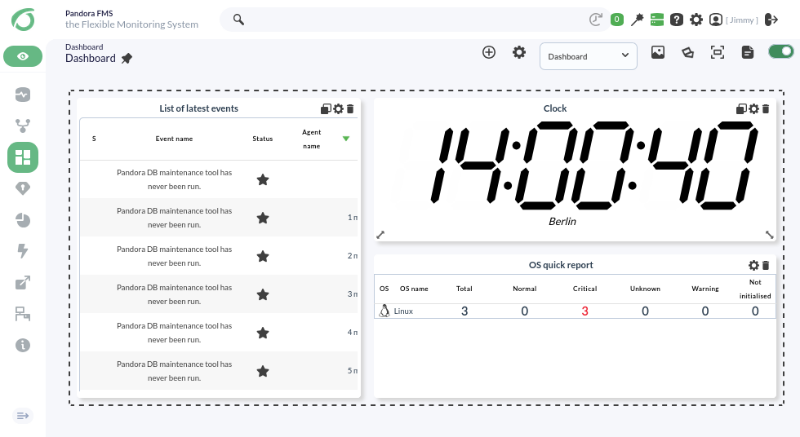
Following this process, you can build a dashboard like this in a matter of a few clicks:

[![pfms-first_steps-dashboards-image_060.png](https://pandorafms.com/guides/public/uploads/images/gallery/2026-03/scaled-1680-/pfms-first-steps-dashboards-image-060.png)](https://pandorafms.com/guides/public/uploads/images/gallery/2026-03/pfms-first-steps-dashboards-image-060.png)
<p class="callout info">Are you not achieving the results explained in this chapter? Access the [help](https://pandorafms.com/guides/public/books/first-steps-with-pandora-fms/page/21-where-to-look-if-problems-arise) or [support](https://pandorafms.com/guides/public/books/first-steps-with-pandora-fms/page/22-support) section.</p>