# Apache Enterprise Plugin
# Introduction
This plugin allows to monitor the Apache web server status using the module\_plugin.
# Compatibility matrix
**Tested and developed with**
Rocky linux 8/9, Fedora 34
**Expected to work with**
Any linux system
you need to have installed the version of Apache 1.3 and higher
# Configuration
To be able to use the apache service (httpd) we need to make the following configuration
enable status in the apache configuration file, it is necessary to create the file inside the conf.d path to access:
```bash
cd /etc/httpd/conf.d/
```
then create the file with .conf extension
```bash
touch server-status.conf
```
or create and edit it directly, from any path
```bash
vim /etc/httpd/conf.d/server-status.conf
```
Open it and add the following :
```bash
ExtendedStatus On
SetHandler server-status
Require valid-user
AuthType Basic
AuthName "Restricted Access"
AuthUserFile /etc/httpd/.htpasswd
```
assign a password:
```bash
sudo htpasswd -c /etc/httpd/.htpasswd admin
```
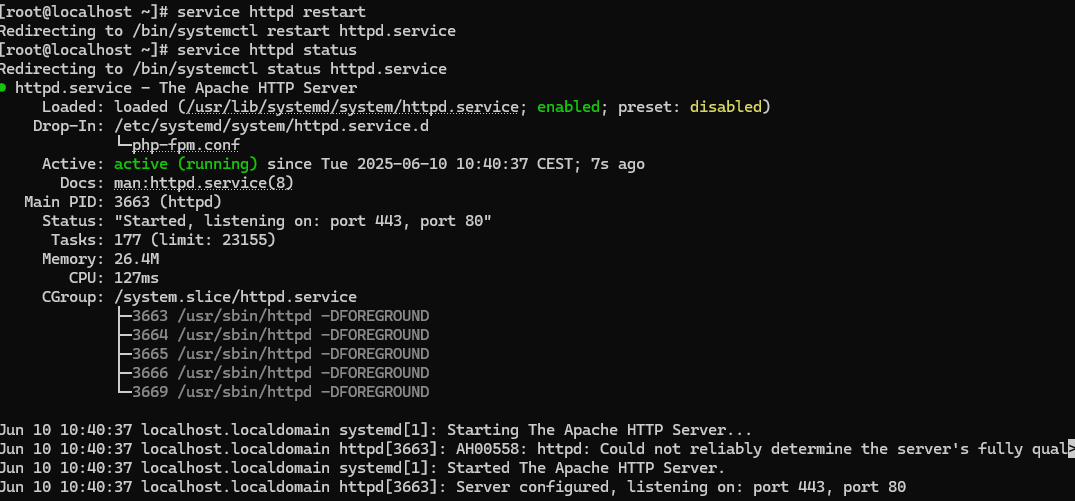
restart apache and verify that everything is correct:
[](https://pandorafms.com/guides/public/uploads/images/gallery/2025-06/1GWimage.png)
# General plugin parameters
The parameters necessary for the monitoring to be provided by the area requiring monitoring services are:
```
./pandora_apache -url -user -pass
```
example of execution
[](https://pandorafms.com/guides/public/uploads/images/gallery/2025-06/AWvimage.png)
# Plugin specific parameters
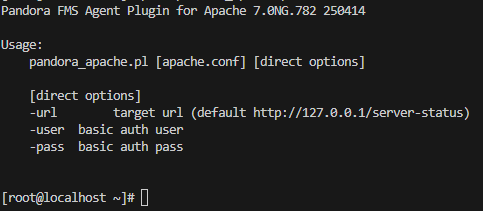
The plugin has the following parameters:
**Parameter**
**Description**
-url
specific url
-user
username to authenticate to Apache.
-pass
password to authenticate to Apache.
Example of help:
```bash
./pandora_apache
```
[](https://pandorafms.com/guides/public/uploads/images/gallery/2025-06/Ok1image.png)
# Manual execution
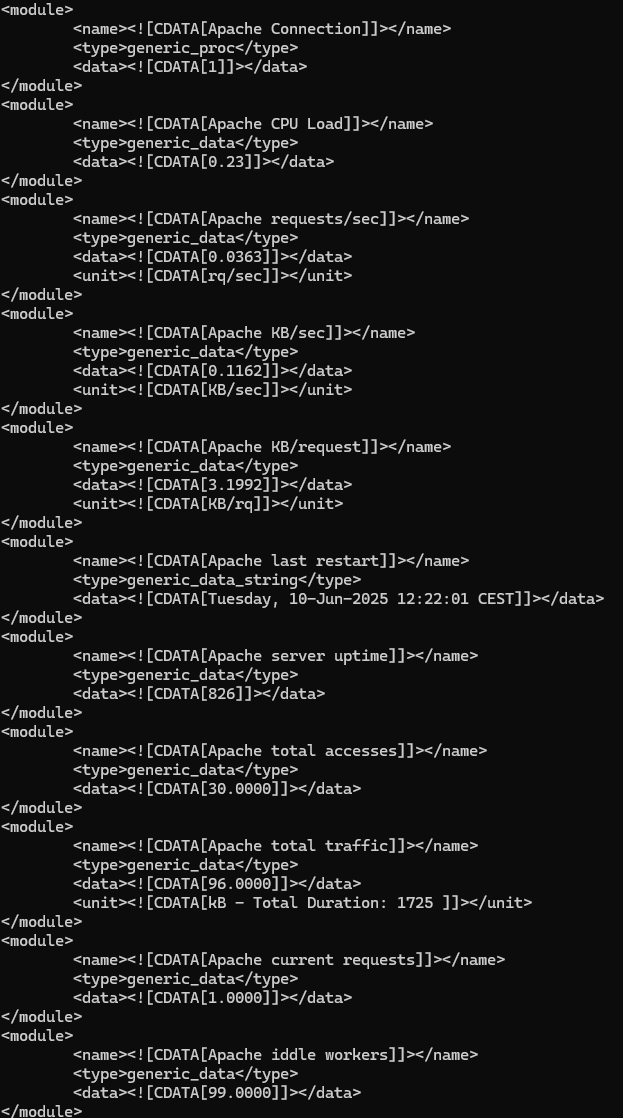
The plugin execution format is as follows:
```bash
./pandora_apache -url -user -pass
```
[](https://pandorafms.com/guides/public/uploads/images/gallery/2025-06/Gbsimage.png)
# Pandora Configuration
In the pandora terminal, once downloaded, we will move it to the /etc/pandora/plugins folder, which is where we place the agent plugins.
We will give permissions to the file with :
```bash
chmod 755 pandora_apache
```
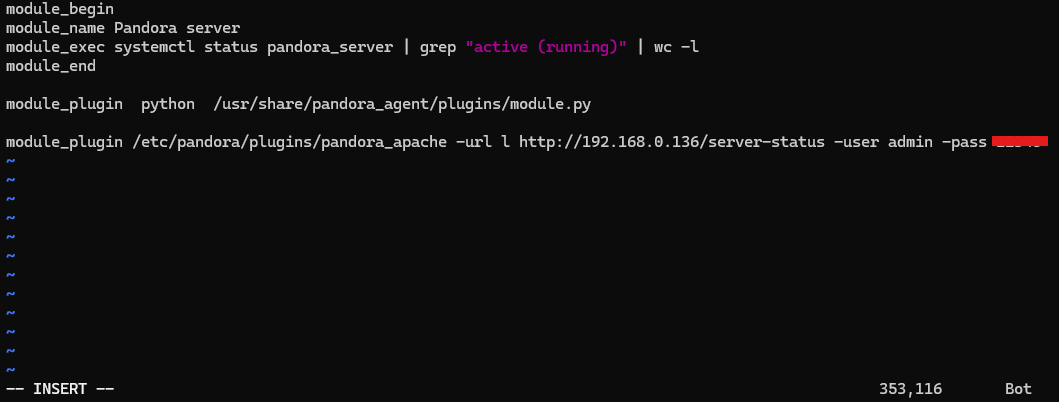
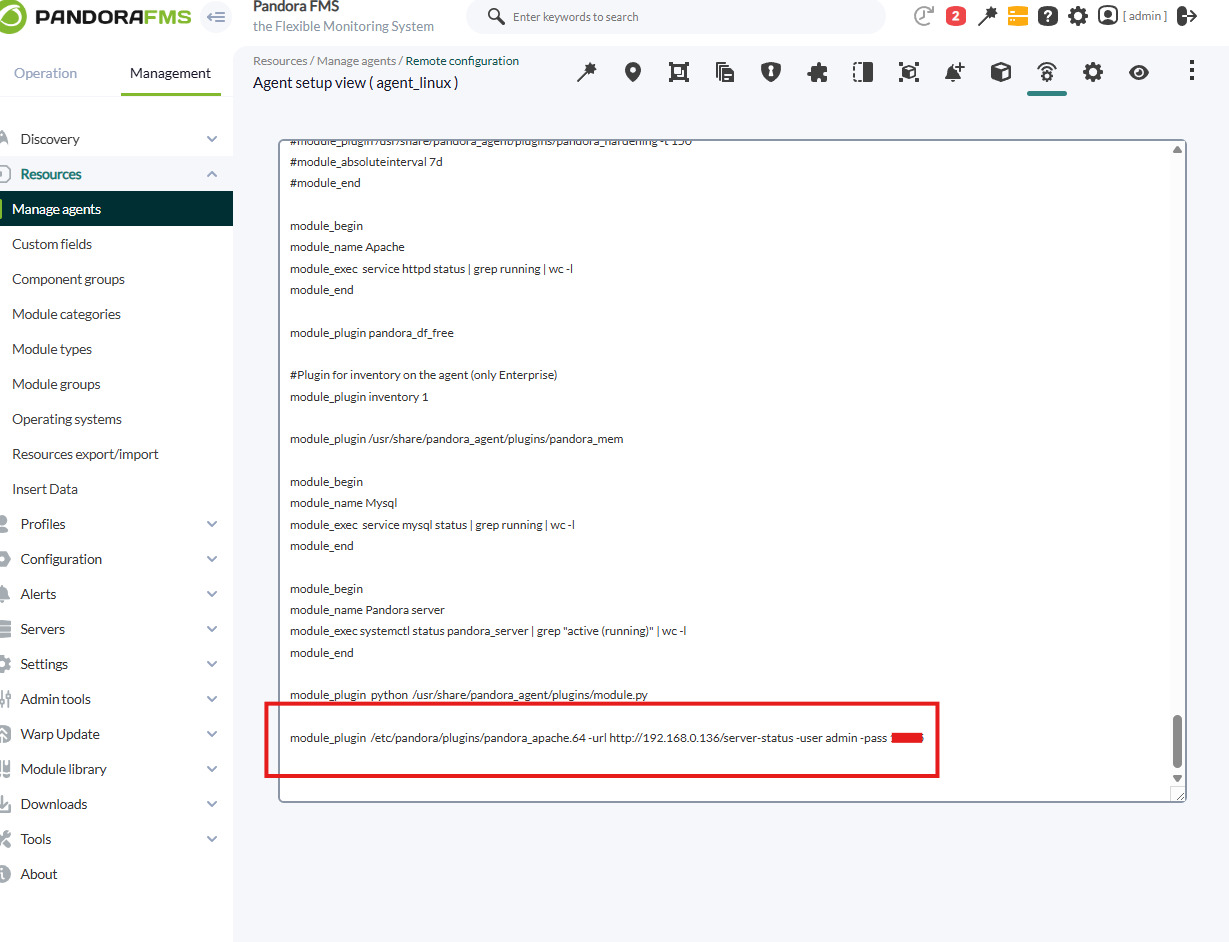
Then we will go to the pandora agent, located in /etc/pandora, open the conf and at the bottom we put :
```bash
module_plugin /etc/pandora/plugins/pandora_apache -url (apache_url_to_server_status) -user (user) -pass (password)
```
[](https://pandorafms.com/guides/public/uploads/images/gallery/2025-06/QJWimage.png)
In the enterprise version we will be able to do it by remote configuration.
[](https://pandorafms.com/guides/public/uploads/images/gallery/2025-06/vSDimage.png)
# Modules generated by the plugin
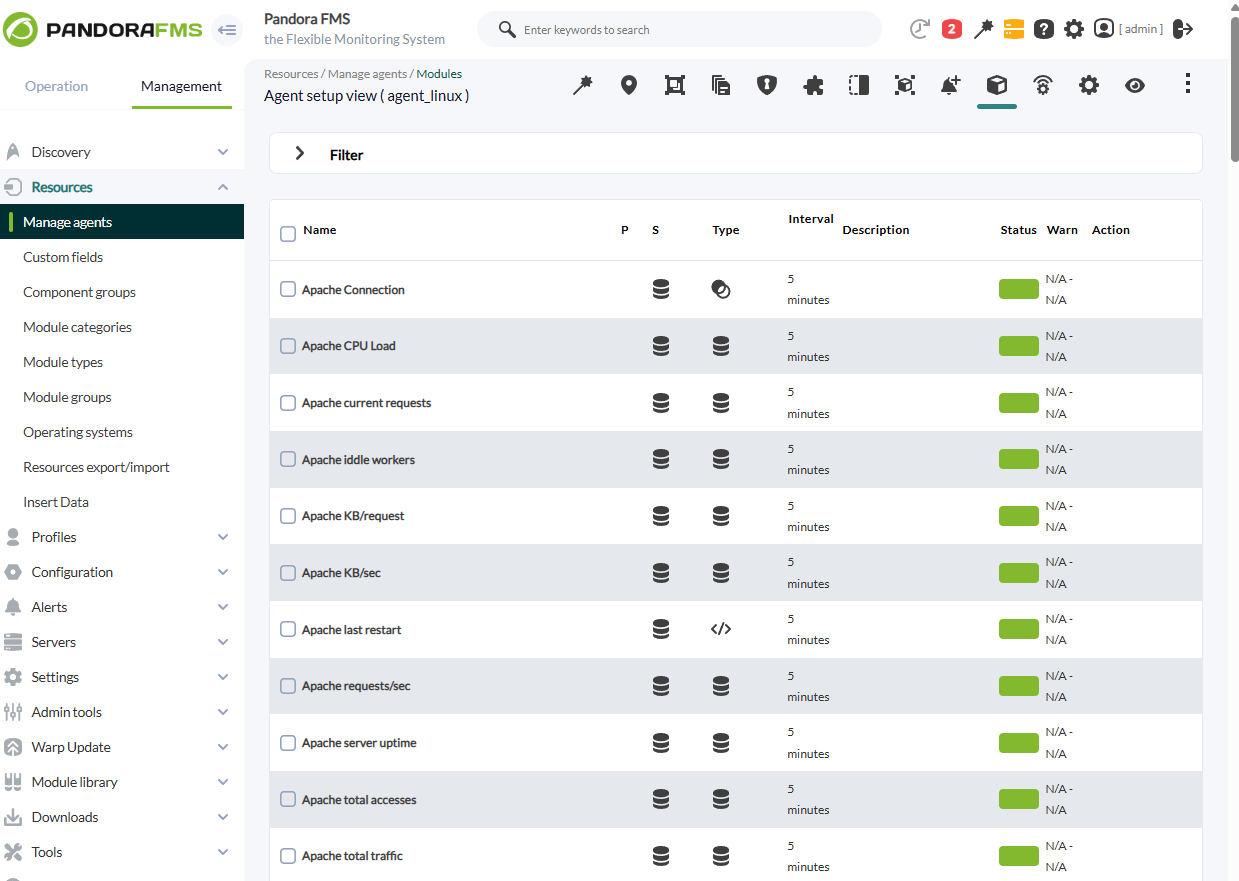
The following modules will be created in the pandora agent:
[](https://pandorafms.com/guides/public/uploads/images/gallery/2025-06/h0Bimage.png)