Acronis
This document describes the Acronis plugin.
- Introduction
- Compatibility matrix
- Parameters
- Pre requisites
- Manual execution
- Agents and modules generated by the plugin
- Configuration in PandoraFMS
Introduction
The script queries the status of Acronis Cloud backups via its API and generates Pandora FMS modules with that information, exporting them in XML format for automatic processing by the Pandora agent.
Compatibility matrix
| Systems where it has been tested |
Rocky 9 |
| Systems where it should work |
Any Linux system supported by PandoraFMS |
Parameters
| Parameter | Description |
| '-c', '--client' | Acronis Client ID |
| '-p', '--password' | Acronis Secret |
| '-u', '--url' | Acronis API URL : https://es01-cloud.acronis.com |
| --interval | Agent creation interval. |
| --transfer_mode | Transfer mode. Local or tentacle are the available options (optional). |
| --tentacle_port | Tentacle port. Default 41121 (optional) |
| --tentacle_address | IP address of the tentacle server to send the data to (optional) |
| --agent_name | To name the agent that will contain the custom query modules, default: “Acronis” (optional). |
| --prefix | Used to specify a prefix for modules and agents. (optional) |
| --agent_group | Pandora FMS target group (optional) |
| --data_dir | Pandora FMS data directory. By default, it is /var/spool/pandora/data_in/ (optional) |
Pre requisites
Permissions required to use the Acronis API with the plugin
The client (application) used by the plugin must have the following permissions:
- resource_management:read
- policy_management:read
- backup_management:read
To obtain these permissions, follow these steps:
1. Log in to the Acronis administration portal:
https://cloud.acronis.com/
2. Go to:
Settings → Applications → Register Application
3. Create a new application:
- Type: Confidential
- Name: PandoraFMS-Acronis (for example)
- Redirect URI: leave blank
4. Copy the generated `client_id` and `client_secret`.
5. Assign permissions to the application:
- In the **Permissions / Scopes** section, check:
```
resource_management:read
policy_management:read
backup_management:read
```
6. Save the changes.
Test access
You can verify that authentication works with
curl -X POST https://<your-acronis-domain>/api/2/idp/token \
  -d “grant_type=client_credentials” \
  -d “client_id=<CLIENT_ID>” \
  -d “client_secret=<CLIENT_SECRET>”
Manual execution
The plugin execution format is as follows:
./pandora_acronis.py -c < Acronis Client ID > -p < Acronis Client Secret > -u < Acronis API Base URL >
[--data_dir < Path to Pandora data_in directory. Default: /var/spool/pandora/data_in/ >]
[--prefix < Prefix for generated agents. Default: empty >]
[--agent_name < Agent name. Default: Acronis >]
[--agent_group < Agent group. Optional >]
[--interval < Agent execution interval in seconds. Default: 300 >]
[--transfer_mode < Transfer mode: tentacle or local. Default: tentacle >]
[--tentacle_ip < Tentacle server IP. Default: 127.0.0.1 >]
[--tentacle_port < Tentacle server port. Default: 41121 >]
[-v | --verbose < Enable detailed output >]
For example :
./pandora_acronis \
  -c 1234567890abcdef1234567890abcdef \
  -p s3cr3tCl13ntKey987654321 \
  -u https://eu-cloud.acronis.com \
  --agent_group "Acronis_Backups" \
  --prefix "ACR_" \
  --interval 300 \
  --transfer_mode tentacle \
  --tentacle_ip 127.0.0.1 \
  --tentacle_port 41121
a
Agents and modules generated by the plugin
The plugin will create an agent. The name of this agent is “Acronis” by default and can be configured with the “--agent_name” parameter. A prefix can be added to the agent with the “--prefix” parameter.
The plugin will create a “generic_proc” type module for each machine with its backup status and status information in the description.
Configuration in PandoraFMS
Installation from the console
To register the plugin, go to the “register plugin” section from the console.
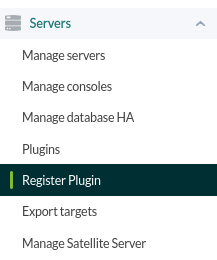
We will allow you to select a file.

Select the pspz2 file containing the plugin.
A message will appear indicating that it has been successfully installed.
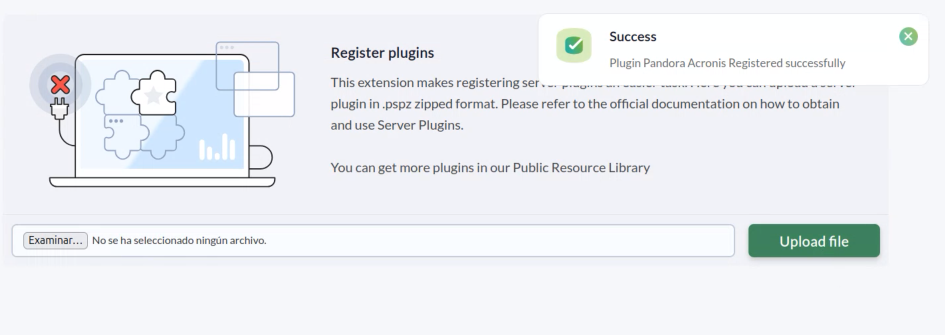
Once the plugin is registered, we will see it in the plugins section.

The parameters section will display all the parameters contained in the plugin, which can be configured. The mandatory parameters are the client ID, secret, and URL (-c, -p, and -u).
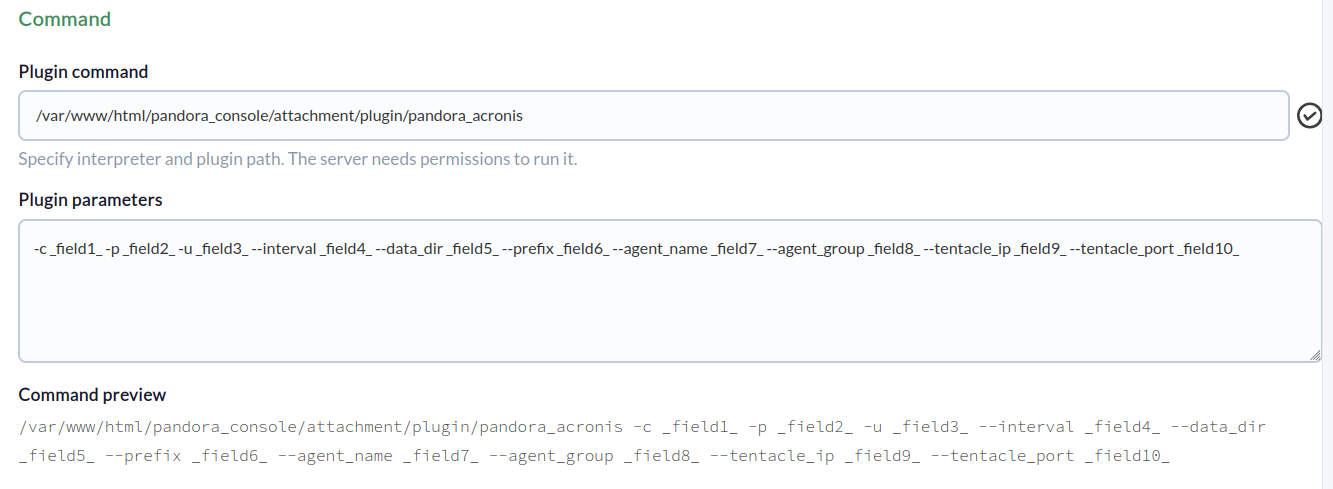
Below, you can assign a value to each macro.
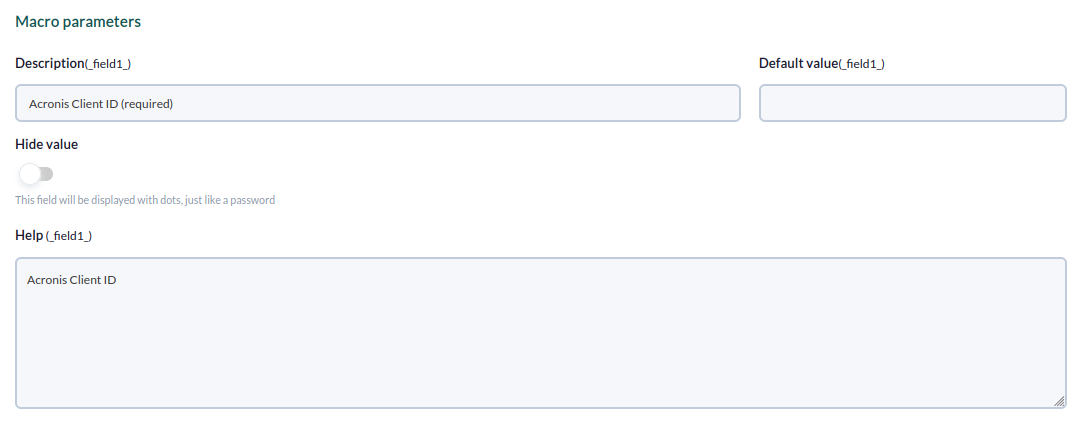
Once configured, we will click on “update.”